# Client configuration and license management
License configuration and license management on a license client provide you with the tools and utilities to help you to administer licenses and troubleshoot licensing problems on your test systems.
For License configuration and license management tasks you must differentiate between two license types:
- [System licenses](https://lhc.advantest.com/books/client-configuration-and-license-management/page/system-lic-license-files): enable you to scale test system capabilities, like speed and memory.
- [Software licenses](https://lhc.advantest.com/books/client-configuration-and-license-management/page/the-software-lic-license-files): cover SmarTest release streams and service and support software tools.
**Related information:**
- [Licensing modes](https://tdc.advantest.com/help/index.jsp#topic/com.verigy.itee.help.smartest.ui.8.7.6/246943.htm)
# Installing the FLexNet (FNP) license client
Installing a FlexNet Publisher (FNP) license client used to provide the activated licenses to a SmarTest installation on a system controller workstation requires two steps: the installation of the license client software itself on the SmarTest host system, and configuration of the license server configuration file to prioritized the order of server access.
### About this task
The following procedure explains how to install the FlexNet client.
### Before you begin
The license client is the SmarTest software. The FlexNet license server communicates with SmarTest using the FlexNet client.
### Procedure
1. Open the Advantest Software Center in a browser: [https://softwarecenter.advantest.com/](https://softwarecenter.advantest.com/)Login with your credentials.
2. To get the list of all available Licensing products, from the left menu select: **Other > Licensing**[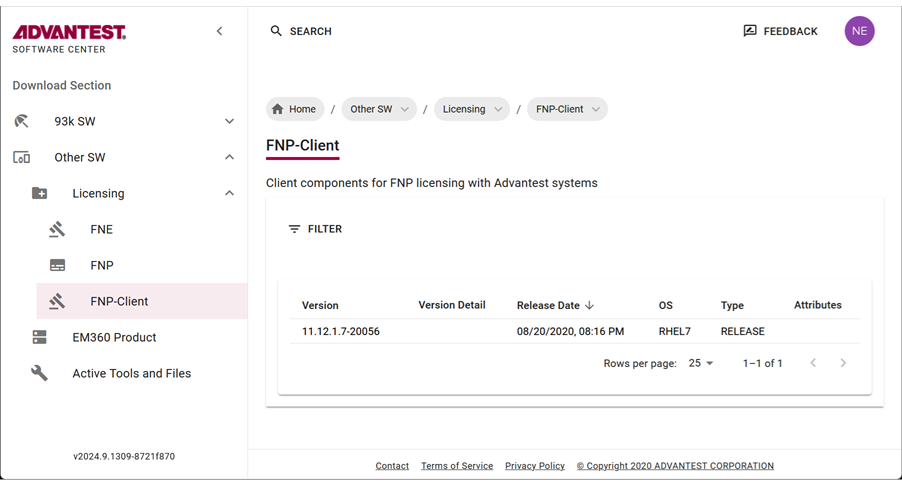](https://lhc.advantest.com/uploads/images/gallery/2025-10/scaled-1680-/3vE11-png.png)
3. Scroll to and select **FNP-Client** and the version you want to install and expand to display the details.
4. **Copy the installation command** to the clipboard by clicking [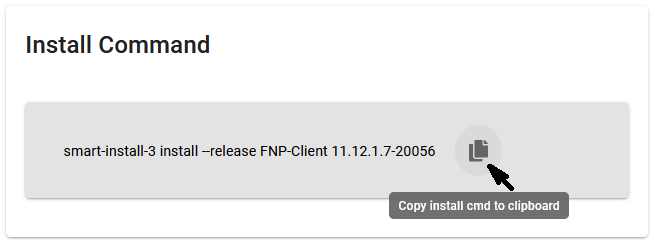](https://lhc.advantest.com/uploads/images/gallery/2025-10/scaled-1680-/J5O22-png.png).
To install the **smart-install-3** tool, you need root permissions.
To install software with **smart-install-3** version 3.1.6.0 and higher, the user account you are using must be a root-level account or be included in the **smartinstall** user group or the **smart-install-3** command must be run as system administrator (root).
Add a user to the **smartinstall** user group with the command:
`usermod -aG smartinstall username`
Running this command on your workstation installs the package to your system controller. For details, see [smart-install-3 command line tool](https://tdc.advantest.com/help/topic/com.verigy.itee.help.smartest.ui.8.7.6/353606.htm "Command line tool for downloading, installing and uninstalling related software from the Advantest Software Center.") and [Downloading SmarTest software](https://tdc.advantest.com/help/topic/com.verigy.itee.help.smartest.ui.8.7.6/354237.htm "The smart-install-3 tool can be used to download SmarTest products available from the Advantest Software Center to your local system.").
Alternatively, click on a file. The save file dialog opens, from which you can specify a download location. For details, see [Downloading SmarTest software](https://tdc.advantest.com/help/topic/com.verigy.itee.help.smartest.ui.8.7.6/354237.htm "The smart-install-3 tool can be used to download SmarTest products available from the Advantest Software Center to your local system.").
5. **Optional:**
1. Download the archive package by clicking the [](https://lhc.advantest.com/uploads/images/gallery/2025-10/scaled-1680-/NQh9-png.png) icon. The selected license (**tar.gz**) package is downloaded to your browser's download folder.
Example FNP Client packages include:
`fnp_client_11.12.1.7_20056_rhel7.tar.gz`
2. Create an empty installation directory. For example: `/tmp/smartest_pakages`
3. Install the RPM package from the **smartest\_packages** directory on your workstation: `smart-install-3 local-install .tar.gz `
For example:
`smart-install-3 local-install fnp-client_11.12.1.7-20056_rhel7.tar.gz`
Installation of the selected licensing packages starts and successful installation is confirmed with:
```
Complete!
```
4. Remove the installation directory. For example: `rm -rf /tmp/smartest_packages`
5. After the installation has completed, configure the license server configuration file where the list of FlexNet Publisher license servers are listed in a prioritized order as described in [System .lic license files](https://lhc.advantest.com/books/client-configuration-and-license-management/page/system-lic-license-files "System *.lic licenses enable you to scale test system capabilities, such as speed and memory.") and [Editing .lic license files](https://lhc.advantest.com/link/88#bkmrk-editing-.lic-license "This topic describes how to edit FlexNet Publisher license server related license files (.lic files).").
### Results
You have installed the license client software and configured the list of FlexNet Publisher license servers in a prioritized order.
# System .lic license files
#### Subtopics
1. [Find out HostID and HostName](https://lhc.advantest.com/link/88#bkmrk-find-out-hostid-and--1)
2. [Editing .lic license files](https://lhc.advantest.com/link/88#bkmrk-editing-.lic-license)
System `*.lic` licenses enable you to scale test system capabilities, such as speed and memory.
All `*.lic` license files reside by default in the `/opt/flexlm/license` directory on both the license client and the license server.
The system `.lic `license file on the client provides the hostname or IP address of the license server for SmarTest and the dedicated vendor daemon value (For Advantest SmarTest, the vendor daemon value is `socbu`). The vendor daemon value specifies that this license file is associated with the socbu vendor daemon.
To receive a system` *.lic` license file, you must activate the corresponding license. For details see [Activating licenses](https://lhc.advantest.com/books/activating-licenses/page/activating-licenses "Licenses can be activated from entitlements or available licenses activated to a selected license server. If the license server has access to the internet, it synchronises automatically. For license servers that are not connected to the internet, the license files must be downloaded and installed manually.").
Note: Service and Support (S&S) licenses do not need to be activated.
### **Checking out licenses from a license server**
The procedure for checking out licenses is:
- At startup, SmarTest reads the test program file and resolves the requested capability into required licenses.
- Next, the` *.lic` license files in the `/opt/flexlm/license` directory on the same workstation are read. The `*.lic `license files specify the hostname of the license server, which can be the same workstation in the case of a local license server, or another workstation in the case of a central license server. See [Editing .lic license files](https://lhc.advantest.com/link/88#bkmrk-editing-.lic-license "This topic describes how to edit FlexNet Publisher license server related license files (.lic files).").
- Finally, SmarTest contacts the license server to check if the required licenses are available:
- Available: the licenses are checked out and the features enabled.
- Not available: SmarTest runs the script `license_checkout_failure.`
Note: Base capabilities are always available, even without licenses.
### **Returning licenses to a license server**
Licenses are automatically returned the license server when SmarTest is shut down.
---
# Find out HostID and HostName
This topic describes how to find out the HostID and the HostName of the license servers for license activation.
### About this task
Note: This topic is applicable to SmarTest 7 and SmarTest 8.
To activate license you need the following information:
- **Entitlement** Certificate
- **HostID** of the license servers
- **HostName** of the license servers
### Procedures
#### **Find out HostID**
**FLEXlm binaries are installed**
1. Login to as user root: `su root` and enter the root user password.
2. Open a terminal window.
3. Type: `/opt/flexlm/bin/lmutil lmhostid -n`
**FLEXlm binaries are not installed**
The HostID is an 8 digit hexadecimal number (HP-UX or Solaris) or a 12-digit hexadecimal number (Linux). Select from one of the following commands, depending on your OS.
**Sun Solaris**
1. Log in as root and open a terminal window.
2. Type: `/usr/bin/hostid`
**Linux**
1. Login to as user root: `su root `and enter the root user password.
2. Open a terminal window.
3. Type:
- **Linux RHEL 5**`/sbin/ifconfig eth0 | grep HWaddr | sed 's/://g' | awk ' {print $NF} '`
- **Linux RHEL 7**`/sbin/ifconfig eno1 | grep "ether" | sed 's/://g' | awk ' {print $2} '`
#### **Find out HostName**
**Sun Solaris**
1. Log in as root and open a terminal window.
2. Type: `/bin/hostname`
**Linux**
1. Login to as user root: su root and enter the root user password.
2. Open a terminal window.
3. Type: `/usr/bin/hostname`
### What to do next
[Activating licenses](https://lhc.advantest.com/books/activating-licenses/page/activating-licenses "Licenses can be activated from entitlements or available licenses activated to a selected license server. If the license server has access to the internet, it synchronises automatically. For license servers that are not connected to the internet, the license files must be downloaded and installed manually.")
---
# Editing .lic license files
This topic describes how to edit FlexNet Publisher license server related license files (.lic files).
### About this task
CAUTION: The editing instructions below only apply to license files referring to a license server. Service and support license files have a different structure and must not be edited.
The `.lic` license files must reside in the `flexlm` license directory `/opt/flexlm/license/ `for both license servers and clients.
The server `.lic` license file must provide the server hostname and the correct vendor daemon ("`socbu`").
The `.lic `file on the license server provides the actual license, while the corresponding client `.lic` file can contain an additional USE\_SERVER statement used to specify the associated license server. When SmarTest reads the USE\_SERVER statement from the client `.lic` file, it ignores everything else in the license file except the preceding SERVER lines and transfers license control to the specified license server. The USE\_SERVER statement takes no arguments and should be used in client license files only.
Advantest strongly recommends adding the USE_SERVER statement to client `.lic` files. When using a central license server, the USE_SERVER statement improves performance compared with setting the LM_LICENSE_FILE environment variable.
Note: For information about license server installation, see the section **[License server setup](https://lhc.advantest.com/books/license-server-setup/page/license-server-setup "This section covers licensing requirements and considerations you will want to examine before installing your licenses.").**
### Procedures
#### **Server license files**
To edit `.lic` license files on a server system:
1. Copy the `.lic` license file you received to the `/opt/flexlm/license/` directory on the license server system.
2. Open the `.lic` license file in an editor.
3. The SERVER statements specify the hostname and host IDs of the license server systems and the TCP/IP port number of the license server manager (`lmgrd`).
In the **SERVER** statement, replace the server hostname placeholder string **this\_host** with the hostname of the license server.
The graphic below shows the server string to be replaced.
4. Also in the **SERVER** statement, replace the server host ID placeholder string 123456789012 with the actual host ID of your license server (and optionally the port number of your license server).
Note: For more information about querying the license server hostnames and host IDs, see **[Find out HostID and HostName](https://lhc.advantest.com/link/84#bkmrk-find-out-hostid-and- "This topic describes how to find out the HostID and the HostName of the license servers for license activation.").**
<host\_name> = The license server hostname or IP address returned by the hostname command.
<hostid> = The string returned by the lmhostid command.
\[port\] = TCP/IP port number to use.
If a port must be specified (check with your network administrator), the syntax is as follows:
- `SERVER [port]`, for example: `SERVER MyLicSvr 8502053d1905 27000`
- `VENDOR socbu [port]`, for example: `VENDOR socbu PORT=27020`
Note: If no port is configured, the client automatically checks all ports from 27000 to 27009. Any other ports must be specified.
Normally a license file has one SERVER statement. Three SERVER statements signifies that you are using a three-license-server redundancy configuration. See **[License clients and license servers](https://lhc.advantest.com/books/flexnet-licensing/page/license-clients-and-license-servers "Understanding the concept of "license client" and "license server" is essential for a correct setup.")**. In a three-license-server configuration you must edit all three SERVER statement entries.
5. The VENDOR statement specifies the daemon name and should be as follows: `VENDOR socbu`.
#### **Client license files**
To edit `.lic` license files on a client system:
1. Copy the`.lic` license file you received to the` /opt/flexlm/license/ `directory on the client machine.
2. Open the `.lic` license file in an editor.
3. The SERVER statements specify the hostname and host IDs of the license server systems and the TCP/IP port number of the license server manager (lmgrd).
In the SERVER statement, replace the server hostname placeholder string this\_host with the hostname of the license server.
The graphic below shows the server string to be replaced.
4. Also in the **SERVER** statement, replace the server host ID placeholder string 123456789012 with the actual host ID of your license server (and optionally the port number of your license server).
Note: For more information about querying the license server hostnames and host IDs, see **[Find out HostID and HostName](https://lhc.advantest.com/link/84#bkmrk-find-out-hostid-and- "This topic describes how to find out the HostID and the HostName of the license servers for license activation.").**
<host\_name> = The license server hostname or IP address returned by the hostname command.
<hostid> = The string returned by the lmhostid command.
\[port\] = TCP/IP port number to use.
Normally a license file has one **SERVER** statement. Three **SERVER** statements signifies that you are using a three-license-server redundancy configuration. See [License clients and license servers](https://lhc.advantest.com/books/flexnet-licensing/page/license-clients-and-license-servers "Understanding the concept of "license client" and "license server" is essential for a correct setup."). In a three-license-server configuration you must edit all three SERVER statement entries.
5. The **VENDOR** statement specifies the daemon name and should be as follows: `VENDOR socbu.`
6. The **USE\_SERVER** line in the client license file ensures that the requested license features are obtained from the specified license servers. The license file on the client no longer needs to be in sync with the license file on the server and may even not contain any license information.
Enter the **USE\_SERVER** statement. It takes no arguments.
Note: For standalone systems with a local license server, the **USE\_SERVER** statement is not necessary as both client and server use the `/opt/flexlm/license/* directory`. Therefore, the server license file automatically specifies the server for the client (` = localhost`).
7. **Optional:** In the client `.lic` file only, any license strings below the USE\_SERVER keyword are ignored and can be removed. Only the licenses on the servers specified in the **SERVER** lines are read.
# Enabling license logging
Detailed information about license consumption and optimize license usage can be identified by License usage logging.
```
TestProgramConfig config;
config.enableLicenseLogging = true;
testProgram.loadWithConfig(config);
```
### About this task
To be able to get detailed information about license consumption and optimize license usage, it is necessary to analyze the licensing requirements for memory and speed for each measurement within a test program. From this information, it is then possible to isolate the main license requirements.
License usage logging (incremental over measurements and per measurement logging) provides the information required to establish the licensing dependencies. If the watermark increases in proportion to the measurement data, the test is independent, otherwise it shares data with other tests.
Log data is written to:
`/opt/hp93000/soc/system/log/licenseUsage_.log`
To read in the data you need to generate a parser based on protobuf library using the grammar in:
`/opt/hp93000/soc/system/include/xoc/profiling/licenseUsage.proto`
An existing file is not overwritten - only new data is appended to the existing content.
The most valuable data collected by license logging is when you have not previously executed an initial bind before executing the profile configuration. After an initial bind, only dynamic changes are recorded.
### Before you begin
Make sure the test program has been loaded.
License logging can only be enabled using a Profile launch configuration.
### Procedure
1. Select a test program or testflow in the **Package Explorer** view for which you want to enable license logging.
License logging is not available for encrypted testflows or test programs containing encrypted testflows.
2. Open the **Profile Configurations** dialog from the context menu:
**Profile As > ****Profile Configurations**
3. Select Test Program from the objects pane on the left.
4. Click the New Launch Configuration [](https://lhc.advantest.com/uploads/images/gallery/2025-10/scaled-1680-/JLb10-png.png) button.
5. Enter a name for the new profile configuration in the configuration pane on the right.
6. In the Main tab (default selection), select **Enable license logging**. [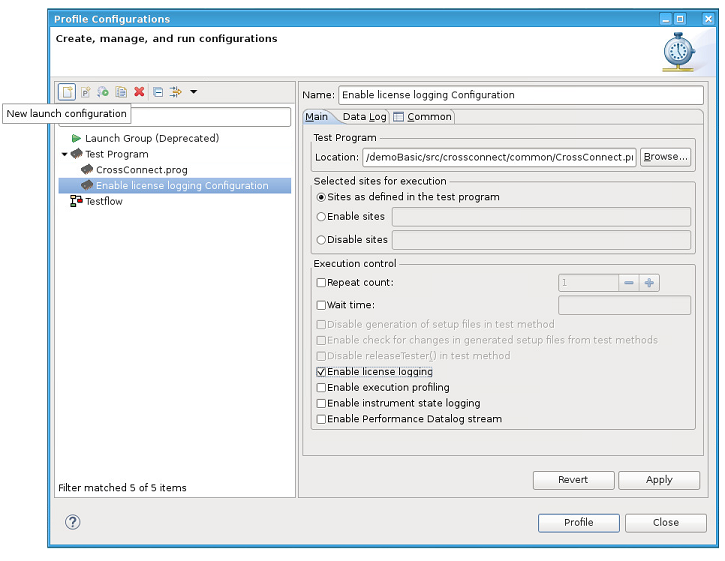](https://lhc.advantest.com/uploads/images/gallery/2025-10/scaled-1680-/NMg55-png.png)
7. Specify any other required configurations. For details, see [Creating a run configuration for running test programs or testflows](https://tdc.advantest.com/help/topic/com.verigy.itee.help.smartest.ui.8.7.6/256920.htm "You can specify, save and reuse customized configurations for starting test programs or testflows in execute or debug mode.").
8. Click **Apply** to save the profile configuration.
9. Click **Profile** to profile the testflow or **Close** to close the **Profile Configurations** dialog box.
### Results
License logging is enabled.
Log data is written to `/opt/hp93000/soc/system/log/licenseUsage_.log.`
A license usage log file contains the memory contribution (in Bytes) for each signal for each measurement.
Note: License logging can also be enabled and disabled using the Test Cell API.
For example:
`TestProgramConfig config; config.enableLicenseLogging = true; testProgram.loadWithConfig(config);`
For details about TestProgramConfig, see **[TestProgramConfig](https://tdc.advantest.com/help/topic/com.verigy.itee.help.smartest.ui.8.7.6/structxoc_1_1tcapi_1_1_test_program_config.html).**
### What to do next
The generated log file is user-readable and it is possible to manually extract the licensing requirements for memory and speed for each measurement within a test program. It is not essential to parse this file.
However, for further processing, it can be beneficial to parse the file to arrange its content into a more readable format.
To read in the data you can generate a parser based on the protobuf library using the grammar in:
`/opt/hp93000/soc/system/include/xoc/profiling/licenseUsage.proto`
For more details, see [Reading log file data](https://lhc.advantest.com/link/93#bkmrk-reading-log-file-dat-1 "Log file data contains information, such as memory usage.").
---
# Reading log file data
Log file data contains information, such as memory usage.
### About this task
If license logging is enabled, the license log data is written to: `/opt/hp93000/soc/system/log/licenseUsage_.log.`
The following log example shows the used memory (Pattern or PA = 1032 bytes) for the signal D04. The total accumulated value (`accDoubleValue`) is 3096 bytes which the total memory used by the complete program.
**LicenseUsage.log file example:**
```
measurementName: "Main.GlobalPAPattern.measurement"
measurementTimestamp: "Mon, 01 Jul 2019 15:30:08 -0700"
licensedFeatureLog {
featurePerSignal {
signalList: "D00 + D01 + D02 + D03 + D04"
feature {
feature: "speed"
accDoubleValue: 10000000
unit: "bps"
}
}
featurePerSignal {
signalList: "D04"
feature {
feature: "memory"
accDoubleValue: 3096
doubleValue: 1032
unit: "B"
}
feature {
feature: "sharedMemory"
doubleValue: 60352
unit: "B"
}
}
}
```
A license usage log file contains the memory contribution (in Bytes) for each signal for each measurement. The accumulated memory value is also recorded.
In the example above:
This file is in the protobuf (ASCII) format and can be read using a simple parser. For more information, refer to: [https://developers.google.com/protocol-buffers/](https://developers.google.com/protocol-buffers/)
Note: If you only require the values for a specific measurement, you can read this from the ASCII text manually.
The protocol buffer compiler is installed under `/usr/bin/protoc`.
The protoc version can be found with the command: `/usr/bin/protoc --version`
Output example: **`libprotoc 2.5.0`**
To structure information, protocol buffer message types are defined in .proto files. The following protobuf file is used for license logging, which can be compiled with the protocol buffer compiler to Java, Python, Objective-C, or C++.
### **Before you begin**
Make sure that license logging is enabled. For details, see [Enabling license logging](https://lhc.advantest.com/books/client-configuration-and-license-management/page/enabling-license-logging "Detailed information about license consumption and optimize license usage can be identified by License usage logging.").
### **Procedure**
1. Create a parser file, for an example, see [Example logfile parser](https://lhc.advantest.com/link/93#bkmrk-example-logfile-pars "The following code is an example parser for reading license log files and printing the top 10 measurement executions contributing to the specified feature and signal.").
2. For example, to compile to C++ with the protocol buffer compiler, run the following commands or a make.sh script containing the commands:
`protoc -I=/opt/hp93000/soc/system/include/xoc/profiling/ --cpp_out=. /opt/hp93000/soc/system/include/xoc/ profiling/licenseUsage.proto`
`c++ -std=c++11 -g -L/usr/local/lib -lprotobuf -o licenseLogger licenseUsage.pb.cc main.cpp`
The generated C++ class is used to simplify the parser implementation.
```
./licenseLogger licenseUsage.log memory D04
Analysing: licenseUsage.log memory D04
Top 20 measurement runs for feature "memory" at signal "D04"
Measurement Run | Value | Watermark Value
----------------------------------+--------------+-----------------------
Main.GlobalPAPattern2.measurement | 1032.000 | 3096.000
```
## Results
After the above `protoc` call or `make.sh` script is run, the following files are created:
**licenseLogger**
Generated Parser Executable To execute the **licenseLogger**, use the command:
`./licenseLogger `
For example:
`./licenseLogger licenseUsage.log memory D01`
**measurementLicense.pb.cc**
Generated after running **protobuf** compiler
**measurementLicense.pb.h**
Generated after running **protobuf** compiler
---
# Example logfile parser
The following code is an example parser for reading license log files and printing the top 10 measurement executions contributing to the specified feature and signal.
### Example parser (SmarTest ≥ 8.2.0)
```
#include
#include
#include
#include
#include
#include