# Installing the FLexNet (FNP) license client
Installing a FlexNet Publisher (FNP) license client used to provide the activated licenses to a SmarTest installation on a system controller workstation requires two steps: the installation of the license client software itself on the SmarTest host system, and configuration of the license server configuration file to prioritized the order of server access.
### About this task
The following procedure explains how to install the FlexNet client.
### Before you begin
The license client is the SmarTest software. The FlexNet license server communicates with SmarTest using the FlexNet client.
### Procedure
1. Open the Advantest Software Center in a browser: [https://softwarecenter.advantest.com/](https://softwarecenter.advantest.com/)Login with your credentials.
2. To get the list of all available Licensing products, from the left menu select: ****[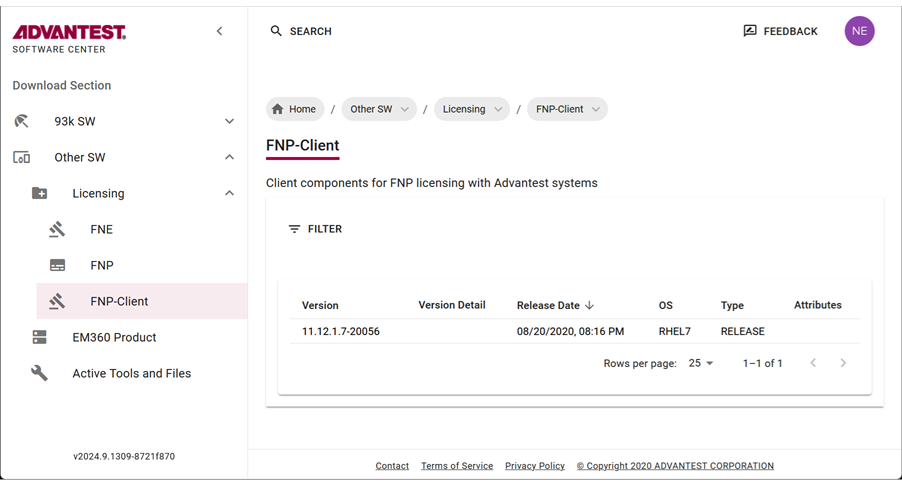](https://lhc.advantest.com/uploads/images/gallery/2025-10/scaled-1680-/3vE11-png.png)
3. Scroll to and select **FNP-Client** and the version you want to install and expand to display the details.
4. **Copy the installation command** to the clipboard by clicking [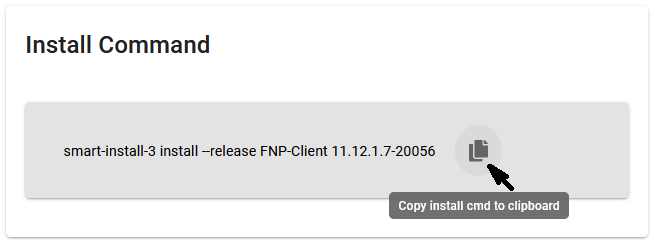](https://lhc.advantest.com/uploads/images/gallery/2025-10/scaled-1680-/J5O22-png.png). To install the **smart-install-3** tool, you need root permissions.
To install software with **smart-install-3** version 3.1.6.0 and higher, the user account you are using must be a root-level account or be included in the **smartinstall** user group or the **smart-install-3** command must be run as system administrator (root).
Add a user to the **smartinstall** user group with the command:
`usermod -aG smartinstall username`
Running this command on your workstation installs the package to your system controller. For details, see [smart-install-3 command line tool](https://tdc.advantest.com/help/topic/com.verigy.itee.help.smartest.ui.8.7.6/353606.htm "Command line tool for downloading, installing and uninstalling related software from the Advantest Software Center.") and [Downloading SmarTest software](https://tdc.advantest.com/help/topic/com.verigy.itee.help.smartest.ui.8.7.6/354237.htm "The smart-install-3 tool can be used to download SmarTest products available from the Advantest Software Center to your local system.").
Alternatively, click on a file. The save file dialog opens, from which you can specify a download location. For details, see [Downloading SmarTest software](https://tdc.advantest.com/help/topic/com.verigy.itee.help.smartest.ui.8.7.6/354237.htm "The smart-install-3 tool can be used to download SmarTest products available from the Advantest Software Center to your local system.").
5. **Optional:**
1. Download the archive package by clicking the [](https://lhc.advantest.com/uploads/images/gallery/2025-10/scaled-1680-/NQh9-png.png) icon. The selected license (**tar.gz**) package is downloaded to your browser's download folder.
Example FNP Client packages include:
`fnp_client_11.12.1.7_20056_rhel7.tar.gz`
2. Create an empty installation directory. For example: `/tmp/smartest_pakages`
3. Install the RPM package from the **smartest\_packages** directory on your workstation: `smart-install-3 local-install .tar.gz `
For example:
`smart-install-3 local-install fnp-client_11.12.1.7-20056_rhel7.tar.gz`
Installation of the selected licensing packages starts and successful installation is confirmed with:
```
Complete!
```
4. Remove the installation directory. For example: `rm -rf /tmp/smartest_packages`
5. After the installation has completed, configure the license server configuration file where the list of FlexNet Publisher license servers are listed in a prioritized order as described in [System .lic license files](https://lhc.advantest.com/books/client-configuration-and-license-management/page/system-lic-license-files "System *.lic licenses enable you to scale test system capabilities, such as speed and memory.") and [Editing .lic license files](https://lhc.advantest.com/link/88#bkmrk-editing-.lic-license "This topic describes how to edit FlexNet Publisher license server related license files (.lic files).").
### Results
You have installed the license client software and configured the list of FlexNet Publisher license servers in a prioritized order.