Emergency Licenses
- Emergency Licenses
- Requesting emergency licenses
- Installing emergency licenses after failure and replacement of the license server
- Installing emergency licenses for license servers unavailable due to network problems
Emergency Licenses
The web-based, Advantest Special Licenses feature, accessed from the Advantest homepage, is your access point for requesting emergency licenses. You can obtain, with the minimum of delay, emergency application software licenses or hardware feature licenses, to solve a manufacturing problem caused by a failed or otherwise inoperable or in accessible license server.
To access the Advantest Special Licenses feature, you must login with your Advantest customer login.
Note: Emergency licenses are available for emergency circumstances only and are valid for 10 days only, providing you with time to rehost your full licenses.
When to request emergency licenses
Emergency licenses are required and will be provided in the following cases:
- The license server suffers a serious malfunction (for example, motherboard or hard disc drive failure). See also Installing emergency licenses after failure and replacement of the license server.
In the case of a server that has been catastrophically damaged, you will also have to rehost your original licenses. See Re-hosting FlexNet Embedded licenses. Rehosting can take several days during which time emergency licenses can be used to allow your testers to continue running.
- Your network is not accessible. See also Installing emergency licenses for license servers unavailable due to network problems.
What you should do before requesting emergency licenses
When applying for emergency licenses, you should be aware of the following:
- Notify your Advantest sales representative as soon as possible by voice or email before you apply for a license.
- Take all reasonable steps to restore operation to your original license server or rehost your licenses.
What you should know when requesting emergency licenses
To receive an emergency license, you must provide the following information:
- Valid user account to login to the Advantest Special Licenses feature. Alternatively, you can login with a valid entitlement ID.
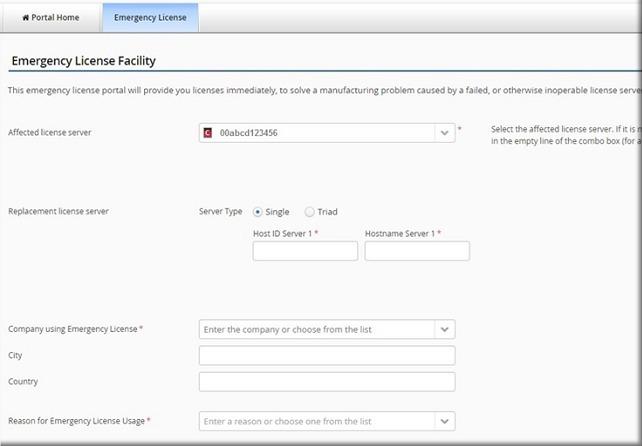
- Host ID and hostname of the system controller hosting the replacement license server.
Requesting emergency licenses
Requesting emergency license requires you to complete a short web-based form, supplying some basic information about the affected license servers, host system names, and some contact information.
About this task
To request emergency licenses for a license server, complete the Emergency License Facility form and send the request to Advantest as described in the procedure below.
Before you begin
Before you can request emergency licenses, you must be logged in at the Advantest License Portal and you must have information about the affected license servers that need emergency licenses and the replacement license server (host ID and hostname).
Procedure
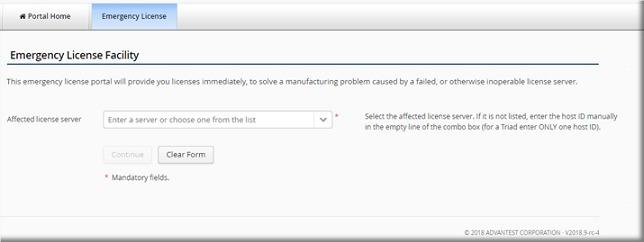
- From the Affected license server list, select the server ID of the license server that is inoperable.

The selection list displays both FNP and FNE license servers: - FNE license server
 - FNP license server
If the license server is not listed, enter the host ID of the affected license server manually.
If the affected license server is configured as a three-redundancy license server (Triad), enter the Server ID of only ONE of the three license servers.Note: If you have a login with a user name, there will be license servers listed in the selection list belonging to your assigned organizations. If the affected license server is not listed, you can enter it manually.
- Click Continue.
The specified affected license server is displayed.

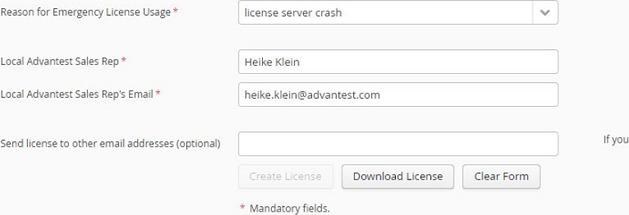
- Enter the reason for requesting emergency licenses. Use one of the available options from the dropdown list or enter an alternative reason in the associated field.



Results
The emergency license request is sent to Advantest.
If you need several emergency license for the same affected license server with different replacement servers, after creation of the license, the Download License button becomes active. Click it, download the license, and then request the next emergency license, specifying a different replacement license server.
What to do next
You will receive your emergency licenses as an attachment by email (license.zip). Install these emergency licenses on your license server. The expiration date of the emergency license is stated in the email.
Installing emergency licenses after failure and replacement of the license server
If your license server is not operational and must be temporarily replaced, you must install an alternative license server and install the emergency licenses on this temporary license server.
Before you begin
Obtain emergency licenses for the license servers that need to be temporarily rehosted. For details, see Requesting emergency licenses.
After you have received the emergency licenses, complete the following procedure.
Procedures
On the replacement license server:
- Install the FLEXlm executables (
lmgrd, lmutil, ...) in the directory:/opt/flexlm/bin.
If you do not have the executables, download them from:
https://www.advantest.com/service-support/ic-test-systems/products-list/v93000-licensing, in FLEXlm License Server Software Downloads and Documents.
- Create the directory:
/opt/flexlm/ELF - Copy the emergency licenses to the
/opt/flexlm/ELFdirectory. - Start
lmgrdpointing to the/opt/flexlm/ELFdirectory:/opt/flexlm/bin/lmgrd -c /opt/flexlm/ELF -l /opt/flexlm/log/log-file-name
On each test system controller (tester workstation):
- Create the directory:
/opt/flexlm/ELF - Copy the emergency licenses to the
/opt/flexlm/ELFdirectory. - Set the SOCBU_LICENSE_FILE environment variable to the directory:
/opt/flexlm/ELF
What to do next
After the license server problems are fixed :
- Emergency licenses and any backups must be deleted.
- SOCBU_LICENSE_FILE environment variable must be reset on every test system controller (workstation).
- License server process
lmgrd, pointing to the/opt/flexlm/ELFdirectory, must be stopped.
Installing emergency licenses for license servers unavailable due to network problems
If your network is not reachable, you must install a local license server and emergency license on each of your test system controllers (workstations).
About this task
After you have received the emergency licenses, complete the following procedure on each test system controller (tester workstation).
Before you begin
Provide the host ID and hostname of every controller and obtain one (1) emergency license for each controller.
If, for example, you have a network problem and 5 workstations are affected, you must get 5 emergency licenses to establish 5 local license servers (one on each workstation).
For details, see Requesting emergency licenses.
Procedure
What to do next
After the network problems are fixed:
- Emergency licenses and any backups must be deleted.
- SOCBU_LICENSE_FILE environment variable must be reset on every test system controller (workstation).
- License server process
lmgrd, pointing to the/opt/flexlm/ELFdirectory, must be stopped.