FlexNet Embedded license server setup
- FlexNet Embedded license server setup
- Setting the hostname of a system controller
- Single FNE License server installation, upgrades and updates
- Failover license server installation, upgrades and updates
- Registering the license server
FlexNet Embedded license server setup
Subtopics
- Setting the hostname of a system controller
- Single FNE License server installation, upgrades and updates
- Failover license server installation, upgrades and updates
- Registering the license server
FlexNet Embedded license servers are implemented to provide activated licenses to SmarTest system controllers.
Introduction
Installing a FlexNet Embedded license server able to provide the activated licenses requires three steps:
- Installation of the license server software on the host system
- License server registration
- License activation
The FNE license server, when installed in conjunction with the FNP2FNE proxy, can manage both FNE and FNP licenses for all supported SmarTest versions (SmarTest 5, 6, 7 and 8), and includes new features such as self-rehosting for SmarTest 5, 6 and 7 (FNP) license servers.
Prerequisites
Make sure that the system hosting the FlexNet Embedded license server meets the following Prerequisites:
Hardware minimum configuration:
- Quad core CPU
- 8 GB RAM
- 12 GB free hard disc space FNE, plus 12GB for FNX/FNP if used.
Operating system configuration:
- Red Hat Linux ≥ 9.0, 7.2 - 7.9, Rocky Linux ≥ 9 or CentOS 7.2 - 7.9.
- Available user with unrestricted sudo access.
- Ports 7070 and 7077 may not be used by other applications.
If FNX is installed, ports 27000, 27019, and 27020 must not be used by other applications.
- Java 8 - Oracle Java or OpenJDK
- License server must use fully qualified hostname (command
hostname -fmust not returnlocalhost)
Checking the availability of ports 7070 and 7077
Ports 7070 and 7077 must not be in use by other applications.
To check this, enter in the bash shell (if you use ksh, you can open a bash shell with enter /bin/bash on the command line):
&> /dev/null < /dev/tcp/localhost/7070 && echo INUSE
&> /dev/null < /dev/tcp/localhost/7077 && echo INUSE
In addition, if FNX is used for FNP license management, ports 27000, 27019, and 27020 must not be in use by other applications.
To check this, enter in the bash shell (if you use ksh, you can open a bash shell with enter /bin/bash on the command line):
&> /dev/null < /dev/tcp/localhost/27000 && echo INUSE
&> /dev/null < /dev/tcp/localhost/27019 && echo INUSE
&> /dev/null < /dev/tcp/localhost/27020 && echo INUSE
If no response message is displayed, the port is not in use.
If the response INUSE is displayed, the port is in use.
If port any of these ports are in use, either use a different server to host the FNE license server or get in contact with your administrators (customer IT) to identify the application and remove it from the server to be used for the FNE license server.
The lsof lsof command can be used to find processes using a particular port. For example, the following command returns information of the process using port 7070:sudo lsof -i tcp:7070
Example output:
COMMAND PID USER FD TYPE DEVICE SIZE/OFF NODE NAME
java 11381 flexnetls 40u IPv6 56027 0t0 TCP *:arcp (LISTEN)
Note: The installation of an FNE license server opens all required ports in the firewall (7070, 7077, 27000, 27019 and 27020).
Checking the availability of port 443
If your FNE license server is to have an online connection to the Advantest Licensing Back-Office, you need a connection to the internet for outgoing connections (FROM the license server to the internet). To check if access is available before you install the FNE license server.
Note: You do not need to check the availability of port 443 if you will only be communicating offline with the Advantest Licensing Back-Office (exchanging files as opposed to an Internet connection).
Do the following to check if port 443 is open on your FNE license server:
- Open a browser.
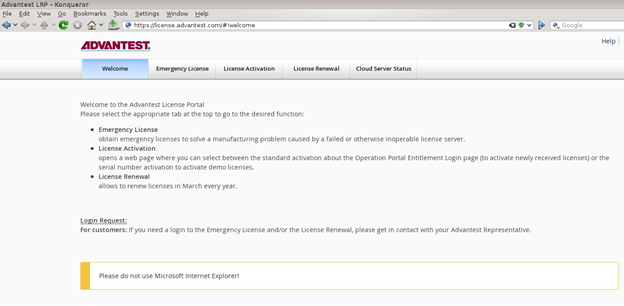
- Enter the URL: https://license.advantest.com/.
If the port 443 is open, the Advantest License Portal Welcome page is displayed:
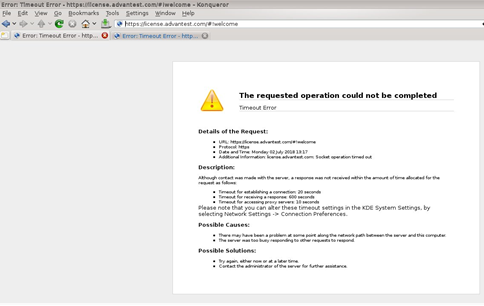
If port 443 is not open, an error message page is displayed informing of a timeout or failure to connect to the requested page, for example:
- If you require an internet connection to the Advantest Licensing Back-Office, get in contact with your administrators (customer IT) and request that port 443 is opened.
Checking the date and time settings
It is important to have the correct date and time set on the workstations and license servers. The Network Time Protocol (NTP) can be used to synchronize the clocks of computers with a reference time source over a network. For details on how to synchronize the date and time settings using NTP, see Network time protocol configuration.
Network configuration
For a license server to start, the server workstation must be set up for networking.
For a local license server installed on the system controller that is not connected to a network, a few prerequisites must be considered. The system controller must have a Fully Qualified Domain Name (FQDN). As a result, the /etc/hosts file must have an entry of the form:
ip address hostname.domainname hostname
For example: 192.168.0.15 server123.mycompany.com ws123
For more details about setting hostnames, see Setting the hostname of a system controller.
Next steps
If the prerequisites are met, start the installation of the FNE license server as described in the appropriate topic:
Setting the hostname of a system controller
The hostnamectl tool is provided for administering the three classes of hostnames that can be used on a system controller or license server running RHEL 7.
Scope
- RHEL 7
- The following tips are applicable for RHEL 7. For more information about configuring host names, refer to the Red Hat documentation: https://access.redhat.com/documentation/en-us/red_hat_enterprise_linux/7/html/networking_guide/ch-configure_host_names.
RHEL 9-
For information about changing hostnames on RHEL 9 using the nmcli or nmtui tools, refer to the Red Hat documentation: https://access.redhat.com/documentation/en-us/red_hat_enterprise_linux/9/html/configuring_and_managing_networking/assembly_changing-a-hostname_configuring-and-managing-networking#proc_changing-a-hostname-using-nmcli_assembly_changing-a-hostname
View all hostnames
To view all the current hostnames, enter the command:
hostnamectl status
The status option is implied by default if no option is given.
Set all hostnames
To set all the hostnames on a system, as root, enter the command:
hostnamectl set-hostname name
This command changes the pretty, static, and transient hostnames to the name specified in name. The static and transient hostnames are simplified forms of the pretty hostname. Spaces are replaced with "-" and special characters are removed.
Set a particular hostname
To set a particular hostname, as root, enter the command with the relevant option:
hostnamectl set-hostname name [option...]
Where option is one or more of: --pretty, --static, and --transient.
If either the --static or --transient options are used with the --pretty option, the static and transient hostnames are simplified forms of the pretty hostname. Spaces are replaced with "-" and special characters are removed. If the --pretty option is not specivied, no simplification takes place.
If the pretty hostname to be set contains spaces or a single quotation mark, use quotation marks around the name entry. For example:
hostnamectl set-hostname "Advantest's SmarTest 8.2 system controller" --pretty
Check a hostname
To check if the hostname is set correctly as a fully qualified domain name, as root, enter the command:
hostname -f
An example of a correct response is: server123.mycompany.com
Incorrect response example: localhost.localdomain
Clear a particular hostname
To clear a particular hostname and revert to the default, as root, enter the command with the relevant option:
hostnamectl set-hostname "" [option...]
Where:
"" is a quoted empty string.
option... is one or more of: --pretty, --static, and --transient.
Single FNE License server installation, upgrades and updates
Installation procedure for a single FlexNet Embedded license server to provide activated licenses. Applicable to fresh installations, and applying upgrades to add major functionality and patch updates installing the latest packages on an existing server.
About this task
The following procedure is applicable to installation, upgrades and updates. For failover arrangements, also refer to Failover license server installation, upgrades and updates.
Registering the server is only required for initial installation. This steps should be omitted for upgrades and updates. If you are upgrading an existing installation, a running license server is automatically stopped as part of the new software installation.
The license server install package can be downloaded from the Advantest Software Center server:
https://softwarecenter.advantest.com/download/othersw/builds/licensing
Before you begin
Make sure that the system hosting the FlexNet Embedded license server host system meets the hardware and operating system prerequisites. For details, see FlexNet Embedded license server setup.
Procedure
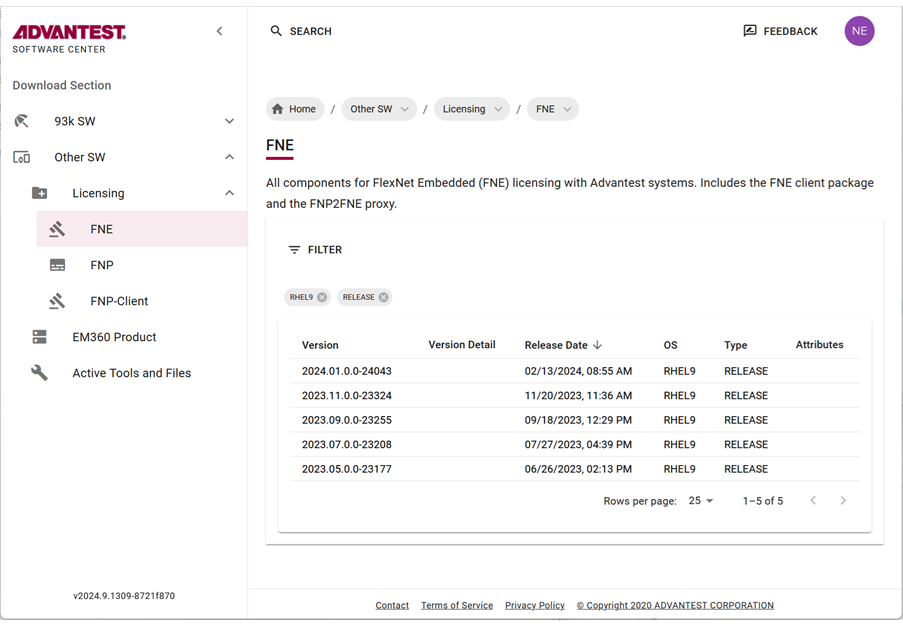
- To get the list of all available Licensing products, from the left menu select:

- Download the archive package by clicking the
 icon.
icon.
The selected license (tar.gz) package is downloaded to your browser's download folder.
Example FNE packages include:
fne_2024.01.0.0-24043_rhel9.tar.gz

Results
The FNE license server and the FNE Server Viewer are installed.
To check if the FNE license server is running:
/usr/bin/fne-status or /usr/local/bin/fne-status
If the FNE license server is running, the following type of output is displayed:
* advantest-fne-server.service - Flex Net Embedded license server adapted for Advantest
Active: active (running) since Mon 2019-05-20 11:08:14 CEST; 3 days ago
* advantest-fne-server-viewer.service - Advantest Flex Net Embedded License Server Viewer
Active: active (running) since Mon 2019-05-20 11:06:48 CEST; 3 days ago
* advantest-fne-proxy.service - Advantest FNP2FNE proxy
Active: active (running) since Mon 2019-05-20 11:07:36 CEST; 3 days ago
To check if the FNE Server Viewer is running, enter the following URL in a browser:
http://<serverName>:7077
What to do next
Failover license server installation, upgrades and updates
Installation procedure for a failover FlexNet Embedded license server arrangement to provide activated licenses. Applicable to fresh installations, and applying upgrades to add major functionality and patch updates installing the latest packages on an existing server.
About this task
Note: It is possible to set up an emergency FNE license server, listed at the end of the client.conf file. In an emergency where the normal license servers are inaccessible, install the emergency licenses on the emergency license server. All clients automatically connect to the emergency FNE license server.
Note: If you are upgrading an existing installation, a running license server is automatically stopped as part of the new software installation.
The following procedure is applicable to installation, upgrades and updates. However, associating the servers (step 2), registering the primary server (step 3), and synchronizing the servers (step 4) are only required for initial installation. These steps should be omitted for upgrades and updates.
Note: During updating, the installation script can be called without any options. All installed packages are detected automatically and updated if applicable.
Before you begin
A redundant FNE failover setup consists of two servers; the primary production system and the failover standby system. If the primary system stops working, for example, due to a hardware defect, the failover system assumes the production workload and handles all requests. The period of each failover substitution is limited to a maximum of 5 days. During these 5 days, you must repair and recommission the primary server or set up a new server.
Note: If the failover system goes down while the primary system is handling the production workload, there is no mandatory time limit for getting it running again. However, during this period there is no redundancy backup.
For mixed FNE-FNP environments, also refer to Mixed FlexNet Embedded and FlexNet Publisher licensing and Set up a three-license-server redundancy configuration
- Make sure that the system hosting the FlexNet Embedded license server host system meets the hardware and operating system prerequisites. For details and check procedures, see FlexNet Embedded license server setup.
- To be able to detect any license server problems early, we strongly recommend that you plan to include the FNE license servers in your availability monitoring setup. SmarTest cannot inform you about the failure of a license server.
Procedure
- On the primary license server check the status of the failover system:
/opt/flexnetls/socbu/fne-failover-status
The following displays an example of the status output:

Results
The FNE primary and secondary license servers are installed, synchronized and licenses are activated.
To check if an FNE license server is running:
/usr/bin/fne-status or /usr/local/bin/fne-status
If the FNE license server is running, the following type of output is displayed:
* advantest-fne-server.service - Flex Net Embedded license server adapted for Advantest
Active: active (running) since Mon 2019-05-20 11:08:14 CEST; 3 days ago
* advantest-fne-server-viewer.service - Advantest Flex Net Embedded License Server Viewer
Active: active (running) since Mon 2019-05-20 11:06:48 CEST; 3 days ago
* advantest-fne-proxy.service - Advantest FNP2FNE proxy
Active: active (running) since Mon 2019-05-20 11:07:36 CEST; 3 days ago
To check that the installation is complete, open a browser to view the FNE Server Viewer from the primary FNE license server system:
http://<serverName>:7077
Click on link Features.
You should see the licenses activated to your license server.
Check the connections of the primary and failover FNE license server systems with:
http://<fne-server-hostname>:7070/api/1.0/healthhttp://<failover-fne-server-hostname>:7070/api/1.0/health
Note To uninstall the FNE License Server and FNE Server Viewer, execute the command:sudo yum remove advantest-fne-server advantest-fne-server-viewer
Registering the license server
A new license server must be registered with the Advantest FNE Licensing Back-office before it can be used to host licenses.
About this task
Before you can install licenses onto the license server, the license server needs to be registered in the Advantest FNE Licensing Back-office. This is made over an online internet connection or by uploading and downloading files configuration files offline.
If your license server has access to the internet, only one register-fne-server tool command is required to complete the registration. If your license server host system does not have access to the internet, the register-fne-server tool provides you with a binary request file that you upload using the Advantest License Portal.
After registering your license server, activate your licenses using the license portal.
Before you begin
Registration is executed by running the register-fne-server tool with a server activation ID from the Advantest License Portal. The server activation ID is available from the Advantest License Portal as an entitlement.
The activation ID takes the following form: <Unique_Activation_ID>
Note: Your entitlement certificate contains a representation of the registration key. Get the actual registration key from the License Portal.
Procedures
Online Registration
If your license server has access to the internet, run the register-fne-servertool on the FlexNet Embedded license server for the initial registration of the FNE server at Advantest using the following command:
register-fne-server <Unique_Activation_ID>
The registration should complete automatically and the following message is displayed:
Successfully activated your server to <customer name>
Server registration is complete.
Offline Registration
-
If you do not have internet access to the Advantest back-office, from the primary server, generate the registration request file using the command:
register-fne-server <Unique_Activation_ID>The registration request file is generated and the following message is displayed:
No connection to backoffice at license.advantest.com:80
Offline license server activation is successfully written to:
/tmp/srv_registration_request_<user name>.bin for 127.0.0.1 : 7070
-
Copy the request file generated in the previous step to a computer with internet access.
-
From the computer with internet access, log on to the Advantest License Portal: https://license.advantest.com/.
Note: If you do not have an account, click the Register button, create an account using an entitlement ID belonging to your organization for which the server should be registered. Provide a user name and a password for the account. On successful registration, an account is created and you are automatically logged in.
-
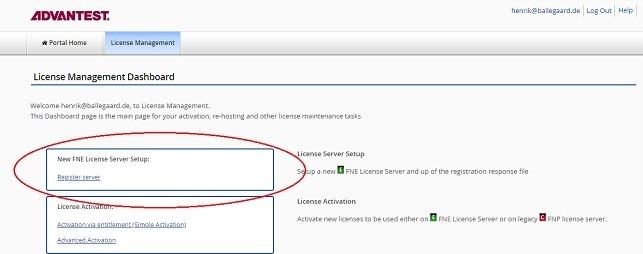
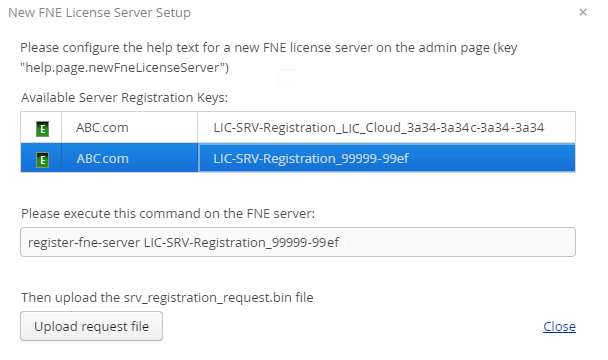
Open the tab License Management and click Register Server.

The Register Server page opens and lists the available registration keys. -
Click on the registration key corresponding to the activation ID entry to be used to register the license server.
The command in the illustration below is adapted and you can use copy and paste to execute the
register-fne-servertool on your FNE license server.
-
Click Upload request file and specify the location of the
srv_registration_request_<user name>.binfile copied from the license server in step 2.
The license server is now registered.
Results
Your license server is registered.