FlexNet Embedded licensing
- FlexNet Embedded licensing
- FlexNet Embedded license server setup
- FlexNet Embedded license server setup
- Setting the hostname of a system controller
- Single FNE License server installation, upgrades and updates
- Failover license server installation, upgrades and updates
- Registering the license server
- FlexNet Embedded license client setup
- FlexNet Embedded license client setup
- Installing the FNE license client
- Uninstalling the FNE license client
- Enabling license logging
- FlexNet Embedded license administration
- Systemctl license server service administration
- Advantest FlexNet Embedded license server tools
- Advantest FlexNet Embedded license client tools
- Monitoring license servers using the FNE Server Viewer
- Rehosting FlexNet Embedded licenses
- Controlled rehosting for FNE
- Troubleshooting FlexNet Embedded licensing
FlexNet Embedded licensing
FlexNet Embedded (FNE) is the licensing technology from Flexera adopted by Advantest. It is the replacement for the current FlexNet Publisher (FNP) technology.
FlexNet Embedded licensing is the default for SmarTest versions ≥ 8.1 and 7.10, and can be used with SmarTest versions ≥ 7.6.
- FNE architecture uses the same client-server concept as the earlier FNP technology.
- FNE offers more flexibility and ease of use.
- FNE does not need a permanent connection between the client and the license servers.
- FNE includes self re-hosting functionality (move licenses between license servers).
The main components of an FNE licensing setup is shown in the following graphic:

The FlexNet Licensing Back-office at Advantest is the license management infrastructure, incorporating the master database for licenses, and the location from which customer licenses are available for activation.
If, for example, a you remove licenses from one of your FNE license servers, this needs to be reflected in the FlexNet Licensing Back-office at Advantest before these licenses can be activated by another license server. Therefore, some data exchange is required between the your FNE license servers and the FlexNet Licensing Back-office at Advantest. This can be achieved over the Internet (online usage) or using file exchange (offline usage).
The FlexNet Licensing Back-office at Advantest is, however, transparent for customers. A license portal is available for managing licenses (for example, registering FNE license servers, exchanging data files, activating licenses), and takes over the tasks of communicating with the Advantest FlexNet Licensing Back-office.
Benefits of FlexNet Embedded
- FNE provides a more stable production environment while clients only need to contact the license server every 20 minutes.
- Supports a renewal concept with less effort.
- Supports self-rehosting.
- Provides a device-specific licensing concept, including multi-dimensional locking.
- The host ID of the license server is not required for registration. Entering of host IDs is required by FNP and is error-prone.
Differences between FlexNet Embedded and FlexNet Publisher.
- FNE does not use license files.
- Advantest FNP uses incremental licensing in license files. With every new license activation a new license file is created, which results in multiple license files. This makes license management difficult.
- Advantest FNE uses a license container. With each license activation all licenses of the license server are provided in a binary file. This eases license management.
- The license container is a binary file, which requires no manual editing. In FNP, editing the license container file is error-prone.
- One file contains the complete license content. License management is simpler.
- License Portal interface is available for interaction with the FNE Licensing Back-office.
- The license server log files have different formats.
FlexNet Embedded license server setup
FlexNet Embedded license server setup
Subtopics
- Setting the hostname of a system controller
- Single FNE License server installation, upgrades and updates
- Failover license server installation, upgrades and updates
- Registering the license server
FlexNet Embedded license servers are implemented to provide activated licenses to SmarTest system controllers.
Introduction
Installing a FlexNet Embedded license server able to provide the activated licenses requires three steps:
- Installation of the license server software on the host system
- License server registration
- License activation
The FNE license server, when installed in conjunction with the FNP2FNE proxy, can manage both FNE and FNP licenses for all supported SmarTest versions (SmarTest 5, 6, 7 and 8), and includes new features such as self-rehosting for SmarTest 5, 6 and 7 (FNP) license servers.
Prerequisites
Make sure that the system hosting the FlexNet Embedded license server meets the following Prerequisites:
Hardware minimum configuration:
- Quad core CPU
- 8 GB RAM
- 12 GB free hard disc space FNE, plus 12GB for FNX/FNP if used.
Operating system configuration:
- Red Hat Linux ≥ 9.0, 7.2 - 7.9, Rocky Linux ≥ 9 or CentOS 7.2 - 7.9.
- Available user with unrestricted sudo access.
- Ports 7070 and 7077 may not be used by other applications.
If FNX is installed, ports 27000, 27019, and 27020 must not be used by other applications.
- Java 8 - Oracle Java or OpenJDK
- License server must use fully qualified hostname (command
hostname -fmust not returnlocalhost)
Checking the availability of ports 7070 and 7077
Ports 7070 and 7077 must not be in use by other applications.
To check this, enter in the bash shell (if you use ksh, you can open a bash shell with enter /bin/bash on the command line):
&> /dev/null < /dev/tcp/localhost/7070 && echo INUSE
&> /dev/null < /dev/tcp/localhost/7077 && echo INUSE
In addition, if FNX is used for FNP license management, ports 27000, 27019, and 27020 must not be in use by other applications.
To check this, enter in the bash shell (if you use ksh, you can open a bash shell with enter /bin/bash on the command line):
&> /dev/null < /dev/tcp/localhost/27000 && echo INUSE
&> /dev/null < /dev/tcp/localhost/27019 && echo INUSE
&> /dev/null < /dev/tcp/localhost/27020 && echo INUSE
If no response message is displayed, the port is not in use.
If the response INUSE is displayed, the port is in use.
If port any of these ports are in use, either use a different server to host the FNE license server or get in contact with your administrators (customer IT) to identify the application and remove it from the server to be used for the FNE license server.
The lsof lsof command can be used to find processes using a particular port. For example, the following command returns information of the process using port 7070:sudo lsof -i tcp:7070
Example output:
COMMAND PID USER FD TYPE DEVICE SIZE/OFF NODE NAME
java 11381 flexnetls 40u IPv6 56027 0t0 TCP *:arcp (LISTEN)
Note: The installation of an FNE license server opens all required ports in the firewall (7070, 7077, 27000, 27019 and 27020).
Checking the availability of port 443
If your FNE license server is to have an online connection to the Advantest Licensing Back-Office, you need a connection to the internet for outgoing connections (FROM the license server to the internet). To check if access is available before you install the FNE license server.
Note: You do not need to check the availability of port 443 if you will only be communicating offline with the Advantest Licensing Back-Office (exchanging files as opposed to an Internet connection).
Do the following to check if port 443 is open on your FNE license server:
- Open a browser.
- Enter the URL: https://license.advantest.com/.
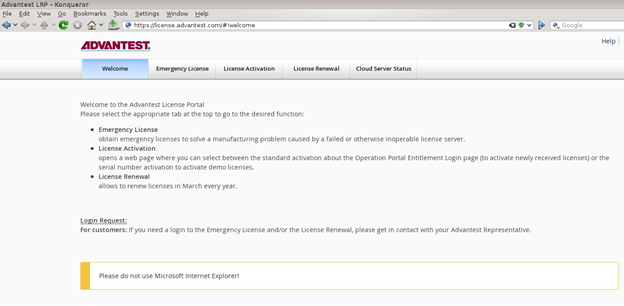
If the port 443 is open, the Advantest License Portal Welcome page is displayed:
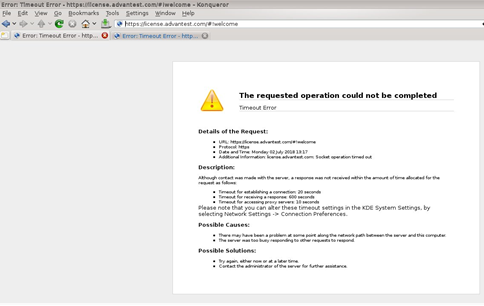
If port 443 is not open, an error message page is displayed informing of a timeout or failure to connect to the requested page, for example:
- If you require an internet connection to the Advantest Licensing Back-Office, get in contact with your administrators (customer IT) and request that port 443 is opened.
Checking the date and time settings
It is important to have the correct date and time set on the workstations and license servers. The Network Time Protocol (NTP) can be used to synchronize the clocks of computers with a reference time source over a network. For details on how to synchronize the date and time settings using NTP, see Network time protocol configuration.
Network configuration
For a license server to start, the server workstation must be set up for networking.
For a local license server installed on the system controller that is not connected to a network, a few prerequisites must be considered. The system controller must have a Fully Qualified Domain Name (FQDN). As a result, the /etc/hosts file must have an entry of the form:
ip address hostname.domainname hostname
For example: 192.168.0.15 server123.mycompany.com ws123
For more details about setting hostnames, see Setting the hostname of a system controller.
Next steps
If the prerequisites are met, start the installation of the FNE license server as described in the appropriate topic:
Setting the hostname of a system controller
The hostnamectl tool is provided for administering the three classes of hostnames that can be used on a system controller or license server running RHEL 7.
Scope
- RHEL 7
- The following tips are applicable for RHEL 7. For more information about configuring host names, refer to the Red Hat documentation: https://access.redhat.com/documentation/en-us/red_hat_enterprise_linux/7/html/networking_guide/ch-configure_host_names.
RHEL 9-
For information about changing hostnames on RHEL 9 using the nmcli or nmtui tools, refer to the Red Hat documentation: https://access.redhat.com/documentation/en-us/red_hat_enterprise_linux/9/html/configuring_and_managing_networking/assembly_changing-a-hostname_configuring-and-managing-networking#proc_changing-a-hostname-using-nmcli_assembly_changing-a-hostname
View all hostnames
To view all the current hostnames, enter the command:
hostnamectl status
The status option is implied by default if no option is given.
Set all hostnames
To set all the hostnames on a system, as root, enter the command:
hostnamectl set-hostname name
This command changes the pretty, static, and transient hostnames to the name specified in name. The static and transient hostnames are simplified forms of the pretty hostname. Spaces are replaced with "-" and special characters are removed.
Set a particular hostname
To set a particular hostname, as root, enter the command with the relevant option:
hostnamectl set-hostname name [option...]
Where option is one or more of: --pretty, --static, and --transient.
If either the --static or --transient options are used with the --pretty option, the static and transient hostnames are simplified forms of the pretty hostname. Spaces are replaced with "-" and special characters are removed. If the --pretty option is not specivied, no simplification takes place.
If the pretty hostname to be set contains spaces or a single quotation mark, use quotation marks around the name entry. For example:
hostnamectl set-hostname "Advantest's SmarTest 8.2 system controller" --pretty
Check a hostname
To check if the hostname is set correctly as a fully qualified domain name, as root, enter the command:
hostname -f
An example of a correct response is: server123.mycompany.com
Incorrect response example: localhost.localdomain
Clear a particular hostname
To clear a particular hostname and revert to the default, as root, enter the command with the relevant option:
hostnamectl set-hostname "" [option...]
Where:
"" is a quoted empty string.
option... is one or more of: --pretty, --static, and --transient.
Single FNE License server installation, upgrades and updates
Installation procedure for a single FlexNet Embedded license server to provide activated licenses. Applicable to fresh installations, and applying upgrades to add major functionality and patch updates installing the latest packages on an existing server.
About this task
The following procedure is applicable to installation, upgrades and updates. For failover arrangements, also refer to Failover license server installation, upgrades and updates.
Registering the server is only required for initial installation. This steps should be omitted for upgrades and updates. If you are upgrading an existing installation, a running license server is automatically stopped as part of the new software installation.
The license server install package can be downloaded from the Advantest Software Center server:
https://softwarecenter.advantest.com/download/othersw/builds/licensing
Before you begin
Make sure that the system hosting the FlexNet Embedded license server host system meets the hardware and operating system prerequisites. For details, see FlexNet Embedded license server setup.
Procedure
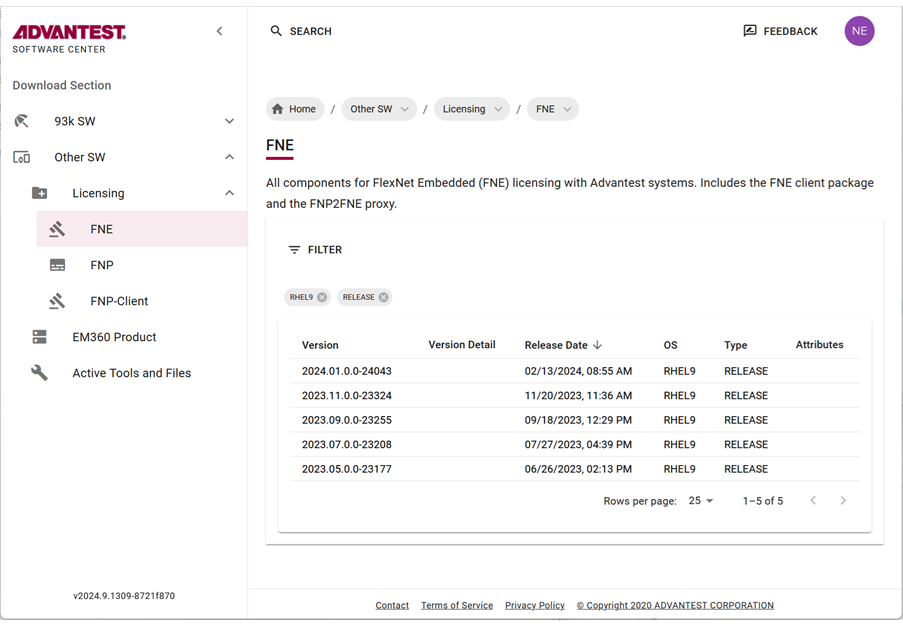
- To get the list of all available Licensing products, from the left menu select:

- Download the archive package by clicking the
 icon.
icon.
The selected license (tar.gz) package is downloaded to your browser's download folder.
Example FNE packages include:
fne_2024.01.0.0-24043_rhel9.tar.gz

Results
The FNE license server and the FNE Server Viewer are installed.
To check if the FNE license server is running:
/usr/bin/fne-status or /usr/local/bin/fne-status
If the FNE license server is running, the following type of output is displayed:
* advantest-fne-server.service - Flex Net Embedded license server adapted for Advantest
Active: active (running) since Mon 2019-05-20 11:08:14 CEST; 3 days ago
* advantest-fne-server-viewer.service - Advantest Flex Net Embedded License Server Viewer
Active: active (running) since Mon 2019-05-20 11:06:48 CEST; 3 days ago
* advantest-fne-proxy.service - Advantest FNP2FNE proxy
Active: active (running) since Mon 2019-05-20 11:07:36 CEST; 3 days ago
To check if the FNE Server Viewer is running, enter the following URL in a browser:
http://<serverName>:7077
What to do next
Failover license server installation, upgrades and updates
Installation procedure for a failover FlexNet Embedded license server arrangement to provide activated licenses. Applicable to fresh installations, and applying upgrades to add major functionality and patch updates installing the latest packages on an existing server.
About this task
Note: It is possible to set up an emergency FNE license server, listed at the end of the client.conf file. In an emergency where the normal license servers are inaccessible, install the emergency licenses on the emergency license server. All clients automatically connect to the emergency FNE license server.
Note: If you are upgrading an existing installation, a running license server is automatically stopped as part of the new software installation.
The following procedure is applicable to installation, upgrades and updates. However, associating the servers (step 2), registering the primary server (step 3), and synchronizing the servers (step 4) are only required for initial installation. These steps should be omitted for upgrades and updates.
Note: During updating, the installation script can be called without any options. All installed packages are detected automatically and updated if applicable.
Before you begin
A redundant FNE failover setup consists of two servers; the primary production system and the failover standby system. If the primary system stops working, for example, due to a hardware defect, the failover system assumes the production workload and handles all requests. The period of each failover substitution is limited to a maximum of 5 days. During these 5 days, you must repair and recommission the primary server or set up a new server.
Note: If the failover system goes down while the primary system is handling the production workload, there is no mandatory time limit for getting it running again. However, during this period there is no redundancy backup.
For mixed FNE-FNP environments, also refer to Mixed FlexNet Embedded and FlexNet Publisher licensing and Set up a three-license-server redundancy configuration
- Make sure that the system hosting the FlexNet Embedded license server host system meets the hardware and operating system prerequisites. For details and check procedures, see FlexNet Embedded license server setup.
- To be able to detect any license server problems early, we strongly recommend that you plan to include the FNE license servers in your availability monitoring setup. SmarTest cannot inform you about the failure of a license server.
Procedure
- On the primary license server check the status of the failover system:
/opt/flexnetls/socbu/fne-failover-status
The following displays an example of the status output:

Results
The FNE primary and secondary license servers are installed, synchronized and licenses are activated.
To check if an FNE license server is running:
/usr/bin/fne-status or /usr/local/bin/fne-status
If the FNE license server is running, the following type of output is displayed:
* advantest-fne-server.service - Flex Net Embedded license server adapted for Advantest
Active: active (running) since Mon 2019-05-20 11:08:14 CEST; 3 days ago
* advantest-fne-server-viewer.service - Advantest Flex Net Embedded License Server Viewer
Active: active (running) since Mon 2019-05-20 11:06:48 CEST; 3 days ago
* advantest-fne-proxy.service - Advantest FNP2FNE proxy
Active: active (running) since Mon 2019-05-20 11:07:36 CEST; 3 days ago
To check that the installation is complete, open a browser to view the FNE Server Viewer from the primary FNE license server system:
http://<serverName>:7077
Click on link Features.
You should see the licenses activated to your license server.
Check the connections of the primary and failover FNE license server systems with:
http://<fne-server-hostname>:7070/api/1.0/healthhttp://<failover-fne-server-hostname>:7070/api/1.0/health
Note To uninstall the FNE License Server and FNE Server Viewer, execute the command:sudo yum remove advantest-fne-server advantest-fne-server-viewer
Registering the license server
A new license server must be registered with the Advantest FNE Licensing Back-office before it can be used to host licenses.
About this task
Before you can install licenses onto the license server, the license server needs to be registered in the Advantest FNE Licensing Back-office. This is made over an online internet connection or by uploading and downloading files configuration files offline.
If your license server has access to the internet, only one register-fne-server tool command is required to complete the registration. If your license server host system does not have access to the internet, the register-fne-server tool provides you with a binary request file that you upload using the Advantest License Portal.
After registering your license server, activate your licenses using the license portal.
Before you begin
Registration is executed by running the register-fne-server tool with a server activation ID from the Advantest License Portal. The server activation ID is available from the Advantest License Portal as an entitlement.
The activation ID takes the following form: <Unique_Activation_ID>
Note: Your entitlement certificate contains a representation of the registration key. Get the actual registration key from the License Portal.
Procedures
Online Registration
If your license server has access to the internet, run the register-fne-servertool on the FlexNet Embedded license server for the initial registration of the FNE server at Advantest using the following command:
register-fne-server <Unique_Activation_ID>
The registration should complete automatically and the following message is displayed:
Successfully activated your server to <customer name>
Server registration is complete.
Offline Registration
-
If you do not have internet access to the Advantest back-office, from the primary server, generate the registration request file using the command:
register-fne-server <Unique_Activation_ID>The registration request file is generated and the following message is displayed:
No connection to backoffice at license.advantest.com:80
Offline license server activation is successfully written to:
/tmp/srv_registration_request_<user name>.bin for 127.0.0.1 : 7070
-
Copy the request file generated in the previous step to a computer with internet access.
-
From the computer with internet access, log on to the Advantest License Portal: https://license.advantest.com/.
Note: If you do not have an account, click the Register button, create an account using an entitlement ID belonging to your organization for which the server should be registered. Provide a user name and a password for the account. On successful registration, an account is created and you are automatically logged in.
-
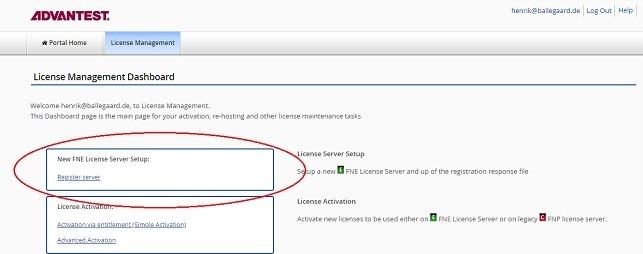
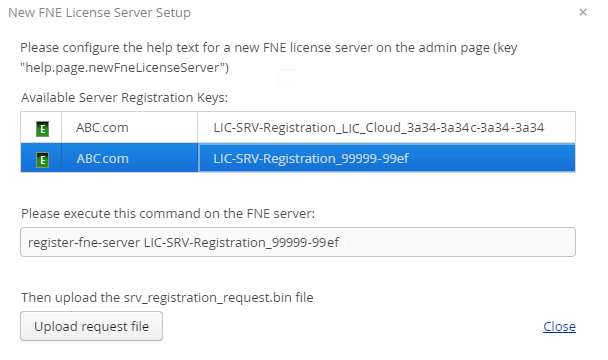
Open the tab License Management and click Register Server.

The Register Server page opens and lists the available registration keys. -
Click on the registration key corresponding to the activation ID entry to be used to register the license server.
The command in the illustration below is adapted and you can use copy and paste to execute the
register-fne-servertool on your FNE license server.
-
Click Upload request file and specify the location of the
srv_registration_request_<user name>.binfile copied from the license server in step 2.
The license server is now registered.
Results
Your license server is registered.
What to do next
FlexNet Embedded license client setup
FlexNet Embedded license client setup
Subtopics
The FlexNet Embedded license client is required to run on the system controller (installed as default).
The FlexNet Embedded license client is installed as the default license client.
Information required to install, configure and administer FlexNet Embedded license clients is divided into the following areas:
- License client installation - Installation of the license client software to manage the licensing of a SmarTest software installation.
- Switching the client between FlexNet Embedded and FlexNet Publisher servers.
- License client administration - Advantest FlexNet Embedded (FNE) license client tools and their usage.
System controller prerequisites
- SmarTest 8.x
- The system controller fully-qualified hostname
Checking the connection to a customer-hosted FNE License Server
After installing the FNE license server, check that the FNE license server is contactable from the SmarTest workstation before you start the installation of the FNE client subsystem on the SmarTest workstation.
href="http://<fne-server-hostname>:7070/api/1.0/health <fne-server-hostname>
Complete the following procedure to check the connection to the FNE license server:
- Open a browser.
- Enter the URL appropriate for your FNE server arrangement:
-
href="http://<fne-server-hostname>:7070/api/1.0/health<fne-server-hostname>represents the hostname of the FNE license server to which you are testing the connection. -
href="http://<failover-fne-server-hostname>:7070/api/1.0/healthrepresents the hostname of the failover FNE license server to which you are testing the connection.
<failover-fne-server-hostname>
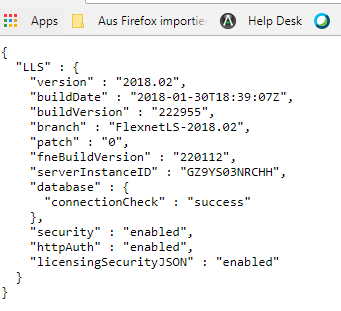
If the FNE license server is contactable (port 7070 is open), the following type of output is displayed:

-
- If port 7070 is not open, you a page with a not available message is displayed. In this case, get in contact with your administrators (customer IT) and request that port 7070 is opened for the SmarTest client workstation.
Installing the FNE license client
Installing a FlexNet Embedded license client used to provide the activated licenses to a SmarTest installation on a system controller workstation requires two steps: the installation of the license client software itself on the SmarTest host system, and configuration of the license server configuration file to prioritized the order of server access.
About this task
Installing the FNE license client (installed as default license client) also installs the FNE Server Viewer. For more details, see Monitoring license servers using the FNE Server Viewer.
The following procedure explains how to install the FlexNet client.
Before you begin
The license client is the SmarTest software. The FlexNet license server communicates with SmarTest using the FNE client.
The license client install package can be downloaded from the FNE section of the Advantest Software Center:
https://softwarecenter.advantest.com/download/othersw/builds/licensing
The following procedure is applicable to installation, upgrades and updates.
Note: During upgrading and updating, the installation script can be called without any option. All installed packages are detected automatically and updated if applicable.
sudo sh install-fne-date-version.sh
Port 7070 must be open to the customer FNE license server and if needed to the cloud license server.
To check connection to your license servers, use the command:
If you are using the Advantest cloud license servers, check the connections by opening the following URLs:
- http://<license-server>:7070/ping
- https://<Device Owner FNE license server>.advantest.cloud:7070/ping
- https://<Device Owner FNE license server>-fo.advantest.cloud:7070/ping
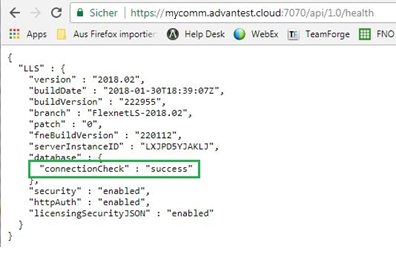
If port 7070 is open, the following type of output is displayed:
Procedure
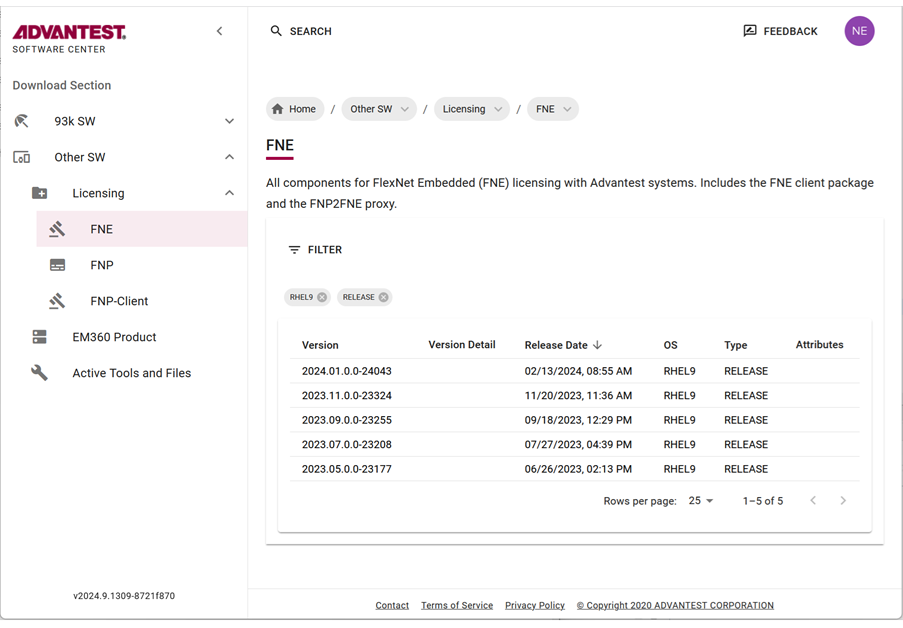
- To get the list of all available Licensing products, from the left menu select:
- Download the archive package by clicking the icon.
The selected license (
tar.gz) package is downloaded to your browser's download folder.Example FNE packages include:
fne_2024.01.0.0-24043_rhel9.tar.gz
Results
You have installed the license client software and configured the list of FlexNet Embedded license servers in a prioritized order.
The order in which clients attempt to check out licenses is the same order in which the licenses are referenced in the client.conf file.
Example
Example of a client.conf file:
#Configuration of FNE servers to be used
# Emergency Server
include "/etc/fne/emergency.conf"
server
{
    name = "Local cloud space"
    url = "localcloud.company.com"
}
server
{
   name = "My cloud"
   selector = "DeviceOwner:MyCompany"
   url = "https://MyCompany.advantest.cloud:7070"
}
server
{
    name = "Local license server"
    primaryUrl = "fne1.company.com"
    failoverUrl = "fne2.company.com"
}
Minimum client.conf file configuration:
server
{
url = "localhost"
}Uninstalling the FNE license client
Uninstalling the FNE license client is done manually using yum.
About this task
There are two options for uninstalling the FNE license client:
- Remove the FNE client only, which results in automatically switching back to using the FNP license client and FNP licensing.
- Completely remove the FNE client installation, which removes the license client, the FNE Server Viewer, and the
test_license_checkouttool.
Procedures
Uninstalling the FNE license client only
To remove the FNE client only, enter the command:
yum remove v93000-fne-client
Completely uninstalling the FNE license client and tools
To completely remove the FNE client installation, enter the command:
yum remove v93000-fne-client advantest-fne-server-viewer advantest-test_license_checkout
Results
FNE license client is no longer installed on the SmarTest system controller.
Enabling license logging
Subtopics
Detailed information about license consumption and optimize license usage can be identified by License usage logging.
About this task
To be able to get detailed information about license consumption and optimize license usage, it is necessary to analyze the licensing requirements for memory and speed for each measurement within a test program. From this information, it is then possible to isolate the main license requirements.
License usage logging (incremental over measurements and per measurement logging) provides the information required to establish the licensing dependencies. If the watermark increases in proportion to the measurement data, the test is independent, otherwise it shares data with other tests.
Log data is written to:
/opt/hp93000/soc/system/log/licenseUsage_<sessionId>.log
To read in the data you need to generate a parser based on protobuf library using the grammar in:
/opt/hp93000/soc/system/include/xoc/profiling/licenseUsage.proto
An existing file is not overwritten - only new data is appended to the existing content.
The most valuable data collected by license logging is when you have not previously executed an initial bind before executing the profile configuration. After an initial bind, only dynamic changes are recorded.
Before you begin
Make sure the test program has been loaded.
License logging can only be enabled using a Profile launch configuration.
Procedure
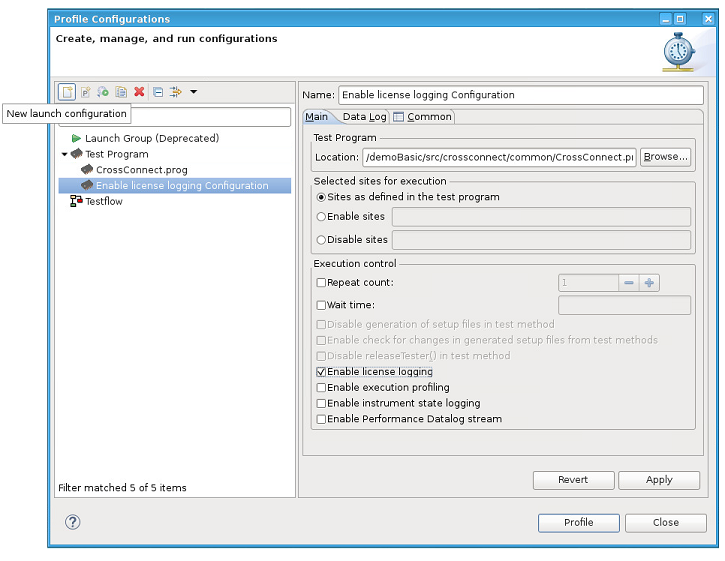
-
Select a test program or test flow in the Package Explorer view for which you want to enable license logging.
License logging is not available for encrypted testflows or test programs containing encrypted testflows.
-
Open the Profile Configurations dialog from the context menu:
-
Select Test Program from the objects pane on the left.
-
Click the New Launch Configuration
 button.
 -
Enter a name for the new profile configuration in the configuration pane on the right.
-
In the Main tab (default selection), select Enable license logging.

-
Specify any other required configurations. For details, see Creating a run configuration for running test programs or testflows.
-
Click Apply to save the profile configuration.
-
Click Profile to profile the test flow or Close to close the Profile Configurations dialog box.

Results
License logging is enabled.
Log data is written to /opt/hp93000/soc/system/log/licenseUsage_<sessionId>.log.
A license usage log file contains the memory contribution (in Bytes) for each signal for each measurement.
Note: License logging can also be enabled and disabled using the Test Cell API. For example:TestProgramConfig config;config.enableLicenseLogging = true;testProgram.loadWithConfig(config);
For details about TestProgramConfig, see TestProgramConfig.
What to do next
The generated log file is user-readable and it is possible to manually extract the licensing requirements for memory and speed for each measurement within a test program. It is not essential to parse this file.
However, for further processing, it can be beneficial to parse the file to arrange its content into a more readable format.
To read in the data you can generate a parser based on the protobuf library using the grammar in:
/opt/hp93000/soc/system/include/xoc/profiling/licenseUsage.proto
Reading log file data
1) Log file data contains information, such as memory usage.
About this task
If license logging is enabled, the license log data is written to:/opt/hp93000/soc/system/log/licenseUsage_<sessionId>.log.
The following log example shows the used memory (Pattern or PA = 1032 bytes) for the signal D04. The total accumulated value (accDoubleValue) is 3096 bytes which the total memory used by the complete program.
LicenseUsage.log file example:
measurementName: "Main.GlobalPAPattern.measurement"
measurementTimestamp: "Mon, 01 Jul 2019 15:30:08 -0700"
licensedFeatureLog {
featurePerSignal {
signalList: "D00 + D01 + D02 + D03 + D04"
feature {
feature: "speed"
accDoubleValue: 10000000
unit: "bps"
}
}
featurePerSignal {
signalList: "D04"
feature {
feature: "memory"
accDoubleValue: 3096
doubleValue: 1032
unit: "B"
}
feature {
feature: "sharedMemory"
doubleValue: 60352
unit: "B"
}
}
}
In the example above:
| Measurement | Main.GlobalPAPattern.measurement |
| Signal names | signal_list: "D00 + D01 + D02 + D03 + D04" |
| Signal requirement type |
feature: speed (all signals) feature: memory (signal D04) feature: sharedMemory (signal D04) |
| Accumulated speed value | accDoubleValue: 10000000 bps (all signals) |
| Accumulated memory value | acc_double_value: 3096 B (signal D04) |
| Memory value | doubleValue: 1032 B (signal D04) |
| Shared memory value | doubleValue: 60352 B (signal D04) |
Note: If you only require the values for a specific measurement, you can read this from the ASCII text manually.
TestProgramConfig config;
config.enableLicenseLogging = true;
testProgram.loadWithConfig(config);
/usr/bin/protoc
The protoc version can be found with the command:/usr/bin/protoc --version
Output example: libprotoc 2.5.0
To structure information, protocol buffer message types are defined in .proto files. The following protobuf file is used for license logging, which can be compiled with the protocol buffer compiler to Java, Python, Objective-C, or C++.
-
Before you begin
- Make sure that license logging is enabled. For details, see Enabling license logging.
Procedure
- Create a parser file, for an example, see Example logfile parser.
-
For example, to compile to C++ with the protocol buffer compiler, run the following commands or a make.sh script containing the commands:
protoc -I=/opt/hp93000/soc/system/include/xoc/profiling/ --cpp_out=./opt/hp93000/soc/system/include/xoc/ profiling/licenseUsage.protoc++ -std=c++11 -g -L/usr/local/lib -lprotobuf -o licenseLogger licenseUsage.pb.cc main.cppThe generated C++ class is used to simplify the parser implementation.
./licenseLogger licenseUsage.log memory D04
Analysing: licenseUsage.log memory D04
Top 20 measurement runs for feature "memory" at signal "D04"
Measurement Run                   | Value    |Watermark Value
----------------------------------+----------+-----------------------
Main.GlobalPAPattern2.measurement | 1032.000 | 3096.000
Results
After the above protoc call or make.sh script is run, the following files are created:
- licenseLogger
- Generated Parser Executable To execute the licenseLogger, use the command:
./licenseLogger <output_file_name> <license_type> <signal>For example:
./licenseLogger <kbd class="userinput">licenseUsage.log memory D01 - measurementLicense.pb.cc
- Generated after running protobuf compiler
- measurementLicense.pb.h
- Generated after running protobuf compiler
Example logfile parser
1) The following code is an example parser for reading license log files and printing the top 10 measurement executions contributing to the specified feature and signal.
Example parser (SmarTest ≥ 8.2.0)
#include <iostream>
#include <fcntl.h>
#include <fstream>
#include <google/protobuf/text_format.h>
#include <google/protobuf/io/zero_copy_stream_impl.h>
#include <map>
#include <iostream>
#include <iomanip>
#include <sstream>
#include "licenseUsage.pb.h"

using namespace std;
using namespace license;
using namespace ::google::protobuf::io;
using ::google::protobuf::TextFormat;

map<double,string> featureValuePerMeasurement;
map<string,double> featureValuePerMeasurementWatermark;

//  measurementName, <license string, count>
multimap<string, pair<string,int> > licenseUsage;

// utility to extract signal from signal list into a vector of signals
vector<string> signalsToVector(string& signals)
{
 vector<string> items;
     const char* t = " \t\n\r\f\v";
     unsigned long opos = 0;
     unsigned long pos = signals.find_first_of(" + ");
     while (true) {

          // trim white spaces
          string extract = signals.substr(opos, pos - opos);
          extract.erase(0, extract.find_first_not_of(t));
          extract.erase(extract.find_last_not_of(t) + 1);

          items.push_back(extract);
          if (string::npos == pos) { break; }
          pos = signals.find_first_of(" + ", opos = pos + 1);
     }

 return items;
}

// Sample method to print Top 20 measurement runs for given feature and signal
// In addition print the license usage after the Top1 measurement was executed.
void printTop20(string& featureKey, string& sigKey)
{
 int x = 0;
     int mrlen = 0;
     for(auto elem = featureValuePerMeasurement.rbegin();elem != featureValuePerMeasurement.rend() && x < 20; ++elem, ++x) {
      if(elem->second.size() > mrlen) { mrlen = elem->second.size();  }
     }

     cout << "Top 20 measurement runs for feature \"" << featureKey << "\" at signal \"" << sigKey << "\"" << endl << endl;
     cout << setw(mrlen) << left << "Measurement Run" << " |  Value       | Watermark Value " << endl;
     for(int i=0;i<mrlen;++i) { cout << "-"; }
     cout << "-+--------------+-----------------------" << endl;
     x=0;
     for(auto elem = featureValuePerMeasurement.rbegin();elem != featureValuePerMeasurement.rend() && x < 20; ++elem, ++x) {
     cout << fixed << setw(mrlen) << elem->second << " | " << setw(12) << left << setprecision(3) << elem->first << " | " << setprecision(3) << featureValuePerMeasurementWatermark[elem->second] << endl;
     }

     cout << endl << endl;
     string mrName = featureValuePerMeasurement.rbegin()->second;
     auto elements = licenseUsage.equal_range(mrName);
     auto elem = elements.first;
     for(;elem != elements.second; ++elem) {
     cout << "Count: "<< setw(6) << elem->second.second <<elem->second.first << endl;
     }

}

bool processMessage(string& message, string featureKey, string sigKey)
{
     license::MeasurementLicense log;

     if (!TextFormat::ParseFromString(message, &log)) {
          cerr << endl << "Failed to parse string: " << endl;
          return false;
     }

     string mrName = log.measurementname();
     LicensedFeatureLog feature = log.licensedfeaturelog();
     for(int i=0; i<feature.featurepersignal_size();++i) {
          FeaturePerSignal fps = feature.featurepersignal(i);
          string signals = fps.signallist();
          vector<string> signalVector = signalsToVector(signals);
          for(int x=0;x<fps.feature_size();++x) {
           Feature f = fps.feature(x);
           if(f.feature() == featureKey) {
            for(auto const & sig : signalVector) {
             if(sig == sigKey) {
              featureValuePerMeasurementWatermark[mrName] = f.accdoublevalue();
              featureValuePerMeasurement[f.doublevalue()] = mrName;
             }
            }
           }
      }
 }

     for(int i=0;i<log.licenses_size();++i) {
     auto l = log.licenses(i);
     for(int x=0; x<l.licensestring_size();++x) {
          auto ls = l.licensestring(x);
          licenseUsage.insert(make_pair(mrName,make_pair(ls.name(), ls.count())));
     }
}

 return true;
}

int main(int argc, char** argv)
{
     if (argc != 4) {
          printf("wrong arguments, ussage: licenseLogger featureKey sigKey\n");
          exit (1);
     }

     ifstream file(argv[1]);
     string featureKey = string(argv[2]);
     string sigKey = string(argv[3]);
     string str, message;

     printf("Analysing: %s %s %s\n", argv[1], argv[2], argv[3]);

     getline(file, message);

     while (getline(file, str)) {
          if(str.size() > 16 && str.substr(0,16).compare("measurementName:") == 0) {
       if(!processMessage(message, featureKey, sigKey)) { exit(-1); }
       message = str;
       continue;
          }
          message += str;
     }

     printTop20(featureKey, sigKey);
}
FlexNet Embedded license administration
In addition to the License Portal, FlexNet Embedded license servers, clients and licenses can be accessed and managed using tools such as systemctl, Advantest FlexNet Embedded license server tools, and the Advantest FlexNet Embedded license client tools.
Systemctl license server service administration
The Advantest FlexNet Embedded license server runs as a standard Linux service and is controlled (starting, stopping, restarting, and displaying status) by systemctl. The license server can be used in a standalone system (not connected to a tester) providing licenses for tester workstations in the network. It can also be used to provide licenses primarily for the local attached tester. The license server uses the port 7070 which is opened in the firewall with the installation of the advantest-fne-server package.
Advantest FlexNet Embedded (FNE) license server commands
The Advantest FlexNet Embedded (FNE) license server is controlled using the systemctl tool.
Syntax: systemctl <option> advantest-fne-server
For example, to check if the server is running use the systemctl command with the status option:
systemctl status advantest-fne-serversystemctl status advantest-fne-server-viewer
systemctl command options
| Option | Description |
|---|---|
| help | Displays the manual page. |
| restart |
Stops and restarts the license server. |
| start |
Starts the license server. No status message is displayed if the start was successful. |
| status | Displays the status of the license server. |
| stop |
Stops the license server. No status message is displayed if the stop was successful. |
Firewall
The RHEL setup for V93000 tester workstations uses a firewall to control incoming connections. If the FNE license server is being used by multiple tester workstations connected to the network, SmarTest clients running on the local workstation where the license server is installed are not affected by the firewall. Outgoing connections from the local tester workstation to other license servers, even those accessible over the internet, are also not affected be the firewall. The FlexNet Embedded license server uses the port 7070 which is opened in the firewall by installing the advantest-fne-server (RPM) package.
Advantest FlexNet Embedded license server tools
Advantest FlexNet Embedded (FNE) license server tools are used to manage license servers, including registering and synchronizing license servers with the Advantest License Back-office, resetting the license server database, and displaying license server configurations and log files.
Advantest FlexNet Embedded license server tools usage
| Option | Description | ||
|---|---|---|---|
| reset-fne-server | Resets the license server database.
The license server is shutdown and requires restarting. |
||
| Location: | /opt/flexnetls/socbu/ | ||
| Options: |
-force -rules -all -help |
||
| Usage: | Requires root access. Without option: empties the license database on the FlexNet Embedded license server. A reset is also required to synchronize the FlexNet Embedded license server with the Advantest License back-office (online or offline). -force deletes the license database on the FlexNet Embedded license server. -rules deletes rules on the FlexNet Embedded license server. -all includes -force and -rules and remove backup configuration |
||
| Examples: | reset-fne-server -force
Successfully removed FNE database reset-fne-server
|
||
| register-fne-server |
Registers the license server at Advantest License Back-office. |
||
| Location: | /usr/local/bin/ | ||
| Options: |
nnnnn-ffff and binary response file |
||
| Usage: |
Used to initialize a new FlexNet Embedded license server. If the FlexNet Embedded license server has access to the internet, it will automatic synchronize with Advantest License back-office and the FlexNet Embedded license server is automatically registered. If the FlexNet Embedded license server is not connected to the internet, the synchronization must be carried out by up and down loading files. The LIC-SRV-Registraion_nnnn-ffff string is a unique key used to identify the FlexNet Embedded license server. It is displayed in the Advantest License Portal under Setup Server. |
||
| Examples: |
Online: register-fne-server 000601-ffffSuccessfully activated your server to ADVANTEST Offline: The register-fne-server 000601-ffff command creates a file to be uploaded using the Advantest License Portal to complete the registration. |
||
| fne-proxy-setup |
Configures the FNP component of a proxy failover setup. Run the fne-proxy-setup tool after fne-failover setup. |
||
| Location: | /opt/flexlm/bin | ||
| Usage: |
fne-proxy-setup <secondary host> <tertiary host> Use fully qualified host names. This tool uses ssh and sudo. You might be asked to enter your password several times. |
||
| sync-fne-server
(for online use) |
Synchronizes the license server with Advantest License Back-office. |
||
| Location: | /usr/local/bin/ | ||
| Usage: |
Used for FlexNet Embedded license servers connected to the internet to force a synchronization with Advantest License back-office for automatic license updates.
Note: FlexNet Embedded license servers connected to the internet automatically synchronize with the Advantest FlexNet License Back-Office every 12 hours. |
||
| fne-get-config | Displays the configuration items from the local FNE server. | ||
| Location: | /opt/flexnetls/socbu/ | ||
| Options: | --i[nstance] | Displays the value from the specified instance. | |
| --p[arent] | Displays the factory default value of the specified key. | ||
| --s[howconfig] | Displays the complete configuration, listing the keys and their values.
Examples of a key:-value pair displayed include: logging.threshold: LICENSING fne.syncTo.enabled: false lfs.syncTo.pagesize: 50 Configuration queries can also be limited by specifying a key. |
||
| --h[ostid] | Displays the host ID of the license server | ||
| --1 | Displays information for instance 1, listing the keys and their values.
Examples of key:-value pairs displayed include: id 1 serverInstanceId MYFIRSTLICSVR requestId 1 enterpriseId 12345678 pendingDeletion false ... Instances queries can also be limited by specifying a key. |
||
| --t[rusted-storage] |
Shows whether the license database (trusted storage) is consistent or not. Returns true or false.false response: the server is running but not able to serve licenses. |
||
| --d[etails] | Displays the company details (company name). | ||
| --m[achine]=host | Directs requests to the specified computer. | ||
| --b[uild] | Displays detailed information of the server build versions. | ||
| --help | Displays the help text. | ||
| --v[ersion] | Displays the version number of the fne-get-config tool. | ||
| Usage: |
fne-get-config [option] <key> |
||
| Examples: |
Display the value of a key, for example, the logging threshold value (LICENSING): |
fne-get-config logging.threshold LICENSING |
|
|
Show your company details: |
fne-get-config -d ADVANTEST_RD |
||
|
Show the host ID of the license server: |
fne-get-config -h 5543053D6573 |
||
|
Show the host ID of the specified license server: |
fne-get-config -m=fne_ls_1 -h 006046B1FD09 |
||
|
Show the host ID of the specified license server: |
fne-get-config -m=fne_ls_1 -h 006046B1FD09 |
||
| fne-status | Location: | /usr/bin/fne-status or /usr/local/bin/fne-status | |
| Usage: | If the FNE/FNX license server is running, the command returns a confirmation message. This tool give a compressive overview installed server, service and status and can be used to locate a root cause for a not function server. |
||
| Examples: |
Installed components: Service status: FNE server status: FNP server status: Configured servers: FNX-redundant advvm123/advvm124:advvm123.mycom.net |
||
| fne-handle-response | Checks the validity of the response file, and uploads, and downloads the response file to and from FNE server. | ||
| Location: | /usr/local/bin/fne-handle-response | ||
| Options: | --upload | Uploads the response file to the local FNE license server. | |
| --download | Downloads and saves the response file to the specified file for offline processing by the back-office server. | ||
| --show | Displays the content of the response file. | ||
| --notitle | Omits the title line in the listing (for scripting). | ||
| --ids |
Displays additional information, such as host IDs. |
||
| --help | Displays the help text. | ||
| --v[ersion] | Displays the version number of the fne-handle-response tool. | ||
| Usage: |
fne-handle-response -show|upload|-download [options] <response.bin> |
||
| Examples: |
Upload a response file: |
fne-handle-response --upload responsefile-2024-09-19_20-09-response.bin Successfully applied responsefile-2024-09-19_20-09-response.bin to FNE server |
|
|
Download a response file to file confirm.bin: |
fne-handle-response --download confirm.bin Successfully wrote confirm.bin |
||
|
Display a response file: |
fne-handle-response --show responsefile-2024-09-19_20-09-response.bin Name/Version x Count Start->Expires Conditions BitFailMap_HSM/1.0 x 1 14-sep-2024->21-sep-2024 BitFailMap_SOC/1.0 x 1 14-sep-2024->21-sep-2024 Company_Details/1.0 x 1000 7-dec-2021-> Company=Advantest_Training,Entity=DE E8015_A3-Model_upgrade/1.0 x 1 14-sep-2024->21-sep-2024 %%SERIALNUMBER:MY11223344%% MemoryTestPlusOffline_HSM/1.0 x 1 14-sep-2024->21-sep-2024 ... |
||
| showlog-fne-server |
Displays the license server log file. |
||
| Location | /opt/flexnetls/socbu/ | ||
| Options | Log level 1…8
Logfile <show specific logfile> -f - (follow) Show only the last 20 entries of the log file and "follow" any new entries |
||
| Usage | Log Levels:
|
||
| Examples |
showlog-fne-server -5
showlog-fne-server -6
|
||
| test_license_checkout | Tests the license checkout from a license server. | ||
| Prerequisite | The FNE client software must be installed on the FNE server workstation. | ||
| Location |
|
||
| Syntax: |
test_license_checkout -t <time in sec.> -f <feature name> |
||
| Options: | -t <time> | Specifies the time in seconds to be waited before checking in the license again.
Default period is 10 seconds. |
|
| -f [count] <feature[/version]> |
Specifies the license feature to be used for the license checkout test. This option can be applied multiple times. Default is dummy. Version defaults to 1.0. For example: Using FlexNetEmbedded 2023.09.1.292127 / subsystem 1.3 / built Feb 8 2024 16:00:57 (RPM) Check out finished in 46ms for category tplf OK 1 x dummy/1.0 Sleep for 0 seconds... |
||
| -d | Shows all debug/info messages (default: Only FATAL/ERROR)
To display all available information, use |
||
| -p <proj> | Sets project information. | ||
| -v <ssn> | Sets system serial number to <ssn>. | ||
| -o | Activates the isLicensingOk() thread, calling it every 20 seconds and creating the result output. |
||
| -l [<file>] | Replays the log file created by using SOCBU_LOG_REQUEST_FILE. | ||
| -u <name> | Sets the name of the upstream or device owner. | ||
| -c <name> | Sets device category (must follow a -u entry). | ||
| -e <ext> | Sets the hostid extension. | ||
| -m | Shows customer details provided by license server. | ||
| -g | Set feature checkout category; tool or tplf (default). | ||
| --help | Displays the help text. | ||
| Examples: |
To check that the FNE server is working after registration, enter: |
test_license_checkout
The tool attempts to checkout the dummy license from the FNE server, which is available after successful FNE server registration. |
|
|
Tests the license checkout for the Digital_E803x_100_200Mbps feature with count 1 (default count). After 60 seconds, the license is checked in. |
test_license_checkout -t 60 -f Digital_E803x_100_200Mbps | ||
| To check out the online SmarTest_SOC license with date version 2024.06 and system serial number DE04600001, enter the following command.
If the checkout succeeds, the license is checked out for 15 seconds. If it fails, it is not checked out. Date version is the master release date of the SmarTest version in use, documented in the SmarTest release notes. |
test_license_checkout -f SmarTest_SOC/2024.06 -v DE04600001 -t 15 | ||
| To check out a specified number of Digital_E8012_TIA floating licenses, enter the following command.
Three Digital_E8012_TIA floating licenses are checked out for the duration of 10 seconds. |
test_license_checkout -f 3 Digital_E8012_TIA -t 10 Example output: Using FlexNetEmbedded 2021.05.0.279614 / subsystem 1.3 / built Nov 8 2021 15:34:51 (RPM) Check out finished in 25ms for category tplf OK 1 x S&S_Tools_Package/1.0 Sleep for 0 seconds... |
||
| To check out S&S licenses, enter a command of the following form.
Use quotes to correctly specify special characters such as the & sign. |
test_license_checkout -f "S&S_Tools_Package" -t 0 | ||
| To check out a license with a device owner (only available for FNE client or on the FNE license server), enter a command of the following form.
The example requires a test program locked to the device owner ADVANTEST_RD. The token is Token_ADVANTEST_RD_WaferSort. The name of the device owner is set using the -u option. |
test_license_checkout -u ADVANTEST_RD -f Token_ADVANTEST_RD_WaferSort -t 0 | ||
|
The SOCBU_DIAGNOSTICS debug option is used to get more data and create an output file. If the checkout fails, please rerun the command with diagnostics enabled, enter the following command. |
Example for S&S licenses: SOCBU_DIAGNOSTICS=7 test_license_checkout -f "S&S_Tools_Package" -t 0 > /tmp/lic-error.txt Alternatively, the -d option can be used instead of SOCBU_DIAGNOSTICS: test_license_checkout -f SmarTest_SOC/2024.05 -v MY04605099 -t 0 -d > /tmp/lic-error.txt |
||
| fne-rules |
Manages the FNE pooling rules. (Imported in FNE 2024.10). Run the fne-proxy-setup tool after fne-failover setup. |
||
| Location: | /opt/flexnetls/socbu/ | ||
| Options: |
--upload [<model>] |
Uploads the model definition to the local FNE license server. If the model is not specified, stdin is used. The model is located at: /var/opt/flexnetls/socbu/model.current It is applied automatically after a reset of the database. |
|
| --show | Show current model definition | ||
| --delete | Deletes the model definition. | ||
| --help | Displays the fne-rules tool help text. | ||
| --version | Displays the version number of the fne-rules tool. | ||
| Usage: |
fne-rules -show|delete|-upload [<model>] |
||
| fne-log-collect |
Collects all relevant log file information from the FNX server for a given time. (Imported in FNE 2024.10). Run the fne-proxy-setup tool after fne-failover setup. |
||
| Location: | /opt/flexnetls/socbu/ | ||
| Options: |
--r[ange] |
Length of the interval in hours before and after the given time to be collected. Default: 4 hrs. | |
| --d[ay] |
Day of incident. Format: [[%Y-]%m]%d Default: today/yesterday |
||
| --t[ime] |
Time of incident. Format: %H[:%M[:%S]] |
||
| --p[rogress] |
Displays progress information. |
||
| --o[nly] |
Check only one process: fne/proxy/access/viewer |
||
| --c[eckPerformance] |
Analyze the log file and present statistics on the server load. |
||
| --h[elp] | Displays the fne-log-collect tool help text. | ||
| --v[ersion] | Displays the version number of the fne-log-collect tool. | ||
| Usage: |
fne-log-collect -t <time> [options] |
||
| Examples |
Collect logs from 3 a.m. today/yesterday: fne-log-collect -t 3 Collect logs from 2 p.m. to 4 p.m. on 1st April: fne-log-collect -t 15 -d 04-01 -r 1 Collect the logs for the whole of 1st April: fne-log-collect -t 12 -d 04-01 -r 12 Collect a short snapshot for the precise time of the FNP2FNE-proxy: fne-log-collect -t 09:10:11 -d 2022-04-01 -r 1 -o proxy |
||
Advantest FlexNet Embedded license client tools
Advantest FlexNet Embedded (FNE) license client tools are used to manage license clients, including testing license checkouts from a license server and listing all checked out licenses.
Advantest FlexNet Embedded license client tools usage
The following table lists the available Advantest FlexNet Embedded (FNE) license client tools and their usage:
| Option | Description | |
|---|---|---|
| test_license_checkout | Tests the license checkout from a license server. | |
| Location: | /opt/hp93000/soc64_<version>/.service/bin/ | |
| Examples: | test_license_checkout -t 60 -f SmarTest_SOC | |
| Syntax: |
test_license_checkout -t <time in sec.> -f <feature name> |
|
| fne-show-license-usage |
Iterates through the FlexNet Embedded servers defined in /etc/fne/client.conf and lists all checked out licenses. |
|
| Location: | /usr/local/bin (If the FNE client package is installed) | |
| Options: |
-a[ll], -h[elp] and -v[ersion] |
|
| Usage: |
-a - Shows all clients managed by the servers (default: Only clients on the local machine). -h - Shows the help information. -v - Displays the version of the fne-show-license-usage tool. |
|
| fne-list-licenses | Iterates through the FlexNet Embedded servers defined in /etc/fne/client.conf and lists all licenses (used and available).
Provides detailed information about the available licenses including:
|
|
| Location: | /usr/local/bin (If the FNE client package is installed) | |
| Options: |
<no option>, --feature, --expires, --assetScale, and -h[elp] |
|
| Usage for general options: |
No option: Lists licenses provided by all servers. --feature=<xyz> - Lists only licenses of the specified feature. --expires[=<n>] - Lists only licenses expiring in the next n days. Default for n: 30. --assetScale - Lists the AssetScale tokens and shows their content. --v[ersion] - Displays the tool version information. |
|
| Usage for tabular output options: |
Note: Options are processed in the order that they are stated. Use --sep and --notitle before --csv. --sep[arator]=<d> - Defines column separator for csv output: Defaults to ",".
--notitle - Omits title line in csv output (for scripting). --listtokens - Shows all currently available tokens for csv output.
Note: At least one license must be borrowed to show complete list. --match=<list of filters> - Filter shown borrow records.
--csv=<list of tokens> - Show licenses borrowed in csv format.
Note: There is always one line per feature. |
|
| fne-clear-SmarTest-licenses.sh |
Clears orphaned licenses from crashed SmarTest sessions on FNE servers. (Available from FNE 2024.10). Installed as part of the FNE client package. Executed on the system controller (FNE license client workstation). |
|
|
Location: |
/usr/local/ (If the FNE client package is installed) |
|
| Options: |
<no option>, --v[ersion],--h[elp] |
|
| Usage: |
No option: Clears licenses. --v[ersion] - Displays the tool version information. --h[elp] - Prints the help information. |
|
Example
Usage examples for the fne-list-licenses tool
List licenses provided by all servers:
$ fne-list-licenses
Server: Feature Server (redundant)
\-URL: http://fne1.domain.com:7070/fne/bin/capability
-SEL: DEVICEOWNER:UPSTREAM
100000 x Digital_E803x_E8070_16_32MB/1.0
100000 x Digital_E803x_E8070_32_64MB/1.0
100000 x Digital_E803x_E8070_64_112MB/1.0
...
List all licenses expiring in the next 28 days (request date 30.04.2018).
$ fne-list-licenses --expires=28
Server: Feature Server (redundant)
\-URL: http://fne1.domain.com:7070/fne/bin/capability
-SEL: DEVICEOWNER:UPSTREAM
100000 x Digital_E803x_E8070_16_32MB/1.0 expires 2018-05-28
...
List licenses of all features including the string Company:
$ fne-list-licenses --feature=Company_
Server: Feature Server (redundant)
\-URL: http://fneserver.domain.com:7070/fne/bin/capability
1000 x Company_Details/1.0
Company=COMPANY_NAME
List AssetScale tokens and show their content:
$ fne-list-licenses --assetScale
Server: Feature Server (redundant)
\-URL: http://fneserver.domain.com:7070/fne/bin/capability
123 x Token_OWNER_BRAND_PremiumTier/1.0
Locked to DeviceOwner=OWNER_BRAND
Content of AssetScale bundle:
1 x ANALOG_E9723B_MEAS_4_8/1.0
...
Show usage of a specific feature:
$ fne-list-licenses ---notitle -m featureName=Digital_E803x_E8070_16_32MB -csv featureCount,used,featureName
100000,10,Digital_E803x_E8070_16_32MB
Show all licenses locked to a DeviceOwner:
$ fne-list-licenses --match selectorsDictionary.DeviceOwner=UPSTREAM -csv server.name,featureName server.name,featureName
Feature Server (redundant),Token_UPSTREAM_PremiumTier
Clear the licenses currently in use on the client:
$ fne-clear-SmarTest-licenses.sh
Clearing borrowed licenses for device id 6451063D7784.starter_2tplf
Returns a message describing the devices for which the licenses are being cleared:
Clearing borrowed licenses for device id 6451063D7784.starter_2tplf
Monitoring license servers using the FNE Server Viewer
The FNE Server Viewer is a web-based application that can be used to monitor Advantest license servers.
The FNE Server Viewer runs only on the license server, enabling you to easily check:
- Status of the license server
- List of the available licenses
- List of the checked-out licenses
Supported web browsers
The Licensing Portal is supported on the following web browsers:
- Google Chrome
- Mozilla Firefox
Note: Microsoft Internet Explorer is not supported.
Starting the FNE Server Viewer
Start the FNE Server Viewer by entering the following URL in a web browser:
http://<server_name>:7077
The FNE Server Viewer opens in the web browser and includes the following pages:
- Clients
- Features
- Offline server update
- Synchronization
Clients
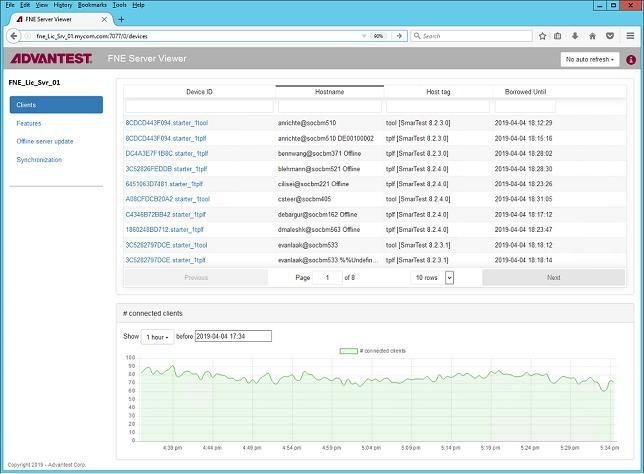
The Test systems page displays the Advantest test systems (license clients) that have checked out licenses from the FNE license server.
The Auto Refresh control provides refresh interval options. No auto refresh can also be selected.
Features
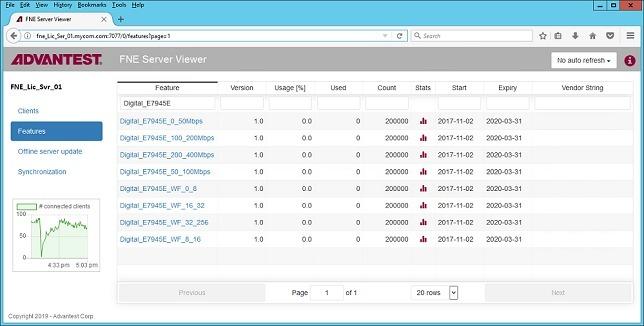
The Features page displays the licenses available for allocation on the server and their details:
The Auto Refresh control provides refresh interval options. No auto refresh can also be selected.
Offline Server Update
For FNE license servers not connected to the Internet, using the Offline Server Update page, you can upload and download license content files for :
- Activation
- Re-hosting
- Renewal
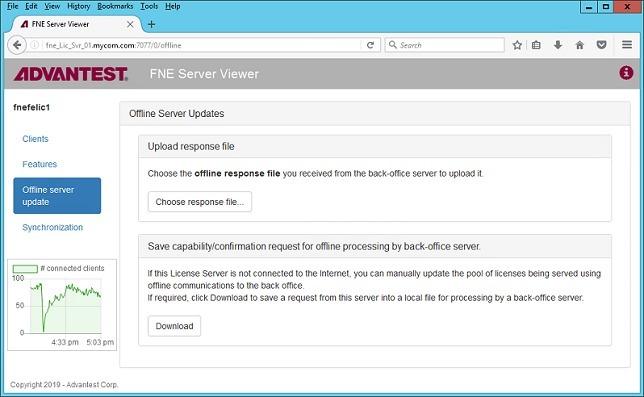
Synchronization
The Synchronization page contains the Synchronize control used to synchronize FlexNet Embedded license servers with the Advantest License back-office.
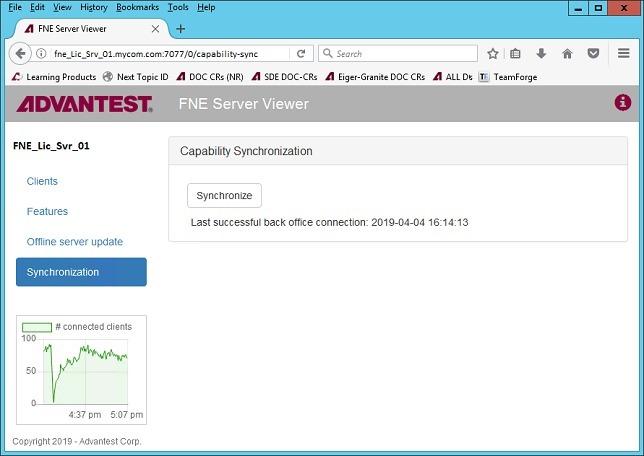
Rehosting FlexNet Embedded licenses
It is possible to move licenses between FlexNet Embedded license servers.
Note: Changes will not apply to the server without synchronization (online server) or upload the license file (online and offline server).
Procedure
-
Go to the Advantest License Portal: https://license.advantest.com/ and login.
-
Go to the License Management tab.
-
In the "Re-host Licenses" section, select Re-host Licenses.
-
Select one of the following options (re-host based upon the license server or based upon an entitlement):
-
By license server - a list of license servers IDs is displayed
-
By entitlement - a list of entitlement IDs is displayed
-
-
Select a license server or entitlement as appropriate and click Continue.
-
Enter the Re-host count (number of licenses that you want to re-host) and click Continue.
Fill all - enters Re-host count for all available licenses (visible with the filter).
Clear all - reverts the selections to the original values on the initial license server.
-
Review the re-hosting summary.
-
When you are sure that the information has been entered correctly, click Apply License Count Changes.
The Download license files page is displayed.
-
If your license server is connected to the internet, synchronization with the back office with server viewer's synchronization tab, or perform the command sync-fne-server, or wait the automatic synchronization in every 12-hour.
If the license server is not connected to the internet, download or email the zip file and upload it with the server viewer's Offline server update tab to remove the licenses from the server. After removing the licenses from the server Download the confirmation file on the server viewer's Offline server update tab. The confirmation file needs to be uploaded to the Advantest Licensing Back-Office to confirm that the licenses have been removed from the server in the next step.
-
If the license server is connected to the internet, close the Removal Confirmation dialog box.
If the license server is not connected to the internet, click Upload in the Removal Confirmation dialog box (if you have closed the Removal Confirmation dialog box accidentally, you can do the upload via Upload Removal Confirmation File (offline server only) on the License Management tab).
-
In order to activate the removed licenses to another license server follow the instruction to activate licenses.
Related information
Controlled rehosting for FNE
It is possible to restrict the ability to return licenses to assigned users only - Controlled Re-hosting. This reduces the chance that licenses are removed accidentally, which could upset running production systems.
About this task
Using FNE licensing technology, you can perform license re-hosting and move licenses between FNE license servers.
License re-hosting consists of two tasks:
- Removal of the license from a license server and returning it back to its entitlement in the Advantest licensing web portal.
- Re-activation of the returned license onto another license server.
Note: Activating controlled re-hosting only limits the capability to return/remove licenses from the FNE license server. The are no limitations for users to perform activation of licenses onto FNE license servers.
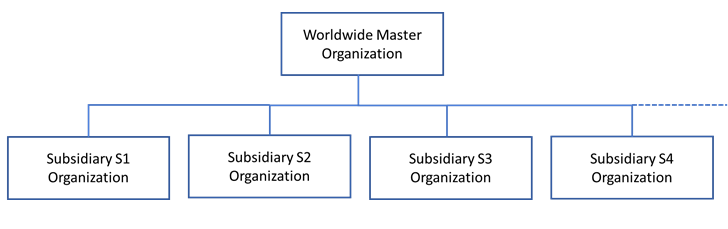
Activating controlled re-hosting for your worldwide Master Organization in the Advantest entitlement management system, initially disables all assigned users at your subsidiary organizations from license re-hosting (returning licenses to its entitlement).
- Administrator
- License re-hosting privileges for all worldwide subsidiaries and any subsidiaries added in the future.
Authorized users- Authorized for license re-hosting for specified subsidiary organizations.
Users- Assigned to a specific subsidiary and can activate licenses only onto the license servers registered for the same subsidiary organization.
Users can be designated to perform license re-hosting for FNE servers and entitlements by enabling the functionality for specified subsidiary organizations.
To enable Controlled Re-hosting, it must be explicitly requested from Advantest as follows:
Before you begin
Plan the internal organization required to manage your Advantest licenses: the people, their locations and their responsibilities.
Procedure
- Request the activation of the worldwide Master Organization ID for controlled re-hosting.
- Specify the login names of license administrators, who are authorized to perform license re-hosting from and to any server inside your worldwide Master Organization.
- Specify the login names of users with a list of subsidiary organization IDs, for which the users are authorized to perform re-hosting.
Results
Controlled re-hosting privilege requirements have been sent to Advantest for configuration.
Example
illustration of how the various license roles can be assigned
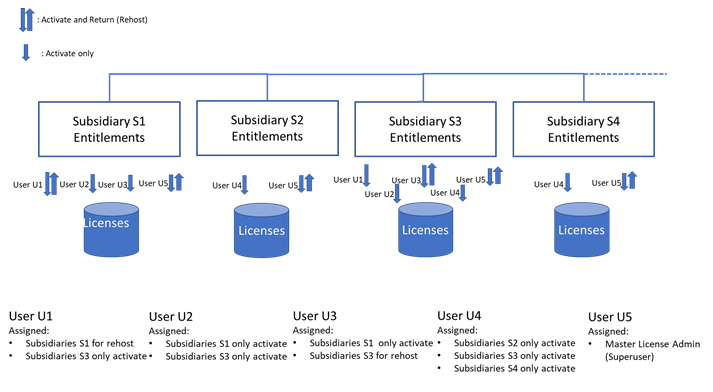
- Mixed authorized user/user role
- User U1 is assigned Subsidiary S1 and Subsidiary S3, For Subsidiary S1, the license administrator (re-host/return) role is assigned. For Subsidiary S3, only the regular activate role is assigned.
- User role only for multiple subsidiaries
- User U2 is assigned Subsidiary S1 and Subsidiary S3 but only the regular activate role is assigned for both subsidiaries.
- Administrator role for complete re-hosting privileges
- User U5 has re-hosting rights for all subsidiaries.
What to do next
Contact your Advantest representative for further information and to get the Controlled Re-hosting functionality activated.
Troubleshooting FlexNet Embedded licensing
Supported web browsers
The Licensing Portal is supported on the following web browsers:
- Google Chrome
- Mozilla Firefox
Note: Microsoft Internet Explorer is not supported.
FlexNet log files
FNE license server log file directory:
/var/opt/flexnetls/socbu/logs
Installation log file:
/tmp/install-fne-date and version information.sh.root.log
FNE server does not start
The FNE server is installed but cannot be started.
The following error is displayed in the log file:
/var/opt/flexnetls/socbu/logs/flexnetls.log
00:02:49,408 advantest-fne-server start
...
00:03:02,575 ERROR main Native code loading error
java.lang.UnsatisfiedLinkError: /tmp/llsnc-2019.07.1.0-256892-amd64-libconnector.so3
(/tmp/llsnc-2019.07.1.0-256892-amd64-libconnector.so4:
failed to map segment from shared object: Operation not permitted)
...
The server attempts to use or execute a shared library located in the /tmp directory, but execute permissions for executables located in /tmp is has not been granted by the noexec option in the mount flags.
Check the /etc/fstab entry and it should include the noexec option:
/dev/mapper/vg00-tmp tmp ext4
defaults,nodev,nosuid,noexec 1 2Check license on license server
For checking licenses on a license server, us the FNE Server Viewer. For details see Monitoring license servers using the FNE Server Viewer.
To verify the installation and license server configuration enter the command:
fne-list-licenses
The tool iterates through the FlexNet Embedded servers defined in /etc/fne/client.conf and lists all licenses (used and available).
It also provides detailed information about the available licenses including:
- Content of the AssetScale tokens
- Locking of licenses
- Expiry information
Note: The fne-list-licenses tool does not show details from cloud license servers.
Check for installed version of the FNE software
To check the version of the installed FNE software:
yum info advantest-fne-server
Output example:
Loaded plugins: langpacks, search-disabled-repos
Installed Packages
Name : advantest-fne-server
Arch : x86_64
Version : 2024.02.0.0
Release : 17055.el9
Size : 75 M
Repo : installed
From repo : /advantest-fne-server-2024.02.0.0-17055.el9.x86_64
Summary : FlexNet Embedded Server 2024.02.0.0 for socbu
License : Advantest Corporation, 2024
Description : This rpm package provides complete installation of the FlexNet
Embedded server version 2024.02.0.0 and startup/shutdown scripts.
:
: Original packages: flexnetls-x64_linux-2024.02.0.tar.gz
Golden_socbu_IdentityClientServerMVEL_ENUM.bin
Command line tool for server administrators
The following commands are available for FNE license server administrators, located in the directory:
/opt/flexnetls/socbu
- showconfig-fne-server [options]
- Displays the configuration of the server.
-v option provides more details.
- reset-fne-server [options]
- Removes the FNE license database from your system.
Warning: There is no local backup from which to recover deleted data.
-
To repopulate the FNE license server database with licenses, resynchronize with the Advantest back office.
-
Options:
-force - Forces a full reset.
-help - Displays the help information.
Note: After running the reset-fne-server tool, the server is shut down. It must be restarted.
-
The reset-fne-server command can be used to recover from the following type of errors:
ERROR: FNE code 7000001c - Server was not able to process request correctly.
ERROR: FNE servercode 33 - Trusted Storage broken, backup/restore exploit detectedAccessing the Advantest License Back Office from online license servers
To validate that the online FNE license server can reach the Advantest License Portal, from the FNE license server host system, enter the following URL in a web browser:
https://license.advantest.com/
Note: Check the https connection using port 443.
Accessing the Advantest License Back Office using a proxy
The FNE server supports communication between the server and the Advantest License Back Office using an http-proxy if required.
If you need to access the Advantest License Back Office using a proxy:
- Open the
/etc/systemd/system/advantest-fne-server.service.d/flexnetls-socbu.conffile for editing. - Add a line using the following syntax, substituting the hostname/IP address and port of the proxy server:
Environment=HTTPS_PROXY=http://<host>:<port>
For example:
Environment=HTTPS_PROXY=http://myproxyserver.mycom.com:1234 - Save and close the file.
- Restart the FNE server:
sudo systemctl restart advantest-fne-server
Firewall open for Advantest FNE Cloud License Server
To validate if the firewall and the connection to the Advantest FNE Cloud License Server, from the FNE license server host system, enter the following URL in a web browser::
http://<ACLS-servername>:7070/api/1.0/health
The output would look like this:
{
"LLS" : {
"version" : "2018.02",
"buildDate" : "2018-01-30T18:39:07Z",
"buildVersion" : "222955",
"branch" : "FlexnetLS-2018.02",
"patch" : "0",
"fneBuildVersion" : "220112",
"serverInstanceID" : "05RBLMU6XLGW",
"database" : {
"connectionCheck" : "success"
},
"security" : "enabled",
"httpAuth" : "enabled",
"licensingSecurityJSON" : "enabled"
}
}
Uninstall the License Server and Server Viewer
To uninstall the FNE License Server and FNE Server Viewer:
sudo yum remove advantest-fne-server advantest-fne-server-viewer