# FlexNet Embedded licensing

1. [<span>FlexNet Embedded license </span>**server setup**](https://lhc.advantest.com/books/flexnet-embedded-licensing/chapter/flexnet-embedded-license-server-setup)
2. [<span>FlexNet Embedded license </span>**client setup**](https://lhc.advantest.com/books/flexnet-embedded-licensing/chapter/flexnet-embedded-license-client-setup)
3. [<span>FlexNet Embedded license </span>**administration**](https://lhc.advantest.com/books/flexnet-embedded-licensing/chapter/flexnet-embedded-license-administration)
4. [**Monitoring license**<span> servers using the FNE Server Viewer</span>](https://lhc.advantest.com/books/flexnet-embedded-licensing/page/monitoring-license-servers-using-the-fne-server-viewer)
5. [**Re-hosting** FlexNet Embedded licenses](https://lhc.advantest.com/books/flexnet-embedded-licensing/page/rehosting-flexnet-embedded-licenses)
6. [**Controlled re-hosting** for FNE](https://lhc.advantest.com/books/flexnet-embedded-licensing/page/controlled-rehosting-for-fne)
7. [**Troubleshooting**<span> FlexNet Embedded licensing</span>](https://lhc.advantest.com/books/flexnet-embedded-licensing/page/troubleshooting-flexnet-embedded-licensing)

# FlexNet Embedded licensing

FlexNet Embedded (FNE) is the licensing technology from Flexera adopted by Advantest. It is the replacement for the current FlexNet Publisher (FNP) technology.

FlexNet Embedded licensing is the default for SmarTest versions ≥ 8.1 and 7.10, and can be used with SmarTest versions ≥ 7.6.

- FNE architecture uses the same client-server concept as the earlier FNP technology.
- FNE offers more flexibility and ease of use.
- FNE does not need a permanent connection between the client and the license servers.
- FNE includes self re-hosting functionality (move licenses between license servers).

The main components of an FNE licensing setup is shown in the following graphic:

<div class="p" id="bkmrk-"><figure class="fignone">[![11.png](https://lhc.advantest.com/uploads/images/gallery/2025-10/scaled-1680-/qSU11-png.png)](https://lhc.advantest.com/uploads/images/gallery/2025-10/scaled-1680-/qSU11-png.png)</figure></div>The FlexNet Licensing Back-office at Advantest is the license management infrastructure, incorporating the master database for licenses, and the location from which customer licenses are available for activation.

If, for example, a you remove licenses from one of your FNE license servers, this needs to be reflected in the FlexNet Licensing Back-office at Advantest before these licenses can be activated by another license server. Therefore, some data exchange is required between the your FNE license servers and the FlexNet Licensing Back-office at Advantest. This can be achieved over the Internet (online usage) or using file exchange (offline usage).

The FlexNet Licensing Back-office at Advantest is, however, transparent for customers. A license portal is available for managing licenses (for example, registering FNE license servers, exchanging data files, activating licenses), and takes over the tasks of communicating with the Advantest FlexNet Licensing Back-office.

<section class="section" id="bkmrk-benefits-of-flexnet-">### **Benefits of FlexNet Embedded**

- FNE provides a more stable production environment while clients only need to contact the license server every 20 minutes.
- Supports a renewal concept with less effort.
- Supports self-rehosting.
- Provides a device-specific licensing concept, including multi-dimensional locking.
- The host ID of the license server is not required for registration. Entering of host IDs is required by FNP and is error-prone.

</section><section class="section" id="bkmrk-differences-between-">### **Differences between FlexNet Embedded and FlexNet Publisher.**

- FNE does not use license files. 
    - Advantest FNP uses incremental licensing in license files. With every new license activation a new license file is created, which results in multiple license files. This makes license management difficult.
    - Advantest FNE uses a license container. With each license activation all licenses of the license server are provided in a binary file. This eases license management. \- The license container is a binary file, which requires no manual editing. In FNP, editing the license container file is error-prone.
        
        \- One file contains the complete license content. License management is simpler.
- License Portal interface is available for interaction with the FNE Licensing Back-office.
- The license server log files have different formats.

</section>

# FlexNet Embedded license server setup

# FlexNet Embedded license server setup

#### **Subtopics**

1. [Setting the hostname of a system controller](https://lhc.advantest.com/books/flexnet-embedded-licensing/page/setting-the-hostname-of-a-system-controller "The hostnamectl tool is provided for administering the three classes of hostnames that can be used on a system controller or license server running RHEL 7.")
2. [Single FNE License server installation, upgrades and updates](https://lhc.advantest.com/books/flexnet-embedded-licensing/page/single-fne-license-server-installation-upgrades-and-updates "Installation procedure for a single FlexNet Embedded license server to provide activated licenses. Applicable to fresh installations, and applying upgrades to add major functionality and patch updates installing the latest packages on an existing server.")
3. [Failover license server installation, upgrades and updates](https://lhc.advantest.com/books/flexnet-embedded-licensing/page/failover-license-server-installation-upgrades-and-updates "Installation procedure for a failover FlexNet Embedded license server arrangement to provide activated licenses. Applicable to fresh installations, and applying upgrades to add major functionality and patch updates installing the latest packages on an existing server.")
4. [Registering the license server](https://lhc.advantest.com/books/flexnet-embedded-licensing/page/registering-the-license-server "A new license server must be registered with the Advantest FNE Licensing Back-office before it can be used to host licenses.")

FlexNet Embedded license servers are implemented to provide activated licenses to SmarTest system controllers.

<section class="section" id="bkmrk-introduction-install">### Introduction

Installing a FlexNet Embedded license server able to provide the activated licenses requires three steps:

- Installation of the license server software on the host system
- License server registration
- License activation

The FNE license server, when installed in conjunction with the FNP2FNE proxy, can manage both FNE and FNP licenses for all supported SmarTest versions (SmarTest 5, 6, 7 and 8), and includes new features such as self-rehosting for SmarTest 5, 6 and 7 (FNP) license servers.

</section><section class="section" id="bkmrk-prerequisites-make-s">### **Prerequisites**

Make sure that the system hosting the FlexNet Embedded license server meets the following Prerequisites:

Hardware minimum configuration:

- Quad core CPU
- 8 GB RAM
- 12 GB free hard disc space FNE, plus 12GB for FNX/FNP if used.

Operating system configuration:

- Red Hat Linux ≥ 9.0, 7.2 - 7.9, Rocky Linux ≥ 9 or CentOS 7.2 - 7.9.
- Available user with unrestricted sudo access.
- Ports 7070 and 7077 may not be used by other applications. If FNX is installed, ports 27000, 27019, and 27020 must not be used by other applications.
- Java 8 - Oracle Java or OpenJDK
- License server must use fully qualified hostname (command `<var class="varname"><span class="keyword"><span class="filepath">hostname -f</span></span></var>` must not return `<var class="varname"><span class="keyword"><span class="filepath">localhost</span></span></var>`)

</section><section class="section" id="bkmrk-checking-the-availab">### **Checking the availability of ports 7070 and 7077**

Ports 7070 and 7077 must not be in use by other applications.

To check this, enter in the bash shell (if you use ksh, you can open a bash shell with enter /bin/bash on the command line):

`<var class="varname"><span class="keyword"><span class="filepath"><kbd class="userinput">&> /dev/null < /dev/tcp/localhost/7070 && echo INUSE</kbd></span></span></var>`

`<var class="varname"><span class="keyword"><span class="filepath"><kbd class="userinput">&> /dev/null < /dev/tcp/localhost/7077 && echo INUSE</kbd></span></span></var>`<kbd class="userinput"></kbd>

In addition, if FNX is used for FNP license management, ports 27000, 27019, and 27020 must not be in use by other applications.

To check this, enter in the bash shell (if you use ksh, you can open a bash shell with enter /bin/bash on the command line):

`<var class="varname"><span class="keyword"><span class="filepath"><kbd class="userinput">&> /dev/null < /dev/tcp/localhost/27000 && echo INUSE</kbd></span></span></var>`

`<var class="varname"><span class="keyword"><span class="filepath"><kbd class="userinput">&> /dev/null < /dev/tcp/localhost/27019 && echo INUSE</kbd></span></span></var>`

`<var class="varname"><span class="keyword"><span class="filepath"><kbd class="userinput">&> /dev/null < /dev/tcp/localhost/27020 && echo INUSE</kbd></span></span></var>`

If no response message is displayed, the port is not in use.

If the response `INUSE` is displayed, the port is in use.

If port any of these ports are in use, either use a different server to host the FNE license server or get in contact with your administrators (customer IT) to identify the application and remove it from the server to be used for the FNE license server.

The <span class="keyword">lsof `lsof`</span> command can be used to find processes using a particular port. For example, the following command returns information of the process using port 7070:  
  
<kbd class="userinput">`<kbd class="userinput">sudo lsof -i tcp:7070</kbd>`</kbd>

Example output:

```
COMMAND PID USER FD TYPE DEVICE SIZE/OFF NODE NAME
java 11381 flexnetls 40u IPv6 56027 0t0 TCP *:arcp (LISTEN)
```

<p class="callout info"><span class="title">Note: The installation of an FNE license server opens all required ports in the firewall (7070, 7077, 27000, 27019 and 27020).</span></p>

</section><section class="section" id="bkmrk-checking-the-availab-2">### **Checking the availability of port 443**

If your FNE license server is to have an online connection to the Advantest Licensing Back-Office, you need a connection to the internet for outgoing connections (FROM the license server to the internet). To check if access is available before you install the FNE license server.

</section><p class="callout info"><span class="title">Note:</span> You do not need to check the availability of port 443 if you will only be communicating offline with the Advantest Licensing Back-Office (exchanging files as opposed to an Internet connection).</p>

<section class="section" id="bkmrk-do-the-following-to-">Do the following to check if port 443 is open on your FNE license server:

1. Open a browser.
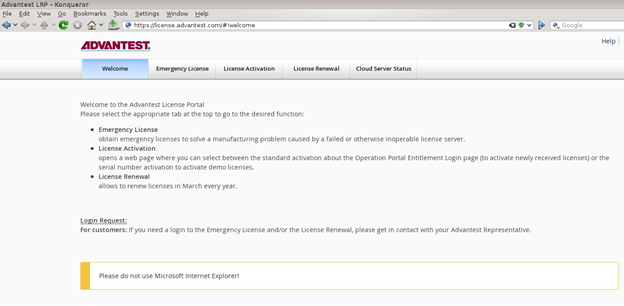
2. Enter the URL: [https://license.advantest.com/](https://license.advantest.com/).  **If the port 443 is open**, the Advantest License Portal Welcome page is displayed:
    
    [![1.png](https://lhc.advantest.com/uploads/images/gallery/2025-10/scaled-1680-/1-png.png)](https://lhc.advantest.com/uploads/images/gallery/2025-10/scaled-1680-/1-png.png)
    
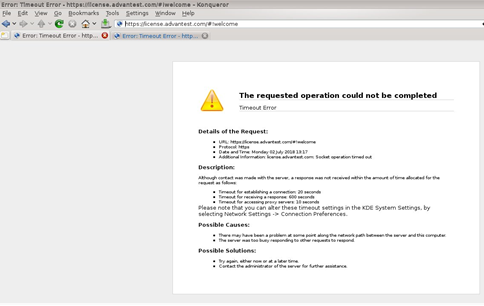
     **If port 443 is not open,** an error message page is displayed informing of a timeout or failure to connect to the requested page, for example:
    
    [![2.png](https://lhc.advantest.com/uploads/images/gallery/2025-10/scaled-1680-/eJp2-png.png)](https://lhc.advantest.com/uploads/images/gallery/2025-10/scaled-1680-/eJp2-png.png)
3. If you require an internet connection to the Advantest Licensing Back-Office, get in contact with your administrators (customer IT) and request that port 443 is opened.

</section><section class="section" id="bkmrk-checking-the-date-an">### **Checking the date and time settings**

It is important to have the correct date and time set on the workstations and license servers. The Network Time Protocol (NTP) can be used to synchronize the clocks of computers with a reference time source over a network. For details on how to synchronize the date and time settings using NTP, see [Network time protocol configuration](https://tdc.advantest.com/help/topic/com.verigy.itee.help.service.ui.8.7.6/150646.htm).

</section><section class="section" id="bkmrk-network-configuratio">### **Network configuration**

For a license server to start, the server workstation must be set up for networking.

For a local license server installed on the system controller that is not connected to a network, a few prerequisites must be considered. The system controller must have a Fully Qualified Domain Name (FQDN). As a result, the `<span class="filepath">/etc/hosts</span>` file must have an entry of the form:

`ip address hostname.domainname hostname`

For example: `192.168.0.15 server123.mycompany.com ws123`

For more details about setting hostnames, see [Setting the hostname of a system controller](https://lhc.advantest.com/books/flexnet-embedded-licensing/page/setting-the-hostname-of-a-system-controller "The hostnamectl tool is provided for administering the three classes of hostnames that can be used on a system controller or license server running RHEL 7.").

</section><section class="section" id="bkmrk-next-steps-if-the-pr">## Next steps

If the prerequisites are met, start the installation of the FNE license server as described in the appropriate topic:

- [Failover license server installation, upgrades and updates](https://lhc.advantest.com/books/flexnet-embedded-licensing/page/failover-license-server-installation-upgrades-and-updates "Installation procedure for a failover FlexNet Embedded license server arrangement to provide activated licenses. Applicable to fresh installations, and applying upgrades to add major functionality and patch updates installing the latest packages on an existing server.")
- [Single FNE License server installation, upgrades and updates](https://lhc.advantest.com/books/flexnet-embedded-licensing/page/single-fne-license-server-installation-upgrades-and-updates "Installation procedure for a single FlexNet Embedded license server to provide activated licenses. Applicable to fresh installations, and applying upgrades to add major functionality and patch updates installing the latest packages on an existing server.")

</section>

# Setting the hostname of a system controller

<main id="bkmrk-the-hostnamectl-tool" role="main"><article aria-labelledby="ariaid-title1" role="article">The hostnamectl tool is provided for administering the three classes of hostnames that can be used on a system controller or license server running RHEL 7.

<div><section class="section">### **Scope**

<div class="p"><dl><dt class="dlterm">***RHEL 7***</dt><dd>The following tips are applicable for RHEL 7. For more information about configuring host names, refer to the Red Hat documentation: [https://access.redhat.com/documentation/en-us/red\_hat\_enterprise\_linux/7/html/networking\_guide/ch-configure\_host\_names](https://access.redhat.com/documentation/en-us/red_hat_enterprise_linux/7/html/networking_guide/ch-configure_host_names).</dd><dt class="dlterm"> ***RHEL 9***</dt><dd>For information about changing hostnames on RHEL 9 using the **<span class="keyword">nmcli</span>** or **<span class="keyword">nmtui</span>** tools, refer to the Red Hat documentation: [https://access.redhat.com/documentation/en-us/red\_hat\_enterprise\_linux/9/html/configuring\_and\_managing\_networking/assembly\_changing-a-hostname\_configuring-and-managing-networking#proc\_changing-a-hostname-using-nmcli\_assembly\_changing-a-hostname](https://access.redhat.com/documentation/en-us/red_hat_enterprise_linux/9/html/configuring_and_managing_networking/assembly_changing-a-hostname_configuring-and-managing-networking#proc_changing-a-hostname-using-nmcli_assembly_changing-a-hostname)

</dd></dl></div></section><section class="section">### **View all hostnames**

To view all the current hostnames, enter the command:

<kbd class="userinput"><span class="keyword">`<kbd class="userinput">hostnamectl status </kbd>`</span></kbd>

The <kbd class="userinput"><span class="keyword">`<kbd class="userinput">status</kbd>` </span></kbd>option is implied by default if no option is given.

</section><section class="section">### **Set all hostnames**

To set all the hostnames on a system, as root, enter the command:

<var class="varname"><kbd class="userinput"><span class="keyword">`<kbd class="userinput">hostname<kbd class="userinput">ctl set-hostname</kbd> name </kbd>`</span></kbd></var>

This command changes the pretty, static, and transient hostnames to the name specified in *<var class="varname">name</var>*. The static and transient hostnames are simplified forms of the pretty hostname. Spaces are replaced with "-" and special characters are removed.

</section><section class="section">### **Set a particular hostname**

To set a particular hostname, as root, enter the command with the relevant option:

<var class="varname"> <kbd class="userinput"><span class="keyword">`<kbd class="userinput">hostname<kbd class="userinput">ctl set-hostname</kbd> name [option...] </kbd>`</span></kbd></var>

Where <var class="varname">option</var> is one or more of: <var class="varname"><kbd class="userinput"><span class="keyword">`<kbd class="userinput"><kbd class="userinput">--pretty</kbd></kbd>`</span></kbd></var>, <var class="varname"><kbd class="userinput"><span class="keyword">`<kbd class="userinput"><kbd class="userinput">--static</kbd></kbd>`</span></kbd></var>, and <var class="varname"><kbd class="userinput"><span class="keyword">`<kbd class="userinput"><kbd class="userinput">--transient</kbd></kbd>`</span></kbd></var>.

If either the <var class="varname"><kbd class="userinput"><span class="keyword">`<kbd class="userinput"><kbd class="userinput">--static</kbd></kbd>`</span></kbd></var> or <var class="varname"><kbd class="userinput"><span class="keyword">`<kbd class="userinput"><kbd class="userinput">--transient</kbd></kbd>`</span></kbd></var> options are used with the <var class="varname"><kbd class="userinput"><span class="keyword">`<kbd class="userinput"><kbd class="userinput">--pretty</kbd></kbd>`</span></kbd></var> option, the static and transient hostnames are simplified forms of the pretty hostname. Spaces are replaced with "<kbd class="userinput">-</kbd>" and special characters are removed. If the <var class="varname"><kbd class="userinput"><span class="keyword">`<kbd class="userinput"><kbd class="userinput">--pretty</kbd></kbd>`</span></kbd></var> option is not specivied, no simplification takes place.

If the pretty hostname to be set contains spaces or a single quotation mark, use quotation marks around the <var class="varname">name</var> entry. For example:

<kbd class="userinput"><var class="varname"><kbd class="userinput"><span class="keyword">`<kbd class="userinput">hostname<kbd class="userinput">ctl set-hostname "Advantest's SmarTest 8.2 system controller" <kbd class="userinput"><kbd class="userinput"><kbd class="userinput">--pretty</kbd></kbd></kbd></kbd></kbd>`</span></kbd></var> </kbd>

</section><section class="section">### **Check a hostname**

To check if the hostname is set correctly as a fully qualified domain name, as root, enter the command:

<kbd class="userinput"><var class="varname"><kbd class="userinput"><span class="keyword">`<kbd class="userinput">hostname -f</kbd>`</span></kbd></var></kbd>

An example of a correct response is: `server123.mycompany.com`

Incorrect response example: `localhost.localdomain`

</section><section class="section">### **Clear a particular hostname**

To clear a particular hostname and revert to the default, as root, enter the command with the relevant option:

<var class="varname"><kbd class="userinput"><kbd class="userinput"><span class="keyword">`<kbd class="userinput">hostname<kbd class="userinput">ctl <kbd class="userinput">set-hostname ""</kbd> [option...] </kbd></kbd>`</span></kbd></kbd></var>

Where:

<var class="varname"><kbd class="userinput"><kbd class="userinput"><span class="keyword">`<kbd class="userinput">""</kbd>`</span></kbd></kbd></var> is a quoted empty string.

<var class="varname">option...</var> is one or more of: <var class="varname"><kbd class="userinput"><span class="keyword">`<kbd class="userinput"><kbd class="userinput">--pretty</kbd></kbd>`</span></kbd></var>, <var class="varname"><kbd class="userinput"><span class="keyword">`<kbd class="userinput"><kbd class="userinput">--static</kbd></kbd>`</span></kbd></var>, and <var class="varname"><kbd class="userinput"><span class="keyword">`<kbd class="userinput"><kbd class="userinput">--transient</kbd></kbd>`</span></kbd></var>.

</section></div></article></main><footer id="bkmrk-" role="contentinfo"><div class="fo"><div class="-share"><div class="-sharem">  
</div><div class="-shared" style="display: none;">  
</div></div></div></footer>

# Single FNE License server installation, upgrades and updates

Installation procedure for a single FlexNet Embedded license server to provide activated licenses. Applicable to fresh installations, and applying upgrades to add major functionality and patch updates installing the latest packages on an existing server.

<section class="section" id="bkmrk-about-this-task-the-">### About this task

The following procedure is applicable to installation, upgrades and updates. For failover arrangements, also refer to [Failover license server installation, upgrades and updates](https://lhc.advantest.com/books/flexnet-embedded-licensing/page/failover-license-server-installation-upgrades-and-updates "Installation procedure for a failover FlexNet Embedded license server arrangement to provide activated licenses. Applicable to fresh installations, and applying upgrades to add major functionality and patch updates installing the latest packages on an existing server.").

Registering the server is only required for initial installation. This steps should be omitted for upgrades and updates. If you are upgrading an existing installation, a running license server is automatically stopped as part of the new software installation.

The license server install package can be downloaded from the Advantest Software Center server:

[https://softwarecenter.advantest.com/download/othersw/builds/licensing](https://softwarecenter.advantest.com/download/othersw/builds/licensing)

</section><section id="bkmrk-before-you-begin-mak">### **Before you begin**

Make sure that the system hosting the FlexNet Embedded license server host system meets the hardware and operating system prerequisites. For details, see [FlexNet Embedded license server setup](https://lhc.advantest.com/books/flexnet-embedded-licensing/page/flexnet-embedded-license-server-setup "FlexNet Embedded license servers are implemented to provide activated licenses to SmarTest system controllers.").

</section><section id="bkmrk-procedure-open-the-a">### **Procedure**

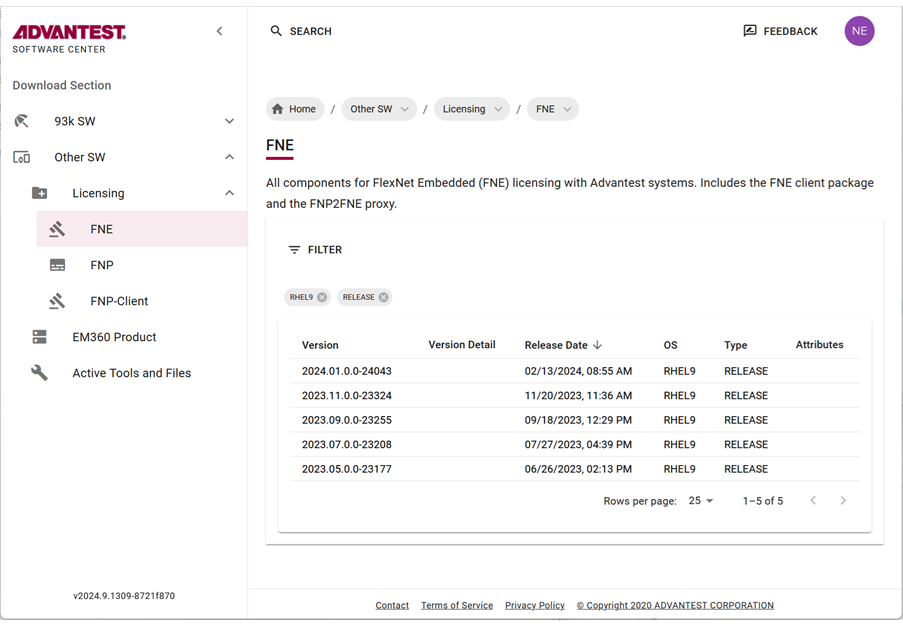
1. Open the Advantest Software Center in a browser: [https://softwarecenter.advantest.com/](https://softwarecenter.advantest.com/)Login with your credentials.
2. To get the list of all available Licensing products, from the left menu select: **<span class="menucascade"><span class="uicontrol">Other</span><abbr title="and then"> &gt; </abbr><span class="uicontrol">Licensing  
    </span></span>**[![3.png](https://lhc.advantest.com/uploads/images/gallery/2025-10/scaled-1680-/IN13-png.png)](https://lhc.advantest.com/uploads/images/gallery/2025-10/scaled-1680-/IN13-png.png)
3. Scroll to and select the license type FNE and the version you want to install and expand to display the details.
4. <span id="bkmrk-create-an-empty-inst">Create an empty installation directory. For example:<kbd class="userinput"><kbd class="userinput"><span class="keyword">`<kbd class="userinput"><kbd class="userinput">/tmp/smartest_pakages </kbd> </kbd>`</span></kbd></kbd></span><kbd class="userinput"><span id="bkmrk-mkdir-%2Ftmp%2Fsmartest_"><kbd class="userinput"><kbd class="userinput"><span class="keyword">`<kbd class="userinput"><kbd class="userinput">mkdir /tmp/smartest_pakages </kbd></kbd>`</span></kbd></kbd></span></kbd>
    
    <p class="callout info"><span class="title">Note: It is not recommended to use a separate partition for **<span class="filepath">/tmp</span>**. Ensure that sufficient space is allocated to the **<span class="filepath">/tmp</span>** folder. As **<span class="filepath">/tmp</span>** is a shared directory and used by many applications, the required folder size is dependent on the actual use and so customer-specific. Therefore, Advantest cannot give a recommendation about the required size of this folder. Monitor the **<span class="filepath">/tmp</span>** folder and make sure that sufficient space is always available. </span></p>
5. Download the archive package by clicking the [![9.png](https://lhc.advantest.com/uploads/images/gallery/2025-10/scaled-1680-/WoC9-png.png)](https://lhc.advantest.com/uploads/images/gallery/2025-10/scaled-1680-/WoC9-png.png) icon. The selected license (**<span class="filepath">tar.gz</span>**) package is downloaded to your browser's download folder.
    
    Example FNE packages include:
    
    <kbd class="userinput"><span id="bkmrk-fne_2024.01.0.0-2404"><kbd class="userinput"><kbd class="userinput"><span class="keyword">`<kbd class="userinput"><kbd class="userinput"><span class="filepath">fne_2024.01.0.0-24043_rhel9.tar.gz</span> </kbd></kbd>`</span></kbd></kbd></span></kbd>
6. Move the downloaded archive packages to the installation directory: <kbd class="userinput"><span id="bkmrk-%2Ftmp%2Fsmartest_pakage"><kbd class="userinput"><kbd class="userinput"><span class="keyword">`<kbd class="userinput"><kbd class="userinput">/tmp/smartest_pakages</kbd></kbd>`</span></kbd></kbd></span></kbd><div>  
    </div>
7. Unpack the archive with the command: **<kbd class="userinput"><kbd class="userinput"><span id="bkmrk-tar-xvzf-package-nam"><kbd class="userinput"><kbd class="userinput"><span class="keyword">`<kbd class="userinput"><kbd class="userinput"><kbd class="userinput">tar xvzf <var class="varname">package-name</var>.tar.gz</kbd></kbd></kbd>`</span></kbd></kbd></span></kbd></kbd>**
    
      
    For example:
    
    <div><kbd class="userinput"><kbd class="userinput"><kbd class="userinput"><span id="bkmrk-tar-xvzf-fne_2024.01"><kbd class="userinput"><kbd class="userinput"><span class="keyword">`<kbd class="userinput"><kbd class="userinput"><kbd class="userinput"><kbd class="userinput">tar xvzf fne_2024.01.0.0-24043_rhel9.tar.gz</kbd></kbd></kbd></kbd>`</span></kbd></kbd></span></kbd></kbd></kbd></div>The installation script is extracted, for example:
    
    <span class="filepath"><kbd class="userinput"><kbd class="userinput"><kbd class="userinput"><span id="bkmrk-install-fne-2024.01."><kbd class="userinput"><kbd class="userinput"><span class="keyword">`<kbd class="userinput"><kbd class="userinput"><kbd class="userinput"><kbd class="userinput">install-fne-2024.01.0.0-24043-rhel9.sh</kbd></kbd></kbd></kbd>`  
      
    </span></kbd></kbd></span></kbd></kbd></kbd></span>
8. Check the downloaded archive package for integrity: <kbd class="userinput"><span class="filepath"><kbd class="userinput"><kbd class="userinput"><kbd class="userinput"><span id="bkmrk-bash-install-fne-dat"><kbd class="userinput"><kbd class="userinput"><span class="keyword">`<kbd class="userinput"><kbd class="userinput"><kbd class="userinput"><kbd class="userinput"><kbd class="userinput">bash install-fne-<var class="varname">date</var>-<var class="varname">version</var>.sh test</kbd></kbd></kbd></kbd></kbd>`  
      
    </span></kbd></kbd></span></kbd></kbd></kbd></span></kbd>
9. Start the installation or upgrade using the command appropriate for your licensing environment: <p class="callout info"><span class="title">Note:</span> During upgrading and updating, the installation script can be called without any options. All installed packages are detected automatically and updated if applicable.</p>
    
      
    <dl><dt class="dlterm">##### **FNE license only**
    
    </dt><dd><dl><dt class="dlterm"><span style="text-decoration: underline;">**Installation with support for SmarTest 8 only (FNE licenses only):** </span></dt><dd><kbd class="userinput"><kbd class="userinput"><span class="filepath"><kbd class="userinput"><kbd class="userinput"><kbd class="userinput"><span id="bkmrk-sudo-sh-install-fne-"><kbd class="userinput"><kbd class="userinput"><span class="keyword">`<kbd class="userinput"><kbd class="userinput"><kbd class="userinput"><kbd class="userinput"><kbd class="userinput"><kbd class="userinput">sudo sh install-fne-<var class="varname">date</var>-<var class="varname">version</var>.sh server</kbd></kbd></kbd></kbd></kbd></kbd>`  
      
    </span></kbd></kbd></span></kbd></kbd></kbd></span></kbd></kbd>
    
    For example:
    
    <kbd class="userinput"><kbd class="userinput"><kbd class="userinput"><span class="filepath"><kbd class="userinput"><kbd class="userinput"><kbd class="userinput"><span id="bkmrk-sudo-sh-install-fne--1"><kbd class="userinput"><kbd class="userinput"><span class="keyword">`<kbd class="userinput"><kbd class="userinput"><kbd class="userinput"><kbd class="userinput"><kbd class="userinput"><kbd class="userinput">s<kbd class="userinput">udo sh install-fne-2024.01.0.0-24043-rhel9.sh server</kbd></kbd></kbd></kbd></kbd></kbd></kbd>`  
      
    </span></kbd></kbd></span></kbd></kbd></kbd></span></kbd></kbd></kbd>
    
    </dd><dt class="dlterm"><span style="text-decoration: underline;">**Upgrade (FNE software is installed and to be upgraded with newer software):** </span><kbd class="userinput"><kbd class="userinput"><kbd class="userinput"><span class="filepath"><kbd class="userinput"><kbd class="userinput"><kbd class="userinput"><span id="bkmrk-sudo-sh-install-fne--2"><kbd class="userinput"><kbd class="userinput"><span class="keyword">`<kbd class="userinput"><kbd class="userinput"><kbd class="userinput"><kbd class="userinput"><kbd class="userinput"><kbd class="userinput">sudo sh install-fne-<var class="varname">date</var>-<var class="varname">version</var>.sh</kbd></kbd></kbd></kbd></kbd></kbd>`  
      
    </span></kbd></kbd></span></kbd></kbd></kbd></span></kbd></kbd></kbd></dt><dd>For example:
    
    <kbd class="userinput"><kbd class="userinput"><kbd class="userinput"><span class="filepath"><kbd class="userinput"><kbd class="userinput"><kbd class="userinput"><span id="bkmrk-sudo-sh-install-fne--3"><kbd class="userinput"><kbd class="userinput"><span class="keyword">`<kbd class="userinput"><kbd class="userinput"><kbd class="userinput"><kbd class="userinput"><kbd class="userinput"><kbd class="userinput">sudo sh <kbd class="userinput">install-fne-2024.01.0.0-24043-rhel9.sh</kbd></kbd></kbd></kbd></kbd></kbd></kbd>`</span></kbd></kbd></span></kbd></kbd></kbd></span></kbd></kbd></kbd>
    
    </dd></dl></dd><dt class="dlterm">##### **FNE and FNP licenses**
    
    </dt><dd><dl><dt class="dlterm">**<span style="text-decoration: underline;">Installation with support for SmarTest 8 and older SmarTest releases (FNE and FNP licenses):  
      
    </span>**</dt><dd><kbd class="userinput"><kbd class="userinput"><kbd class="userinput"><span class="filepath"><kbd class="userinput"><kbd class="userinput"><kbd class="userinput"><span id="bkmrk-sudo-sh-install-fne--4"><kbd class="userinput"><kbd class="userinput"><span class="keyword">`<kbd class="userinput"><kbd class="userinput"><kbd class="userinput"><kbd class="userinput"><kbd class="userinput"><kbd class="userinput">sudo sh <kbd class="userinput">install-fne-<var class="varname">date</var>-<var class="varname">version</var>.sh fnx</kbd></kbd></kbd></kbd></kbd></kbd></kbd>`  
      
    </span></kbd></kbd></span></kbd></kbd></kbd></span></kbd></kbd></kbd>
    
    For example:
    
    <kbd class="userinput"><kbd class="userinput"><kbd class="userinput"><kbd class="userinput"><span class="filepath"><kbd class="userinput"><kbd class="userinput"><kbd class="userinput"><span id="bkmrk-sudo-sh-install-fne--5"><kbd class="userinput"><kbd class="userinput"><span class="keyword">`<kbd class="userinput"><kbd class="userinput"><kbd class="userinput"><kbd class="userinput"><kbd class="userinput"><kbd class="userinput">sudo sh <kbd class="userinput">install-fne-2024.01.0.0-24043-rhel9.sh fnx</kbd></kbd></kbd></kbd></kbd></kbd></kbd>`</span></kbd></kbd></span></kbd></kbd></kbd></span></kbd></kbd></kbd>  
      
    </kbd>
    
    *The FNX front-end server that converts legacy **<span class="keyword">lmgrd</span>** FNP license calls into FNE license call is also installed, providing support for SmarTest versions 5, 6 and 7.*
    
    </dd><dt class="dlterm"><span style="text-decoration: underline;">**Upgrade (FNE software is installed and to be upgraded with newer software):** </span></dt><dd><kbd class="userinput"><kbd class="userinput"><kbd class="userinput"><kbd class="userinput"><span class="filepath"><kbd class="userinput"><kbd class="userinput"><kbd class="userinput"><span id="bkmrk-sudo-sh-install-fne--6"><kbd class="userinput"><kbd class="userinput"><span class="keyword">`<kbd class="userinput"><kbd class="userinput"><kbd class="userinput"><kbd class="userinput"><kbd class="userinput"><kbd class="userinput">sudo sh <kbd class="userinput">install-fne-<var class="varname">date</var>-<var class="varname">version</var>.sh</kbd></kbd></kbd></kbd></kbd></kbd></kbd>`  
      
    </span></kbd></kbd></span></kbd></kbd></kbd></span></kbd></kbd></kbd></kbd>
    
    For example:
    
    <kbd class="userinput"><kbd class="userinput"><kbd class="userinput"><kbd class="userinput"><kbd class="userinput"><span class="filepath"><kbd class="userinput"><kbd class="userinput"><kbd class="userinput"><span id="bkmrk-sudo-sh-install-fne--7"><kbd class="userinput"><kbd class="userinput"><span class="keyword">`<kbd class="userinput"><kbd class="userinput"><kbd class="userinput"><kbd class="userinput"><kbd class="userinput"><kbd class="userinput">sudo sh <kbd class="userinput">install-fne-2024.01.0.0-24043-rhel9.sh</kbd></kbd></kbd></kbd></kbd></kbd></kbd>`  
      
    </span></kbd></kbd></span></kbd></kbd></kbd></span></kbd></kbd></kbd></kbd></kbd>
    
    </dd></dl></dd></dl>***After installation, the FNE license server is automatically started.***
    
    ***This also installs the [FNE Server Viewer](https://lhc.advantest.com/books/flexnet-embedded-licensing/page/monitoring-license-servers-using-the-fne-server-viewer "The FNE Server Viewer is a web-based application that can be used to monitor Advantest license servers.").***
10. To display the readme file: <kbd class="userinput"><kbd class="userinput"><kbd class="userinput"><kbd class="userinput"><kbd class="userinput"><kbd class="userinput"><span class="filepath"><kbd class="userinput"><kbd class="userinput"><kbd class="userinput"><span id="bkmrk-sh-install-fne-date-"><kbd class="userinput"><kbd class="userinput"><span class="keyword">`<kbd class="userinput"><kbd class="userinput"><kbd class="userinput"><kbd class="userinput"><kbd class="userinput"><kbd class="userinput"><kbd class="userinput">sh install-fne-<var class="varname">date</var>-<var class="varname">version</var>.sh readme</kbd></kbd></kbd></kbd></kbd></kbd></kbd>`  
      
    </span></kbd></kbd></span></kbd></kbd></kbd></span></kbd></kbd></kbd></kbd></kbd></kbd>
11. **Optional:** <span id="bkmrk-remove-the-installat">Remove the installation directory. For example:</span><kbd class="userinput"><kbd class="userinput"><kbd class="userinput"><kbd class="userinput"><kbd class="userinput"><kbd class="userinput"><kbd class="userinput"><span class="filepath"><kbd class="userinput"><kbd class="userinput"><kbd class="userinput"><span id="bkmrk-rm--rf-%2Ftmp%2Fsmartest"><kbd class="userinput"><kbd class="userinput"><span class="keyword">`<kbd class="userinput"><kbd class="userinput"><kbd class="userinput"><kbd class="userinput"><kbd class="userinput"><kbd class="userinput"><kbd class="userinput"><kbd class="userinput">rm -rf /tmp/smartest_packages</kbd></kbd></kbd></kbd></kbd></kbd></kbd></kbd>`</span></kbd></kbd></span></kbd></kbd></kbd></span></kbd></kbd></kbd></kbd></kbd></kbd></kbd>
    
    <div id="bkmrk-"></div>

</section><section class="section" id="bkmrk-results-the-fne-lice">### **Results**

The FNE license server and the FNE Server Viewer are installed.

To check if the FNE license server is running:

<kbd class="userinput"><kbd class="userinput"><kbd class="userinput"><kbd class="userinput"><kbd class="userinput"><kbd class="userinput"><kbd class="userinput"><kbd class="userinput"><span class="filepath"><kbd class="userinput"><kbd class="userinput"><kbd class="userinput"><span id="bkmrk-%2Fusr%2Fbin%2Ffne-status"><kbd class="userinput"><kbd class="userinput"><span class="keyword">`<kbd class="userinput"><kbd class="userinput"><kbd class="userinput"><kbd class="userinput"><kbd class="userinput"><kbd class="userinput"><kbd class="userinput"><kbd class="userinput"><kbd class="userinput">/usr/bin/fne-status</kbd></kbd></kbd></kbd></kbd></kbd></kbd></kbd></kbd>`</span></kbd></kbd></span></kbd></kbd></kbd></span></kbd></kbd></kbd></kbd></kbd></kbd></kbd></kbd> or<kbd class="userinput"> <kbd class="userinput"><kbd class="userinput"><kbd class="userinput"><kbd class="userinput"><kbd class="userinput"><kbd class="userinput"><kbd class="userinput"><kbd class="userinput"><span class="filepath"><kbd class="userinput"><kbd class="userinput"><kbd class="userinput"><span id="bkmrk-%2Fusr%2Flocal%2Fbin%2Ffne-s"><kbd class="userinput"><kbd class="userinput"><span class="keyword">`<kbd class="userinput"><kbd class="userinput"><kbd class="userinput"><kbd class="userinput"><kbd class="userinput"><kbd class="userinput"><kbd class="userinput"><kbd class="userinput"><kbd class="userinput">/us<kbd class="userinput">r/local/bin/fne-status</kbd></kbd></kbd></kbd></kbd></kbd></kbd></kbd></kbd></kbd>`</span></kbd></kbd></span></kbd></kbd></kbd></span></kbd></kbd></kbd></kbd></kbd></kbd></kbd></kbd></kbd>

If the FNE license server is running, the following type of output is displayed:

```
* advantest-fne-server.service - Flex Net Embedded license server adapted for Advantest
Active: active (running) since Mon 2019-05-20 11:08:14 CEST; 3 days ago
* advantest-fne-server-viewer.service - Advantest Flex Net Embedded License Server Viewer
Active: active (running) since Mon 2019-05-20 11:06:48 CEST; 3 days ago
* advantest-fne-proxy.service - Advantest FNP2FNE proxy
Active: active (running) since Mon 2019-05-20 11:07:36 CEST; 3 days ago
```

To check if the FNE Server Viewer is running, enter the following URL in a browser:

<kbd class="userinput"><kbd class="userinput"><kbd class="userinput"><kbd class="userinput"><kbd class="userinput"><kbd class="userinput"><kbd class="userinput"><kbd class="userinput"><kbd class="userinput"><span class="filepath"><kbd class="userinput"><kbd class="userinput"><kbd class="userinput"><span id="bkmrk-http%3A%2F%2F%3Cservername%3E%3A"><kbd class="userinput"><kbd class="userinput"><span class="keyword">`<kbd class="userinput"><kbd class="userinput"><kbd class="userinput"><kbd class="userinput"><kbd class="userinput"><kbd class="userinput"><kbd class="userinput"><kbd class="userinput"><kbd class="userinput"><kbd class="userinput">http://<serverName>:7077</kbd></kbd></kbd></kbd></kbd></kbd></kbd></kbd></kbd></kbd>`</span></kbd></kbd></span></kbd></kbd></kbd></span></kbd></kbd></kbd></kbd></kbd></kbd></kbd></kbd></kbd>

</section><section class="section" id="bkmrk-what-to-do-next-regi">### **What to do next**

[Registering the license server](https://lhc.advantest.com/books/flexnet-embedded-licensing/page/registering-the-license-server "A new license server must be registered with the Advantest FNE Licensing Back-office before it can be used to host licenses.")

</section>

# Failover license server installation, upgrades and updates

<kbd class="userinput"></kbd>Installation procedure for a failover FlexNet Embedded license server arrangement to provide activated licenses. Applicable to fresh installations, and applying upgrades to add major functionality and patch updates installing the latest packages on an existing server.

<main id="bkmrk-about-this-task" role="main"><article aria-labelledby="ariaid-title1" role="article"><div><section class="section">### About this task

</section></div></article></main><p class="callout info"><span class="title">Note:</span> It is possible to set up an emergency FNE license server, listed at the end of the <span class="filepath">client.conf</span> file. In an emergency where the normal license servers are inaccessible, install the emergency licenses on the emergency license server. All clients automatically connect to the emergency FNE license server.</p>

<p class="callout info"><span class="title">Note:</span> If you are upgrading an existing installation, a running license server is automatically stopped as part of the new software installation.</p>

<main id="bkmrk-the-following-proced" role="main"><article aria-labelledby="ariaid-title1" role="article"><section class="section">The following procedure is applicable to installation, upgrades and updates. However, associating the servers (step 2), registering the primary server (step 3), and synchronizing the servers (step 4) are only required for initial installation. These steps should be omitted for upgrades and updates.

</section></article></main><p class="callout info"><span class="title">Note:</span> During updating, the installation script can be called without any options. All installed packages are detected automatically and updated if applicable.</p>

<main id="bkmrk-before-you-begin-a-r" role="main"><article aria-labelledby="ariaid-title1" role="article"><section>### **Before you begin**

A redundant FNE failover setup consists of two servers; the primary production system and the failover standby system. If the primary system stops working, for example, due to a hardware defect, the failover system assumes the production workload and handles all requests. The period of each failover substitution is limited to a maximum of 5 days. During these 5 days, you must repair and recommission the primary server or set up a new server.

</section></article></main><p class="callout info"><span class="title">Note:</span> If the failover system goes down while the primary system is handling the production workload, there is no mandatory time limit for getting it running again. However, during this period there is no redundancy backup.</p>

<main id="bkmrk-for-mixed-fne-fnp-en" role="main"><article aria-labelledby="ariaid-title1" role="article"><section>For mixed FNE-FNP environments, also refer to [Mixed FlexNet Embedded and FlexNet Publisher licensing](https://lhc.advantest.com/books/licensing-reference/page/mixed-flexnet-embedded-and-flexnet-publisher-licensing "FlexNet Embedded (FNE) and FlexNet Publisher (FNP) license management can be handled from an FNE license server installation, using the FNP to FNE proxy solution, simplifying license management.") and [Set up a three-license-server redundancy configuration](https://lhc.advantest.com/link/84#bkmrk-set-up-a-three-licen-1 "In a redundancy configuration with three license servers, each of the three license servers runs on its own dedicated machine. Two servers are used to serve licenses and their license files must be kept synchronized. The third server is required to build the quorum, participating in monitoring the availability of at least one license server, but does not serve licenses. Licenses do not need to be installed on the third server.")

- Make sure that the system hosting the FlexNet Embedded license server host system meets the hardware and operating system prerequisites. For details and check procedures, see [FlexNet Embedded license server setup](https://lhc.advantest.com/books/flexnet-embedded-licensing/page/flexnet-embedded-license-server-setup "FlexNet Embedded license servers are implemented to provide activated licenses to SmarTest system controllers.").
- To be able to detect any license server problems early, we strongly recommend that you plan to include the FNE license servers in your availability monitoring setup. SmarTest cannot inform you about the failure of a license server.

</section><section>### **Procedure**

1. Install the license server software on the primary server, the failover server, and for mixed FNE-FNP environments, on the FNP tertiary server.  
      
    Follow the instructions described in the appropriate topic linked below:
    
    <div><dl><dt class="dlterm"><span style="text-decoration: underline;">**FNE-only environments** </span></dt><dd>[Single FNE License server installation, upgrades and updates](https://lhc.advantest.com/books/flexnet-embedded-licensing/page/single-fne-license-server-installation-upgrades-and-updates "Installation procedure for a single FlexNet Embedded license server to provide activated licenses. Applicable to fresh installations, and applying upgrades to add major functionality and patch updates installing the latest packages on an existing server.")  
      
    </dd><dt class="dlterm"><span style="text-decoration: underline;">**Mixed FNE-FNP environments** </span></dt><dd>[Single FNP License server installation, upgrades and updates](https://lhc.advantest.com/books/flexnet-embedded-licensing/page/single-fne-license-server-installation-upgrades-and-updates "Installation procedure for a single FlexNet license server to provide activated licenses. Applicable to fresh installations, and applying upgrades to add major functionality and patch updates installing the latest packages on an existing server.")  
      
    </dd></dl></div>
2. <span class="uicontrol">**❗ Not for upgrades or updates** : </span>Associate the failover FNE license server with the primary FNE license server, using a user other than root, on the primary server execute the command:  
    <kbd class="userinput"><span class="keyword">`<kbd class="userinput"><kbd class="userinput">/opt/flexnetls/socbu/fne-failover-setup <secondary-hostname>.<domain></kbd> </kbd>`</span></kbd>
3. <span class="uicontrol">**❗ Not for upgrades or updates** : </span>Register the primary FNE license server with the Advantest Licensing Back-Office:  
      
    <kbd class="userinput"><span class="keyword">`<kbd class="userinput"><kbd class="userinput"><kbd class="userinput">register-fne-server <Unique_Activation_ID></kbd></kbd></kbd>`</span></kbd>  
    For details see [Registering the license server](https://lhc.advantest.com/books/flexnet-embedded-licensing/page/registering-the-license-server "A new license server must be registered with the Advantest FNE Licensing Back-office before it can be used to host licenses.").
4. <span class="uicontrol">**❗ Not for upgrades or updates** : </span>Synchronize the FNE license servers:  
      
    For FlexNet Embedded license servers that are connected to the internet, an automatic synchronization should occur immediately. If this is not the case, you can perform a <kbd class="userinput"><span class="keyword">`<kbd class="userinput"><kbd class="userinput"><kbd class="userinput"><kbd class="userinput">sync-fne-server</kbd></kbd></kbd></kbd>`</span></kbd> action on the license server.
    
    For FlexNet Embedded license servers not connected to the internet, registering the servers from the primary server (uploading the registration-request-file to the Advantest Licensing Back-Office) provides you with a downloadable license container file.
    
    Unpack and apply the license container file to the primary AND the failover systems using the following command on each license server:  
      
    <kbd class="userinput"><span class="keyword">`<kbd class="userinput"><kbd class="userinput"><kbd class="userinput">register-fne<kbd class="userinput">-server <unpacked zip-file></kbd></kbd></kbd></kbd>`  
    </span></kbd>
    
    For full details see [Registering the license server](https://lhc.advantest.com/books/flexnet-embedded-licensing/page/registering-the-license-server "A new license server must be registered with the Advantest FNE Licensing Back-office before it can be used to host licenses.").
5. On the primary license server check the status of the failover system:  
      
    <kbd class="userinput"><span class="keyword">`<kbd class="userinput"><kbd class="userinput"><kbd class="userinput"><kbd class="userinput">/opt/flexnetls/socbu/fne-failover-status</kbd></kbd></kbd></kbd>`</span></kbd>  
      
    The following displays an example of the status output:
    
    [![4.png](https://lhc.advantest.com/uploads/images/gallery/2025-10/scaled-1680-/Znx4-png.png)](https://lhc.advantest.com/uploads/images/gallery/2025-10/scaled-1680-/Znx4-png.png)

6. Activate the licenses to the new FNE license server. For details, see [Activating licenses](https://lhc.advantest.com/books/activating-licenses/page/activating-licenses "After the successful license server installation and registration, you need to provide the licenses to the license server that it is to serve. Simple license activation is used to activate an entitlement on a license server.") or [Downloading licenses](https://lhc.advantest.com/books/licensing-reference/page/downloading-licenses "If the FNE license server is not connected to the internet you must manually download the license container from the Advantest License Portal and upload it to the FNE license server.") as appropriate for your environment.

</section><section class="section">### **Results**

The FNE primary and secondary license servers are installed, synchronized and licenses are activated.

To check if an FNE license server is running:

<kbd class="userinput"><kbd class="userinput"><span class="keyword">`<kbd class="userinput"><kbd class="userinput"><kbd class="userinput"><kbd class="userinput"><kbd class="userinput">/usr/bin/fne-status</kbd></kbd></kbd></kbd></kbd>`</span></kbd></kbd> or <kbd class="userinput"><kbd class="userinput"><kbd class="userinput"><span class="keyword">`<kbd class="userinput"><kbd class="userinput"><kbd class="userinput"><kbd class="userinput"><kbd class="userinput">/usr/<kbd class="userinput">local/bin/fne-status </kbd></kbd></kbd></kbd></kbd></kbd>`</span></kbd></kbd></kbd>

If the FNE license server is running, the following type of output is displayed:

```
* advantest-fne-server.service - Flex Net Embedded license server adapted for Advantest
Active: active (running) since Mon 2019-05-20 11:08:14 CEST; 3 days ago
* advantest-fne-server-viewer.service - Advantest Flex Net Embedded License Server Viewer
Active: active (running) since Mon 2019-05-20 11:06:48 CEST; 3 days ago
* advantest-fne-proxy.service - Advantest FNP2FNE proxy
Active: active (running) since Mon 2019-05-20 11:07:36 CEST; 3 days ago
```

To check that the installation is complete, open a browser to view the FNE Server Viewer from the primary FNE license server system:

<kbd class="userinput"><kbd class="userinput"><kbd class="userinput"><span class="keyword">`<kbd class="userinput"><kbd class="userinput"><kbd class="userinput"><kbd class="userinput"><kbd class="userinput"><kbd class="userinput">http://<serverName>:7077</kbd></kbd></kbd></kbd></kbd></kbd>`</span></kbd></kbd></kbd>

Click on link **<span class="uicontrol">Features</span>**.

You should see the licenses activated to your license server.

Check the connections of the primary and failover FNE license server systems with:

- <kbd class="userinput"><kbd class="userinput"><kbd class="userinput"><kbd class="userinput"><span class="keyword">`<kbd class="userinput"><kbd class="userinput"><kbd class="userinput"><kbd class="userinput"><kbd class="userinput"><kbd class="userinput">http://<kbd class="userinput"><fne-server-hostname>:7070/api/1.0/health</kbd></kbd></kbd></kbd></kbd></kbd></kbd>`</span></kbd></kbd></kbd></kbd>
- <kbd class="userinput"><kbd class="userinput"><kbd class="userinput"><kbd class="userinput"><kbd class="userinput"><span class="keyword">`<kbd class="userinput"><kbd class="userinput"><kbd class="userinput"><kbd class="userinput"><kbd class="userinput"><kbd class="userinput">http://<kbd class="userinput"><failover-fne-server-hostname>:7070/api/1.0/health</kbd></kbd></kbd></kbd></kbd></kbd></kbd>`</span></kbd></kbd></kbd></kbd></kbd>

<p class="callout info"><span class="keyword"><span class="title">Note</span> To uninstall the FNE License Server and FNE Server Viewer, execute the command:  
<kbd class="userinput"><kbd class="userinput"><kbd class="userinput"><kbd class="userinput"><kbd class="userinput">`<kbd class="userinput"><kbd class="userinput"><kbd class="userinput"><kbd class="userinput"><kbd class="userinput"><kbd class="userinput"><kbd class="userinput">sudo yum remove advantest-fne-server advantest-fne-server-viewer  </kbd></kbd></kbd></kbd></kbd></kbd></kbd>`</kbd></kbd></kbd></kbd></kbd></span></p>

</section></article></main>

# Registering the license server

<main id="bkmrk-mkdir-%2Ftmp%2Fsmartest_" role="main"><article aria-labelledby="ariaid-title1" role="article"><kbd class="userinput"><kbd class="userinput"><kbd class="userinput"></kbd></kbd></kbd>A new license server must be registered with the Advantest FNE Licensing Back-office before it can be used to host licenses.

<div><section class="section">### About this task

Before you can install licenses onto the license server, the license server needs to be registered in the Advantest FNE Licensing Back-office. This is made over an online internet connection or by uploading and downloading files configuration files offline.

If your license server has access to the internet, only one **<kbd class="userinput"><span id="bkmrk-register-fne-server"><kbd class="userinput"><kbd class="userinput"><span class="keyword">`<kbd class="userinput"><kbd class="userinput">r<kbd class="userinput">egister-fne-server</kbd></kbd></kbd>`</span></kbd></kbd></span></kbd>** tool command is required to complete the registration. If your license server host system does not have access to the internet, the **<kbd class="userinput"><span id="bkmrk-register-fne-server-1"><kbd class="userinput"><kbd class="userinput"><span class="keyword">`<kbd class="userinput"><kbd class="userinput">r<kbd class="userinput">egister-fne-server</kbd></kbd></kbd>`</span></kbd></kbd></span></kbd>** tool provides you with a binary request file that you upload using the Advantest License Portal.

After registering your license server, activate your licenses using the license portal.

</section><section>### **Before you begin**

Registration is executed by running the **<kbd class="userinput"><span id="bkmrk-register-fne-server-2"><kbd class="userinput"><kbd class="userinput"><span class="keyword">`<kbd class="userinput"><kbd class="userinput">r<kbd class="userinput">egister-fne-server</kbd></kbd></kbd>`</span></kbd></kbd></span></kbd>** tool with a server activation ID from the Advantest License Portal. The server activation ID is available from the Advantest License Portal as an entitlement.

The activation ID takes the following form: <kbd class="userinput"><span id="bkmrk-%3Cunique_activation_i"><kbd class="userinput"><kbd class="userinput"><span class="keyword">`<kbd class="userinput"><kbd class="userinput"><kbd class="userinput"><Unique_Activation_ID></kbd></kbd></kbd>`</span></kbd></kbd></span></kbd>

<div class="p">Your assigned server activation IDs are listed in the Advantest License Portal.</div><div class="p"><div class="note">  
</div></div><p class="callout info"><span class="title">Note: Your entitlement certificate contains a representation of the registration key. Get the actual registration key from the License Portal.</span></p>

</section><section class="sectiontitlefake">### **Procedures**

</section><section class="section">##### **Online Registration**

If your license server has access to the internet, run the **<kbd class="userinput"><span id="bkmrk-register-fne-server-3"><kbd class="userinput"><kbd class="userinput"><span class="keyword">`<kbd class="userinput"><kbd class="userinput">r<kbd class="userinput">egister-fne-server</kbd></kbd></kbd>`</span></kbd></kbd></span></kbd>**tool on the FlexNet Embedded license server for the initial registration of the FNE server at Advantest using the following command:

<kbd class="userinput"><kbd class="userinput"><span id="bkmrk-register-fne-server-"><kbd class="userinput"><kbd class="userinput"><span class="keyword">`<kbd class="userinput"><kbd class="userinput"><kbd class="userinput"><kbd class="userinput">register-fne-server <Unique_Activation_ID></kbd></kbd></kbd></kbd>`</span></kbd></kbd></span></kbd></kbd>

The registration should complete automatically and the following message is displayed:

```
Successfully activated your server to <customer name>
```

<span style="text-decoration: underline;">Server registration is complete.</span>

</section><section class="section">##### **Offline Registration**

1. If you do not have internet access to the Advantest back-office, from the primary server, generate the registration request file using the command:
    
    <kbd class="userinput"><kbd class="userinput"><span id="bkmrk-register-fne-server--1"><kbd class="userinput"><kbd class="userinput"><span class="keyword">`<kbd class="userinput"><kbd class="userinput"><kbd class="userinput"><kbd class="userinput">register-fne-server <Unique_Activation_ID><br></br></kbd></kbd></kbd></kbd>`  
    </span></kbd></kbd></span></kbd></kbd>
    
    The registration request file is generated and the following message is displayed:
    
    ```
    No connection to backoffice at license.advantest.com:80
    Offline license server activation is successfully written to: 
    /tmp/srv_registration_request_<user name>.bin for 127.0.0.1 : 7070
    ```
2. Copy the request file generated in the previous step to a computer with internet access.
3. From the computer with internet access, log on to the Advantest License Portal: [https://license.advantest.com/](https://license.advantest.com/).
    
    <div class="note">  
    </div><p class="callout info"><span class="title">Note: If you do not have an account, click the **<span class="uicontrol">Register</span> button**, create an account using an entitlement ID belonging to your organization for which the server should be registered. Provide a user name and a password for the account. On successful registration, an account is created and you are automatically logged in.</span></p>
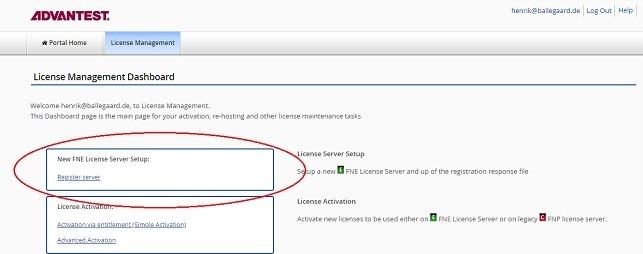
4. Open the tab <span class="uicontrol">License Management</span> and click <span class="uicontrol">Register Server</span>.
    
    [![5.jpg](https://lhc.advantest.com/uploads/images/gallery/2025-10/scaled-1680-/l2K5-jpg.jpeg)](https://lhc.advantest.com/uploads/images/gallery/2025-10/scaled-1680-/l2K5-jpg.jpeg)  
      
    The **<span class="uicontrol">Register Server</span>** page opens and lists the available registration keys.
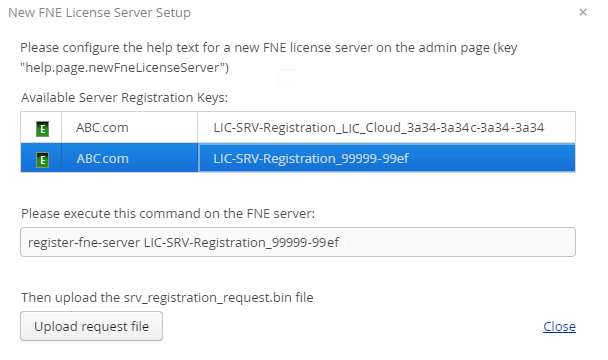
5. Click on the registration key corresponding to the activation ID entry to be used to register the license server.
    
    The command in the illustration below is adapted and you can use copy and paste to execute the **<kbd class="userinput"><kbd class="userinput"><span id="bkmrk-register-fne-server-4"><kbd class="userinput"><kbd class="userinput"><span class="keyword">`<kbd class="userinput"><kbd class="userinput"><kbd class="userinput"><kbd class="userinput">register-fne-server </kbd></kbd></kbd></kbd>`</span></kbd></kbd></span></kbd></kbd>**tool on your FNE license server.
    
      
    [![6.png](https://lhc.advantest.com/uploads/images/gallery/2025-10/scaled-1680-/3Pd6-png.png)](https://lhc.advantest.com/uploads/images/gallery/2025-10/scaled-1680-/3Pd6-png.png)
6. Click **<span class="uicontrol">Upload request file</span>** and specify the location of the <kbd class="userinput"><kbd class="userinput"><span id="bkmrk-srv_registration_req"><kbd class="userinput"><kbd class="userinput"><span class="keyword">`<kbd class="userinput"><kbd class="userinput"><kbd class="userinput"><kbd class="userinput"><span class="filepath">srv_registration_request_<user name>.bin</span></kbd></kbd></kbd></kbd>` </span></kbd></kbd></span></kbd></kbd><kbd class="userinput"><kbd class="userinput"><kbd class="userinput"><kbd class="userinput"></kbd></kbd></kbd></kbd>file copied from the license server in step 2.
    
    The license server is now registered.

</section><section class="section">### **Results**

Your license server is registered.

</section><section class="section">### **What to do next**

[Activating licenses](https://lhc.advantest.com/books/activating-licenses/page/activating-licenses "After the successful license server installation and registration, you need to provide the licenses to the license server that it is to serve. Simple license activation is used to activate an entitlement on a license server.")

</section></div></article></main>

# FlexNet Embedded license client setup

# FlexNet Embedded license client setup

#### Subtopics

1. [Installing the FNE license client](https://lhc.advantest.com/books/flexnet-embedded-licensing/page/installing-the-fne-license-client "Installing a FlexNet Embedded license client used to provide the activated licenses to a SmarTest installation on a system controller workstation requires two steps: the installation of the license client software itself on the SmarTest host system, and configuration of the license server configuration file to prioritized the order of server access.")
2. [Uninstalling the FNE license client](https://lhc.advantest.com/books/flexnet-embedded-licensing/page/uninstalling-the-fne-license-client "Uninstalling the FNE license client is done manually using yum.")
3. [Enabling license logging](https://lhc.advantest.com/books/flexnet-embedded-licensing/page/enabling-license-logging "Detailed information about license consumption and optimize license usage can be identified by License usage logging.")

The FlexNet Embedded license client is required to run on the system controller (installed as default).

The FlexNet Embedded license client is installed as the default license client.

Information required to install, configure and administer FlexNet Embedded license clients is divided into the following areas:

- <span style="text-decoration: underline;">License client installation</span> - Installation of the license client software to manage the licensing of a SmarTest software installation.
- <span style="text-decoration: underline;">Switching the client </span>between FlexNet Embedded and FlexNet Publisher servers.
- <span style="text-decoration: underline;">License client administration</span> - Advantest FlexNet Embedded (FNE) license client tools and their usage.

<section class="section" id="bkmrk-system-controller-pr">### **System controller prerequisites**

- SmarTest 8.x
- The system controller fully-qualified hostname

</section><section class="section" id="bkmrk-checking-the-connect">### **Checking the connection to a customer-hosted FNE License Server**

After installing the FNE license server, check that the FNE license server is contactable from the SmarTest workstation before you start the installation of the FNE client subsystem on the SmarTest workstation.

<kbd class="userinput"><kbd class="userinput"><span class="keyword">`<kbd class="userinput">h<kbd class="userinput">ref="http://<fne-server-hostname>:7070/api/1.0/health <kbd class="userinput"><fne-server-hostname></kbd></kbd></kbd>`</span></kbd></kbd>

Complete the following procedure to check the connection to the FNE license server:

1. Open a browser.
2. Enter the URL appropriate for your FNE server arrangement: 
    - <kbd class="userinput"><kbd class="userinput"><span class="keyword">`<kbd class="userinput"><kbd class="userinput"><kbd class="userinput"><kbd class="userinput"><strong>h<kbd class="userinput">ref="http://<fne-server-hostname>:7070/api/1.0/health </kbd></strong></kbd></kbd></kbd></kbd>`</span></kbd></kbd><kbd class="userinput"><kbd class="userinput"><span class="keyword">  
        `<kbd class="userinput"><kbd class="userinput"><kbd class="userinput"><kbd class="userinput"><strong><kbd class="userinput"><kbd class="userinput"><fne-server-hostname></kbd></kbd></strong></kbd></kbd></kbd></kbd>`</span></kbd></kbd>represents the hostname of the *FNE license server* to which you are testing the connection.
    - **<kbd class="userinput"><kbd class="userinput"><span class="keyword">`<kbd class="userinput">h<kbd class="userinput">ref="http://<failover-fne-server-hostname>:7070/api/1.0/health <br></br><kbd class="userinput"><failover-fne-server-hostname></kbd></kbd></kbd>` </span></kbd></kbd>**represents the hostname of the *failover FNE* license server to which you are testing the connection.
    
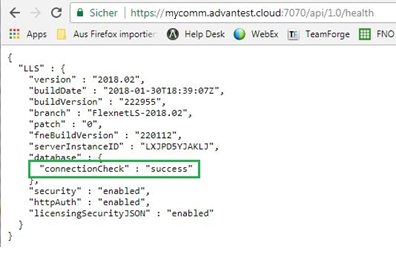
    If the FNE license server is contactable (port 7070 is open), the following type of output is displayed:
    
    [![11.png](https://lhc.advantest.com/uploads/images/gallery/2025-10/scaled-1680-/L4R11-png.png)](https://lhc.advantest.com/uploads/images/gallery/2025-10/scaled-1680-/L4R11-png.png)
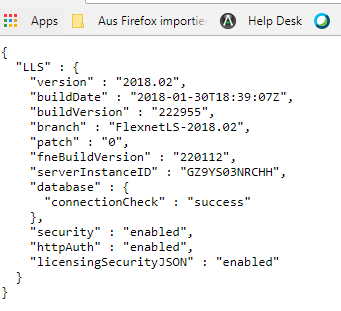
3. **If port 7070 is not open**, you a page with a not available message is displayed. In this case, get in contact with your administrators (customer IT) and request that port 7070 is opened for the SmarTest client workstation.

</section><section class="section" id="bkmrk-checking-the-connect-2"></section><section class="section" id="bkmrk-next-steps-if-the-pr"></section>

# Installing the FNE license client

<kbd class="userinput"></kbd>Installing a FlexNet Embedded license client used to provide the activated licenses to a SmarTest installation on a system controller workstation requires two steps: the installation of the license client software itself on the SmarTest host system, and configuration of the license server configuration file to prioritized the order of server access.

<main id="bkmrk-about-this-task-inst" role="main"><article aria-labelledby="ariaid-title1" role="article"><div><section class="section">### About this task

Installing the FNE license client (installed as default license client) also installs the FNE Server Viewer. For more details, see [Monitoring license servers using the FNE Server Viewer](https://lhc.advantest.com/books/flexnet-embedded-licensing/page/monitoring-license-servers-using-the-fne-server-viewer "The FNE Server Viewer is a web-based application that can be used to monitor Advantest license servers.").

The following procedure explains how to install the FlexNet client.

</section><section>### **Before you begin**

The license client is the SmarTest software. The FlexNet license server communicates with SmarTest using the FNE client.

The license client install package can be downloaded from the FNE section of the Advantest Software Center:

[https://softwarecenter.advantest.com/download/othersw/builds/licensing](https://softwarecenter.advantest.com/download/othersw/builds/licensing)

The following procedure is applicable to installation, upgrades and updates.

</section></div></article></main><p class="callout info">Note: During upgrading and updating, the installation script can be called without any option. All installed packages are detected automatically and updated if applicable.  
<kbd class="userinput"> <kbd class="userinput"><span class="keyword">`<kbd class="userinput"><kbd class="userinput">sudo sh install-fne-<var class="varname">date</var>-<var class="varname">version</var>.sh</kbd></kbd>`</span></kbd></kbd></p>

<main id="bkmrk-port-7070-must-be-op" role="main"><article aria-labelledby="ariaid-title1" role="article"><div><section>**Port 7070** must be open to the customer FNE license server and if needed to the cloud license server.

To check connection to your license servers, use the command:

If you are using the Advantest cloud license servers, check the connections by opening the following URLs:

- <kbd class="userinput"><span style="text-decoration: underline;">http://&lt;license-server&gt;:7070/ping</span>  
      
    </kbd>
- <kbd class="userinput"><span style="text-decoration: underline;">https://&lt;Device Owner FNE license server&gt;.advantest.cloud:7070/ping</span>  
      
    </kbd>
- <span style="text-decoration: underline;"><kbd class="userinput">https://&lt;Device Owner FNE license server&gt;-fo.advantest.cloud:7070/ping</kbd></span>

If port 7070 is open, the following type of output is displayed:

[![44.png](https://lhc.advantest.com/uploads/images/gallery/2025-10/scaled-1680-/jtO44-png.png)](https://lhc.advantest.com/uploads/images/gallery/2025-10/scaled-1680-/jtO44-png.png)  
</section><section>### **Procedure**

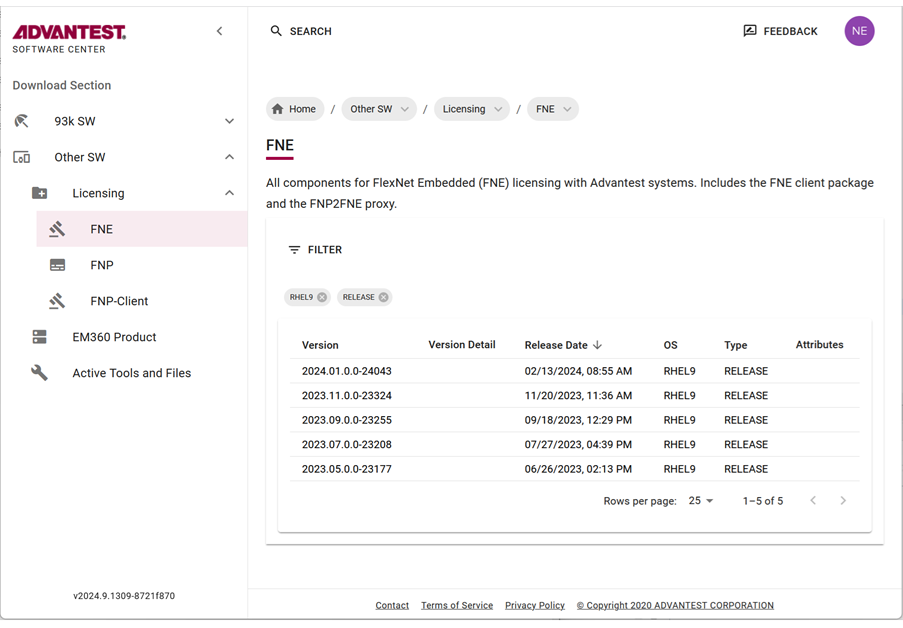
1. Open the Advantest Software Center in a browser: [https://softwarecenter.advantest.com/](https://softwarecenter.advantest.com/)  
      
    Login with your credentials.
2. To get the list of all available Licensing products, from the left menu select: **<span class="menucascade"><span class="uicontrol">Other</span><abbr title="and then"> &gt; </abbr><span class="uicontrol">Licensing  
      
    </span></span>**[![55.png](https://lhc.advantest.com/uploads/images/gallery/2025-10/scaled-1680-/9IE55-png.png)](https://lhc.advantest.com/uploads/images/gallery/2025-10/scaled-1680-/9IE55-png.png)
3. Scroll to and select the license type FNE and the version you want to install and expand to display the details.
4. <span id="bkmrk-create-an-empty-inst">Create an empty installation directory. For example:<kbd class="userinput"> <kbd class="userinput"><kbd class="userinput"><span class="keyword">`<kbd class="userinput"><kbd class="userinput"><kbd class="userinput">/tmp/smartest_pakages</kbd></kbd></kbd>`</span></kbd></kbd>  
      
    </kbd></span>
5. Download the archive package by clicking the [![9.png](https://lhc.advantest.com/uploads/images/gallery/2025-10/scaled-1680-/WoC9-png.png)](https://lhc.advantest.com/uploads/images/gallery/2025-10/scaled-1680-/WoC9-png.png) icon.   
    The selected license (<span class="filepath"><span id="bkmrk-tar.gz"><kbd class="userinput"><kbd class="userinput"><kbd class="userinput"><span class="keyword">`<kbd class="userinput"><kbd class="userinput"><kbd class="userinput">tar.gz</kbd></kbd></kbd>`</span></kbd></kbd></kbd></span></span>) package is downloaded to your browser's download folder.
    
    Example FNE packages include:
    
    <span class="filepath"><span id="bkmrk-fne_2024.01.0.0-2404"><kbd class="userinput"><kbd class="userinput"><kbd class="userinput"><span class="keyword">`<kbd class="userinput"><kbd class="userinput"><kbd class="userinput">fne_2024.01.0.0-24043_rhel9.tar.gz</kbd></kbd></kbd>`  
      
    </span></kbd></kbd></kbd></span></span>
6. Move the downloaded archive packages to the installation directory: <span id="bkmrk-%2Ftmp%2Fsmartest_pakage"><kbd class="userinput"><kbd class="userinput"><kbd class="userinput"><span class="keyword">`<kbd class="userinput"><kbd class="userinput"><kbd class="userinput">/tmp/smartest_pakages</kbd></kbd></kbd>`  
      
    </span></kbd></kbd></kbd></span>
7. Unpack the archive with the command:  
    <span id="bkmrk-tar-xvzf-package-nam"><kbd class="userinput"><kbd class="userinput"><kbd class="userinput"><span class="keyword">`<kbd class="userinput"><kbd class="userinput"><kbd class="userinput"><kbd class="userinput">tar xvzf <var class="varname">package-name</var>.tar.gz</kbd></kbd></kbd></kbd>`</span></kbd></kbd></kbd></span>  
    For example:  
    **<span id="bkmrk-tar-xvzf-fne_2024.01"><kbd class="userinput"><kbd class="userinput"><kbd class="userinput"><span class="keyword">`<kbd class="userinput"><kbd class="userinput"><kbd class="userinput"><kbd class="userinput">tar xvzf <kbd class="userinput">fne_2024.01.0.0-24043_rhel9.tar.gz</kbd></kbd></kbd></kbd></kbd>`</span></kbd></kbd></kbd></span>**
    
    <div>  
    </div>**The installation script is extracted**, for example:
    
    <span class="filepath">**<span id="bkmrk-install-fne-2024.01."><kbd class="userinput"><kbd class="userinput"><kbd class="userinput"><span class="keyword">`<kbd class="userinput"><kbd class="userinput"><kbd class="userinput"><kbd class="userinput">install-fne-2024.01.0.0-24043-rhel9.sh</kbd></kbd></kbd></kbd>`  
      
    </span></kbd></kbd></kbd></span>**</span>
8. Check the downloaded archive package for integrity:  
      
    <kbd class="userinput"><span id="bkmrk-bash-install-fne-dat"><kbd class="userinput"><kbd class="userinput"><kbd class="userinput"><span class="keyword">`<kbd class="userinput"><kbd class="userinput"><kbd class="userinput"><kbd class="userinput"><kbd class="userinput">bash install-fne-<var class="varname">date</var>-<var class="varname">version</var>.sh test</kbd></kbd></kbd></kbd></kbd>`  
      
    </span></kbd></kbd></kbd></span></kbd>
9. Shut down the **SmarTest Work Center**.  
    For details see [Shutting down SmarTest](https://tdc.advantest.com/help/topic/com.verigy.itee.help.smartest.ui.8.7.6/248729.htm "This task describes the procedure of shutting down SmarTest.").
10. Install the client package: <kbd class="userinput"><kbd class="userinput"><span id="bkmrk-sudo-sh-install-fne-"><kbd class="userinput"><kbd class="userinput"><kbd class="userinput"><span class="keyword">`<kbd class="userinput"><kbd class="userinput"><kbd class="userinput"><kbd class="userinput"><kbd class="userinput"><kbd class="userinput">sudo sh install-fne-<var class="varname">date</var>-<var class="varname">version</var>.sh client</kbd></kbd></kbd></kbd></kbd></kbd>`  
      
    </span></kbd></kbd></kbd></span></kbd></kbd>
    
    For example:  
    <kbd class="userinput"><kbd class="userinput"><kbd class="userinput"><span id="bkmrk-sudo-sh-install-fne--1"><kbd class="userinput"><kbd class="userinput"><kbd class="userinput"><span class="keyword">`<kbd class="userinput"><kbd class="userinput"><kbd class="userinput"><kbd class="userinput"><kbd class="userinput"><kbd class="userinput"><kbd class="userinput">sudo sh install-fne-2024.01.0.0-24043-rhel9.sh client</kbd></kbd></kbd></kbd></kbd></kbd></kbd>`  
    </span></kbd></kbd></kbd></span></kbd></kbd></kbd>
    
    <p class="callout info"><kbd class="userinput"><kbd class="userinput"><kbd class="userinput"><span id="bkmrk-note%3A-during-upgradi"><kbd class="userinput"><kbd class="userinput"><kbd class="userinput"><span class="keyword">Note: During upgrading and updating, the installation script can be called without any option. All installed packages are detected automatically and updated if applicable.  
    </span></kbd></kbd></kbd></span></kbd></kbd></kbd></p>
    
    <div><div class="note">  
    </div></div>
11. **Optional:**  <span id="bkmrk-remove-the-installat">Remove the installation directory. For example:  
      
    </span><kbd class="userinput"><kbd class="userinput"><kbd class="userinput"><kbd class="userinput"><span id="bkmrk-rm--rf-%2Ftmp%2Fsmartest"><kbd class="userinput"><kbd class="userinput"><kbd class="userinput"><span class="keyword">`<kbd class="userinput"><kbd class="userinput"><kbd class="userinput"><kbd class="userinput"><kbd class="userinput"><kbd class="userinput"><kbd class="userinput"><kbd class="userinput">rm -rf /tmp/smartest_packages</kbd> </kbd></kbd></kbd></kbd></kbd></kbd></kbd>`  
      
    </span></kbd></kbd></kbd></span></kbd></kbd></kbd></kbd>
12. After the installation has completed, configure the license server configuration file where the list of FlexNet Embedded license servers are listed in a prioritized order.  
      
    Open the **configuration file** in an editor: **<kbd class="userinput"><kbd class="userinput"><kbd class="userinput"><kbd class="userinput"><kbd class="userinput"><span id="bkmrk-%2Fetc%2Ffne%2Fclient.conf"><kbd class="userinput"><kbd class="userinput"><kbd class="userinput"><span class="keyword">`<kbd class="userinput"><kbd class="userinput"><kbd class="userinput"><kbd class="userinput"><kbd class="userinput"><kbd class="userinput"><kbd class="userinput"><kbd class="userinput"><kbd class="userinput">/etc/fne/client.conf</kbd></kbd></kbd></kbd></kbd></kbd></kbd></kbd></kbd>`  
      
    </span></kbd></kbd></kbd></span></kbd></kbd></kbd></kbd></kbd>**
    
    Syntax of the **<kbd class="userinput">client.conf</kbd>** file:
    
    <div>
    - **Local license server**
        
         ```
        #Configuration of FNE servers to be used
        # primary FNE server
        server
        {
        name = "FNE on localhost"
        url = "localhost"
        }
        ```
    - **Remote license server**
        
        ```
        #Configuration of FNE servers to be used
        # primary FNE server
        server
        {
        name = "FNE central server"
        url = "hostNameLicenseServer.domain"
        }
        #secondary FNE server
        server
        {
        name = "FNE remote server"
        url = "socbu158.advantest.com"
        }
        ```
    
    ---
    
    <div class="p">Keywords for the **<kbd class="userinput">client.conf</kbd>** file:  
      
    <dl><dt class="dlterm"><span style="color: rgb(126, 140, 141);">**include**</span></dt><dd>Used to include another configuration file. <kbd class="userinput">**include**</kbd> can be used multiple times in a file.
    
    </dd><dt class="dlterm"><span style="color: rgb(126, 140, 141);">**server { }**</span></dt><dd>Used to specify a server description with brackets enclosing each description. <kbd class="userinput">**server { }**</kbd> can be used multiple times in a file.
    
    </dd><dt class="dlterm"><span style="color: rgb(126, 140, 141);">**name**</span></dt><dd>Free text used to add a description for a server.  
      
    </dd><dt class="dlterm"><span style="color: rgb(126, 140, 141);">**selector**</span></dt><dd>The client must comply with all listed selector conditions before the client can attempt to contact the server.  
    <kbd class="userinput">**selector**</kbd> can be used multiple times in a file.
    
    </dd><dt class="dlterm">**<span style="color: rgb(126, 140, 141);">url/primaryUrl</span>**</dt><dd>**<kbd class="userinput">url</kbd>** used to address for the server if only one server is configured. Use **<kbd class="userinput">primaryUrl</kbd>** instead for the primary server when more than one server is configured.  
      
    </dd><dt class="dlterm"><span style="color: rgb(126, 140, 141);">**failoverUrl**</span></dt><dd>Used to address the failover servers.  
      
    </dd><dt class="dlterm"><span style="color: rgb(126, 140, 141);">**mute**</span></dt><dd>Used to suppresses connection-related error messages for the corresponding server.
    
    Other error messages are displayed.
    
    Some FNE servers listed in **<span class="filepath">client.conf</span>** files may be unavailable by intent, for example, emergency servers or temporary servers. If these servers are not running or disconnected, associated error messages are normally displayed at each checkout request, which can be unhelpful if it is an expected situation.
    
    </dd></dl></div></div><p class="callout info"><span class="title">Note:</span> The <span class="keyword">mute</span> keyword is not supported by older FNE subsystems and is ignored if specified. For FNE subsystem versions that do not support the <span class="keyword">mute</span> keyword, a syntax warning might be displayed and can be ignored.</p>
    
    <div><div class="p"><dl><dd><div class="note">  
    </div></dd></dl></div></div>
13. Enter the names and URLs for all FlexNet Embedded license servers that you want to use in their order of priority.
14. To verify the installation and license server configuration enter the command:  
    <kbd class="userinput"><span id="bkmrk-%2Fusr%2Flocal%2Fbin%2Ffne-l"><kbd class="userinput"><kbd class="userinput"><kbd class="userinput"><span class="keyword">`<kbd class="userinput"><kbd class="userinput"><kbd class="userinput"><kbd class="userinput"><kbd class="userinput"><kbd class="userinput"><strong>/usr/local/bin/fne-list-licenses</strong></kbd></kbd></kbd></kbd></kbd></kbd>`</span></kbd></kbd></kbd></span></kbd>  
    The tool iterates through the FlexNet Embedded servers defined in <kbd class="userinput"><span id="bkmrk-%2Fetc%2Ffne%2Fclient.conf-1"><kbd class="userinput"><kbd class="userinput"><kbd class="userinput"><span class="keyword">**`<kbd class="userinput"><kbd class="userinput"><kbd class="userinput"><kbd class="userinput"><kbd class="userinput"><kbd class="userinput">/<span class="filepath">etc/fne/client.conf</span></kbd></kbd></kbd></kbd></kbd></kbd>`** </span></kbd></kbd></kbd></span></kbd>and lists all licenses (used and available).
    
    It also provides detailed information about the available licenses including:
    
    <div>
    - Content of the AssetScale tokens
    - Locking of licenses
    - Expiry information
    
    </div><p class="callout info"><span class="title">Note:</span> The <kbd class="userinput">fne-list-licenses</kbd> tool does not show details from cloud license servers.  
    </p>
    
      
    For details, see [fne-list-licenses](https://lhc.advantest.com/books/flexnet-embedded-licensing/page/advantest-flexnet-embedded-license-client-tools).

</section><section class="section">### **Results**

You have installed the license client software and configured the list of FlexNet Embedded license servers in a prioritized order.

The order in which clients attempt to check out licenses is the same order in which the licenses are referenced in the **<span class="filepath">client.conf</span>** file.

</section></div>### **Example**

<div><section>#### Example of a client.conf file:

<div>  
</div> ```
#Configuration of FNE servers to be used
# Emergency Server
include "/etc/fne/emergency.conf"
server
{
    name = "Local cloud space"
    url = "localcloud.company.com"
}
server
{
   name = "My cloud"
   selector = "DeviceOwner:MyCompany"
   url = "https://MyCompany.advantest.cloud:7070"
}
server
{
    name = "Local license server"
    primaryUrl = "fne1.company.com"
    failoverUrl = "fne2.company.com"
}
```

Minimum client.conf file configuration:

```
server
{
url = "localhost"
}
```

  
</section></div></article></main><footer id="bkmrk-" role="contentinfo"><div class="fo"><div class="-share"><div class="-sharem">  
</div><div class="-shared" style="display: none;">  
</div></div></div></footer>

# Uninstalling the FNE license client

Uninstalling the FNE license client is done manually using yum.

<section class="section" id="bkmrk-about-this-task-ther">### About this task

There are two options for uninstalling the FNE license client:

- Remove the FNE client only, which results in automatically switching back to using the FNP license client and FNP licensing.
- Completely remove the FNE client installation, which removes the license client, the FNE Server Viewer, and the <kbd class="userinput"><kbd class="userinput"><span class="keyword">`<kbd class="userinput"><kbd class="userinput"><kbd class="userinput">test_license_checkout</kbd></kbd></kbd>`</span></kbd></kbd> tool.

</section><section class="sectiontitlefake" id="bkmrk-procedures">### **Procedures**

</section><section class="section" id="bkmrk-uninstalling-the-fne-1">#### Uninstalling the FNE license client only

To remove the FNE client only, enter the command:

<kbd class="userinput"><kbd class="userinput"><kbd class="userinput"><span class="keyword">`<kbd class="userinput"><kbd class="userinput"><kbd class="userinput"><kbd class="userinput">yum remove v93000-fne-client</kbd></kbd></kbd></kbd>`</span></kbd></kbd></kbd>

</section><section class="section" id="bkmrk-completely-uninstall">### **Completely uninstalling the FNE license client and tools**

To completely remove the FNE client installation, enter the command:

<kbd class="userinput"><kbd class="userinput"><kbd class="userinput"><kbd class="userinput"><span class="keyword">`<kbd class="userinput"><kbd class="userinput"><kbd class="userinput"><kbd class="userinput">yum remove <kbd class="userinput">v93000-fne-client advantest-fne-server-viewer advantest-test_license_checkout</kbd></kbd></kbd></kbd></kbd>`</span></kbd></kbd></kbd></kbd>

</section><section class="section" id="bkmrk-results%C2%A0-fne-license">### **Results** 

FNE license client is no longer installed on the SmarTest system controller.

</section><kbd class="userinput"><kbd class="userinput"><span class="keyword">  
</span></kbd></kbd>

# Enabling license logging

##### **Subtopics**

- [**Reading log file data**](https://lhc.advantest.com/link/73#bkmrk-reading-log-file-dat-1)
- [**Example logfile parser**](https://lhc.advantest.com/link/73#bkmrk-example-logfile-pars)

Detailed information about license consumption and optimize license usage can be identified by License usage logging.

### **About this task**

To be able to get detailed information about license consumption and optimize license usage, it is necessary to analyze the licensing requirements for memory and speed for each measurement within a test program. From this information, it is then possible to isolate the main license requirements.

License usage logging (incremental over measurements and per measurement logging) provides the information required to establish the licensing dependencies. If the watermark increases in proportion to the measurement data, the test is independent, otherwise it shares data with other tests.

Log data is written to:

<span class="filepath"><kbd class="userinput"><span class="keyword">`/opt/hp93000/soc/system/log/licenseUsage_<sessionId>.log `</span></kbd></span>

To read in the data you need to generate a parser based on protobuf library using the grammar in:

<span class="filepath"><kbd class="userinput"><span class="keyword">`/opt/hp93000/soc/system/include/xoc/profiling/licenseUsage.proto `</span></kbd></span>

An existing file is not overwritten - only new data is appended to the existing content.

The most valuable data collected by license logging is when you have not previously executed an initial bind before executing the profile configuration. After an initial bind, only dynamic changes are recorded.

### **Before you begin**

<section id="bkmrk-make-sure-the-test-p">Make sure the test program has been loaded.

License logging can only be enabled using a Profile launch configuration.

</section>### **Procedure**  


<section id="bkmrk-select-a-test-progra">1. Select a test program or test flow in the **<span class="uicontrol">Package Explorer</span>** view for which you want to enable license logging.
    
    License logging is not available for encrypted testflows or test programs containing encrypted testflows.
2. Open the **<span class="wintitle">Profile Configurations</span>** dialog from the context menu:
    
    <div>**<span class="menucascade"><span class="uicontrol">Profile As</span><abbr title="and then"> &gt; </abbr><span class="uicontrol">Profile Configurations  
      
    </span></span>**</div>
3. Select **<span class="uicontrol">Test Program</span>** from the objects pane on the left.
4. Click the New Launch Configuration [![10.png](https://lhc.advantest.com/uploads/images/gallery/2025-10/scaled-1680-/10-png.png)](https://lhc.advantest.com/uploads/images/gallery/2025-10/scaled-1680-/10-png.png) button.
5. Enter a name for the new profile configuration in the configuration pane on the right.
6. In the **<kbd class="userinput">Main</kbd>** tab (default selection), select **<span class="uicontrol">Enable license logging</span>**.  
    [![66.png](https://lhc.advantest.com/uploads/images/gallery/2025-10/scaled-1680-/kAy66-png.png)](https://lhc.advantest.com/uploads/images/gallery/2025-10/scaled-1680-/kAy66-png.png)
7. Specify any other required configurations. For details, see [Creating a run configuration for running test programs or testflows](https://tdc.advantest.com/help/topic/com.verigy.itee.help.smartest.ui.8.7.6/256920.htm "You can specify, save and reuse customized configurations for starting test programs or testflows in execute or debug mode.").
8. Click **<span class="uicontrol">Apply</span>** to save the profile configuration.
9. Click **<span class="uicontrol">Profile</span>** to profile the test flow or **<span class="uicontrol">Close</span>** to close the **<span class="wintitle">Profile Configurations</span>** dialog box.

</section>##### **Results**

License logging is enabled.

Log data is written to <span class="filepath"><kbd class="userinput"><span class="keyword">`/opt/hp93000/soc/system/log/licenseUsage_<sessionId>.log.`  
</span></kbd></span>  
A license usage log file contains the memory contribution (in Bytes) for each signal for each measurement.

<p class="callout info"><span class="title">Note: License logging can also be enabled and disabled using the Test Cell API. For example:  
<span class="filepath"><kbd class="userinput"><span class="keyword">`<kbd class="userinput"><kbd class="userinput"><kbd class="userinput"><kbd class="userinput">TestProgramConfig config;</kbd></kbd></kbd></kbd>`  
<kbd class="userinput">`<kbd class="userinput"><kbd class="userinput"><kbd class="userinput"><kbd class="userinput"><kbd class="userinput"><kbd class="userinput"><kbd class="userinput"><kbd class="userinput"><kbd class="userinput">config.enableLicenseLogging = true;</kbd></kbd></kbd></kbd></kbd></kbd></kbd></kbd></kbd>`</kbd>  
<kbd class="userinput">`<kbd class="userinput"><kbd class="userinput"><kbd class="userinput"><kbd class="userinput"><kbd class="userinput"><kbd class="userinput"><kbd class="userinput"><kbd class="userinput">testProgram.loadWithConfig(config);</kbd></kbd></kbd></kbd></kbd></kbd></kbd></kbd>`</kbd></span></kbd></span>  
For details about <var class="varname">TestProgramConfig</var>, see **[TestProgramConfig](https://tdc.advantest.com/help/topic/com.verigy.itee.help.smartest.ui.8.7.6/structxoc_1_1tcapi_1_1_test_program_config.html).**  
</span></p>

##### **What to do next**

<section class="section" id="bkmrk-the-generated-log-fi">The generated log file is user-readable and it is possible to manually extract the licensing requirements for memory and speed for each measurement within a test program. It is not essential to parse this file.

However, for further processing, it can be beneficial to parse the file to arrange its content into a more readable format.

To read in the data you can generate a parser based on the **<span class="keyword">protobuf</span>** library using the grammar in:

<span class="filepath"><span class="title"><kbd class="userinput"><span class="keyword">`/opt/hp93000/soc/system/include/xoc/profiling/licenseUsage.proto`</span></kbd></span></span>

---

# Reading log file data

<sup>1)</sup> Log file data contains information, such as memory usage.

##### **About this task**

<section class="section">If license logging is enabled, the license log data is written to:  
**<span class="filepath"><span class="title"><kbd class="userinput"><span class="keyword">`/opt/hp93000/soc/system/log/licenseUsage_<sessionId>.log.`</span></kbd></span></span>**

The following log example shows the used memory (Pattern or PA = 1032 bytes) for the signal D04. The total accumulated value (`accDoubleValue`) is 3096 bytes which the total memory used by the complete program.

##### <span style="text-decoration: underline;">**LicenseUsage.log file example:**</span>

```
measurementName: "Main.GlobalPAPattern.measurement"
measurementTimestamp: "Mon, 01 Jul 2019 15:30:08 -0700"
licensedFeatureLog {
featurePerSignal {
signalList: "D00 + D01 + D02 + D03 + D04"
feature {
feature: "speed"
accDoubleValue: 10000000
unit: "bps"
}
}
featurePerSignal {
signalList: "D04"
feature {
feature: "memory"
accDoubleValue: 3096
doubleValue: 1032
unit: "B"
}
feature {
feature: "sharedMemory"
doubleValue: 60352
unit: "B"
}
}
}

```

<div class="p"><div>  
</div></div>A license usage log file contains the memory contribution (in Bytes) for each signal for each measurement. The accumulated memory value is also recorded. In the example above:

<div class="p"><table border="1" class="frame-all" style="border-collapse: collapse; border-width: 0.2px; width: 92.1429%; height: 244.984px;"><tbody><tr style="height: 30.1094px;"><td class="colsep-1 rowsep-1" style="border-width: 0.2px; height: 30.1094px;">**<span class="uicontrol">Measurement</span>**</td><td class="colsep-1 rowsep-1" style="border-width: 0.2px; height: 30.1094px;">Main.GlobalPAPattern.measurement</td></tr><tr style="height: 30.1094px;"><td class="colsep-1 rowsep-1" style="border-width: 0.2px; height: 30.1094px;">**<span class="uicontrol">Signal names</span>**</td><td class="colsep-1 rowsep-1" style="border-width: 0.2px; height: 30.1094px;">signal\_list: "D00 + D01 + D02 + D03 + D04"</td></tr><tr style="height: 64.3281px;"><td class="colsep-1 rowsep-1" style="border-width: 0.2px; height: 64.3281px;">**<span class="uicontrol">Signal requirement type</span>**</td><td class="colsep-1 rowsep-1" style="border-width: 0.2px; height: 64.3281px;">feature: speed (all signals)

feature: memory (signal D04)

feature: sharedMemory (signal D04)

</td></tr><tr style="height: 30.1094px;"><td class="colsep-1 rowsep-1" style="border-width: 0.2px; height: 30.1094px;">**<span class="uicontrol">Accumulated speed value</span>**</td><td class="colsep-1 rowsep-1" style="border-width: 0.2px; height: 30.1094px;">accDoubleValue: 10000000 bps (all signals)</td></tr><tr style="height: 30.1094px;"><td class="colsep-1 rowsep-1" style="border-width: 0.2px; height: 30.1094px;">**<span class="uicontrol">Accumulated memory value</span>**</td><td class="colsep-1 rowsep-1" style="border-width: 0.2px; height: 30.1094px;">acc\_double\_value: 3096 B (signal D04)</td></tr><tr style="height: 30.1094px;"><td class="colsep-1 rowsep-1" style="border-width: 0.2px; height: 30.1094px;">**<span class="uicontrol">Memory value</span>**</td><td class="colsep-1 rowsep-1" style="border-width: 0.2px; height: 30.1094px;">doubleValue: 1032 B (signal D04)</td></tr><tr style="height: 30.1094px;"><td class="colsep-1 rowsep-1" style="border-width: 0.2px; height: 30.1094px;">**<span class="uicontrol">Shared memory value</span>**</td><td class="colsep-1 rowsep-1" style="border-width: 0.2px; height: 30.1094px;">doubleValue: 60352 B (signal D04)</td></tr></tbody></table>

</div>This file is in the **protobuf** (ASCII) format and can be read using a simple parser. For more information, refer to: https://developers.google.com/protocol-buffers/</section></section><p class="callout info"><span class="title">Note:</span> If you only require the values for a specific measurement, you can read this from the ASCII text manually.</p>

```
TestProgramConfig config;
config.enableLicenseLogging = true;
testProgram.loadWithConfig(config);

```

<section class="section" id="bkmrk-the-protocol-buffer-"><section class="section">The protocol buffer compiler is installed under <kbd class="userinput">`<span class="filepath">/usr/bin/protoc</span>`</kbd>The protoc version can be found with the command:<kbd class="userinput">`/usr/bin/protoc --version`</kbd>

Output example: **<span class="filepath">libprotoc 2.5.0</span>**

To structure information, protocol buffer message types are defined in .proto files. The following protobuf file is used for license logging, which can be compiled with the protocol buffer compiler to Java, Python, Objective-C, or C++.

<dl></dl>---

<dl><dd>### **Before you begin**

</dd></dl></section></section><section class="section" id="bkmrk-make-sure-that-licen"><dl><dd><span style="color: rgb(68, 68, 68);">Make sure that license logging is enabled. For details, see </span>[Enabling license logging](https://lhc.advantest.com/books/flexnet-embedded-licensing/page/enabling-license-logging "Detailed information about license consumption and optimize license usage can be identified by License usage logging.")<span style="color: rgb(68, 68, 68);">.</span></dd></dl></section><section class="section" id="bkmrk-procedure-create-a-p">### **Procedure**  


<section>1. Create a parser file, for an example, see [Example logfile parser](https://lhc.advantest.com/link/73#bkmrk-example-logfile-pars)**.**
2. For example, to compile to C++ with the protocol buffer compiler, run the following commands or a **<span class="filepath">make.sh</span>** script containing the commands:  
    <span class="filepath"><kbd class="userinput">`protoc -I=/opt/hp93000/soc/system/include/xoc/profiling/ --cpp_out=.`</kbd></span>
    
    <span class="filepath"><kbd class="userinput">` /opt/hp93000/soc/system/include/xoc/ profiling/licenseUsage.proto`</kbd></span>  
    <span class="filepath"><kbd class="userinput">`c++ -std=c++11 -g -L/usr/local/lib -lprotobuf -o licenseLogger licenseUsage.pb.cc main.cpp`  
      
    </kbd></span>
    
    The generated C++ class is used to simplify the parser implementation.
    
    ```
    ./licenseLogger licenseUsage.log memory D04
    Analysing: licenseUsage.log memory D04
    Top 20 measurement runs for feature "memory" at signal "D04"
    Measurement Run                   | Value    |Watermark Value
    ----------------------------------+----------+-----------------------
    Main.GlobalPAPattern2.measurement | 1032.000 | 3096.000
    
    ```

</section>### **Results**

<section class="section">After the above **<kbd class="userinput">protoc</kbd>** call or **<kbd class="userinput">make.sh</kbd>** script is run, the following files are created:

<dl><dt class="dlterm">**<span style="color: rgb(126, 140, 141);">licenseLogger</span>**</dt><dd> Generated Parser Executable To execute the licenseLogger, use the command: <kbd class="userinput"><span class="filepath"><kbd class="userinput"> `./licenseLogger <output_file_name> <license_type> <signal>`</kbd></span></kbd>

 For example:

<kbd class="userinput"><kbd class="userinput"><span class="filepath"><kbd class="userinput"> `./licenseLogger <kbd class="userinput">licenseUsage.log memory D01`</kbd></span></kbd></kbd>

</dd><dt class="dlterm">**<span style="color: rgb(126, 140, 141);">measurementLicense.pb.cc</span>**</dt><dd> Generated after running protobuf compiler  
  
</dd><dt class="dlterm">**<span style="color: rgb(126, 140, 141);">measurementLicense.pb.h</span>**</dt><dd> Generated after running protobuf compiler</dd></dl></section></section>---

## Example logfile parser

<sup>1)</sup> The following code is an example parser for reading license log files and printing the top 10 measurement executions contributing to the specified feature and signal.

#### **Example parser (SmarTest ≥ 8.2.0)**

```
#include <iostream>
#include <fcntl.h>
#include <fstream>
#include <google/protobuf/text_format.h>
#include <google/protobuf/io/zero_copy_stream_impl.h>
#include <map>
#include <iostream>
#include <iomanip>
#include <sstream>
#include "licenseUsage.pb.h"
 
using namespace std;
using namespace license;
using namespace ::google::protobuf::io;
using ::google::protobuf::TextFormat;
 
map<double,string> featureValuePerMeasurement;
map<string,double> featureValuePerMeasurementWatermark;
 
//  measurementName, <license string, count>
multimap<string, pair<string,int> > licenseUsage;
 
// utility to extract signal from signal list into a vector of signals
vector<string> signalsToVector(string& signals)
{
 vector<string> items;
     const char* t = " \t\n\r\f\v";
     unsigned long opos = 0;
     unsigned long pos = signals.find_first_of(" + ");
     while (true) {
 
          // trim white spaces
          string extract = signals.substr(opos, pos - opos);
          extract.erase(0, extract.find_first_not_of(t));
          extract.erase(extract.find_last_not_of(t) + 1);
 
          items.push_back(extract);
          if (string::npos == pos) { break; }
          pos = signals.find_first_of(" + ", opos = pos + 1);
     }
 
 return items;
}
 
// Sample method to print Top 20 measurement runs for given feature and signal
// In addition print the license usage after the Top1 measurement was executed.
void printTop20(string& featureKey, string& sigKey)
{
 int x = 0;
     int mrlen = 0;
     for(auto elem = featureValuePerMeasurement.rbegin();elem != featureValuePerMeasurement.rend() && x < 20; ++elem, ++x) {
      if(elem->second.size() > mrlen) { mrlen = elem->second.size();  }
     }
 
     cout << "Top 20 measurement runs for feature \"" << featureKey << "\" at signal \"" << sigKey << "\"" << endl << endl;
     cout << setw(mrlen) << left << "Measurement Run" << " |  Value       | Watermark Value " << endl;
     for(int i=0;i<mrlen;++i) { cout << "-"; }
     cout << "-+--------------+-----------------------" << endl;
     x=0;
     for(auto elem = featureValuePerMeasurement.rbegin();elem != featureValuePerMeasurement.rend() && x < 20; ++elem, ++x) {
     cout << fixed << setw(mrlen) << elem->second << " | " << setw(12) << left << setprecision(3) << elem->first << " | " << setprecision(3) << featureValuePerMeasurementWatermark[elem->second] << endl;
     }
            
     cout << endl << endl;
     string mrName = featureValuePerMeasurement.rbegin()->second;
     auto elements = licenseUsage.equal_range(mrName);
     auto elem = elements.first;
     for(;elem != elements.second; ++elem) {
     cout << "Count: "<< setw(6) << elem->second.second <<elem->second.first << endl;
     }
 
}
            
bool processMessage(string& message, string featureKey, string sigKey)
{
     license::MeasurementLicense log;
 
     if (!TextFormat::ParseFromString(message, &log)) {
          cerr << endl << "Failed to parse string: " << endl;
          return false;
     }
            
     string mrName = log.measurementname();
     LicensedFeatureLog feature = log.licensedfeaturelog();
     for(int i=0; i<feature.featurepersignal_size();++i) {
          FeaturePerSignal fps = feature.featurepersignal(i);
          string signals = fps.signallist();
          vector<string> signalVector = signalsToVector(signals);
          for(int x=0;x<fps.feature_size();++x) {
           Feature f = fps.feature(x);
           if(f.feature() == featureKey) {
            for(auto const & sig : signalVector) {
             if(sig == sigKey) {
              featureValuePerMeasurementWatermark[mrName] = f.accdoublevalue();
              featureValuePerMeasurement[f.doublevalue()] = mrName;
             } 
            }
           }
      }
 }
 
     for(int i=0;i<log.licenses_size();++i) {
     auto l = log.licenses(i);
     for(int x=0; x<l.licensestring_size();++x) {
          auto ls = l.licensestring(x);
          licenseUsage.insert(make_pair(mrName,make_pair(ls.name(), ls.count())));
     }
}
 
 return true;
}            
 
int main(int argc, char** argv)
{
     if (argc != 4) {
          printf("wrong arguments, ussage: licenseLogger featureKey sigKey\n");
          exit (1);
     }
            
     ifstream file(argv[1]);
     string featureKey = string(argv[2]);
     string sigKey = string(argv[3]);
     string str, message;
 
     printf("Analysing: %s %s %s\n", argv[1], argv[2], argv[3]);
 
     getline(file, message);
 
     while (getline(file, str)) {
          if(str.size() > 16 && str.substr(0,16).compare("measurementName:") == 0) {
       if(!processMessage(message, featureKey, sigKey)) { exit(-1); }
       message = str;
       continue;
          }
          message += str;
     }
            
     printTop20(featureKey, sigKey);
}
                        

```

# FlexNet Embedded license administration

<span>In addition to the License Portal, FlexNet Embedded license </span>**servers**<span>, </span>**clients** <span>and </span>**licenses** can be accessed and managed using tools such as systemctl, Advantest FlexNet Embedded license server tools, and the Advantest FlexNet Embedded license client tools.

# Systemctl license server service administration

The Advantest FlexNet Embedded license server runs as a standard Linux service and is controlled (starting, stopping, restarting, and displaying status) by **systemctl**. The license server can be used in a standalone system (not connected to a tester) providing licenses for tester workstations in the network. It can also be used to provide licenses primarily for the local attached tester. The license server uses the port 7070 which is opened in the firewall with the installation of the **advantest-fne-server** package.

<div id="bkmrk-advantest-flexnet-em"><section class="section">### Advantest FlexNet Embedded (FNE) license server commands

The Advantest FlexNet Embedded (FNE) license server is controlled using the <span class="keyword">systemctl</span> tool.

Syntax:<kbd class="userinput"> <kbd class="userinput"><kbd class="userinput"><span class="keyword">`<kbd class="userinput"><kbd class="userinput"><kbd class="userinput"><kbd class="userinput">systemctl <option> advantest-fne-server</kbd></kbd></kbd></kbd>`</span></kbd></kbd></kbd>

For example, to check if the server is running use the **<kbd class="userinput">systemctl</kbd>** command with the <kbd class="userinput">status</kbd> option:

<div class="p"><kbd class="userinput"><kbd class="userinput"><kbd class="userinput"><span class="keyword">`<kbd class="userinput"><kbd class="userinput"><kbd class="userinput"><kbd class="userinput">systemctl status advantest-fne-server</kbd></kbd></kbd></kbd>`</span></kbd></kbd></kbd>  
<div class="note"><span class="title">Note</span> To check if the FlexNet Embedded FNE Server Viewer is running, enter the command:</div></div><kbd class="userinput">systemctl status advantest-fne-server-viewer</kbd>

</section><section class="section">### **systemctl command options**

<div class="p">The following table lists the available **<span class="keyword">systemctl</span>** options for the Advantest FlexNet Embedded (FNE) license server: <table border="1" class="frame-all" style="border-collapse: collapse; border-width: 0.2px;"><caption>**Systemctl options**</caption><colgroup><col></col><col></col></colgroup><thead><tr><th class="rowsep-1" id="bkmrk-option" style="border-width: 0.2px;">Option</th><th class="rowsep-1" id="bkmrk-description" style="border-width: 0.2px;">Description</th></tr></thead><tbody><tr><td class="rowsep-1" headers="_344040__entry__1" style="border-width: 0.2px;"><kbd class="userinput">help</kbd></td><td class="rowsep-1" headers="_344040__entry__2" style="border-width: 0.2px;">Displays the manual page.</td></tr><tr><td class="rowsep-1" headers="_344040__entry__1" style="border-width: 0.2px;"><kbd class="userinput">restart</kbd></td><td class="rowsep-1" headers="_344040__entry__2" style="border-width: 0.2px;">Stops and restarts the license server.

</td></tr><tr><td class="rowsep-1" headers="_344040__entry__1" style="border-width: 0.2px;"><kbd class="userinput">start</kbd></td><td class="rowsep-1" headers="_344040__entry__2" style="border-width: 0.2px;">Starts the license server.

No status message is displayed if the start was successful.

</td></tr><tr><td class="rowsep-1" headers="_344040__entry__1" style="border-width: 0.2px;"><kbd class="userinput">status</kbd></td><td class="rowsep-1" headers="_344040__entry__2" style="border-width: 0.2px;">Displays the status of the license server.</td></tr><tr><td class="rowsep-1" headers="_344040__entry__1" style="border-width: 0.2px;"><kbd class="userinput">stop</kbd></td><td class="rowsep-1" headers="_344040__entry__2" style="border-width: 0.2px;">Stops the license server.

No status message is displayed if the stop was successful.

</td></tr></tbody></table>

</div></section><section class="section">### Firewall

The RHEL setup for V93000 tester workstations uses a firewall to control incoming connections. If the FNE license server is being used by multiple tester workstations connected to the network, SmarTest clients running on the local workstation where the license server is installed are not affected by the firewall. Outgoing connections from the local tester workstation to other license servers, even those accessible over the internet, are also not affected be the firewall. The FlexNet Embedded license server uses the port 7070 which is opened in the firewall by installing the advantest-fne-server (RPM) package.

</section></div>

# Advantest FlexNet Embedded license server tools

Advantest FlexNet Embedded (FNE) license server tools are used to manage license servers, including registering and synchronizing license servers with the Advantest License Back-office, resetting the license server database, and displaying license server configurations and log files.

<div id="bkmrk-advantest-flexnet-em-1"><section class="section">### Advantest FlexNet Embedded license server tools usage

<div class="p">The following table lists the available Advantest FlexNet Embedded (FNE) license server tools and their usage: <table border="1" class="frame-all" style="border-collapse: collapse; border-width: 0.2px; width: 100%; height: 9205.33px;"><caption>**Advantest FlexNet Embedded license server tools**</caption><colgroup><col style="width: 11.6806%;"></col><col style="width: 13.3492%;"></col><col style="width: 14.1836%;"></col><col style="width: 60.7867%;"></col></colgroup><thead><tr style="height: 29.7017px;"><th class="rowsep-1" id="bkmrk-option" style="border-width: 0.2px; height: 29.7017px;">**Option**</th><th class="rowsep-1" id="bkmrk-description" style="border-width: 0.2px; height: 29.7017px;">**Description**</th><th class="rowsep-1" colspan="2" id="bkmrk-" style="border-width: 0.2px; height: 29.7017px;"></th></tr></thead><tbody><tr class="rowsep-0" style="height: 46.5625px;"><td class="rowsep-1" headers="_344044__entry__1" rowspan="5" style="border-width: 0.2px; height: 658.324px;"><kbd class="userinput">reset-fne-server</kbd></td><td class="rowsep-1" colspan="3" headers="_344044__entry__2 _344044__entry__3" style="border-width: 0.2px; height: 46.5625px;">Resets the license server database. The license server is shutdown and requires restarting.

</td></tr><tr class="rowsep-0" style="height: 29.7017px;"><td class="rowsep-1" headers="_344044__entry__2" style="border-width: 0.2px; height: 29.7017px;">Location:</td><td class="rowsep-1" colspan="2" headers="_344044__entry__3" style="border-width: 0.2px; height: 29.7017px;"><span class="filepath">/opt/flexnetls/socbu/</span></td></tr><tr class="rowsep-0" style="height: 80.1847px;"><td class="rowsep-1" headers="_344044__entry__2" style="border-width: 0.2px; height: 80.1847px;">Options:</td><td class="rowsep-1" colspan="2" headers="_344044__entry__3" style="border-width: 0.2px; height: 80.1847px;"><kbd class="userinput">-force</kbd>

<kbd class="userinput">-rules</kbd>

<kbd class="userinput">-all</kbd>

<kbd class="userinput">-help</kbd>

</td></tr><tr class="rowsep-0" style="height: 164.162px;"><td class="rowsep-1" headers="_344044__entry__2" style="border-width: 0.2px; height: 164.162px;">Usage:</td><td class="rowsep-1" colspan="2" headers="_344044__entry__3" style="border-width: 0.2px; height: 164.162px;">Requires root access.  
  
<kbd class="userinput">**Without option**:</kbd> empties the license database on the FlexNet Embedded license server. A reset is also required to synchronize the FlexNet Embedded license server with the Advantest License back-office (online or offline).

<kbd class="userinput">-**force**</kbd> deletes the license database on the FlexNet Embedded license server.

<kbd class="userinput">-**rules**</kbd> deletes rules on the FlexNet Embedded license server.

<kbd class="userinput">-**all**</kbd> includes -force and -rules and remove backup configuration

</td></tr><tr class="rowsep-1" style="height: 337.713px;"><td class="rowsep-1" headers="_344044__entry__2" style="border-width: 0.2px; height: 337.713px;">Examples:</td><td class="rowsep-1" colspan="2" headers="_344044__entry__3" style="border-width: 0.2px; height: 337.713px;"><span style="background-color: rgb(206, 212, 217);"><kbd class="userinput">reset-fne-server -force</kbd></span><div class="p"><div>  
</div></div>```
Successfully removed FNE database
```

<kbd class="userinput"><span style="background-color: rgb(206, 212, 217);">reset-fne-server</span>  
  
</kbd>

```
12:44:24,141 INFO Starting FlexNet License Server 2017.11 (build 215319)
12:44:24,143 INFO Copyright (C) 2013-2017 Flexera Software LLC.
12:44:24,143 INFO All Rights Reserved.
12:44:24,143 INFO Running as a console session
12:44:29,917 DEBUG Native code loaded in 266ms.
12:44:30,350 INFO Removed "/var/usr/local/bin/flexnetls_licenses.ks"
12:44:30,351 INFO Removed "/var/usr/local/bin/flexnetls_licenses.mv.db"
12:44:30,352 INFO Stopping FlexNet License Server
```

</td></tr><tr class="rowsep-1" style="height: 29.7017px;"><td class="rowsep-1" headers="_344044__entry__1" rowspan="5" style="border-width: 0.2px; height: 420.483px;"><kbd class="userinput">register-fne-server</kbd></td><td class="rowsep-0" colspan="3" headers="_344044__entry__2 _344044__entry__3" style="border-width: 0.2px; height: 29.7017px;">Registers the license server at Advantest License Back-office.

</td></tr><tr class="rowsep-0" style="height: 29.7017px;"><td class="rowsep-0" headers="_344044__entry__2" style="border-width: 0.2px; height: 29.7017px;">Location:</td><td class="rowsep-0" colspan="2" headers="_344044__entry__3" style="border-width: 0.2px; height: 29.7017px;"><span class="filepath">/usr/local/bin/</span></td></tr><tr class="rowsep-0" style="height: 29.7017px;"><td class="rowsep-1" headers="_344044__entry__2" style="border-width: 0.2px; height: 29.7017px;">Options:</td><td class="rowsep-1" colspan="2" headers="_344044__entry__3" style="border-width: 0.2px; height: 29.7017px;"><kbd class="userinput"><var class="varname">nnnnn-ffff</var></kbd> and <kbd class="userinput"><var class="varname">binary response file</var></kbd>

</td></tr><tr class="rowsep-0" style="height: 147.358px;"><td class="rowsep-1" headers="_344044__entry__2" style="border-width: 0.2px; height: 147.358px;">Usage:</td><td class="rowsep-1" colspan="2" headers="_344044__entry__3" style="border-width: 0.2px; height: 147.358px;">Used to initialize a new FlexNet Embedded license server.

If the FlexNet Embedded license server has access to the internet, it will automatic synchronize with Advantest License back-office and the FlexNet Embedded license server is automatically registered.

If the FlexNet Embedded license server is not connected to the internet, the synchronization must be carried out by up and down loading files. The <kbd class="userinput">LIC-SRV-Registraion\_nnnn-ffff</kbd> string is a unique key used to identify the FlexNet Embedded license server. It is displayed in the Advantest License Portal under Setup Server.

</td></tr><tr style="height: 184.02px;"><td class="rowsep-1" headers="_344044__entry__2" style="border-width: 0.2px; height: 184.02px;">Examples:</td><td class="rowsep-1" colspan="2" headers="_344044__entry__3" style="border-width: 0.2px; height: 184.02px;">**Online**:

<span style="background-color: rgb(206, 212, 217);"><kbd class="userinput">register-fne-server 000601-ffff</kbd></span><div class="p"><div>  
</div></div>```
Successfully activated your server to ADVANTEST
```

**Offline**:

The **<kbd class="userinput">register-fne-server 000601-ffff</kbd>** command creates a file to be uploaded using the Advantest License Portal to complete the registration.

</td></tr><tr class="rowsep-1" style="height: 46.5625px;"><td class="rowsep-1" headers="_344044__entry__1" rowspan="3" style="border-width: 0.2px; height: 156.577px;"><kbd class="userinput">fne-proxy-setup</kbd></td><td class="rowsep-0" colspan="3" headers="_344044__entry__2 _344044__entry__3" style="border-width: 0.2px; height: 46.5625px;">Configures the FNP component of a proxy failover setup.

Run the <kbd class="userinput">fne-proxy-setup</kbd> tool after fne-failover setup.

</td></tr><tr class="rowsep-0" style="height: 29.7017px;"><td class="rowsep-0" headers="_344044__entry__2" style="border-width: 0.2px; height: 29.7017px;">Location:</td><td class="rowsep-0" colspan="2" headers="_344044__entry__3" style="border-width: 0.2px; height: 29.7017px;"><span class="filepath">/opt/flexlm/bin</span></td></tr><tr class="rowsep-0" style="height: 80.3125px;"><td class="rowsep-1" headers="_344044__entry__2" style="border-width: 0.2px; height: 80.3125px;">Usage:</td><td class="rowsep-1" colspan="2" headers="_344044__entry__3" style="border-width: 0.2px; height: 80.3125px;">**<kbd class="userinput">fne-proxy-setup &lt;secondary host&gt; &lt;tertiary host&gt;  
  
</kbd>**

Use fully qualified host names.

This tool uses <span class="keyword">ssh</span> and <span class="keyword">sudo</span>. You might be asked to enter your password several times.

</td></tr><tr class="rowsep-0" style="height: 29.7017px;"><td class="rowsep-1" headers="_344044__entry__1" rowspan="3" style="border-width: 0.2px; height: 214.091px;"><kbd class="userinput">sync-fne-server</kbd>**(for online use)**

</td><td class="rowsep-1" colspan="3" headers="_344044__entry__2 _344044__entry__3" style="border-width: 0.2px; height: 29.7017px;">Synchronizes the license server with Advantest License Back-office.

</td></tr><tr class="rowsep-0" style="height: 29.7017px;"><td class="rowsep-1" headers="_344044__entry__2" style="border-width: 0.2px; height: 29.7017px;">Location:</td><td class="rowsep-1" colspan="2" headers="_344044__entry__3" style="border-width: 0.2px; height: 29.7017px;"><span class="filepath">/usr/local/bin/</span></td></tr><tr class="rowsep-0" style="height: 154.688px;"><td class="rowsep-1" headers="_344044__entry__2" style="border-width: 0.2px; height: 154.688px;">Usage:</td><td class="rowsep-1" colspan="2" headers="_344044__entry__3" style="border-width: 0.2px; height: 154.688px;"><div class="p">Used for FlexNet Embedded license servers connected to the internet to force a synchronization with Advantest License back-office for automatic license updates.</div><div class="p">  
</div><div class="note">  
</div><p class="callout info"><span class="title">Note: FlexNet Embedded license servers connected to the internet automatically **synchronize with the Advantest FlexNet License Back-Office every 12 hours.**</span></p>

</td></tr><tr class="rowsep-0" style="height: 29.7017px;"><td class="rowsep-1" headers="_344044__entry__1" rowspan="19" style="border-width: 0.2px; height: 1317.13px;"><kbd class="userinput">fne-get-config</kbd></td><td class="rowsep-1" colspan="3" headers="_344044__entry__2 _344044__entry__3" style="border-width: 0.2px; height: 29.7017px;">Displays the configuration items from the local FNE server.</td></tr><tr class="rowsep-0" style="height: 29.7017px;"><td class="rowsep-1" headers="_344044__entry__2" style="border-width: 0.2px; height: 29.7017px;">Location:</td><td class="rowsep-1" colspan="2" headers="_344044__entry__3" style="border-width: 0.2px; height: 29.7017px;"><span class="filepath">/opt/flexnetls/socbu/</span></td></tr><tr style="height: 29.8864px;"><td class="rowsep-1" headers="_344044__entry__2" rowspan="11" style="border-width: 0.2px; height: 644.944px;">Options:</td><td class="rowsep-1" headers="_344044__entry__3" style="border-width: 0.2px; height: 29.8864px;"><kbd class="userinput">--i\[nstance\]</kbd></td><td class="rowsep-1" headers="_344044__entry__3" style="border-width: 0.2px; height: 29.8864px;">Displays the value from the specified instance.</td></tr><tr style="height: 29.7017px;"><td class="rowsep-1" headers="_344044__entry__3" style="border-width: 0.2px; height: 29.7017px;"><kbd class="userinput">--p\[arent\]</kbd></td><td class="rowsep-1" headers="_344044__entry__3" style="border-width: 0.2px; height: 29.7017px;">Displays the factory default value of the specified key.</td></tr><tr style="height: 113.807px;"><td class="rowsep-1" headers="_344044__entry__3" style="border-width: 0.2px; height: 113.807px;"><kbd class="userinput">--s\[howconfig\]</kbd></td><td class="rowsep-1" headers="_344044__entry__3" style="border-width: 0.2px; height: 113.807px;">Displays the complete configuration, listing the keys and their values. Examples of a key:-value pair displayed include:

<samp class="sysout">logging.threshold: LICENSING</samp>

<samp class="sysout">fne.syncTo.enabled: false</samp>

<samp class="sysout">lfs.syncTo.pagesize: 50</samp>

Configuration queries can also be limited by specifying a key.

</td></tr><tr style="height: 29.7017px;"><td class="rowsep-1" headers="_344044__entry__3" style="border-width: 0.2px; height: 29.7017px;"><kbd class="userinput">--h\[ostid\]</kbd></td><td class="rowsep-1" headers="_344044__entry__3" style="border-width: 0.2px; height: 29.7017px;">Displays the host ID of the license server</td></tr><tr style="height: 212.628px;"><td class="rowsep-1" headers="_344044__entry__3" style="border-width: 0.2px; height: 212.628px;"><kbd class="userinput">--1</kbd></td><td class="rowsep-1" headers="_344044__entry__3" style="border-width: 0.2px; height: 212.628px;">Displays information for instance 1, listing the keys and their values. Examples of key:-value pairs displayed include:

```
id 1
serverInstanceId MYFIRSTLICSVR
requestId 1
enterpriseId 12345678
pendingDeletion false
...
```

Instances queries can also be limited by specifying a key.

</td></tr><tr style="height: 63.3807px;"><td class="rowsep-1" headers="_344044__entry__3" style="border-width: 0.2px; height: 63.3807px;"><kbd class="userinput">--t\[rusted-storage\]</kbd></td><td class="rowsep-1" headers="_344044__entry__3" style="border-width: 0.2px; height: 63.3807px;">Shows whether the license database (trusted storage) is consistent or not.

Returns <samp class="sysout">true</samp> or <samp class="sysout">false</samp>. <samp class="sysout">false</samp> response: the server is running but not able to serve licenses.

</td></tr><tr style="height: 29.7017px;"><td class="rowsep-1" headers="_344044__entry__3" style="border-width: 0.2px; height: 29.7017px;"><kbd class="userinput">--d\[etails\]</kbd></td><td class="rowsep-1" headers="_344044__entry__3" style="border-width: 0.2px; height: 29.7017px;">Displays the company details (company name).</td></tr><tr style="height: 46.5625px;"><td class="rowsep-1" headers="_344044__entry__3" style="border-width: 0.2px; height: 46.5625px;"><kbd class="userinput">--m\[achine\]=host</kbd></td><td class="rowsep-1" headers="_344044__entry__3" style="border-width: 0.2px; height: 46.5625px;">Directs requests to the specified computer.</td></tr><tr style="height: 29.7017px;"><td class="rowsep-1" headers="_344044__entry__3" style="border-width: 0.2px; height: 29.7017px;"><kbd class="userinput">--b\[uild\]</kbd></td><td class="rowsep-1" headers="_344044__entry__3" style="border-width: 0.2px; height: 29.7017px;">Displays detailed information of the server build versions.</td></tr><tr style="height: 29.7017px;"><td class="rowsep-1" headers="_344044__entry__3" style="border-width: 0.2px; height: 29.7017px;"><kbd class="userinput">--help</kbd></td><td class="rowsep-1" headers="_344044__entry__3" style="border-width: 0.2px; height: 29.7017px;">Displays the help text.</td></tr><tr style="height: 30.1705px;"><td class="rowsep-1" headers="_344044__entry__3" style="border-width: 0.2px; height: 30.1705px;"><kbd class="userinput">--v\[ersion\]</kbd></td><td class="rowsep-1" headers="_344044__entry__3" style="border-width: 0.2px; height: 30.1705px;">Displays the version number of the <kbd class="userinput">fne-get-config</kbd> tool.</td></tr><tr class="rowsep-0" style="height: 29.7017px;"><td class="rowsep-1" headers="_344044__entry__2" style="border-width: 0.2px; height: 29.7017px;">Usage:</td><td class="rowsep-1" colspan="2" headers="_344044__entry__3" style="border-width: 0.2px; height: 29.7017px;">**<kbd class="userinput">fne-get-config \[option\] &lt;key&gt;</kbd>**

</td></tr><tr class="rowsep-1" style="height: 116.733px;"><td class="rowsep-1" headers="_344044__entry__2" rowspan="5" style="border-width: 0.2px; height: 583.083px;">Examples:</td><td class="rowsep-1" headers="_344044__entry__3" style="border-width: 0.2px; height: 116.733px;">Display the value of a key, for example, the logging threshold value (<samp class="sysout">LICENSING</samp>):

</td><td class="rowsep-1" headers="_344044__entry__3" style="border-width: 0.2px; height: 116.733px;"><span style="background-color: rgb(206, 212, 217);"><kbd class="userinput">fne-get-config logging.threshold</kbd></span>

<div class="p"><div>  
</div></div>```
LICENSING 
```

<div class="p"><div>  
</div></div></td></tr><tr style="height: 116.577px;"><td class="rowsep-1" headers="_344044__entry__3" style="border-width: 0.2px; height: 116.577px;">Show your company details:

</td><td class="rowsep-1" headers="_344044__entry__3" style="border-width: 0.2px; height: 116.577px;"><span style="background-color: rgb(206, 212, 217);"><kbd class="userinput">fne-get-config -d</kbd></span>

<div class="p"><div>  
</div></div>```
ADVANTEST_RD
```

<div class="p"><div>  
</div></div></td></tr><tr style="height: 116.577px;"><td class="rowsep-1" headers="_344044__entry__3" style="border-width: 0.2px; height: 116.577px;">Show the host ID of the license server:

</td><td class="rowsep-1" headers="_344044__entry__3" style="border-width: 0.2px; height: 116.577px;"><span style="background-color: rgb(206, 212, 217);"><kbd class="userinput">fne-get-config -h</kbd></span>

<div class="p"><div>  
</div></div>```
5543053D6573
```

<div class="p"><div>  
</div></div></td></tr><tr style="height: 116.577px;"><td class="rowsep-1" headers="_344044__entry__3" style="border-width: 0.2px; height: 116.577px;">Show the host ID of the specified license server:

</td><td class="rowsep-1" headers="_344044__entry__3" style="border-width: 0.2px; height: 116.577px;"><span style="background-color: rgb(206, 212, 217);"><kbd class="userinput">fne-get-config -m=fne\_ls\_1 -h</kbd></span>

<div class="p"><div>  
</div></div>```
006046B1FD09
```

<div class="p"><div>  
</div></div></td></tr><tr style="height: 116.619px;"><td class="rowsep-1" headers="_344044__entry__3" style="border-width: 0.2px; height: 116.619px;">Show the host ID of the specified license server:

</td><td class="rowsep-1" headers="_344044__entry__3" style="border-width: 0.2px; height: 116.619px;"><span style="background-color: rgb(206, 212, 217);"><kbd class="userinput">fne-get-config -m=fne\_ls\_1 -h</kbd></span>

<div class="p"><div>  
</div></div>```
006046B1FD09
```

<div class="p"><div>  
</div></div></td></tr><tr class="rowsep-0" style="height: 29.7017px;"><td class="rowsep-1" headers="_344044__entry__1" rowspan="3" style="border-width: 0.2px; height: 1075.24px;"><kbd class="userinput">fne-status</kbd></td><td class="rowsep-1" headers="_344044__entry__2" style="border-width: 0.2px; height: 29.7017px;">Location:</td><td class="rowsep-1" colspan="2" headers="_344044__entry__3" style="border-width: 0.2px; height: 29.7017px;"><kbd class="userinput">/usr/bin/fne-status</kbd> or <kbd class="userinput">/usr/local/bin/fne-status</kbd></td></tr><tr class="rowsep-0" style="height: 80.1847px;"><td class="rowsep-1" headers="_344044__entry__2" style="border-width: 0.2px; height: 80.1847px;">Usage:</td><td class="rowsep-1" colspan="2" headers="_344044__entry__3" style="border-width: 0.2px; height: 80.1847px;">If the FNE/FNX license server is running, the command returns a confirmation message.  
  
This tool give a compressive overview installed server, service and status and can be used to locate a root cause for a not function server.

</td></tr><tr class="rowsep-0" style="height: 965.355px;"><td class="rowsep-1" headers="_344044__entry__2" style="border-width: 0.2px; height: 965.355px;">Examples:</td><td class="rowsep-1" colspan="2" headers="_344044__entry__3" style="border-width: 0.2px; height: 965.355px;">**Installed components:**

```
advantest-fne-server-2024.05.0.0-19140.el9
advantest-fne-server-viewer-2.2-19140.el9
advantest-fne-proxy-2024.04.0.0-19140.el9
advantest-fne-proxy-base-2024.04.0.0-19140.el9
v93000-fne-client-2024.04.0.0-19140.el9
advantest-test_license_checkout-1.0-19140.el9
```

**Service status:**

<div>  
</div>```
* advantest-fne-server.service - Flex Net Embedded license server adapted for Advantest
Active: active (running) since Mon 2024-05-20 11:08:14 CEST; 3 days ago
* advantest-fne-server-viewer.service - Advantest Flex Net Embedded License Server Viewer
Active: active (running) since Mon 2024-05-20 11:06:48 CEST; 3 days ago
* advantest-fne-proxy.service - Advantest FNP2FNE proxy
Active: active (running) since Mon 2024-05-20 11:07:36 CEST; 3 days ago
```

<div>  
</div>**FNE server status:**

<div>  
</div>```
ONLINE connection to license.advantest.com:443 available
Server is registered to ADVANTEST_RD
Total number of features : 379
Failover role: MAIN
Main : advvm123.mycom.net
alive
Backup: advvm124.mycom.net
alive, currently unused
```

**FNP server status:**

<div>  
</div>```
License server status:
27000@advvm123.mycom.net,27000@advvm124.mycom.net,27000@@advvm125.mycom.net
License file(s) on advvm123.mycom.net:
/opt/flexlm/bin/proxy.lic:
advvm123.mycom.net: license server UP v11.16.3
advvm124.mycom.net: license server UP (MASTER) v11.16.3
advvm125.mycom.net: license server UP v11.16.3 Vendor daemon status (on advvm124.mycom.net): advvm: UP v11.16.3
```

<div>  
</div>**Configured servers:**

```
<button class="-copy" title="Copy to clipboard"><svg height="20" viewbox="0 0 1000 1000" width="20"><path d="M704 896H64V320h640v192h64V192c0-35-29-64-64-64H512C512 57 455 0 384 0S256 57 256 128H64c-35 0-64 29-64 64v704c0 35 29 64 64 64h640c35 0 64-29 64-64V768h-64v128zM192 192h64s64-29 64-64 29-64 64-64 64 29 64 64 32 64 64 64h64s64 29 64 64H128c0-39 28-64 64-64zm-64 512h128v-64H128v64zm448-128V448L320 640l256 192V704h320V576H576zM128 832h192v-64H128v64zm320-448H128v64h320v-64zM256 512H128v64h128v-64z" fill="currentColor"></path></svg></button>FNX-redundant advvm123/advvm124:advvm123.mycom.net
```

<div class="p"><div>  
</div></div></td></tr><tr class="rowsep-0" style="height: 29.7017px;"><td class="rowsep-1" headers="_344044__entry__1" rowspan="13" style="border-width: 0.2px; height: 755.54px;"><kbd class="userinput">fne-handle-response</kbd></td><td class="rowsep-1" colspan="3" headers="_344044__entry__2 _344044__entry__3" style="border-width: 0.2px; height: 29.7017px;">Checks the validity of the response file, and uploads, and downloads the response file to and from FNE server.</td></tr><tr class="rowsep-0" style="height: 29.7017px;"><td class="rowsep-1" headers="_344044__entry__2" style="border-width: 0.2px; height: 29.7017px;">Location:</td><td class="rowsep-1" colspan="2" headers="_344044__entry__3" style="border-width: 0.2px; height: 29.7017px;"><kbd class="userinput">/usr/local/bin/fne-handle-response</kbd></td></tr><tr style="height: 29.8722px;"><td class="rowsep-1" headers="_344044__entry__2" rowspan="7" style="border-width: 0.2px; height: 225.383px;">Options:</td><td class="rowsep-1" headers="_344044__entry__3" style="border-width: 0.2px; height: 29.8722px;"><kbd class="userinput">--upload</kbd></td><td class="rowsep-1" headers="_344044__entry__3" style="border-width: 0.2px; height: 29.8722px;">Uploads the response file to the local FNE license server.</td></tr><tr style="height: 46.5625px;"><td class="rowsep-1" headers="_344044__entry__3" style="border-width: 0.2px; height: 46.5625px;"><kbd class="userinput">--download</kbd></td><td class="rowsep-1" headers="_344044__entry__3" style="border-width: 0.2px; height: 46.5625px;">Downloads and saves the response file to the specified file for offline processing by the back-office server.</td></tr><tr style="height: 29.7017px;"><td class="rowsep-1" headers="_344044__entry__3" style="border-width: 0.2px; height: 29.7017px;"><kbd class="userinput">--show</kbd></td><td class="rowsep-1" headers="_344044__entry__3" style="border-width: 0.2px; height: 29.7017px;">Displays the content of the response file.</td></tr><tr style="height: 29.7017px;"><td class="rowsep-1" headers="_344044__entry__3" style="border-width: 0.2px; height: 29.7017px;"><kbd class="userinput">--notitle</kbd></td><td class="rowsep-1" headers="_344044__entry__3" style="border-width: 0.2px; height: 29.7017px;">Omits the title line in the listing (for scripting).</td></tr><tr style="height: 29.7017px;"><td class="rowsep-1" headers="_344044__entry__3" style="border-width: 0.2px; height: 29.7017px;"><kbd class="userinput">--ids</kbd></td><td class="rowsep-1" headers="_344044__entry__3" style="border-width: 0.2px; height: 29.7017px;">Displays additional information, such as host IDs.

</td></tr><tr style="height: 29.7017px;"><td class="rowsep-1" headers="_344044__entry__3" style="border-width: 0.2px; height: 29.7017px;"><kbd class="userinput">--help</kbd></td><td class="rowsep-1" headers="_344044__entry__3" style="border-width: 0.2px; height: 29.7017px;">Displays the help text.</td></tr><tr style="height: 30.142px;"><td class="rowsep-1" headers="_344044__entry__3" style="border-width: 0.2px; height: 30.142px;"><kbd class="userinput">--v\[ersion\]</kbd></td><td class="rowsep-1" headers="_344044__entry__3" style="border-width: 0.2px; height: 30.142px;">Displays the version number of the <kbd class="userinput">fne-handle-response</kbd> tool.</td></tr><tr class="rowsep-0" style="height: 29.7017px;"><td class="rowsep-1" headers="_344044__entry__2" style="border-width: 0.2px; height: 29.7017px;">Usage:</td><td class="rowsep-1" colspan="2" headers="_344044__entry__3" style="border-width: 0.2px; height: 29.7017px;">**<kbd class="userinput">fne-handle-response -show|upload|-download \[options\] &lt;response.bin&gt;</kbd>**

</td></tr><tr class="rowsep-1" style="height: 113.153px;"><td class="rowsep-1" headers="_344044__entry__2" rowspan="3" style="border-width: 0.2px; height: 441.051px;">Examples:</td><td class="rowsep-1" headers="_344044__entry__3" style="border-width: 0.2px; height: 113.153px;">Upload a response file:

</td><td class="rowsep-1" headers="_344044__entry__3" style="border-width: 0.2px; height: 113.153px;"><kbd class="userinput">fne-handle-response --upload responsefile-2024-09-19\_20-09-response.bin</kbd>

<div class="p"><div>  
</div></div>```
Successfully applied responsefile-2024-09-19_20-09-response.bin to FNE server 
```

</td></tr><tr style="height: 99.517px;"><td class="rowsep-1" headers="_344044__entry__3" style="border-width: 0.2px; height: 99.517px;">Download a response file to file <span class="filepath">confirm.bin</span>:

</td><td class="rowsep-1" headers="_344044__entry__3" style="border-width: 0.2px; height: 99.517px;"><kbd class="userinput">fne-handle-response --download confirm.bin</kbd>

<div class="p"><div>  
</div></div>```
Successfully wrote confirm.bin
```

</td></tr><tr style="height: 228.381px;"><td class="rowsep-1" headers="_344044__entry__3" style="border-width: 0.2px; height: 228.381px;">Display a response file:

</td><td class="rowsep-1" headers="_344044__entry__3" style="border-width: 0.2px; height: 228.381px;"><kbd class="userinput">fne-handle-response --show responsefile-2024-09-19\_20-09-response.bin</kbd>

<div class="p"><div>  
</div></div>```
Name/Version x Count Start->Expires Conditions
BitFailMap_HSM/1.0 x 1 14-sep-2024->21-sep-2024
BitFailMap_SOC/1.0 x 1 14-sep-2024->21-sep-2024
Company_Details/1.0 x 1000 7-dec-2021-> Company=Advantest_Training,Entity=DE
E8015_A3-Model_upgrade/1.0 x 1 14-sep-2024->21-sep-2024 %%SERIALNUMBER:MY11223344%%
MemoryTestPlusOffline_HSM/1.0 x 1 14-sep-2024->21-sep-2024
...
```

</td></tr><tr class="rowsep-0" style="height: 29.7017px;"><td class="rowsep-1" headers="_344044__entry__1" rowspan="5" style="border-width: 0.2px; height: 796.625px;"><kbd class="userinput">showlog-fne-server</kbd></td><td class="rowsep-1" colspan="3" headers="_344044__entry__2 _344044__entry__3" style="border-width: 0.2px; height: 29.7017px;">Displays the license server log file.

</td></tr><tr class="rowsep-0" style="height: 29.7017px;"><td class="rowsep-1" headers="_344044__entry__2" style="border-width: 0.2px; height: 29.7017px;">Location</td><td class="rowsep-1" colspan="2" headers="_344044__entry__3" style="border-width: 0.2px; height: 29.7017px;"><kbd class="userinput">/opt/flexnetls/socbu/</kbd></td></tr><tr class="rowsep-0" style="height: 63.3807px;"><td class="rowsep-1" headers="_344044__entry__2" style="border-width: 0.2px; height: 63.3807px;">Options</td><td class="rowsep-1" colspan="2" headers="_344044__entry__3" style="border-width: 0.2px; height: 63.3807px;">Log level <kbd class="userinput">1…8</kbd>Logfile &lt;show specific logfile&gt;

<kbd class="userinput">-f</kbd> - (follow) Show only the last 20 entries of the log file and "follow" any new entries

</td></tr><tr class="rowsep-0" style="height: 234.091px;"><td class="rowsep-1" headers="_344044__entry__2" style="border-width: 0.2px; height: 234.091px;">Usage</td><td class="rowsep-1" colspan="2" headers="_344044__entry__3" style="border-width: 0.2px; height: 234.091px;">Log Levels: <div>  
</div>```
1 FATAL
2 ERROR
3 WARN
4 INFO
5 LICENSING
6 DEBUG
7 POLICY
8 TRACE
```

</td></tr><tr style="height: 439.75px;"><td class="rowsep-1" headers="_344044__entry__2" style="border-width: 0.2px; height: 439.75px;">Examples</td><td class="rowsep-1" colspan="2" headers="_344044__entry__3" style="border-width: 0.2px; height: 439.75px;"><kbd class="userinput">showlog-fne-server -5</kbd>

```
2019-12-17 02:56:39,734 LICENSING Scheduled-poo1-3-thread-8 [elapsed:816] Outgoing Feature request completed
```

<kbd class="userinput">showlog-fne-server -6</kbd>

```
2019-12-17 03:00:37,742 DEBUG Scheduled-pool-3-thread-10 Server native hostids: ETHERNET 00202072558D3 ETHERNET E85035522E69
2019-12-17 03:02:38,661 DEBUG Scheduled-pool-3-thread-9 Server native hostids: ETHERNET 00202072558D3 ETHERNET E85035522E69
2019-12-17 00:04:39,560 DEBUG Scheduled-pool-3-thread-11 Server native hostids: ETHERNET 00202072558D3 ETHERNET E85035522E69
2019-12-17 00:06:40,469 DEBUG Scheduled-pool-3-thread-7 Server native hostids: ETHERNET 00202072558D3 ETHERNET E85035522E69
2019-12-17 00:08:41,378 DEBUG Scheduled-pool-3-thread-7 Server native hostids: ETHERNET 00202072558D3 ETHERNET E85035522E69
2019-12-17 00:10:42,297 DEBUG Scheduled-pool-3-thread-3 Server native hostids: ETHERNET 00202072558D3 ETHERNET E85035522E69
2019-12-17 00:12:43,196 DEBUG Scheduled-pool-3-thread-7 Server native hostids: ETHERNET 00202072558D3 ETHERNET E85035522E69
2019-12-17 00:14:44,105 DEBUG Scheduled-pool-3-threed-7 Server native hostids: ETHERNET 00202072558D3 ETHERNET E85035522E69
2019-12-17 00:16:45,014 DEBUG Scheduled-pool-3-thread-11 Server native hostids: ETHERNET 00202072558D3 ETHERNET E85035522E69
2019-12-17 03:18:45,923 DEBUG Scheduled-pool-3-thread-7 Server native hostids: ETHERNET 00202072558D3 ETHERNET E85035522E69
2019-12-17 03:20:46,832 DEBUG Scheduled-pool-3-thread-8 Server native hostids: ETHERNET 00202072558D3 ETHERNET E85035522E69
2019-12-17 03:22:47,741 DEBUG Scheduled-pool-3-thread-9 Server native hostids: ETHERNET 00202072558D3 ETHERNET E85035522E69
2019-12-17 03:24:46,650 DEBUG Scheduled-poo1-3-threal-10 Server native hostids: ETHERNET 00202072558D3 ETHERNET E85035522E69
```

</td></tr><tr class="rowsep-0" style="height: 29.7017px;"><td class="rowsep-1" headers="_344044__entry__1" rowspan="24" style="border-width: 0.2px; height: 2715.55px;"><kbd class="userinput">test\_license\_checkout</kbd></td><td class="rowsep-1" colspan="3" headers="_344044__entry__2 _344044__entry__3" style="border-width: 0.2px; height: 29.7017px;">Tests the license checkout from a license server.</td></tr><tr style="height: 29.7017px;"><td class="rowsep-1" headers="_344044__entry__2" style="border-width: 0.2px; height: 29.7017px;">Prerequisite</td><td class="rowsep-1" colspan="2" headers="_344044__entry__3" style="border-width: 0.2px; height: 29.7017px;">The FNE client software must be installed on the FNE server workstation.</td></tr><tr class="rowsep-0" style="height: 164.134px;"><td class="rowsep-1" headers="_344044__entry__2" style="border-width: 0.2px; height: 164.134px;">Location</td><td class="rowsep-1" colspan="2" headers="_344044__entry__3" style="border-width: 0.2px; height: 164.134px;"><dl><dt class="dlterm">**RHEL 9**  
  
</dt><dd><kbd class="userinput"><span style="background-color: rgb(206, 212, 217);">/usr/bin/</span>  
  
</kbd>

</dd><dt class="dlterm">**RHEL 7** </dt><dd><span style="background-color: rgb(206, 212, 217);"><kbd class="userinput">/usr/bin/</kbd> which links to </span><kbd class="userinput"><span style="background-color: rgb(206, 212, 217);">/usr/local/bin/</span>  
  
</kbd>

</dd></dl>No path naming is required as path is included in PATH environment variable.</td></tr><tr style="height: 29.7017px;"><td class="rowsep-1" headers="_344044__entry__2" style="border-width: 0.2px; height: 29.7017px;">Syntax:</td><td class="rowsep-1" colspan="2" headers="_344044__entry__3" style="border-width: 0.2px; height: 29.7017px;">**<kbd class="userinput">test\_license\_checkout -t &lt;time in sec.&gt; -f &lt;feature name&gt;</kbd>**

</td></tr><tr style="height: 46.6335px;"><td class="rowsep-1" headers="_344044__entry__2" rowspan="13" style="border-width: 0.2px; height: 557.003px;">Options:</td><td class="rowsep-1" headers="_344044__entry__3" style="border-width: 0.2px; height: 46.6335px;"><kbd class="userinput">-t &lt;time&gt;</kbd></td><td class="rowsep-1" headers="_344044__entry__3" style="border-width: 0.2px; height: 46.6335px;">Specifies the time in seconds to be waited before checking in the license again. Default period is 10 seconds.

</td></tr><tr style="height: 147.5px;"><td class="rowsep-1" headers="_344044__entry__3" style="border-width: 0.2px; height: 147.5px;"><kbd class="userinput">-f \[count\] &lt;feature\[/version\]&gt;</kbd></td><td class="rowsep-1" headers="_344044__entry__3" style="border-width: 0.2px; height: 147.5px;">Specifies the license feature to be used for the license checkout test.

This option can be applied multiple times.

Default is dummy. Version defaults to 1.0. For example:

<samp class="sysout">Using FlexNetEmbedded 2023.09.1.292127 / subsystem 1.3 / built Feb 8 2024 16:00:57 (RPM)</samp>

<samp class="sysout">Check out finished in 46ms for category tplf</samp>

<samp class="sysout">OK 1 x dummy/1.0</samp>

<samp class="sysout">Sleep for 0 seconds...</samp>

</td></tr><tr style="height: 47.4432px;"><td class="rowsep-1" headers="_344044__entry__3" style="border-width: 0.2px; height: 47.4432px;"><kbd class="userinput">-d</kbd></td><td class="rowsep-1" headers="_344044__entry__3" style="border-width: 0.2px; height: 47.4432px;">Shows all debug/info messages (default: Only FATAL/ERROR) To display all available information, use `SOCBU_DIAGNOSTICS=7`.

</td></tr><tr style="height: 29.7017px;"><td class="rowsep-1" headers="_344044__entry__3" style="border-width: 0.2px; height: 29.7017px;"><kbd class="userinput">-p &lt;proj&gt;</kbd></td><td class="rowsep-1" headers="_344044__entry__3" style="border-width: 0.2px; height: 29.7017px;">Sets project information.</td></tr><tr style="height: 29.7017px;"><td class="rowsep-1" headers="_344044__entry__3" style="border-width: 0.2px; height: 29.7017px;"><kbd class="userinput">-v &lt;ssn&gt;</kbd></td><td class="rowsep-1" headers="_344044__entry__3" style="border-width: 0.2px; height: 29.7017px;">Sets system serial number to <kbd class="userinput">&lt;ssn&gt;</kbd>.</td></tr><tr style="height: 47.4432px;"><td class="rowsep-1" headers="_344044__entry__3" style="border-width: 0.2px; height: 47.4432px;"><kbd class="userinput">-o</kbd></td><td class="rowsep-1" headers="_344044__entry__3" style="border-width: 0.2px; height: 47.4432px;">Activates the `isLicensingOk()` thread, calling it every 20 seconds and creating the result output.</td></tr><tr style="height: 29.7017px;"><td class="rowsep-1" headers="_344044__entry__3" style="border-width: 0.2px; height: 29.7017px;"><kbd class="userinput">-l \[&lt;file&gt;\]</kbd></td><td class="rowsep-1" headers="_344044__entry__3" style="border-width: 0.2px; height: 29.7017px;">Replays the log file created by using <span class="keyword">SOCBU\_LOG\_REQUEST\_FILE</span>.</td></tr><tr style="height: 29.7017px;"><td class="rowsep-1" headers="_344044__entry__3" style="border-width: 0.2px; height: 29.7017px;"><kbd class="userinput">-u &lt;name&gt;</kbd></td><td class="rowsep-1" headers="_344044__entry__3" style="border-width: 0.2px; height: 29.7017px;">Sets the name of the upstream or device owner.</td></tr><tr style="height: 29.7017px;"><td class="rowsep-1" headers="_344044__entry__3" style="border-width: 0.2px; height: 29.7017px;"><kbd class="userinput">-c &lt;name&gt;</kbd></td><td class="rowsep-1" headers="_344044__entry__3" style="border-width: 0.2px; height: 29.7017px;">Sets device category (must follow a <kbd class="userinput">-u</kbd> entry).</td></tr><tr style="height: 29.7017px;"><td class="rowsep-1" headers="_344044__entry__3" style="border-width: 0.2px; height: 29.7017px;"><kbd class="userinput">-e &lt;ext&gt;</kbd></td><td class="rowsep-1" headers="_344044__entry__3" style="border-width: 0.2px; height: 29.7017px;">Sets the <span class="keyword">hostid</span> extension.</td></tr><tr style="height: 29.7017px;"><td class="rowsep-1" headers="_344044__entry__3" style="border-width: 0.2px; height: 29.7017px;"><kbd class="userinput">-m</kbd></td><td class="rowsep-1" headers="_344044__entry__3" style="border-width: 0.2px; height: 29.7017px;">Shows customer details provided by license server.</td></tr><tr style="height: 29.7017px;"><td class="rowsep-1" headers="_344044__entry__3" style="border-width: 0.2px; height: 29.7017px;"><kbd class="userinput">-g</kbd></td><td class="rowsep-1" headers="_344044__entry__3" style="border-width: 0.2px; height: 29.7017px;">Set feature checkout category; <span class="keyword">tool</span> or <span class="keyword">tplf</span> (default).</td></tr><tr style="height: 30.3693px;"><td class="rowsep-1" headers="_344044__entry__3" style="border-width: 0.2px; height: 30.3693px;"><kbd class="userinput">--help</kbd></td><td class="rowsep-1" headers="_344044__entry__3" style="border-width: 0.2px; height: 30.3693px;">Displays the help text.</td></tr><tr class="rowsep-1" style="height: 97.0739px;"><td class="rowsep-1" headers="_344044__entry__2" rowspan="7" style="border-width: 0.2px; height: 1905.31px;">Examples:</td><td class="rowsep-1" headers="_344044__entry__3" style="border-width: 0.2px; height: 97.0739px;">To check that the FNE server is working after registration, enter:

</td><td class="rowsep-1" headers="_344044__entry__3" style="border-width: 0.2px; height: 97.0739px;">**<kbd class="userinput">test\_license\_checkout</kbd>**The tool attempts to checkout the dummy license from the FNE server, which is available after successful FNE server registration.

</td></tr><tr style="height: 180.966px;"><td class="rowsep-1" headers="_344044__entry__3" style="border-width: 0.2px; height: 180.966px;">Tests the license checkout for the Digital\_E803x\_100\_200Mbps feature with count 1 (default count). After 60 seconds, the license is checked in.

</td><td class="rowsep-1" headers="_344044__entry__3" style="border-width: 0.2px; height: 180.966px;">**<kbd class="userinput">test\_license\_checkout -t 60 -f Digital\_E803x\_100\_200Mbps</kbd>**</td></tr><tr style="height: 466.605px;"><td class="rowsep-1" headers="_344044__entry__3" style="border-width: 0.2px; height: 466.605px;">To check out the online SmarTest\_SOC license with date version 2024.06 and system serial number DE04600001, enter the following command. If the checkout succeeds, the license is checked out for 15 seconds. If it fails, it is not checked out.

Date version is the master release date of the SmarTest version in use, documented in the SmarTest release notes.

</td><td class="rowsep-1" headers="_344044__entry__3" style="border-width: 0.2px; height: 466.605px;">**<kbd class="userinput">test\_license\_checkout -f SmarTest\_SOC/2024.06 -v DE04600001 -t 15</kbd>**</td></tr><tr style="height: 264.957px;"><td class="rowsep-1" headers="_344044__entry__3" style="border-width: 0.2px; height: 264.957px;">To check out a specified number of Digital\_E8012\_TIA floating licenses, enter the following command. Three Digital\_E8012\_TIA floating licenses are checked out for the duration of 10 seconds.

</td><td class="rowsep-1" headers="_344044__entry__3" style="border-width: 0.2px; height: 264.957px;">**<kbd class="userinput">test\_license\_checkout -f 3 Digital\_E8012\_TIA -t 10  
  
</kbd>**Example output:

<samp class="sysout">Using FlexNetEmbedded 2021.05.0.279614 / subsystem 1.3 / built Nov 8 2021 15:34:51 (RPM)  
  
</samp>

<samp class="sysout">Check out finished in 25ms for category tplf</samp>

<samp class="sysout">OK 1 x S&amp;S\_Tools\_Package/1.0</samp>

<samp class="sysout">Sleep for 0 seconds...</samp>

</td></tr><tr style="height: 197.756px;"><td class="rowsep-1" headers="_344044__entry__3" style="border-width: 0.2px; height: 197.756px;">To check out S&amp;S licenses, enter a command of the following form. Use quotes to correctly specify special characters such as the <kbd class="userinput">&amp;</kbd> sign.

</td><td class="rowsep-1" headers="_344044__entry__3" style="border-width: 0.2px; height: 197.756px;">**<kbd class="userinput">test\_license\_checkout -f "S&amp;S\_Tools\_Package" -t 0</kbd>**</td></tr><tr style="height: 432.997px;"><td class="rowsep-1" headers="_344044__entry__3" style="border-width: 0.2px; height: 432.997px;">To check out a license with a device owner (only available for FNE client or on the FNE license server), enter a command of the following form. The example requires a test program locked to the device owner <span class="keyword">ADVANTEST\_RD</span>.

The token is <span class="keyword">Token\_ADVANTEST\_RD\_WaferSort</span>.

The name of the device owner is set using the <kbd class="userinput">-u</kbd> option.

</td><td class="rowsep-1" headers="_344044__entry__3" style="border-width: 0.2px; height: 432.997px;">**<kbd class="userinput">test\_license\_checkout -u ADVANTEST\_RD -f Token\_ADVANTEST\_RD\_WaferSort -t 0</kbd>**</td></tr><tr style="height: 264.957px;"><td class="rowsep-1" headers="_344044__entry__3" style="border-width: 0.2px; height: 264.957px;">The SOCBU\_DIAGNOSTICS debug option is used to get more data and create an output file.

If the checkout fails, please rerun the command with diagnostics enabled, enter the following command.

</td><td class="rowsep-1" headers="_344044__entry__3" style="border-width: 0.2px; height: 264.957px;">Example for S&amp;S licenses:

<kbd class="userinput">**SOCBU\_DIAGNOSTICS=7 test\_license\_checkout -f "S&amp;S\_Tools\_Package" -t 0 &gt; /tmp/lic-error.txt**  
  
</kbd>

Alternatively, the <kbd class="userinput">-d</kbd> option can be used instead of <span class="keyword">SOCBU\_DIAGNOSTICS</span>:

<kbd class="userinput">test\_license\_checkout -f SmarTest\_SOC/2024.05 -v MY04605099 -t 0 -d &gt; /tmp/lic-error.txt</kbd>

</td></tr><tr class="rowsep-1" style="height: 63.3807px;"><td class="rowsep-1" headers="_344044__entry__1" rowspan="8" style="border-width: 0.2px; height: 339.119px;"><kbd class="userinput">fne-rules</kbd></td><td class="rowsep-0" colspan="3" headers="_344044__entry__2 _344044__entry__3" style="border-width: 0.2px; height: 63.3807px;">Manages the FNE pooling rules.

(Imported in FNE 2024.10).

Run the <kbd class="userinput">fne-proxy-setup</kbd> tool after fne-failover setup.

</td></tr><tr class="rowsep-1" style="height: 29.7017px;"><td class="rowsep-0" headers="_344044__entry__2" style="border-width: 0.2px; height: 29.7017px;">Location:</td><td class="rowsep-0" colspan="2" headers="_344044__entry__3" style="border-width: 0.2px; height: 29.7017px;"><span class="filepath">/opt/flexnetls/socbu/</span></td></tr><tr class="rowsep-1" style="height: 97.2443px;"><td class="rowsep-1" headers="_344044__entry__2" rowspan="5" style="border-width: 0.2px; height: 216.335px;">Options:</td><td class="rowsep-1" headers="_344044__entry__3" style="border-width: 0.2px; height: 97.2443px;"><kbd class="userinput">--upload \[&lt;model&gt;\]</kbd>

</td><td class="rowsep-1" headers="_344044__entry__3" style="border-width: 0.2px; height: 97.2443px;">Uploads the model definition to the local FNE license server.

If the model is not specified, <span class="keyword">stdin</span> is used.

The model is located at:

<span class="filepath">/var/opt/flexnetls/socbu/model.current</span>

It is applied automatically after a reset of the database.

</td></tr><tr style="height: 29.7017px;"><td class="rowsep-1" headers="_344044__entry__3" style="border-width: 0.2px; height: 29.7017px;"><kbd class="userinput">--show</kbd></td><td class="rowsep-1" headers="_344044__entry__3" style="border-width: 0.2px; height: 29.7017px;">Show current model definition</td></tr><tr style="height: 29.7017px;"><td class="rowsep-1" headers="_344044__entry__3" style="border-width: 0.2px; height: 29.7017px;"><kbd class="userinput">--delete</kbd></td><td class="rowsep-1" headers="_344044__entry__3" style="border-width: 0.2px; height: 29.7017px;">Deletes the model definition.</td></tr><tr style="height: 29.7017px;"><td class="rowsep-1" headers="_344044__entry__3" style="border-width: 0.2px; height: 29.7017px;"><kbd class="userinput">--help</kbd></td><td class="rowsep-1" headers="_344044__entry__3" style="border-width: 0.2px; height: 29.7017px;">Displays the <kbd class="userinput">fne-rules</kbd> tool help text.</td></tr><tr style="height: 29.9858px;"><td class="rowsep-1" headers="_344044__entry__3" style="border-width: 0.2px; height: 29.9858px;"><kbd class="userinput">--version</kbd></td><td class="rowsep-1" headers="_344044__entry__3" style="border-width: 0.2px; height: 29.9858px;">Displays the version number of the <kbd class="userinput">fne-rules</kbd> tool.</td></tr><tr class="rowsep-0" style="height: 29.7017px;"><td class="rowsep-1" headers="_344044__entry__2" style="border-width: 0.2px; height: 29.7017px;">Usage:</td><td class="rowsep-1" colspan="2" headers="_344044__entry__3" style="border-width: 0.2px; height: 29.7017px;">**<span style="background-color: rgb(206, 212, 217);"><kbd class="userinput">fne-rules -show|delete|-upload \[&lt;model&gt;\]</kbd></span>**

</td></tr><tr class="rowsep-1" style="height: 63.3807px;"><td class="rowsep-1" headers="_344044__entry__1" rowspan="12" style="border-width: 0.2px; height: 726.946px;"><kbd class="userinput">fne-log-collect</kbd></td><td class="rowsep-0" colspan="3" headers="_344044__entry__2 _344044__entry__3" style="border-width: 0.2px; height: 63.3807px;">Collects all relevant log file information from the FNX server for a given time.

(Imported in FNE 2024.10).

Run the <kbd class="userinput">fne-proxy-setup</kbd> tool after fne-failover setup.

</td></tr><tr class="rowsep-1" style="height: 29.7017px;"><td class="rowsep-0" headers="_344044__entry__2" style="border-width: 0.2px; height: 29.7017px;">Location:</td><td class="rowsep-0" colspan="2" headers="_344044__entry__3" style="border-width: 0.2px; height: 29.7017px;"><span class="filepath">/opt/flexnetls/socbu/</span></td></tr><tr class="rowsep-1" style="height: 46.6477px;"><td class="rowsep-1" headers="_344044__entry__2" rowspan="8" style="border-width: 0.2px; height: 339.204px;">Options:</td><td class="rowsep-1" headers="_344044__entry__3" style="border-width: 0.2px; height: 46.6477px;"><kbd class="userinput">--r\[ange\]</kbd>

</td><td class="rowsep-1" headers="_344044__entry__3" style="border-width: 0.2px; height: 46.6477px;">Length of the interval in hours before and after the given time to be collected. Default: 4 hrs.</td></tr><tr style="height: 63.3807px;"><td class="rowsep-1" headers="_344044__entry__3" style="border-width: 0.2px; height: 63.3807px;"><kbd class="userinput">--d\[ay\]</kbd></td><td class="rowsep-1" headers="_344044__entry__3" style="border-width: 0.2px; height: 63.3807px;">Day of incident.

Format: <kbd class="userinput">\[\[%Y-\]%m\]%d</kbd>

Default: today/yesterday

</td></tr><tr style="height: 46.5625px;"><td class="rowsep-1" headers="_344044__entry__3" style="border-width: 0.2px; height: 46.5625px;"><kbd class="userinput">--t\[ime\]</kbd></td><td class="rowsep-1" headers="_344044__entry__3" style="border-width: 0.2px; height: 46.5625px;">Time of incident.

Format: <kbd class="userinput">%H\[:%M\[:%S\]\]</kbd>

</td></tr><tr style="height: 29.7017px;"><td class="rowsep-1" headers="_344044__entry__3" style="border-width: 0.2px; height: 29.7017px;"><kbd class="userinput">--p\[rogress\]</kbd></td><td class="rowsep-1" headers="_344044__entry__3" style="border-width: 0.2px; height: 29.7017px;">Displays progress information.

</td></tr><tr style="height: 29.7017px;"><td class="rowsep-1" headers="_344044__entry__3" style="border-width: 0.2px; height: 29.7017px;"><kbd class="userinput">--o\[nly\]</kbd></td><td class="rowsep-1" headers="_344044__entry__3" style="border-width: 0.2px; height: 29.7017px;">Check only one process: <span class="filepath">fne/proxy/access/viewer</span>

</td></tr><tr style="height: 63.3807px;"><td class="rowsep-1" headers="_344044__entry__3" style="border-width: 0.2px; height: 63.3807px;"><kbd class="userinput">--c\[eckPerformance\]</kbd></td><td class="rowsep-1" headers="_344044__entry__3" style="border-width: 0.2px; height: 63.3807px;">Analyze the log file and present statistics on the server load.

</td></tr><tr style="height: 29.7017px;"><td class="rowsep-1" headers="_344044__entry__3" style="border-width: 0.2px; height: 29.7017px;"><kbd class="userinput">--h\[elp\]</kbd></td><td class="rowsep-1" headers="_344044__entry__3" style="border-width: 0.2px; height: 29.7017px;">Displays the <kbd class="userinput">fne-log-collect</kbd> tool help text.</td></tr><tr style="height: 30.1278px;"><td class="rowsep-1" headers="_344044__entry__3" style="border-width: 0.2px; height: 30.1278px;"><kbd class="userinput">--v\[ersion\]</kbd></td><td class="rowsep-1" headers="_344044__entry__3" style="border-width: 0.2px; height: 30.1278px;">Displays the version number of the <kbd class="userinput">fne-log-collect</kbd> tool.</td></tr><tr class="rowsep-0" style="height: 29.7017px;"><td class="rowsep-1" headers="_344044__entry__2" style="border-width: 0.2px; height: 29.7017px;">Usage:</td><td class="rowsep-1" colspan="2" headers="_344044__entry__3" style="border-width: 0.2px; height: 29.7017px;">**<span style="background-color: rgb(206, 212, 217);"><kbd class="userinput">fne-log-collect -t &lt;time&gt; \[options\]</kbd></span>**

</td></tr><tr style="height: 264.957px;"><td class="rowsep-1" headers="_344044__entry__2" style="border-width: 0.2px; height: 264.957px;">Examples</td><td class="rowsep-1" colspan="2" headers="_344044__entry__3" style="border-width: 0.2px; height: 264.957px;">Collect logs from 3 a.m. today/yesterday:

**<kbd class="userinput">fne-log-collect -t 3  
  
</kbd>**

Collect logs from 2 p.m. to 4 p.m. on 1st April:

<kbd class="userinput">fne-log-collect -t 15 -d 04-01 -r 1  
  
</kbd>

Collect the logs for the whole of 1st April:

<kbd class="userinput">fne-log-collect -t 12 -d 04-01 -r 12  
  
</kbd>

Collect a short snapshot for the precise time of the FNP2FNE-proxy:

<kbd class="userinput">fne-log-collect -t 09:10:11 -d 2022-04-01 -r 1 -o proxy</kbd>

</td></tr></tbody></table>

</div></section></div>

# Advantest FlexNet Embedded license client tools

Advantest FlexNet Embedded (FNE) license client tools are used to manage license clients, including testing license checkouts from a license server and listing all checked out licenses.

<div id="bkmrk-advantest-flexnet-em-1"><section class="section">### **Advantest FlexNet Embedded license client tools usage**

The following table lists the available Advantest FlexNet Embedded (FNE) license client tools and their usage:

<table border="1" class="frame-all" style="border-collapse: collapse; border-width: 0.2px; width: 100%; height: 1215.88px;"><caption>**Advantest FlexNet Embedded license client tools**</caption><colgroup><col style="width: 16.0906%;"></col><col style="width: 20.5006%;"></col><col style="width: 63.4088%;"></col></colgroup><thead><tr style="height: 29.7969px;"><th class="rowsep-1" id="bkmrk-option" style="border-width: 0.2px; height: 29.7969px;">**Option**</th><th class="rowsep-1" id="bkmrk-description" style="border-width: 0.2px; height: 29.7969px;">**Description**</th><th class="rowsep-1" id="bkmrk-" style="border-width: 0.2px; height: 29.7969px;"></th></tr></thead><tbody><tr class="rowsep-0" style="height: 29.7969px;"><td class="rowsep-1" headers="_344052__entry__1" rowspan="4" style="border-width: 0.2px; height: 119.188px;">**<kbd class="userinput">test\_license\_checkout</kbd>**</td><td class="rowsep-1" colspan="2" headers="_344052__entry__2 _344052__entry__3" style="border-width: 0.2px; height: 29.7969px;">Tests the license checkout from a license server.</td></tr><tr class="rowsep-0" style="height: 29.7969px;"><td class="rowsep-1" headers="_344052__entry__2" style="border-width: 0.2px; height: 29.7969px;">Location:</td><td class="rowsep-1" headers="_344052__entry__3" style="border-width: 0.2px; height: 29.7969px;"><span class="filepath">/opt/hp93000/soc64\_&lt;version&gt;/.service/bin/</span></td></tr><tr class="rowsep-1" style="height: 29.7969px;"><td class="rowsep-0" headers="_344052__entry__2" style="border-width: 0.2px; height: 29.7969px;">Examples:</td><td class="rowsep-0" headers="_344052__entry__3" style="border-width: 0.2px; height: 29.7969px;">**<span style="background-color: rgb(206, 212, 217);"><kbd class="userinput">test\_license\_checkout -t 60 -f SmarTest\_SOC</kbd></span>**</td></tr><tr class="rowsep-0" style="height: 29.7969px;"><td class="rowsep-1" headers="_344052__entry__2" style="border-width: 0.2px; height: 29.7969px;">Syntax:</td><td class="rowsep-1" headers="_344052__entry__3" style="border-width: 0.2px; height: 29.7969px;"><kbd class="userinput">test\_license\_checkout -t &lt;time in sec.&gt; -f &lt;feature name&gt;</kbd>

</td></tr><tr class="rowsep-1" style="height: 29.7969px;"><td class="rowsep-1" headers="_344052__entry__1" rowspan="4" style="border-width: 0.2px; height: 169.578px;">**<kbd class="userinput">fne-show-license-usage</kbd>**</td><td class="rowsep-0" colspan="2" headers="_344052__entry__2 _344052__entry__3" style="border-width: 0.2px; height: 29.7969px;">Iterates through the FlexNet Embedded servers defined in <span class="filepath">/etc/fne/client.conf</span> and lists all checked out licenses.

</td></tr><tr class="rowsep-0" style="height: 29.7969px;"><td class="rowsep-0" headers="_344052__entry__2" style="border-width: 0.2px; height: 29.7969px;">Location:</td><td class="rowsep-0" headers="_344052__entry__3" style="border-width: 0.2px; height: 29.7969px;"><span class="filepath">/usr/local/bin</span> (If the FNE client package is installed)</td></tr><tr class="rowsep-0" style="height: 29.7969px;"><td class="rowsep-1" headers="_344052__entry__2" style="border-width: 0.2px; height: 29.7969px;">Options:</td><td class="rowsep-1" headers="_344052__entry__3" style="border-width: 0.2px; height: 29.7969px;"><kbd class="userinput">-a\[ll\]</kbd>, <kbd class="userinput">-h\[elp\]</kbd> and <kbd class="userinput">-v\[ersion\]</kbd>

</td></tr><tr class="rowsep-0" style="height: 80.1875px;"><td class="rowsep-1" headers="_344052__entry__2" style="border-width: 0.2px; height: 80.1875px;">Usage:</td><td class="rowsep-1" headers="_344052__entry__3" style="border-width: 0.2px; height: 80.1875px;"><kbd class="userinput">-a</kbd> - Shows all clients managed by the servers (default: Only clients on the local machine).

<kbd class="userinput">-h</kbd> - Shows the help information.

<kbd class="userinput">-v</kbd> - Displays the version of the <kbd class="userinput">fne-show-license-usage</kbd> tool.

</td></tr><tr class="rowsep-0" id="bkmrk-fne-list-licenses-it" style="height: 137.219px;"><td class="rowsep-1" headers="_344052__entry__1" rowspan="5" style="border-width: 0.2px; height: 748.329px;">**<kbd class="userinput">fne-list-licenses</kbd>**</td><td class="rowsep-1" colspan="2" headers="_344052__entry__2 _344052__entry__3" style="border-width: 0.2px; height: 137.219px;">Iterates through the FlexNet Embedded servers defined in <span class="filepath">/etc/fne/client.conf</span> and lists all licenses (used and available). Provides detailed information about the available licenses including:

<div class="p">- Content of the AssetScale tokens
- Locking of licenses
- Expiry information

</div></td></tr><tr class="rowsep-0" style="height: 29.7969px;"><td class="rowsep-1" headers="_344052__entry__2" style="border-width: 0.2px; height: 29.7969px;">Location:</td><td class="rowsep-1" headers="_344052__entry__3" style="border-width: 0.2px; height: 29.7969px;"><span class="filepath">/usr/local/bin</span> (If the FNE client package is installed)</td></tr><tr class="rowsep-1" style="height: 29.7969px;"><td class="rowsep-0" headers="_344052__entry__2" style="border-width: 0.2px; height: 29.7969px;">Options:</td><td class="rowsep-0" headers="_344052__entry__3" style="border-width: 0.2px; height: 29.7969px;"><kbd class="userinput">&lt;no option&gt;</kbd>, <kbd class="userinput">--feature</kbd>, <kbd class="userinput">--expires</kbd>, <kbd class="userinput">--assetScale</kbd>, and <kbd class="userinput">-h\[elp\]</kbd>

</td></tr><tr class="rowsep-0" style="height: 164.172px;"><td class="rowsep-0" headers="_344052__entry__2" style="border-width: 0.2px; height: 164.172px;">Usage for general options:</td><td class="rowsep-0" headers="_344052__entry__3" style="border-width: 0.2px; height: 164.172px;"><span style="text-decoration: underline;">No option:</span> Lists licenses provided by all servers.

<kbd class="userinput">--feature=&lt;xyz&gt;</kbd> - Lists only licenses of the specified feature.

<kbd class="userinput">--expires\[=&lt;n&gt;\]</kbd> - Lists only licenses expiring in the next n days. Default for n: 30.

<kbd class="userinput">--assetScale</kbd> - Lists the AssetScale tokens and shows their content.

<kbd class="userinput">--v\[ersion\]</kbd> - Displays the tool version information.

</td></tr><tr style="height: 387.344px;"><td class="rowsep-1" headers="_344052__entry__2" style="border-width: 0.2px; height: 387.344px;">Usage for tabular output options:</td><td class="rowsep-1" headers="_344052__entry__3" style="border-width: 0.2px; height: 387.344px;"><div class="note">  
</div><p class="callout info"><span class="title">Note: </span>**Options are processed in the order that they are stated.** Use <kbd class="userinput">--sep</kbd> and <kbd class="userinput">--notitle</kbd> before <kbd class="userinput">--csv</kbd>.</p>

<div class="note">  
</div><div class="p"><kbd class="userinput">--sep\[arator\]=&lt;d&gt;</kbd> - Defines column separator for csv output: Defaults to ",".  
  
</div><kbd class="userinput">--notitle</kbd> - Omits title line in csv output (for scripting).

<kbd class="userinput">--listtokens</kbd> - Shows all currently available tokens for csv output.

<p class="callout info"><span class="title">Note: </span>At least one license must be borrowed to show complete list.</p>

<div class="p">  
</div><kbd class="userinput">--match=&lt;list of filters&gt;</kbd> - Filter shown borrow records.

<kbd class="userinput">--csv=&lt;list of tokens&gt;</kbd> - Show licenses borrowed in csv format.

<p class="callout info"><span class="title">Note:</span> There is always one line per feature.</p>

</td></tr><tr><td rowspan="4" style="border-width: 0.2px;">**fne-clear-SmarTest-licenses.sh**  


</td><td colspan="2" style="border-width: 0.2px;">Clears orphaned licenses from crashed SmarTest sessions on FNE servers. (Available from FNE **2024.10**).

Installed as part of the FNE client package.

Executed on the system controller (FNE license client workstation).

</td></tr><tr><td style="border-width: 0.2px;">Location:

</td><td style="border-width: 0.2px;"><span class="filepath">/usr/local/</span> (If the FNE client package is installed)

</td></tr><tr><td class="rowsep-0" headers="_344052__entry__2">Options:</td><td class="rowsep-0" headers="_344052__entry__3"><kbd class="userinput">&lt;no option&gt;</kbd>, <kbd class="userinput">--v\[ersion\],</kbd><kbd class="userinput">--h\[elp\]</kbd>

</td></tr><tr><td class="rowsep-0" headers="_344052__entry__2">Usage:</td><td class="rowsep-0" headers="_344052__entry__3">No option: Clears licenses.

<kbd class="userinput">--v\[ersion\]</kbd> - Displays the tool version information.

<kbd class="userinput">--h\[elp\]</kbd> - Prints the help information.

</td></tr></tbody></table>

</section></div>### **Example**

#### Usage examples for the fne-list-licenses tool

List licenses **provided by all servers:**

```
$ fne-list-licenses
Server: Feature Server (redundant)
\-URL: http://fne1.domain.com:7070/fne/bin/capability
-SEL: DEVICEOWNER:UPSTREAM
100000 x Digital_E803x_E8070_16_32MB/1.0
100000 x Digital_E803x_E8070_32_64MB/1.0
100000 x Digital_E803x_E8070_64_112MB/1.0
...
```

<div id="bkmrk--1"></div>List all licenses **expiring in the next 28 days** (request date 30.04.2018).

```
$ fne-list-licenses --expires=28
Server: Feature Server (redundant)
\-URL: http://fne1.domain.com:7070/fne/bin/capability
-SEL: DEVICEOWNER:UPSTREAM
100000 x Digital_E803x_E8070_16_32MB/1.0 expires 2018-05-28
...
```

List licenses of **all features including the string** <kbd class="userinput">**Company**</kbd>:

```
$ fne-list-licenses --feature=Company_
Server: Feature Server (redundant)
\-URL: http://fneserver.domain.com:7070/fne/bin/capability
1000 x Company_Details/1.0
Company=COMPANY_NAME
```

List **AssetScale tokens** and show their content:

```
$ fne-list-licenses --assetScale
Server: Feature Server (redundant)
\-URL: http://fneserver.domain.com:7070/fne/bin/capability
123 x Token_OWNER_BRAND_PremiumTier/1.0
Locked to DeviceOwner=OWNER_BRAND
Content of AssetScale bundle:
1 x ANALOG_E9723B_MEAS_4_8/1.0
...
```

**Show usage** of a specific **feature**:

```
$ fne-list-licenses ---notitle -m featureName=Digital_E803x_E8070_16_32MB -csv featureCount,used,featureName
100000,10,Digital_E803x_E8070_16_32MB
```

Show **all licenses** locked to a **DeviceOwner**:

```
$ fne-list-licenses --match selectorsDictionary.DeviceOwner=UPSTREAM -csv server.name,featureName server.name,featureName
Feature Server (redundant),Token_UPSTREAM_PremiumTier
```

**Clear the licenses currently in use** on the client:

```
$ fne-clear-SmarTest-licenses.sh
Clearing borrowed licenses for device id 6451063D7784.starter_2tplf
```

Returns a **message describing the devices** for which the licenses are being cleared:

```
<button class="-copy" title="Copy to clipboard"><svg height="20" viewbox="0 0 1000 1000" width="20"><path d="M704 896H64V320h640v192h64V192c0-35-29-64-64-64H512C512 57 455 0 384 0S256 57 256 128H64c-35 0-64 29-64 64v704c0 35 29 64 64 64h640c35 0 64-29 64-64V768h-64v128zM192 192h64s64-29 64-64 29-64 64-64 64 29 64 64 32 64 64 64h64s64 29 64 64H128c0-39 28-64 64-64zm-64 512h128v-64H128v64zm448-128V448L320 640l256 192V704h320V576H576zM128 832h192v-64H128v64zm320-448H128v64h320v-64zM256 512H128v64h128v-64z" fill="currentColor"></path></svg></button>Clearing borrowed licenses for device id 6451063D7784.starter_2tplf
```

# Monitoring license servers using the FNE Server Viewer

The FNE Server Viewer is a web-based application that can be used to monitor Advantest license servers.

The FNE Server Viewer runs only on the license server, enabling you to easily check:

- Status of the license server
- List of the available licenses
- List of the checked-out licenses

<section class="section" id="bkmrk-supported-web-browse">### **Supported web browsers**

The Licensing Portal is supported on the following web browsers:

- Google Chrome
- Mozilla Firefox

<p class="callout info"><span class="title">Note: Microsoft Internet Explorer is not supported.</span></p>

</section><section class="section" id="bkmrk-starting-the-fne-ser">### **Starting the FNE Server Viewer**

Start the FNE Server Viewer by entering the following URL in a web browser:

<kbd class="userinput"><span class="filepath"><kbd class="userinput"><span class="keyword">`<kbd class="userinput">http://<server_name>:7077</kbd>`</span></kbd></span></kbd>

The FNE Server Viewer opens in the web browser and includes the following pages:

- Clients
- Features
- Offline server update
- Synchronization

</section><section class="section" id="bkmrk-clients-the%C2%A0test-sys">### **Clients**

The **<span class="uicontrol">Test systems</span>** page displays the Advantest test systems (license clients) that have checked out licenses from the FNE license server.

[![22.jpg](https://lhc.advantest.com/uploads/images/gallery/2025-10/scaled-1680-/22-jpg.jpeg)](https://lhc.advantest.com/uploads/images/gallery/2025-10/scaled-1680-/22-jpg.jpeg)

The <span class="uicontrol">Auto Refresh</span> control provides refresh interval options. No auto refresh can also be selected.

[![33.png](https://lhc.advantest.com/uploads/images/gallery/2025-10/scaled-1680-/TJ633-png.png)](https://lhc.advantest.com/uploads/images/gallery/2025-10/scaled-1680-/TJ633-png.png)

</section><section class="section" id="bkmrk-features-the%C2%A0feature">### **Features**

The **<span class="uicontrol">Features</span>** page displays the licenses available for allocation on the server and their details:

[![44.jpg](https://lhc.advantest.com/uploads/images/gallery/2025-10/scaled-1680-/44-jpg.jpeg)](https://lhc.advantest.com/uploads/images/gallery/2025-10/scaled-1680-/44-jpg.jpeg)

The **<span class="uicontrol">Auto Refresh</span>** control provides refresh interval options. No auto refresh can also be selected.

</section><section class="section" id="bkmrk-offline-server-updat">### **Offline Server Update**

For FNE license servers not connected to the Internet, using the **<span class="uicontrol">Offline Server Update</span>** page, you can upload and download license content files for :

- Activation
- Re-hosting
- Renewal

[![55.jpg](https://lhc.advantest.com/uploads/images/gallery/2025-10/scaled-1680-/55-jpg.jpeg)](https://lhc.advantest.com/uploads/images/gallery/2025-10/scaled-1680-/55-jpg.jpeg)

</section><section class="section" id="bkmrk-synchronization-the%C2%A0">### **Synchronization**

The **<span class="uicontrol">Synchronization</span>** page contains the **<span class="uicontrol">Synchronize</span>** control used to synchronize FlexNet Embedded license servers with the Advantest License back-office.

[![66.jpg](https://lhc.advantest.com/uploads/images/gallery/2025-10/scaled-1680-/66-jpg.jpeg)](https://lhc.advantest.com/uploads/images/gallery/2025-10/scaled-1680-/66-jpg.jpeg)  
</section>

# Rehosting FlexNet Embedded licenses

It is possible to move licenses between FlexNet Embedded license servers.

<p class="callout warning">Note: Changes will not apply to the server without synchronization (online server) or upload the license file (online and offline server).</p>

<div id="bkmrk-procedure-go-to-the-"><section>### **Procedure**

1. Go to the Advantest License Portal: [https://license.advantest.com/](https://license.advantest.com/) and login.
2. Go to the **<span class="uicontrol">License Management</span>** tab.
3. In the "Re-host Licenses" section, select **<span class="uicontrol">Re-host Licenses</span>.**
4. Select one of the following options (re-host based upon the license server or based upon an entitlement):
    
    
    - **<span class="uicontrol">By license server</span>** - a list of license servers IDs is displayed
    - **<span class="uicontrol">By entitlement</span>** - a list of entitlement IDs is displayed
5. Select a license server or entitlement as appropriate and click **<span class="uicontrol">Continue</span>**.
6. Enter the **Re-host count** (number of licenses that you want to re-host) and click **<span class="uicontrol">Continue</span>**.
    
    ***<span class="uicontrol">Fill all</span>*** - enters Re-host count for all available licenses (visible with the filter).
    
    ***<span class="uicontrol">Clear all</span>*** - reverts the selections to the original values on the initial license server.
7. Review the re-hosting summary.
8. When you are sure that the information has been entered correctly, click **<span class="uicontrol">Apply License Count Changes</span>.**
    
    The Download license files page is displayed.
9. If your license server is connected to the internet, synchronization with the back office with **server viewer's synchronization tab**, or perform the command **<kbd class="userinput">sync-fne-server</kbd>**<kbd class="userinput">, or wait the **automatic synchronization in every 12-hour**. </kbd>
    
    If the license server is not connected to the internet, download or email the zip file and upload it with the **server viewer's Offline server update tab** to remove the licenses from the server. After removing the licenses from the server **Download** the confirmation file on the **server viewer's Offline server update tab.** The confirmation file needs to be uploaded to the Advantest Licensing Back-Office to confirm that the licenses have been removed from the server in the next step.
10. If the license server is connected to the internet, close the **<span class="wintitle">Removal Confirmation</span>** dialog box.
    
    If the license server is not connected to the internet, click **<span class="uicontrol">Upload </span>**<span class="uicontrol">in the </span>**<span class="uicontrol">Removal Confirmation </span>**<span class="uicontrol">dialog box </span><span class="uicontrol">(if you have closed the **Removal Confirmation** dialog box accidentally, you can do the upload via **Upload Removal Confirmation File (offline server only)** on the **License Management** tab).</span>
11. In order to activate the removed licenses to another license server follow the instruction to [activate licenses](https://lhc.advantest.com/books/activating-licenses/page/activating-licenses "activate licenses").

## Related information

- [Activating licenses](https://lhc.advantest.com/books/activating-licenses/page/activating-licenses "Activating licenses")

</section></div>

# Controlled rehosting for FNE

It is possible to restrict the ability to return licenses to assigned users only - Controlled Re-hosting. This reduces the chance that licenses are removed accidentally, which could upset running production systems.

<section class="section" id="bkmrk-about-this-task-usin">### About this task

Using FNE licensing technology, you can perform license re-hosting and move licenses between FNE license servers.

License re-hosting consists of two tasks:

- Removal of the license from a license server and returning it back to its entitlement in the Advantest licensing web portal.
- Re-activation of the returned license onto another license server.

</section><div class="note" id="bkmrk-"></div><p class="callout info"><span class="title">Note: Activating controlled re-hosting **only limits the capability to return/remove licenses from the FNE license server**. The are no limitations for users to perform activation of licenses onto FNE license servers.</span></p>

<section class="section" id="bkmrk-activating-controlle">[![77.png](https://lhc.advantest.com/uploads/images/gallery/2025-10/scaled-1680-/Caw77-png.png)](https://lhc.advantest.com/uploads/images/gallery/2025-10/scaled-1680-/Caw77-png.png)

Activating controlled re-hosting for your worldwide Master Organization in the Advantest entitlement management system, initially disables all assigned users at your subsidiary organizations from license re-hosting (returning licenses to its entitlement).

<div class="p">Users can be **assigned one of the following roles**:  
  
<dl><dt class="dlterm"><span style="background-color:rgb(206,212,217);">**Administrator**</span></dt><dd> License re-hosting privileges for all worldwide subsidiaries and any subsidiaries added in the future.</dd><dt class="dlterm"><span style="background-color:rgb(206,212,217);"> **Authorized users**</span></dt><dd> Authorized for license re-hosting for specified subsidiary organizations.</dd><dt class="dlterm">**<span style="background-color:rgb(206,212,217);">  
Users</span>**</dt><dd> Assigned to a specific subsidiary and can activate licenses only onto the license servers registered for the same subsidiary organization.</dd></dl></div>Users can be designated to perform license re-hosting for FNE servers and entitlements by enabling the functionality for specified subsidiary organizations.

To enable Controlled Re-hosting, it must be explicitly requested from Advantest as follows:

</section><section id="bkmrk-before-you-begin-pla">### **Before you begin**

Plan the internal organization required to manage your Advantest licenses: the people, their locations and their responsibilities.

</section><section id="bkmrk-procedure-request-th">### **Procedure**

1. Request the activation of the worldwide Master Organization ID for controlled re-hosting.
2. Specify the login names of license administrators, who are authorized to perform license re-hosting from and to any server inside your worldwide Master Organization.
3. Specify the login names of users with a list of subsidiary organization IDs, for which the users are authorized to perform re-hosting.

</section><section class="section" id="bkmrk-results-controlled-r">### **Results**

Controlled re-hosting privilege requirements have been sent to Advantest for configuration.

</section>### **Example**

<section id="bkmrk-illustration-of-how-">#### illustration of how the various license roles can be assigned

[![88.png](https://lhc.advantest.com/uploads/images/gallery/2025-10/scaled-1680-/WnU88-png.png)](https://lhc.advantest.com/uploads/images/gallery/2025-10/scaled-1680-/WnU88-png.png)

<dl><dt class="dlterm"><span style="background-color:rgb(206,212,217);">**Mixed authorized user/user role**</span></dt><dd>User U1 is assigned Subsidiary S1 and Subsidiary S3, For Subsidiary S1, the license administrator (re-host/return) role is assigned. For Subsidiary S3, only the regular activate role is assigned.  
  
</dd><dt class="dlterm"><span style="background-color:rgb(206,212,217);">**User role only for multiple subsidiaries**</span></dt><dd>User U2 is assigned Subsidiary S1 and Subsidiary S3 but only the regular activate role is assigned for both subsidiaries.  
  
</dd><dt class="dlterm"><span style="background-color:rgb(206,212,217);">**Administrator role for complete re-hosting privileges**</span></dt><dd>User U5 has re-hosting rights for all subsidiaries.</dd></dl></section><section class="section" id="bkmrk-what-to-do-next-cont">### **What to do next**

Contact your Advantest representative for further information and to get the Controlled Re-hosting functionality activated.

</section>

# Troubleshooting FlexNet Embedded licensing

<section class="section" id="bkmrk-supported-web-browse">### Supported web browsers

The Licensing Portal is supported on the following web browsers:

- Google Chrome
- Mozilla Firefox

<p class="callout info"><span class="title">Note: Microsoft Internet Explorer is not supported.</span></p>

</section><section class="section" id="bkmrk-flexnet-log-files-fn">### **FlexNet log files**

FNE license server **log file directory**:

<span class="filepath"><span id="bkmrk-fne_2024.01.0.0-2404"><kbd class="userinput"><kbd class="userinput"><kbd class="userinput"><span class="keyword">`<kbd class="userinput"><kbd class="userinput"><kbd class="userinput">/var/opt/flexnetls/socbu/logs</kbd></kbd></kbd>`</span></kbd></kbd></kbd></span></span>

**Installation** log file:

<span class="filepath"><span id="bkmrk-%2Ftmp%2Finstall-fne-dat"><kbd class="userinput"><kbd class="userinput"><kbd class="userinput"><span class="keyword">`<kbd class="userinput"><kbd class="userinput"><kbd class="userinput">/tmp/install-fne-<var class="varname">date and version information</var>.sh.root.log</kbd></kbd></kbd>`</span></kbd></kbd></kbd></span></span>

</section><section class="section" id="bkmrk-fne-server-does-not-">### **FNE server does not start**

<span style="text-decoration:underline;">**The FNE server is installed but cannot be started.**</span>

The following error is displayed in the log file:

<span class="filepath"><span id="bkmrk-%2Fvar%2Fopt%2Fflexnetls%2Fs"><kbd class="userinput"><kbd class="userinput"><kbd class="userinput"><span class="keyword">`<kbd class="userinput"><kbd class="userinput"><kbd class="userinput">/var/opt/flexnetls/socbu/logs/flexnetls.log</kbd></kbd></kbd>`</span></kbd></kbd></kbd></span></span>

```
00:02:49,408 advantest-fne-server start
...
00:03:02,575 ERROR main Native code loading error
java.lang.UnsatisfiedLinkError: /tmp/llsnc-2019.07.1.0-256892-amd64-libconnector.so3
(/tmp/llsnc-2019.07.1.0-256892-amd64-libconnector.so4:
failed to map segment from shared object: Operation not permitted)
...
```

The server attempts to use or execute a shared library located in the **<span class="filepath">/tmp</span>** directory, but execute permissions for executables located in <span class="filepath">/**tmp**</span> is has not been granted by the noexec option in the mount flags.

Check the **<span class="filepath">/etc/fstab</span>** entry and it should include the <span class="keyword">noexec</span> option:

```
/dev/mapper/vg00-tmp tmp ext4
defaults,nodev,nosuid,noexec 1 2
```

<div class="p"><div><span style="text-decoration:underline;">**To correct this situation**</span>, ask your IT department to remount the **<span class="filepath">/tmp</span>** directory without the **<span class="keyword">noexec</span>** option on all affected FNE license servers.</div></div></section><section class="section" id="bkmrk-check-license-on-lic">### **Check license on license server**

For checking licenses on a license server, us the FNE Server Viewer. For details see [Monitoring license servers using the FNE Server Viewer](https://lhc.advantest.com/books/flexnet-embedded-licensing/page/monitoring-license-servers-using-the-fne-server-viewer "The FNE Server Viewer is a web-based application that can be used to monitor Advantest license servers.").

To verify the installation and license server configuration enter the command:

<kbd class="userinput"><span class="filepath"><span id="bkmrk-fne-list-licenses"><kbd class="userinput"><kbd class="userinput"><kbd class="userinput"><span class="keyword">`<kbd class="userinput"><kbd class="userinput"><kbd class="userinput"><kbd class="userinput">fne-list-licenses</kbd></kbd></kbd></kbd>`</span></kbd></kbd></kbd></span></span></kbd>

The tool iterates through the FlexNet Embedded servers defined in **<span class="filepath">/etc/fne/client.conf</span>** and lists all licenses (used and available).

It also provides detailed information about the available licenses including:

- Content of the AssetScale tokens
- Locking of licenses
- Expiry information

</section><p class="callout info"><span class="title">Note: The **<span class="keyword">fne-list-licenses</span>** tool does not show details from cloud license servers.</span></p>

<section class="section" id="bkmrk-check-for-installed-">### **Check for installed version of the FNE software**

To check the version of the installed FNE software:

<kbd class="userinput"><kbd class="userinput"><span class="filepath"><span id="bkmrk-yum-info-advantest-f"><kbd class="userinput"><kbd class="userinput"><kbd class="userinput"><span class="keyword">`<kbd class="userinput"><kbd class="userinput"><kbd class="userinput"><kbd class="userinput"><kbd class="userinput">yum info advantest-fne-server</kbd></kbd></kbd></kbd></kbd>`</span></kbd></kbd></kbd></span></span></kbd></kbd>

Output example:

```
Loaded plugins: langpacks, search-disabled-repos
Installed Packages
Name : advantest-fne-server
Arch : x86_64
Version : 2024.02.0.0
Release : 17055.el9
Size : 75 M
Repo : installed
From repo : /advantest-fne-server-2024.02.0.0-17055.el9.x86_64
Summary : FlexNet Embedded Server 2024.02.0.0 for socbu
License : Advantest Corporation, 2024
Description : This rpm package provides complete installation of the FlexNet
Embedded server version 2024.02.0.0 and startup/shutdown scripts.
:
: Original packages: flexnetls-x64_linux-2024.02.0.tar.gz
Golden_socbu_IdentityClientServerMVEL_ENUM.bin
```

### **Command line tool for server administrators**

</section><section class="section" id="bkmrk-command-line-tool-fo">The following commands are available for FNE license server administrators, located in the directory:

<kbd class="userinput"><kbd class="userinput"><kbd class="userinput"><span class="filepath"><span id="bkmrk-%2Fopt%2Fflexnetls%2Fsocbu"><kbd class="userinput"><kbd class="userinput"><kbd class="userinput"><span class="keyword">`<kbd class="userinput"><kbd class="userinput"><kbd class="userinput"><kbd class="userinput"><kbd class="userinput"><kbd class="userinput">/opt/flexnetls/socbu</kbd></kbd></kbd></kbd></kbd></kbd>`</span></kbd></kbd></kbd></span></span></kbd></kbd></kbd>

<div class="p"><dl><dt class="dlterm"><span style="background-color:rgb(206,212,217);">**showconfig-fne-server \[options\]**</span></dt><dd> Displays the configuration of the server.  -v option provides more details.

</dd><dt class="dlterm">**<span style="background-color:rgb(206,212,217);">reset-fne-server \[options\]</span>**</dt><dd> Removes the FNE license database from your system.</dd></dl></div></section><div class="warning" id="bkmrk-"></div><p class="callout warning"><span class="title">Warning: There is no local backup from which to recover deleted data.</span></p>

<div class="warning" id="bkmrk--1"></div><section class="section" id="bkmrk-warning%C2%A0there-is-no-"><div class="p"><dl><dt></dt><dd><div class="warning">To repopulate the FNE license server database with licenses, resynchronize with the Advantest back office.</div><dl><dt></dt><dd>Options:

<kbd class="userinput">-force</kbd> - Forces a full reset.

<kbd class="userinput">-help</kbd> - Displays the help information.

</dd></dl><p class="callout info"> <span class="title">Note:</span> After running the **<span class="keyword">reset-fne-server</span>** tool, the server is **shut down. It must be restarted.**</p>

</dd></dl></div></section><section class="section" id="bkmrk-the-reset-fne-server">The **<kbd class="userinput">reset-fne-server</kbd>** command can be used to recover from the following type of errors:

```
ERROR: FNE code 7000001c - Server was not able to process request correctly.
ERROR: FNE servercode 33 - Trusted Storage broken, backup/restore exploit detected
```

If the server is not online, after performing the reset, you must download the license container file from the license portal and install it on the server. For details, see [Downloading licenses](https://lhc.advantest.com/books/licensing-reference/page/downloading-licenses "If the FNE license server is not connected to the internet you must manually download the license container from the Advantest License Portal and upload it to the FNE license server.").  
</section><section class="section" id="bkmrk-accessing-the-advant">### **Accessing the Advantest License Back Office from online license servers**

To validate that the **online FNE license server** can reach the Advantest License Portal, from the FNE license server host system, enter the following URL in a web browser:

[https://license.advantest.com/](https://license.advantest.com/)

<p class="callout info"><span class="title">Note: Check the <kbd class="userinput">https</kbd> connection using port 443.</span></p>

</section><section class="section" id="bkmrk-accessing-the-advant-2">### **Accessing the Advantest License Back Office using a proxy**

The FNE server supports communication between the server and the Advantest License Back Office using an http-proxy if required.

If you need to access the Advantest License Back Office using a proxy:

1. Open the <span class="filepath">`/etc/systemd/system/advantest-fne-server.service.d/flexnetls-socbu.conf`</span> file for editing.
2. Add a line using the following syntax, substituting the hostname/IP address and port of the proxy server:  
      
    **<kbd class="userinput">Environment=HTTPS\_PROXY=http://&lt;host&gt;:&lt;port&gt;  
    </kbd>**
    
    For example:
    
    `Environment=HTTPS_PROXY=http://myproxyserver.mycom.com:1234`
3. Save and close the file.
4. <span style="text-decoration:underline;">Restart the FNE server:</span><kbd class="userinput">`<kbd class="userinput">sudo systemctl restart advantest-fne-server </kbd>`</kbd>

</section><section class="section" id="bkmrk-firewall-open-for-ad">### **Firewall open for Advantest FNE Cloud License Server**

To validate if the firewall and the connection to the Advantest FNE Cloud License Server, from the FNE license server host system, enter the following URL in a web browser::

<kbd class="userinput"><kbd class="userinput">`<kbd class="userinput"><kbd class="userinput">http://<ACLS-servername>:7070/api/1.0/health</kbd></kbd>`</kbd></kbd>

The output would look like this:

```
{
"LLS" : {
"version" : "2018.02",
"buildDate" : "2018-01-30T18:39:07Z",
"buildVersion" : "222955",
"branch" : "FlexnetLS-2018.02",
"patch" : "0",
"fneBuildVersion" : "220112",
"serverInstanceID" : "05RBLMU6XLGW",
"database" : {
"connectionCheck" : "success"
},
"security" : "enabled",
"httpAuth" : "enabled",
"licensingSecurityJSON" : "enabled"
}
}
```

</section><section class="section" id="bkmrk-uninstall-the-licens">### **Uninstall the License Server and Server Viewer**

To **uninstall** the FNE License Server and FNE Server Viewer:

<kbd class="userinput"><kbd class="userinput"><kbd class="userinput">`<kbd class="userinput"><kbd class="userinput"><kbd class="userinput">sudo yum remove advantest-fne-server advantest-fne-server-viewer</kbd></kbd></kbd>`</kbd></kbd></kbd>

</section>