# FlexNet Embedded license client setup
#### Subtopics
1. [Installing the FNE license client](https://lhc.advantest.com/books/flexnet-embedded-licensing/page/installing-the-fne-license-client "Installing a FlexNet Embedded license client used to provide the activated licenses to a SmarTest installation on a system controller workstation requires two steps: the installation of the license client software itself on the SmarTest host system, and configuration of the license server configuration file to prioritized the order of server access.")
2. [Uninstalling the FNE license client](https://lhc.advantest.com/books/flexnet-embedded-licensing/page/uninstalling-the-fne-license-client "Uninstalling the FNE license client is done manually using yum.")
3. [Enabling license logging](https://lhc.advantest.com/books/flexnet-embedded-licensing/page/enabling-license-logging "Detailed information about license consumption and optimize license usage can be identified by License usage logging.")
The FlexNet Embedded license client is required to run on the system controller (installed as default).
The FlexNet Embedded license client is installed as the default license client.
Information required to install, configure and administer FlexNet Embedded license clients is divided into the following areas:
- License client installation - Installation of the license client software to manage the licensing of a SmarTest software installation.
- Switching the client between FlexNet Embedded and FlexNet Publisher servers.
- License client administration - Advantest FlexNet Embedded (FNE) license client tools and their usage.
### **System controller prerequisites**
- SmarTest 8.x
- The system controller fully-qualified hostname
### **Checking the connection to a customer-hosted FNE License Server**
After installing the FNE license server, check that the FNE license server is contactable from the SmarTest workstation before you start the installation of the FNE client subsystem on the SmarTest workstation.
`href="http://:7070/api/1.0/health `
Complete the following procedure to check the connection to the FNE license server:
1. Open a browser.
2. Enter the URL appropriate for your FNE server arrangement:
- `href="http://:7070/api/1.0/health `
``represents the hostname of the *FNE license server* to which you are testing the connection.
- **`href="http://:7070/api/1.0/health
` **represents the hostname of the *failover FNE* license server to which you are testing the connection.
If the FNE license server is contactable (port 7070 is open), the following type of output is displayed:
[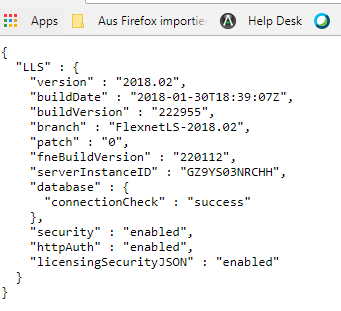](https://lhc.advantest.com/uploads/images/gallery/2025-10/scaled-1680-/L4R11-png.png)
3. **If port 7070 is not open**, you a page with a not available message is displayed. In this case, get in contact with your administrators (customer IT) and request that port 7070 is opened for the SmarTest client workstation.