License Portal
What is the License Portal used for?
The license portal is used for managing your licenses. The main functionalities are:
- Activating the licenses you bought to a license server.
- Moving licenses from one license server to another license server. This function is only available for FNE license servers.
- Getting an emergency license for your standby emergency license server, if your license server is down.
- Login
- Organizational Management
- How can I add the customer organization to my License Portal account
- How can I view which organizations are assigned to my account
- How can I remove customer organizations which I do not need anymore
- Connection Issue / License Portal Down
- Remove a bridging license
Login
How to get a License Portal login
There is the possibility of self-registration and there is still the possibility to request the setup via form.
Self-registration
As prerequisite you need a valid entitlement ID of the customer you need access to in the license portal. If available, please do:
If you have an entitlement ID on hand, you can register yourself (the entitlement ID determines the organization your user account is linked to):
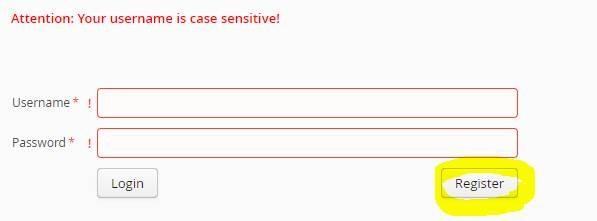
- Go to https://license.advantest.com/
- Click on button “Register”

- You get a new window:
Here enter the entitlement ID and your email address (for Advantest employee, it is the Advantest email address, for customers the customer email address). - Click on button "Register" After setup the user is informed via email sent by license.management.
Request via form
If Self-registration is not possible, e.g. you do not have an entitlement ID on hand, please contact with your Advantest support.
Organizational Management
How can I add the customer organization to my License Portal account
Subtopics:
- How to assign the organization of an entitlement ID to your user?
- How to find which sub-organization a license server is registered under?
How to assign the organization of an entitlement ID to your user?
Prerequisite: you need a valid entitlement ID of an organization on hand.
Procedure:
- Login to the license portal: https://license.advantest.com/
- Go to tab “License Management”
- Click on link “Activation via entitlement (Simple Activation)”
- Click on button “Entitlement not listed…”.
- Enter the entitlement ID of the organization you need to assign to your account and click on assign.
- You can check the assignment via your profile: click on your name in the upper right corner.
How to find FNE server registration keys for a sub organization?
Prerequisite: you need one organization of the customer organization assigned to your user.
Note: Goal is to be able to select the FNE server for activation
Note for customer users: the procedure below will not work for you as the entitlement IDs of other sub-organizations are abbreviated.
Procedure:
- Login to the License Portal and go to tab "License Management" > click on link "Entitlement overview"
- Select the appropriate customer master organization
- On the next page, you can work on the table visible or you download the Excel file and add filter on the columns.
- In the column for the license server enter as filter text the hostname of the FNE server.
- Enter in column entitlement as filter text "Registration". You will get the entitlement ID of the registration key, the FNE server has been registered to. Copy the entitlement ID.
- Click on your username in the upper right corner.
- Click on button "Organization not listed...".
- Enter the entitlement ID you have copied.
- You will get a message that the organization has been assigned to you.
Note: It is possible that the organization will not be visible on the page, but it is available. This is a small known bug. When you leave the page and return to it, it will be visible.
- Go back to tab "License Management" > click on link "Simple Activation" and go through the process and check, if the FNE server is visible.
How can the organization be assigned to the user if the user has already a master organization from the same customer assigned to them?
Prerequisite: you need one organization of the customer organization assigned to your user.
Note for customer users: the procedure below will not work for you as the entitlement IDs of other sub-organizations are abbreviated.
Procedure:
- Login to the License Portal and go to tab "License Management" > click on link "Entitlement overview"
- Select the appropriate customer master organization
- On the next page, you can work on the table visible or you download the Excel file and add filter on the columns.
- In the column for the organization filter for the organization you are looking for.
- When the organization is found, copy one of the available entitlement IDs from the entitlement column.
- Click on your username in the upper right corner.
- Click on button "Organization not listed...".
- Enter the entitlement ID you have copied.
- You will get a message that the organization has been assigned to you.
Note: It is possible that the organization will not be visible on the page, but it is available. This is a small known bug. When you leave the page and return to it, it will be visible.
How can I view which organizations are assigned to my account
Procedure:
- Login to the license portal: https://license.advantest.com/
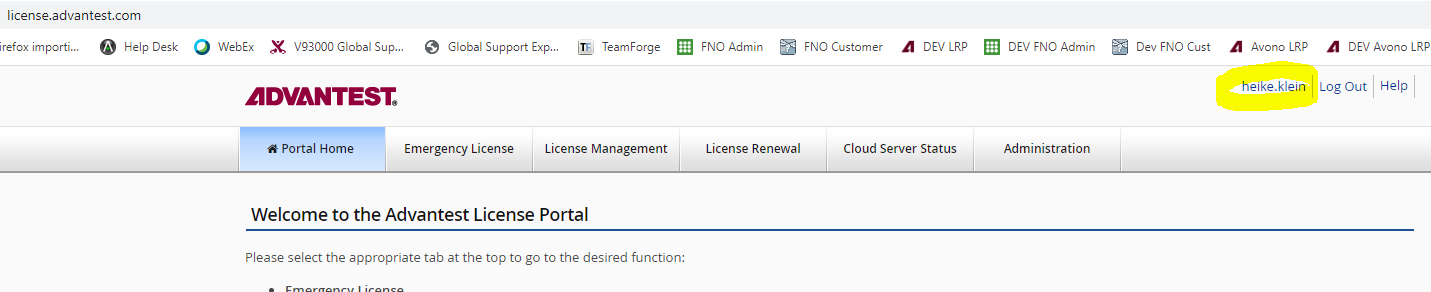
- Click on your name in the upper right corner of the license portal.
Example here for user heike.klein - see the yellow circle at the upper right corner:
- You will get a new page with your user name, email address and a roles overview. Under the roles overview you can see the list of organizations assigned to you.
- Attention: there is the button "Remove", which enables you to remove an organization. Please use this button with care: the organization is removed directly without any confirmation. Please remove only organizations to which you are sure that you do not need them anymore. If you have removed an organization by mistake you can add it again when you have an entitlement ID of that organization on hand, see: How can I add the customer organization to my License Portal account.
How can I remove customer organizations which I do not need anymore
If your responsibility changes you probably also need to adapt the organization assignment of your license portal user account.
If you need to add organizations, you can follow the description: How can I add the customer organization to my License Portal account
If you need to remove organizations, follow the procedure:
- Login to the license portal: https://license.advantest.com/
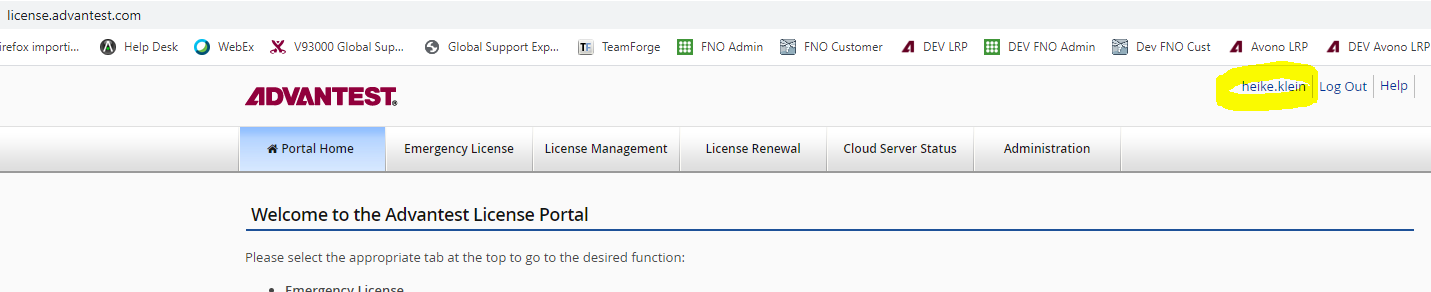
- Click on your name in the upper right corner of the license portal. Example here for user heike.klein - see the yellow circle at the upper right corner:
- You will get a new page with your user name, email address and a roles overview. Under the roles overview you can see the list of organizations assigned to you.
- For each organization there is a line with the button "Remove", which enables you to remove an organization. Please use this button with care: the organization is removed directly without any confirmation. Please remove only organizations to which you are sure that you do not need them anymore. If you have removed an organization by mistake you can add it again when you have an entitlement ID of that organization on hand: see How can I add the customer organization to my License Portal account
Connection Issue / License Portal Down
What can I do, if there is a connection issue with the license portal
There are several types of connection issues:
- There is a message "server connection lost" message at the top of the license portal.
- The blue progress bar at the top of the screen is not moving anymore.
- You are getting an error message with error code 9999.
Example:

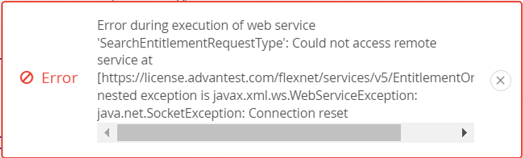
Here you can view the error code 9999, which is used for time outs. - You are getting an error message hinting out a connection issue.
Example:

Here you can view the keyword "Connection reset", which indicates a connection issue.

Best practices:
- In general, never open several license portal sessions neither in the same browser nor in another browser.
- For 1. and 2. please wait. Do not close the browser tab.
Please do not open another license portal session, also not in a different browser as this will just add more load. - For 3. and 4. please close the error message and log out.
Please try the same action some time later.
If the error remains, please inform your Advantest support.
Remove a bridging license
How can I remove a bridging license for FNP and FNE
Use case description:
If a bridging license is expiring and if there is no successor bridging license SMT 7 will crash.
In most cases the correct licenses have been activated towards the server, but they will not be used automatically by SMT upon expiring bridging license.
SMT will need a restart before they use the normal licenses, and this is only possible if either the bridging license has expired (SMT crashed already) or the bridging license has been removed.
Removing bridging license from FNE license server
This can be done via License Portal:
- Log in to the license portal and click on the “License Management” tab.
- Then select Re-host Licenses, the first step of rehosting is always removing the licenses from the server first. Which will be used to remove the bridging license, and the second step will not be executed.

- Select the FNE server on which the bridging license is activated:

- Continue to the license selection part and search for “Bridging” in the filter segment under “Entitlement”:

- Select the licenses and fill in the amount that will be removed.
- Continue with the selection and remove the bridging license. The appropriate FNE server needs to be synchronized, if it is online or for the case it is offline, you need to download the bin file and upload it via the FNE server viewer of the appropriate FNE server. This will remove the bridging license from the FNE server.
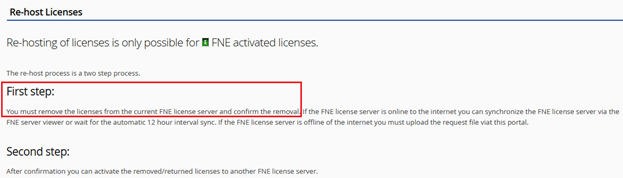
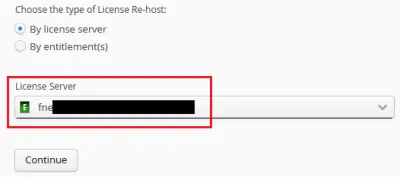
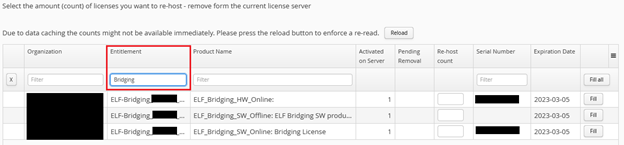
Remember this is the rehost process, but we´re only completing step one, which is to remove the bridging license.
Smartest must be restarted afterwards to ensure its working with the correct licenses.
Removing bridging license from FNP license server
Here you do not need the license portal, but need to do the action on the FNP license server.
For removing the bridging license file from the license server under the /opt/flexlm/license directory:
cd /opt/flexlm/license
rm <license file name>
Note: if it is a local license server, the licenses might be under directory /opt/flexlm/local_license.
For re-reading the licenses on the license server execute:
Rhel5 /opt/flexlm/bin/lmutil lmreread –c /opt/flexlm/license
Rhel7 sudo –u lmadmin /opt/flexlm/bin/lmutil lmreread –c /opt/flexlm/license
After re-reading the licenses Smartest can be restarted to receive the correct licenses.