License Portal
The Advantest License portal combines all license-related management functionality into one tool.
To access the Advantest License Portal, sign in under: https://license.advantest.com/.
The portal is divided into the following main areas for both FLEXlm technologies - FlexNet Publisher (FNP) and FlexNet Embedded (FNE):
- Special licenses requests
- License management (FNE server setup, License activation, FNE license re-hosting, License overview)
- License Renewal (for FNP licenses)
- Optional: Cloud Server Status for Advantest Cloud License Server monitoring (ACLS)
If you want to switch between areas and all tabs are not visible, click Portal Home.
Note: To access licenses in the Advantest License Portal, users must be assigned to an organization. This enables the users to access all licenses of the associated organization. The organization hierarchy includes a Master level to enable the grouping of regional organizations to a higher level world wide master organization. Users can only belong to one master organization.
- Signing in to the License Portal
- Special License portal
- License Management portal
- FNP License Renewal portal
- License Portal reference
Signing in to the License Portal
You must be signed in to the Advantest License Portal to access license portal functionality. An associated account is necessary.
Before you begin
You must know your Advantest customer credentials, which are based on your email address.
Password reset is possible on the general Advantest License Portal Login page.
All entries in the login screens are case sensitive.
Login credentials are the same as for the myAdvantest login.
Procedure
- Sign in to the Advantest License Portal by opening the following URL in a Web browser (Edge, Chrome or Firefox):

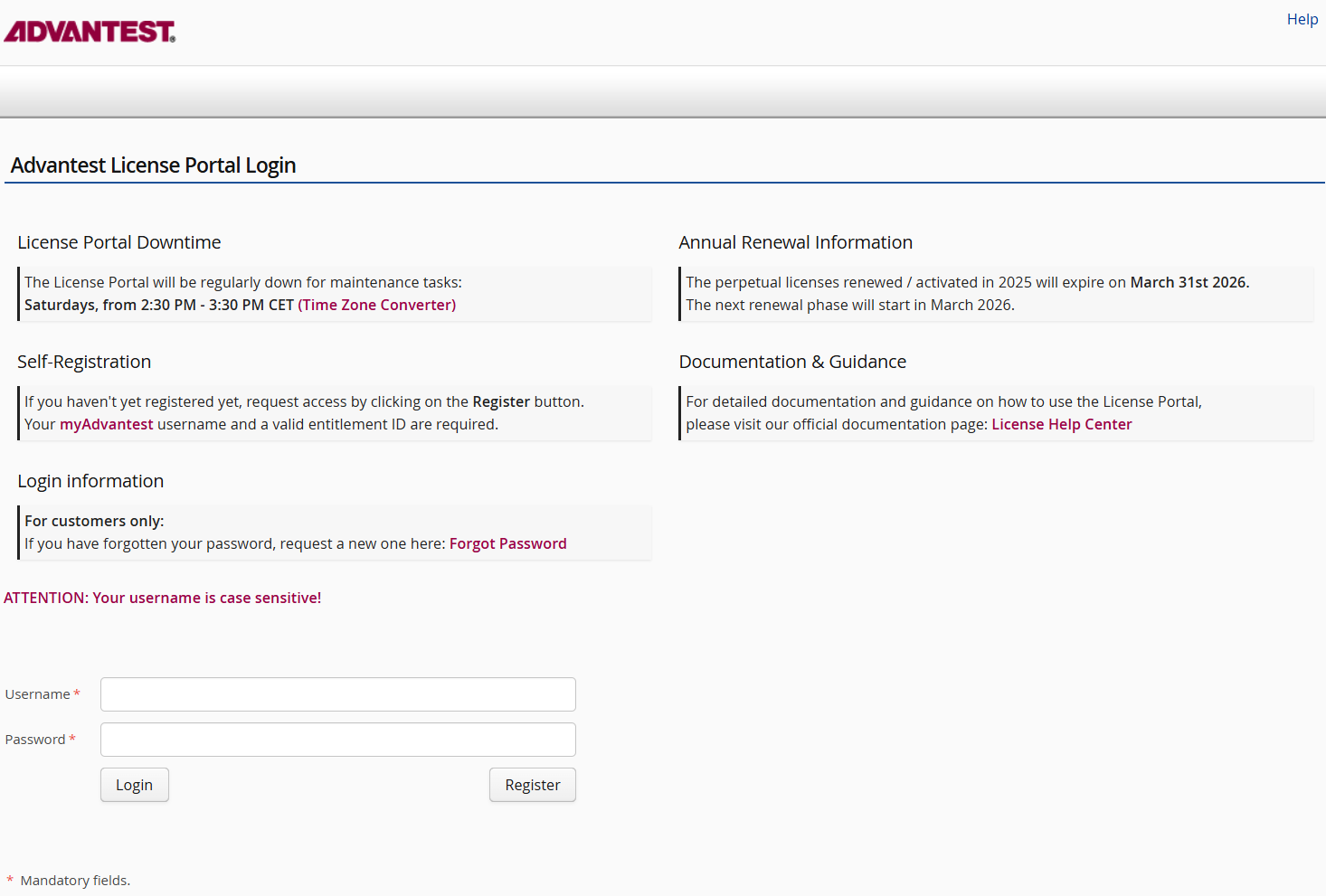
Note: You require a registered account to be able to sign in. Alternatively, click Register and complete the registration process with myAdvantest username a valid entitlement ID. If registration fails, contact your Advantest representative providing your myAdvantest username (do not provide your password), and the error message you received during signing on.
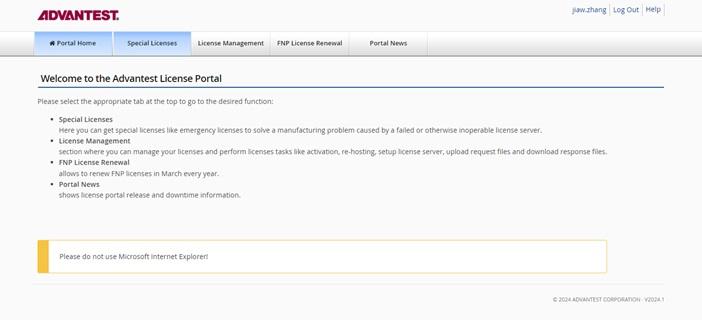
Results
This opens the Advantest License Portal page, giving access to:
- Special Licenses (Advantest employee only)
- License Management
- FNP License Renewal
- Optional: Cloud Server Status
- Portal News
What to do next
To sign out after you have completed your tasks, click Log Out in the upper-right corner.
Special License portal
The Advantest Special License sub-portal, accessed from the Advantest License portal, is your access point for requesting emergency licenses. You can obtain emergency application software licenses or hardware feature licenses to solve a manufacturing problem caused by a failed or otherwise inoperable or inaccessible license server.
Note: Emergency licenses are made available for emergency circumstances and are valid for 10 days only, providing you with time to restore operation to your original license server or to rehost your full licenses.
When to request emergency licenses
Emergency licenses are required and are provided in the following cases:
- The license server suffers a serious malfunction (for example, motherboard or hard disk drive failure). See also Installing emergency licenses after failure and replacement of the license server.
In the case of a server that has been catastrophically damaged, you will also have to rehost your original licenses. See Re-hosting FlexNet Embedded licenses. Rehosting can take several days during which time emergency licenses can be used to allow your testers to continue running.
- Your network is not accessible. See also Installing emergency licenses for license servers unavailable due to network problems.
What you should do before requesting emergency licenses
When applying for emergency licenses, you should be aware of the following:
- Notify your Advantest sales representative as soon as possible, preferably by email, before you apply for a license.
- Take all reasonable steps to restore operation to your original license server or rehost your licenses.
What you should know when requesting emergency licenses
To receive an emergency license, you must provide the following information:
- Valid user account to sign in to the Advantest Special License portal.
- Host ID of the failing/affected license server.
- Host ID and hostname of the replacement license server.
License Management portal
To access the Advantest License Portal, sign on under: https://license.advantest.com/.
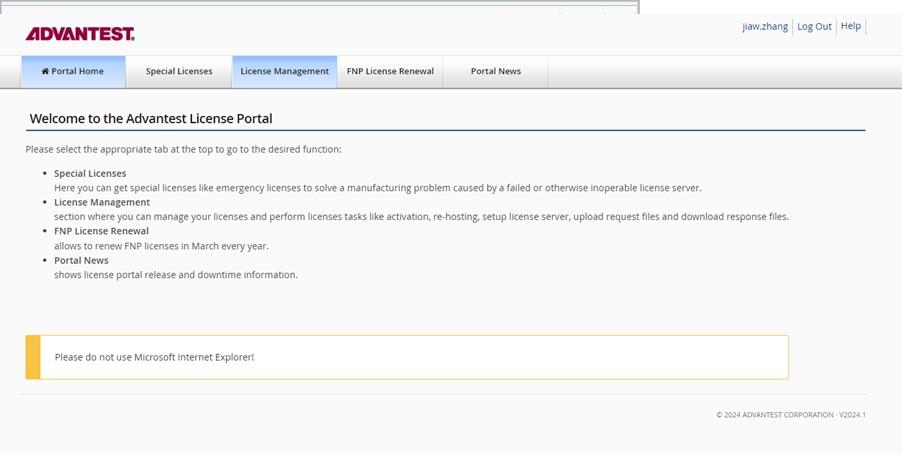
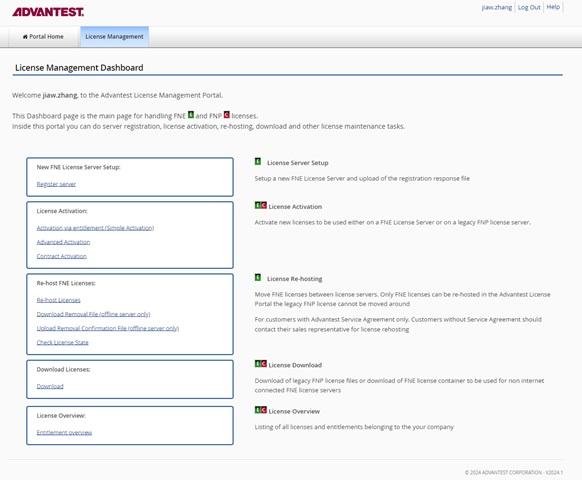
The License Management sub-portal contains the following areas for both FNE and FNP licensing:
- Activating licenses to a license server
- Downloading license containers and files
- License overview
The following extra features are available for FNE licensing:
- Registering new FNE servers - and uploading the request file
- Re-hosting FNE licenses
Related information
FNP License Renewal portal
The Advantest Renewal Portal page provides you an overview of the high-level tasks that you must complete to renew your FNP licenses.
To access the Advantest License portal, sign on under: https://license.advantest.com/.
There are three main steps:
- Assigning entitlements to your account so that you can renew the associated FNP licenses
- Renewing the FNP licenses for which you are responsible
- Download the renewed FNP licenses
The License Renewal Dashboard flow chart includes shortcut links to these main pages. 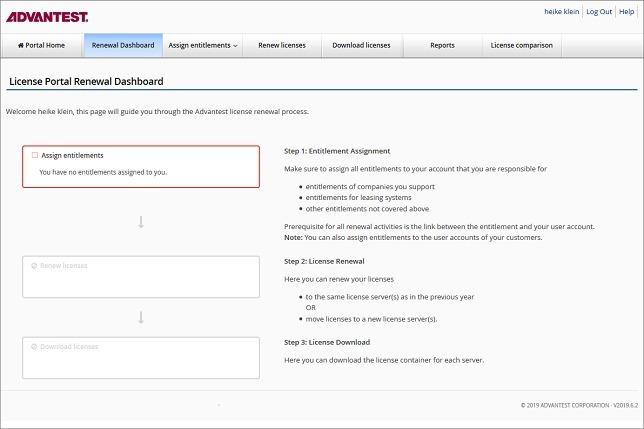
For detailed information on assigning entitlements, renewing licenses, and downloading renewed licenses, see FNP License Renewal.
License Portal reference
For license activation, license overview, FNE license rehosting, the license data is presented in a table. This topic describes the column titles, icons and action controls.
Column Titles and icons
| Titles | |
|---|---|
| Product | Entitlements with features and S&S licenses.
Demo licenses are associated with a tester. Manually enter the system serial number. |
| Total | Total number of available licenses for the associated product. |
| Already activated | Number of activated licenses from the total available for the associated product. |
| Remaining | Number of licenses available for activation from the total available for the associated product. |
| Activate | Enter the number (count) of licenses that you want to activate from the total available for the associated product. |
| Serial Number | System serial number automatically entered from the associated entitlement ID.
One-time SmarTest update licenses require manual entry of the serial number and selection of the software version. Demo licenses are associated with a tester. Manually enter the system serial number. |
| SW Version | SmarTest software version with which the license is associated. |
| Start Date |
Date from which the license is active. Click on the calendar icon and select a date from the calendar displayed:
Note: Demo licenses are time-limited. A start date must be selected. If you are using 30 day licenses sequentially, enter count 1 and specify a start date. After generating the first license, start the simple activation again and re-enter count 1 and the next start date. |
| Expiration Date |
Date when the license expires (at 24:00 midnight). For example, if the expiration date is 2024-06-30, the license expires at midnight (end of the day) on 30-June-2024. |
| Organization | Customer name. As some customers have several sites, a customer can have several organization names. |
| Org ID | Unique (numeric) identifier of the organization name of the customer. |
| Entitlement | A unique identifier for a specific entitlement.
Available on the entitlement certificate and is required for license activities such as activating licenses. |
| License Server | License server to which the license is activated or shall be activated. |
| Pending Removal | For FNE rehosting only: If a number is displayed in this field, the removal of licenses from the original FNE license server has not yet been confirmed with the Licensing Back-Office. As long as a pending removal value is displayed, these licenses cannot be activated to another FNE license server. |
| Re-host count | For FNE rehosting only: Enter the number (count) of licenses that you want to remove from the FNE license server to activate the licenses to another FNE license server. |
 |
FNE license server. |
 |
FNP license server. |
License Management portal controls
| Control | Description |
|---|---|
| Column sort |
Click on a column header to sort the table entries in accordance with the column values. |
| Filter | Field used to filter the Product list by text string. |
 |
Click to remove search text from the filter field. |
 |
Click to display or hide optional columns. |
 |
SmarTest software version number with which the license is associated. |
 |
Enters the remaining count to the Activate field of the associated license. |
 |
Enters the remaining count of all license to the Activate field. |
 |
Select a license period start date from the calendar. |