License server setup
License server setup
- Single FNP License server installation, upgrades and updates
- Set up a three-license-server redundancy configuration
- Merging new licenses into an existing license file
- Find out HostID and HostName
- Check your floating license file installation
- License server basic operations
- License server prioritization
- Diagnose and solve license problems
- License management utilities
This section covers licensing requirements and considerations you will want to examine before installing your licenses.
Installation requirements
The computer you use as the license server:
- Must be accessible over your network from each of the V93000 system controllers on which you will install a floating license.
-
Must run Red Hat Enterprise Linux 5 (64 bit), Red Hat Enterprise Linux 7 or Solaris 10 on Sparc.
An important part of this process involves your identification of a computer that can function effectively as a license server. For an overview of considerations that may affect your choice of a license server that fits your specific test setup, refer to the Revenera documentation: https://docs.revenera.com/fnp/2021r2/pdf/fnp_LicAdmin.pdf.
Additional licensing considerations
Bear in mind the following points:
- If you are installing more than one license file, you need to repeat the procedure for each license file. The instructions on the following pages are written for a single license file.
- If you purchase and activate (redeem) several licenses at the same time, you will be sent one license file that contains all the licenses you have activated. You can activate any or all of these licenses at any time you choose.
- You can simplify management of multiple license files purchased separately by merging them into a single file (see Merging new licenses into an existing license file).
- It is critical that you retain your Entitlement Certificate. This certificate is only issued upon ordering, and contains information that may be required for future use. Be sure to keep your certificate in a safe location, since the certificate conveys specific legal rights and enables access to the license redemption system.
Note: In order to download the necessary license server software, you will need to be a registered user of the Semiconductor Test Equipment (STE) Tech Support web pages, which are found on the Advantest.com web site.
Single FNP License server installation, upgrades and updates
Installation procedure for a single FlexNet license server to provide activated licenses. Applicable to fresh installations, and applying upgrades to add major functionality and patch updates installing the latest packages on an existing server.
About this task
The license server install package can be downloaded from the Advantest Software Center server:
https://softwarecenter.advantest.com/download/othersw/builds/licensing/licensing:fnp
The following procedure is applicable to installation, upgrades and updates. For three-license-server redundancy configuration arrangements, also refer to Set up a three-license-server redundancy configuration.
Registering the server is only required for initial installation. This steps should be omitted for upgrades and updates. If you are upgrading an existing installation, a running license server is automatically stopped as part of the new software installation.
Before you begin
Make sure that the system hosting the FlexNet license server host system meets the hardware and operating system prerequisites. For details, see License server setup.
Procedure
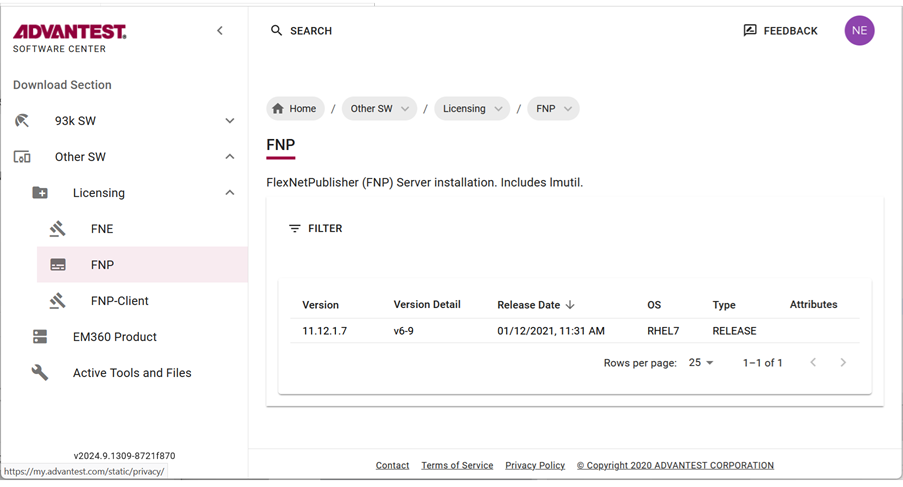
- To get the list of all available Licensing products, from the left menu select:

- Download the archive package by clicking the
 icon.
icon.
The selected license (tar.gz) package is downloaded to your browser's download folder.
Example FNP packages include:
fnp_11.12.1.7_v6-9_rhel7.tar.gz

Results
The FNP license server and associated tools such as lmutil are installed and running.
For more information about using the license server, see License server basic operations.
Set up a three-license-server redundancy configuration
In a redundancy configuration with three license servers, each of the three license servers runs on its own dedicated machine. Two servers are used to serve licenses and their license files must be kept synchronized. The third server is required to build the quorum, participating in monitoring the availability of at least one license server, but does not serve licenses. Licenses do not need to be installed on the third server.
Procedure
For example:
SERVER <license_server_host_ name> <hostid> <port>SERVER <license_server_host_ name> <hostid> <port>SERVER <license_server_host_ name> <hostid> <port>VENDOR socbu
Results
By these SERVER lines each license server system knows the other license server systems that have the same set of licenses. Each server system communicates with the other license server systems.
Note: The license files must be kept synchronized on the primary and secondary license servers. Both servers are equivalent. If the active one goes down, the other one becomes MASTER and serves the licenses available on its disk.
If a license server system detects that it cannot communicate with at least one the others, it refuses to serve licenses until it can. That is, a minimum of two license servers must be running. This ensures that only one of the three license servers serves licenses at any one time.
Merging new licenses into an existing license file
If you have previously installed a FLEXlm license you may find it desirable to merge your new license file with a license file that already exists. This can help reduce the complexity of managing multiple licenses.
Note: If you are installing a floating license for the first time, skip to the next section, Install a floating license file.
To merge your new license file with an existing license file, consult chapter 3 of the FLEXlm End Users Guide. You can find the guide at the Advantest Web Site:
If you choose to merge files, be sure to copy the newly merged license file to each computer where you want to execute the SmarTest feature.
If you choose not to merge the new license file with an existing license file, follow the instructions for first time installation of a floating license in Install a floating license file.
Find out HostID and HostName
This topic describes how to find out the HostID and the HostName of the license servers for license activation.
About this task
Note: This topic is applicable to SmarTest 7 and SmarTest 8.
To activate license you need the following information:
- Entitlement Certificate
- HostID of the license servers
- HostName of the license servers
Procedures
Find out HostID
FLEXlm binaries are installed
- Login to as user root:
su rootand enter the root user password. - Open a terminal window.
- Type:
/opt/flexlm/bin/lmutil lmhostid -n
FLEXlm binaries are not installed
The HostID is an 8 digit hexadecimal number (HP-UX or Solaris) or a 12-digit hexadecimal number (Linux). Select from one of the following commands, depending on your OS.
Sun Solaris
- Log in as root and open a terminal window.
- Type:
/usr/bin/hostid
Linux
- Login to as user root: su root and enter the root user password.
- Open a terminal window.
- Type:
- Linux RHEL 5
/sbin/ifconfig eth0 | grep HWaddr | sed 's/://g' | awk ' {print $NF} ' - Linux RHEL 7
/sbin/ifconfig eno1 | grep "ether" | sed 's/://g' | awk ' {print $2} '
- Linux RHEL 5
Find out HostName
Sun Solaris
- Log in as root and open a terminal window.
- Type:
/bin/hostname
Linux
- Login to as user root: su root and enter the root user password.
- Open a terminal window.
- Type:
/usr/bin/hostname
What to do next
Check your floating license file installation
To verify your license has been correctly installed, execute the license status command:
lmutil lmstat -a
This command returns information on the status of licenses currently loaded on a specified server.
The command is available as part of the lmutil license server utility. The lmutil license server utility is available from Advantest and should be installed on each server.
For greater detail about lmstat , see chapter 7 of the FLEXlm End User Guide.
You can find the FLEXlm End User Guide at the Advantest Web Site:
Advantest Home > (Support & Services) V93000 SOC > Software Downloads and Utilities for the V93000 SOC Series> FLEXIm License Server Software Downloads > FLEXlm End Users Guide.
License server basic operations
The license server is implemented as a system service. If licenses are available, the license server starts automatically on system start.
lmadmin user in RHEL 7
To enhance the robustness of the license server and prevent unintentional shutdowns, the RHEL 7 version provides some improvements:
The license server is controlled by an internal user: lmadmin. You cannot log in as lmadmin.
Using the systemctl functionality, root can start and stop the license server. No user, including the root user, can directly start or stop the license server.
systemctl
You can manually control the license server using the systemctl functionality. The related commands are also documented in the manpage: v93-license
Starting the license server
- RHEL 7:
To start the license server, log in as root user and use the following command:
systemctl start v93-licenseNote The
/opt/flexlm/bin/lmgrd [-c license_file_path][-l debug_log_path]command for starting the license server must not be used on RHEL 7. - RHEL 5:
To start your license server use the lmgrd command:
/etc/init.d/smartest_license start
Stopping the license server
- RHEL 7:
To stop the license server, log in as root user and use the following command:
systemctl stop v93-license - RHEL 5:
To stop your license server use the smartest_license script:
/etc/init.d/smartest_license stop
Reading a new license file
- RHEL 7:
To read a new license file, log in as root user and use the following command:
systemctl reload v93-license - RHEL 5:
To read a new license file, use the lmreread parameter of the lmutil command:
/opt/flexlm/bin/lmutil lmreread [-c /opt/flexlm/license]
Monitoring the status of the license server
- RHEL 7:
To monitor the status of the license server, log in as root user and use the following command:
systemctl status v93-license - RHEL 5:
To monitor the status of the license server use the lmstat parameter of the lmutil command:
/opt/flexlm/bin/lmutil lmstat -a
Licenses in use
To get further information about the currently used licenses, use the lmutil lmstatcommand:
/opt/flexlm/bin/lmutil lmstat -c @localhost
This command gives you the internal status information provided by the license server.
FLEXlm End User Guide at the Advantest Web Site:
Diagnose and solve license problems
If a problem occurs, please track the following information, which can be useful to service personnel.
- Which operating system is in use, and which version of that operating system.
- Type of computer used as license server.
- FLEXlm version. Use the lmver or lmgrd -v commands to identify the version. See lmutil for more detail.
- Error or warning messages that appear.
- Did the server start correctly?
- Are you using a combined or a separate license?
- Are you using a single server or multiple server redundancy?
- What information is returned when you execute the lmstat - acommand? lmstat returns license management status information. See lmutil for more detail.
- What information is returned when you execute the lmdiag command. lmdiag returns information relevant to license checkout problems. See lmutil for more detail.
FLEXlm license error messages
FLEXlm and FLEXnet provide error messages that can help guide you in diagnosing a problem. FLEXlm and FLEXnet errors with the same numerical code are identical.
For a complete listing of messages you will see in the "debug log" see Appendix G of the FLEXlm End User Guide.
(You can find the guide at the Advantest Web Site: .)
|
Error Code |
FLEXlm License Error Description |
|---|---|
|
-1 |
Cannot find license file. |
|
-2 |
Invalid license file syntax. |
|
-3 |
No server for this feature. |
|
-4 |
Licensed number of users already reached. |
|
-5 |
No such feature exists. |
|
-8 |
Invalid (inconsistent) license key or signature. The license key/signature and data for the feature do not match. This usually happens when a license file has been altered. |
|
-9 |
Invalid host. The hostid of this system does not match the hostid specified in the license file. |
|
-10 |
Feature has expired. |
|
-11 |
Invalid date format in license file. |
|
-13 |
No SERVER lines in license file. |
|
-14 |
Cannot find SERVER hostname in network database. The lookup for the hostname on the SERVER line in then license file failed. This often happens when the host file, or NIS, or DNS is incorrect. Workaround: Use IP address (for example, 123.456.789.123) instead |
|
-15 |
Cannot connect to license server. The server (lmgrd) has not been started yet, or the wrong port@host or license file is being used |
|
-16 |
Cannot read data from license server |
|
-18 |
License server does not support this feature |
|
-21 |
Reports FLEXlm license version |
|
-26 |
Request for more licenses than this feature supports |
The FLEXnet End User Guide at the Advantest Web Site: .
Losing connection to license server
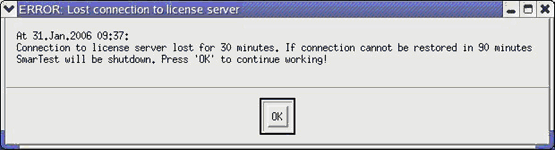
In case you loose connection to the license server (for example, due to a network outage) the software will continue working for two hours. After that time it will shutdown automatically.
A window (see below) is displayed every 30 minutes to inform you about the lost connection and the remaining time for which the software can still be used.
Changing the message interval
To change the interval in which warning messages are shown you can modify the flexlm.cfgfile in the /etc/opt/hp93000/soc_commondirectory. The entry WarningInterval <minutes> defines the interval in which warning messages are shown. Default value is 30 minutes.
License server behavior
If the connection is lost the license server frees checked out licenses after 20 minutes. This is the minimum time. You can increase the duration in an option file on the license server. The option file must be named socbu.opt and reside in the same directory as the vendor daemon socbu. For details on the socbu.opt option file please refer to the FLEXlm End User Guide.
When the license server connection is restored, the 2-hours-timeout is reset and licenses are checked out again.
Using the FLEXlm debug log
In case of problems with the license server, the status and error messages of the FLEXlm debug log will be useful.
The license server keeps its log files in the /opt/flexlm/log directory. All files are tagged with a time stamp marking the date of creation. The most recent file is available via a hard link: lmgrd_socbu.log. The last entries at the end of /opt/flexlm/log/lmgrd_socbu.log provide information about recent licensing issues.
The log files contain information about:
- configuration problem messages,
- daemon software messages, and
- informational messages.
These messages are useful in case you need to debug the license server.
For a listing of possible debug log messages see the FLEXlm End User Guide.
You can find the FLEXlm End User Guide at the Advantest Web Site: Service & Support > IC Test Systems > Licensing > V93000 FLEXlm License Server Software Downloads and Documents.
FLEXLM_DIAGNOSTICS environmental variable
The FLEXLM_DIAGNOSTICS environmental variable is mainly used to diagnose license check out problems.
Note: To diagnose license check out problems, Advantest recommends to set the variable to FLEXLM_DIAGNOSTICS=stdout instead of level 3. This provides the same data but avoids the creation of empty flex*.log files in your SmarTest start directory.
This diagnostic tool provides up to three levels of diagnostic, depending on the version of FLEXlm installed on your system. Each level increases the diagnostic functionality available when FLEXLM_DIAGNOSTICS is used. Level 2 includes functionality of levels 2 and 1. Level 3 includes the functionality of levels 3, 2 and 1.
The examples below display the information that will be retrieved when the environmental variable is set to 1, 2, or 3. Text in bold font indicates additional information provided by each level, compared to the preceding level.
- Level 1:
For use when a license checkout fails to load. When set to 1 a FLEXlm licensing check out error message is shown, as well as a complete list of the license files that the application attempted to use.
- Level 2:
For use when a license checkout fails to load. In addition to level 1 information, the level 2 diagnostic file returns information about the present checkout arguments. Among arguments listed in lm_checkout: feature, version, num_lic, queue_flag, dupgroup_mask.
- Level 3:
For use both if a checkout is successful and if it fails to load. Information about how the license is granted is displayed; for example, whether a server is used, the name of the license file, and how the license server has been designated.
In case of a successful checkout, the log file is still created, but contains no information. We recommend to use FLEXLM_DIAGNOSTICS=stdout instead (see Note above).
Note: Default FNP license directory (path): /opt/flexlm/licenses
Example of Level 1
export FLEXLM_DIAGNOSTICS=1
FLEXlm checkout error: Cannot find license file (-1,73:2) No such file or directory license file(s): /path/licenses/testing.lic license.lic
Example of Level 2
export FLEXLM_DIAGNOSTICS=2
FLEXlm checkout error: Cannot find license file (-1,73:2) No such file or directory license file(s): /path/licenses/testing.lic license.lic
lm_checkout ("f1", 1.0, 1, 0x0, ..., 0x4000)
Example of Level 3
export FLEXLM_DIAGNOSTICS=3
FLEXlm checkout error: Cannot find license file (-1,73:2) No such file or directory license file(s): /path/licenses/testing.lic license.lic
lm_checkout ("f1", 1.0, 1, 0x0, ..., 0x4000)
app1
Checkout succeeded: f0/14263EAEA8E0
License file: ./servtest.lic
No server used
app2
Checkout succeeded: f1/BC64A7B120AE
License file: @localhost
License server: @localhost
app3
Checkout succeeded: f1/BC64A7B120AE
License file: ./servtest.lic
License server: @speedy
Note: Text in bold indicates diagnostic information returned for that level of diagnostic code that is not returned at a lower level.
Server and network crash diagnostic table
In any server or network crash scenario the test systems will continue to run the current tests for two hours or until there is a change of test device. System calibration and diagnostics will, similarly, result in stopping the current device test.
Test systems cannot initiate new tests until the failure case is repaired.
The Recovery column indicates the repair for each crash scenario. "ELF" in the table refers to the Emergency License Facility, that is explained in the section Emergency licenses.
|
Failure Case |
Impact on Test System |
Recovery |
|---|---|---|
|
FLEXlm License Server Crash |
Systems that get their licenses from this server stop once they change device, reboot, calibrate, run diagnostic. Otherwise the testers keep running |
If Harddisk failure, repair Harddisk, install SW and existing licenses. If Motherboard failure, use ELF process via WEB to obtain 10 days license. Within 10 days obtain ReHosted licenses from Advantest Support. |
|
Test Floor Network down |
Systems that get their licenses from this server stop once they change device, reboot, calibrate, run diagnostic. Otherwise the testers keep running |
For long time Network outage: Use Elf process on a network outside the test floor (Internet Cafe) to obtain local licenses for each tester computer. (gives 10 days access)
|
|
FLEXlm License Server Crash and Test Floor Network down |
Systems that get their licenses from this server stop once they change device, reboot, calibrate, run diagnostic. Otherwise the testers keep running |
Use ELF process on a Network outside Test Floor (for example, Internet Cafe) and obtain license. Use floppy disk, Flash card, any removable media, or print out license key and type in on test floor computers. |
|
FLEXlm License Server Crash and Advantest Server (ELF) down |
Systems that get their licenses from this server stop once they change device, reboot, calibrate, run diagnostic. Otherwise the testers keep running |
No recovery until Advantest server is up again. (We estimate the probability of both failures occurring simultaneously at about 0.001.) |
Upgrading FLEXlm executable files
This topic explains how to upgrade the license server using the FLEXIm executable files.
About this task
Upgrading the license server means updating these FLEXlm binary executable files:
lmgrd: the license server executablelmutil: the license server utilitysocbu: the license vendor daemon
After having updated SmarTest you may get an error message which asks you to upgrade the license server:
Mismatch in License Server version (check <version>). License Server version <version> is older than required version <version>.
License Server upgrade is required, as otherwise no licenses can be checked out.
The procedure to upgrade the FLEXlm binary executable files differs depending on the operating system of your license server host: Linux or Sun Solaris. In any case you must have root (superuser) rights to upgrade the binary files.
Alternatively to the procedure described below, you can reinstall the complete FLEXlm License Server RPM package.
Note: If you have a three-redundancy-license-server setup you must do the upgrade on all three license servers.
Before you begin
You must have downloaded the appropriate upgrade package, either a zip file or a tar.gz file, for your operating system from FLEXlm License Server Software Downloads and Documents on https://www.advantest.com/service-support/ic-test-systems/products-list/v93000-licensing. The following packages are provided:
- FLEXlm License Server Components <version> for RHEL 5 and RHEL 7 64-bit (zip file)
- FLEXlm License Server Components <version> for Sun Solaris 10 (tar.gz file)
Each of these packages contains the FLEXlm binary files lmgrd, lmutil, and socbu.
Procedure
Results
You upgraded the FLEXlm binary executable files lmgrd, lmutil, and socbu to the latest version.
Replacing licenses after a server problem
When replacing licenses after a license server problem you must differentiate between two cases: Recovering and Rehosting.
Recovering licenses
Recovering a license file - as contrasted with "rehosting" a license file - is the process that enables you to reload your license file after you restore operation to a failed license server computer.
- If the server crash is due to a hard drive failure, you should repair the hard drive, reinstall the license server software, restore a backup copy of the license file, and start lmgrd. (For a copy of lmgrd, see Licensing).
- Other types of computer failures may or may not affect the integrity of the hostid. If the computer can be repaired without changing the hostid, reinstall the software and licenses, as needed, and start the license server. If the computer repair alters the hostid, then the licenses must be rehosted.
- During the time required for repair of the license server, the emergency license capability can be used (see Emergency licenses).
CAUTION: Advantest highly recommends that you keep a backup copy of your license file in a safe location separate from your license server and test computer, so you can more easily recover a license should the need arise.
Rehosting licenses
Rehosting a license file is the process where all licenses you have originally locked to one license server are reissued by Advantest so a different computer can be used as a replacement license server.
Only two circumstances permit rehosting:
- The catastrophic crash of your server.
- Your server is inoperable due to obsolescence.
In either case you must contact your Advantest sales representative to initiate a rehost action to transfer your existing licenses to a new server. During the time this process takes you may need to utilize the emergency license capability (see Emergency licenses).
Note: Any device test already in progress when the server or network crashes, will continue to run for 2 hours. You will be unable to load new device tests.
To rehost, notify your Advantest sales representative that a catastrophic server failure has occurred or that you can no longer use the server due to obsolescence.
You must provide the representative with the hostid and hostname associated with the failed server, as well as the hostid and hostname of the new computer that you will use as your replacement license server.
You will receive a license file for the new license server computer that contains all the licenses associated with the failed license server. You will need to load the license server software on this computer.
Note: This process may take several business days, during which you can use an emergency license to keep your operation running (see Emergency licenses).
Emergency licenses
Emergency 10-day licenses enable you to meet test needs until your license is rehosted,
Note: Emergency 10-day licenses are only available for emergency circumstances.
The emergency license delivery mechanism will provide you with licenses immediately upon application via Advantest website.
Emergency licenses may be required:
- If your server suffers a catastrophic crash that will require replacement of the server.
In the case of a server that has been catastrophically damaged, you will also have to rehost your original licenses. See Replacing licenses after a server problem. Rehosting can take several days during which time emergency licenses will meet your testing needs.
There are several considerations you should be aware of, if you apply for emergency licenses:
- You must notify your Advantest sales representative as soon as possible by voice or email before you apply for a license.
- You must take all reasonable steps to restore operation to your original license server, or replace it, within 10 days.
- You should understand that temporary licenses you receive will be good for 10 days, by which time you will need to have rehosted your licenses.
See Licensing for further information about the emergency license process. You will need your STE support site login to access the support web page.
Adding licenses with lmreread
Adding licenses may be required for example, by a new device test, which uses extended test system features, or if you received emergency licenses.
About this task
You can add licenses to your license server without impacting device tests that are currently running.
To extend test system capabilities prior to running a new device test, follow the steps below.
Procedure
- Install the additional licenses file on the server and networked computers on which they will run. See the "Floating license instructions" section of the "Site Planning and Preparation Guide" for the "V93000 Pin Scale System".
- Use the
lmrereadcommand, which will initiate a reread of the license files on the server, which makes these added licenses available from the server's pool of licenses. See lmutil (lmreread) for more detail. - Shut down SmarTest. This will check the current licenses back into the server.
- Restart SmarTest.
Results
SmarTest notices the new licenses that have been added to the server, and they will be available for device test.
You will need to shut down and restart SmarTest on each test system before that test system will be able to use the new licenses.
For complete lmreread syntax information see chapter 7 of the FLEXlm End User Guide. You can find the guide at the Advantest Web Site: .
License management utilities
Subtopics
License management utilities:
- Provide information that is required to install licenses
- Streamline license file/directory management
- Support specific licensing features
- Help you diagnose and fix licensing problems
- Help you analyze and improve license usage
Two utility packages
Two license management utilities are available: "lmutil" and "FLEXnet Manager".
The lmutil file management system is available for free from Advantest and enables you to monitor, troubleshoot, and improve license usage.
FLEXnet Manager is an advanced license management utility that is particularly useful for facilities where large numbers of licenses are accessed remotely using license servers.
Among its features, FLEXnet Manager provides a detailed license usage report that will help you analyze current use, and efficiently plan future license allocation. In addition, FLEXnet Manager enables you to define a system of "alarms" that notify you about license allocation problems and automatically shut down and restart licenses as needed.
lmutil
All FLEXlm utilities are packaged in a single executable file called lmutil, that can be installed either as individual commands or as a wrapper that issues individual commands using lmutil(for example: lmutil lmstat).
The Unix driven commands available through the lmutil management system are briefly described in the following tables. For syntax information, see chapter 7 of the FLEXlm Licensing End User Guide. (You can find the guide at the Advantest Web Site: .)
|
Unix command |
What the command does |
|---|---|
|
|
Displays license server and client status information.
This helps you identify which licenses are currently available and which are in use.
|
|
|
Diagnoses checkout problems.
If a server connection problem is identified, you have the option to run extended connection diagnostics. Extended diagnostics attempt to connect to each TCP/IP port on the server to detect if the port number indicated in the license file is mistaken. If |
|
Unix command |
What the command does |
|---|---|
|
|
Shuts down selected license daemons.
Note: On Unix platforms never use kill - 9to shutdown servers. |
|
|
Reports the host ID.
You will use |
|
|
Converts files from decimal to readable format.
|
|
|
Enables user definition of file path settings.
|
|
|
Releases hung license.
|
|
|
Initiates reread of license file.
If you want to add licenses to the current test you will first install the license file, use the |
|
|
Defines debug log location and size.
By default all debug log output is written to a single debug log file, including debug log output from The |
|
|
Defines report log location and size.
Using |
|
|
Moves existing report log to new file, then starts new report log with name of original file.
If you use |
|
|
Reports FLEXlm license version.
Use The latest versions of these utilities can be found at the Advantest Web Site: . |
|
Universal arguments that can be used with most lmutil commands |
|
|---|---|
|
-c license_file_path |
Displays the path to the specified license file. |
|
-help |
Displays utility usage information, then exist. |
|
-v |
Displays the FLEXlm version of the utility, then exits. |
|
-verbose |
Displays detailed description for all errors found. |
FLEXnet
The FLEXnet file management system from Flexera Software can be a powerful tool for improving license administration. Among its features, FLEXnet's report analysis and alarms tools are described below. For greater detail, see the company's website at www.flexerasoftware.com.
Report analysis
FLEXnet provides detailed license usage report tables and graphs that enable you to analyze usage parameters such as the following:
- Maximum licenses and hours available for a feature
- License use by project, by user group, by feature
- The number of licenses that are in use, have been denied, are queued, and are unsupported
- The percentage of licenses that have been used and that have been denied
- Patterns of use over time, including peak usage periods; daily, weekly, monthly, and longer usage patterns; and irregularities in use.
These factors can help you modify your use of licenses to maximize test time and increase test efficiency.
Alarms
FLEXnet provides alarms that will alert you about the status of your servers. You can define alarms to tell you if a server is down, if a redundant server is down, if a daemon is down, if license utilization is approaching or has exceeded capacity, and if a license is close to its expiration period, or has already expired. Alarm messages can be emailed automatically to more than one email address, to improve the chance of timely response to problems that arise.
Error messages
Appendix E of the FLEXnet Licensing End User Guide provides an explanations FLEXnet error codes and a complete listing of FLEXnet error messages. (FLEXnet errors are identical FLEXlm errors that have the same numerical designation.) You can find the guide at the Advantest Web Site: .
To learn about the features offered through the FLEXnet license management utility see www.flexerasoftware.com and the FLEXnet End User Guide