# Downloading licenses
If the FNE license server is not connected to the internet you must manually download the license container from the Advantest License Portal and upload it to the FNE license server.
### About this task
If the FNE license server does not have access to the Internet, you must manually download the license container file from the Advantest License Portal and upload it to the FNE license server.
You need to use the download/email function in the License Portal to get the license container. The license container is delivered in a zip file which you must unzip to get the actual license container "bin" file.
The license container "bin" file can be uploaded to the FNE license server via the FNE Server Viewer's Offline Server Update function.
### Before you begin
For activating licenses on FNE license servers that do not have access to the Internet, you need an additional computer with access to the Internet.
You need to have a login to the Advantest License Portal. If you are not able to login, get in contact with your Advantest representative.
Activate your licenses as described in [Activating licenses](http://lhc.advantest.com/books/activating-licenses/page/activating-licenses "Activating licenses") or [Activating licenses advanced](http://lhc.advantest.com/books/activating-licenses/page/activating-licenses-advanced "After the successful license server installation and registration, you need to provide the licenses to the license server that it is to serve. Advanced license activation is used to activate available licenses to a specific license server.").
### **Procedure**
1. Using a computer with access to the Internet, open the Advantest License Portal: [https://license.advantest.com/](https://license.advantest.com/) and login.
2. Select the tab **License Management.**
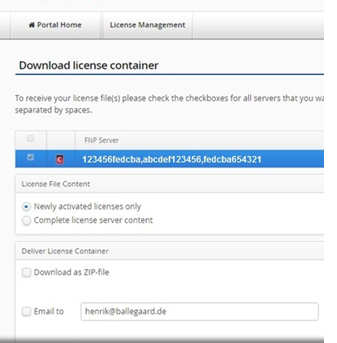
3. Click **Download license** to download the license file. The list of license servers are displayed.
Select the license servers you want to download.
[](https://lhc.advantest.com/uploads/images/gallery/2025-10/scaled-1680-/348502-png.png)
You can either download the zip file or you can receive it by email.
4. Select the license file content:
- **Newly activated licenses only**
- **Complete license server content**
5. Select the license file delivery method:
- **Download as ZIP file** - a list of license servers IDs are displayed
- **Email to** - and enter an email address.
6. Copy the license container (`.zip`) file to your license server workstation.
7. On your license server workstation, unzip the license file to access the `.bin` license file.
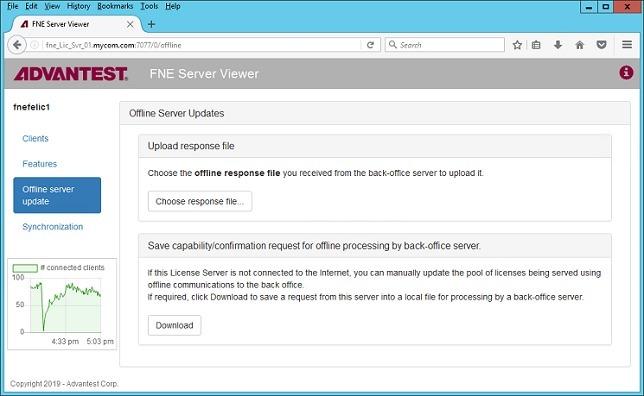
8. On your license server workstation, start the FNE Server Viewer by entering the following URL in a web browser: `http://:7077`
[](https://lhc.advantest.com/uploads/images/gallery/2025-10/scaled-1680-/lBw2-jpg.jpeg)
9. Click **Offline server update** and select the license container `.bin` file and upload it to the FNE license server.
### Results
The licenses are generated and uploaded it to the FNE license server.