
Requesting emergency licenses
Requesting emergency license requires you to complete a short web-based form, supplying some basic information about the affected license servers, host system names, and some contact information.
About this task
To request emergency licenses for a license server, complete the Emergency License Facility form and send the request to Advantest as described in the procedure below.
Before you begin
Before you can request emergency licenses, you must be logged in at the Advantest License Portal and you must have information about the affected license servers that need emergency licenses and the replacement license server (host ID and hostname).
Procedure
- From the Affected license server list, select the server ID of the license server that is inoperable.
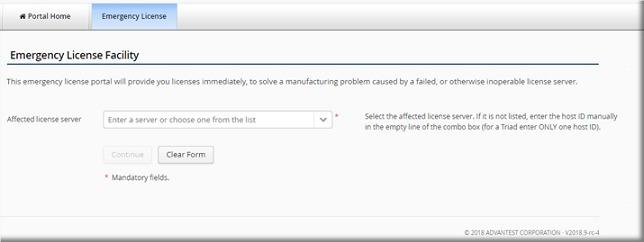
The selection list displays both FNP and FNE license servers: - FNE license server
 - FNP license server
If the license server is not listed, enter the host ID of the affected license server manually.
If the affected license server is configured as a three-redundancy license server (Triad), enter the Server ID of only ONE of the three license servers.Note: If you have a login with a user name, there will be license servers listed in the selection list belonging to your assigned organizations. If the affected license server is not listed, you can enter it manually.
- Click Continue.
The specified affected license server is displayed.
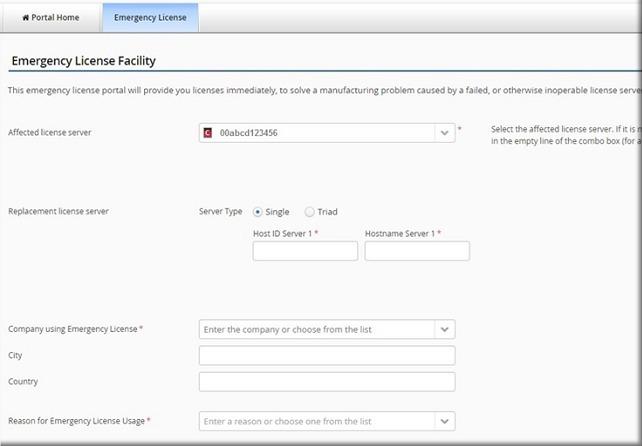
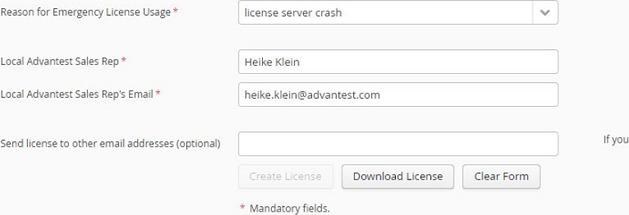
- Enter the reason for requesting emergency licenses. Use one of the available options from the dropdown list or enter an alternative reason in the associated field.
Results
The emergency license request is sent to Advantest.
If you need several emergency license for the same affected license server with different replacement servers, after creation of the license, the Download License button becomes active. Click it, download the license, and then request the next emergency license, specifying a different replacement license server.
What to do next
You will receive your emergency licenses as an attachment by email (license.zip). Install these emergency licenses on your license server. The expiration date of the emergency license is stated in the email.