
Single FNE License server installation, upgrades and updates
Installation procedure for a single FlexNet Embedded license server to provide activated licenses. Applicable to fresh installations, and applying upgrades to add major functionality and patch updates installing the latest packages on an existing server.
About this task
The following procedure is applicable to installation, upgrades and updates. For failover arrangements, also refer to Failover license server installation, upgrades and updates.
Registering the server is only required for initial installation. This steps should be omitted for upgrades and updates. If you are upgrading an existing installation, a running license server is automatically stopped as part of the new software installation.
The license server install package can be downloaded from the Advantest Software Center server:
https://softwarecenter.advantest.com/download/othersw/builds/licensing
Before you begin
Make sure that the system hosting the FlexNet Embedded license server host system meets the hardware and operating system prerequisites. For details, see FlexNet Embedded license server setup.
Procedure
- To get the list of all available Licensing products, from the left menu select:
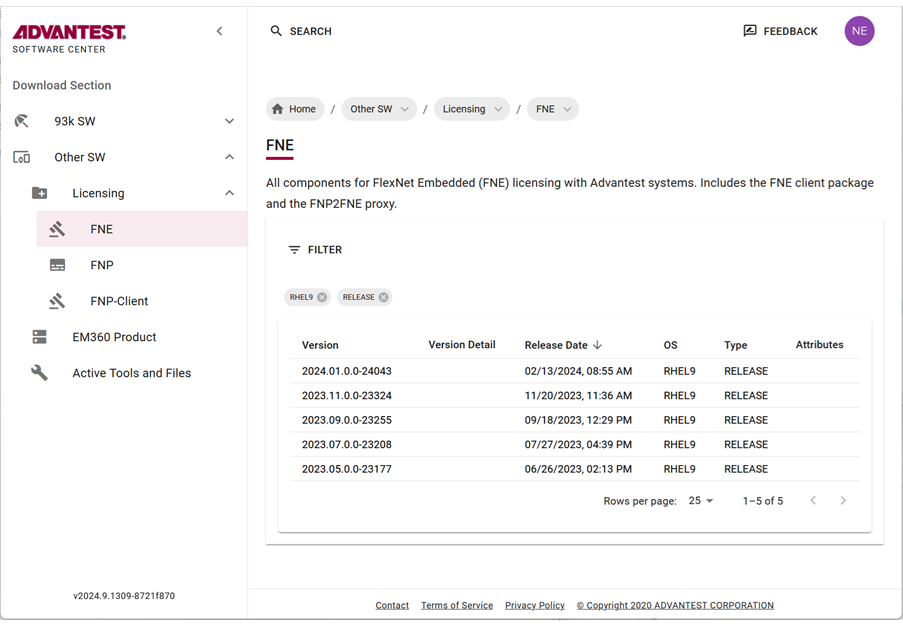
- Download the archive package by clicking the
 icon.
icon.
The selected license (tar.gz) package is downloaded to your browser's download folder.
Example FNE packages include:
fne_2024.01.0.0-24043_rhel9.tar.gz
Results
The FNE license server and the FNE Server Viewer are installed.
To check if the FNE license server is running:
/usr/bin/fne-status or /usr/local/bin/fne-status
If the FNE license server is running, the following type of output is displayed:
* advantest-fne-server.service - Flex Net Embedded license server adapted for Advantest
Active: active (running) since Mon 2019-05-20 11:08:14 CEST; 3 days ago
* advantest-fne-server-viewer.service - Advantest Flex Net Embedded License Server Viewer
Active: active (running) since Mon 2019-05-20 11:06:48 CEST; 3 days ago
* advantest-fne-proxy.service - Advantest FNP2FNE proxy
Active: active (running) since Mon 2019-05-20 11:07:36 CEST; 3 days ago
To check if the FNE Server Viewer is running, enter the following URL in a browser:
http://<serverName>:7077