
Executing a comparison
The License Renewal Comparison Tool helps you to make any licensing discrepancies visible by comparing the license status of your license servers against the status of the Advantest License Renewal Portal.
About this task
The tool prompts you to load several input files and automatically compares them against each other and a list of Advantest products and features. You can run the tool on a Linux workstation or on a PC running Microsoft Windows.
Before you begin
Before starting the Comparison Tool, you must have downloaded the required portal files from the License Renewal Portal. In addition, you must have run the getOrderNumbers tool on your license servers.
Note: Check the date on the webpage to make sure that you have the latest version of the Products_with_features.csv file.
Before you start a comparison you must have the following files ready:
- Portal download file of already renewed licenses (
Renewed-*-date.csv) - License server inventory file or files (*.txt) generated by the getOrderNumbers tool.
The following file is optional:
- Portal download file of still to be renewed licenses (
To-Be-Renewed-*-date.csv)
If you Do not have the required input files you cannot complete the comparison.
Advantest recommends to collect all these files in a single directory. This will ease the task. For details see Managing files to compare.
Procedure
Results
The Comparison Tool's processes and compares all these files against the data displayed in the Product Number Key tab (see below). The process may take a few seconds. When done, the tool displays the result in up to seven tabs. Per default the Matched tab shows up in the foreground.
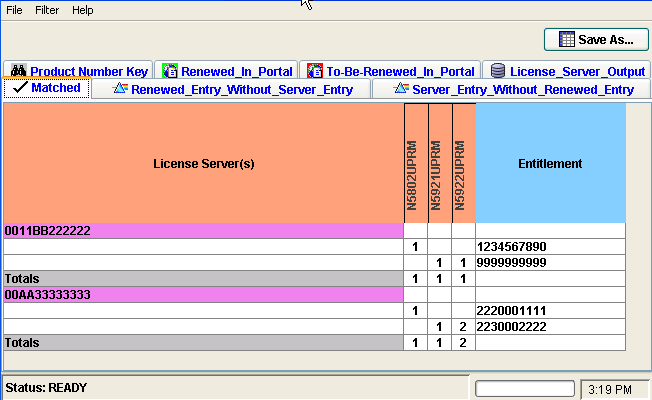
The tabs of the tool contain the following data:
-
Product Number Key:
Maps Product IDs, Product Descriptions, and the relevant Licensing Model. This data is required to map the features of the license inventory files with the product numbers in the portal download files.
-
Renewed_In_Portal:
Lists all licenses that were already renewed and also shows if there is any remaining data.
-
To_Be_Renewed_In_Portal:
Lists all licenses which still need to be renewed. Advantest recommends to use this download data from the License Renewal Portal as it provides insight, in case the renewal process does not run as smooth as expected.
-
License_Server_Output:
Lists all licenses found by the getOrderNumbers tool on the license servers.
-
Matched:
Lists those entitlements that were renewed and could be located on the license servers. These entitlements require no further effort.
-
Renewed_Entry_Without_Server_Entry:
Lists any entitlements that were renewed but have no matching entry in the License Server inventory data. These could have been rehosted or never installed on the license servers. Any entry here represents a discrepancy and requires further investigation.
-
Server_Entry_Without_Renewed_Entry:
Lists any entitlements found in the License Server inventory data, but not found in the License Renewal Portal. Again, any entry here represents a discrepancy and requires further investigation.
What to do next
You can save the data of any tab in a spreadsheet format. To save a tab move it to the foreground and click Save As.... See also How to save resulting files.
If there are any discrepancies, that is, any entries in the Renewed_Entry_Without_Server_Entry or Server_Entry_Without_Renewed_Entry tabs, please proceed as outlined in How to proceed in case of discrepancies.