
Installing and updating the Comparison Tool
The License Renewal Comparison Tool is written in Java and can be run on a PC running Microsoft (MS) Windows, or on a Red Hat Enterprise Linux (RHEL) workstation, including a V93000 system controller or an RHEL workstation serving as a FLEXlm license server.
About this task
Note: Every year, starting 2017, Advantest will provide an updated license product list. You must install this list before using the License comparison Tool.
The installation and start procedures differ between Microsoft (MS) Windows and Red Hat Enterprise Linux (RHEL). Once installed, you can run the Comparison Tool in on-line or in off-line mode in either environment.
Before you begin
Download the installation files for the Comparison Tool from the Advantest web page as follows:
Go to: www.advantest.com/licensing and go to Download License Comparison Tool and GetOrderNumbers Tool.
Download the installation package appropriate for your computer operating system. The available packages are:
MS_Windows_Installation_Package_64bitMS_Windows_Installation_Package_32bitLinux_Installation_Package_for_RHEL5
Note: Also download the getOrderNumbers tool appropriate for your system controller operating system. You will need this file later. The available tools are:
GetOrderNumbers_Tool_0.91_for_RHEL5GetOrderNumbers_Tool_0.91_for_RHEL7Products_with_features.csv
Note: Check the date on the webpage to make sure that you have the latest version of the Products_with_features.csv file.
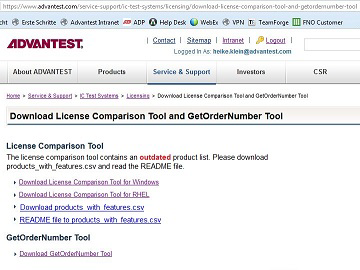
You can download the installation files for the Comparison Tool from the Advantest web page or via the start page of the License Renewal Portal.
- To download the tool from the Advantest web page sign on to the Advantest Software Center and go to: .
- Download the appropriate tool for your operating system and the
products_with_features.csvfile.
Procedures
MS Windows installation and start:
- Execute the RenewalComparison.exe file. The installation wizard appears.
- To complete the installation follow the instructions.
- Save the new
Products_with_features.csvfile to the following location:
64 bit:
c:\Program Files(x86)\Advantest\Renewal32 bit:
c:\Program Files\Advantest\Renewal - To start the Comparison Tool on a PC click
The welcome window with further information appears (see below).
RHEL installation and start:
To install the Comparison Tool on RHEL you must have superuser rights.
- Open a Terminal Window and switch user (su) to superuser (root).
- Change to the directory where you saved the
RenewalComparison*.binfile. - To execute the installation package type
./RenewalComparison_el5_x86_64.binThis unpacks the installation wizard and launches it.
- To complete the installation follow the instructions.
- Save the new
Products_with_features.csvfile to the following location:/opt/93000.Renewal/bin - To close the installation wizard click Done.
- Exit the superuser mode.
- To start the Comparison Tool type
/opt/93000_Renewal/bin/startComparisonTool
Results
The Comparison Tool starts with the welcome window which provides further information.
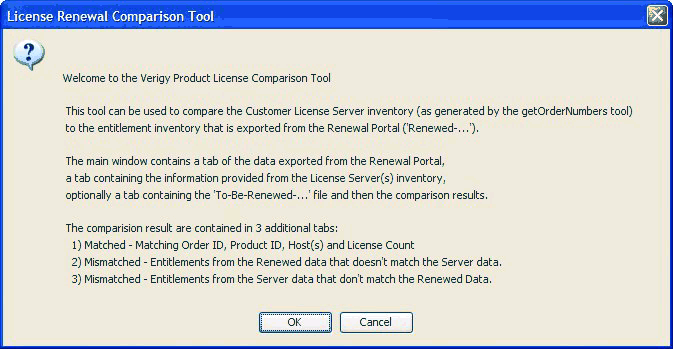
What to do next
If you have the files required for a comparison click OK. If not, click Cancel and restart the Comparison Tool once you have the required input files.