
Viewing license information and reporting
The Overview and Reports page helps you to get an overview about the status of your product licenses and entitlements that are assigned to your user account. The following preconfigured reports are included:
- Entitlement by organization report
- Product by organization report
- Product by server report
- Splitted entitlements overview
You can also use the export tools available from the Overview and Reports page to create simple reports in Microsoft Excel or CSV formats.
Even outside of the renewal period, the Reports page gives you an overview about your licenses (only perpetual, renewable licenses).
Creating a report
You can run any of the preconfigured reports to get information about the status of your licenses.
About this task
You will run one of the available preconfigured reports:
- Entitlement by organization report
- Product by organization report
- Product by server report
- Splitted entitlements overview
To create a report about your licenses and entitlements, complete the following procedure.
Procedure
- In the Advantest Renewal Portal start page, select the Reports tab.
The Overviews and Reports page opens.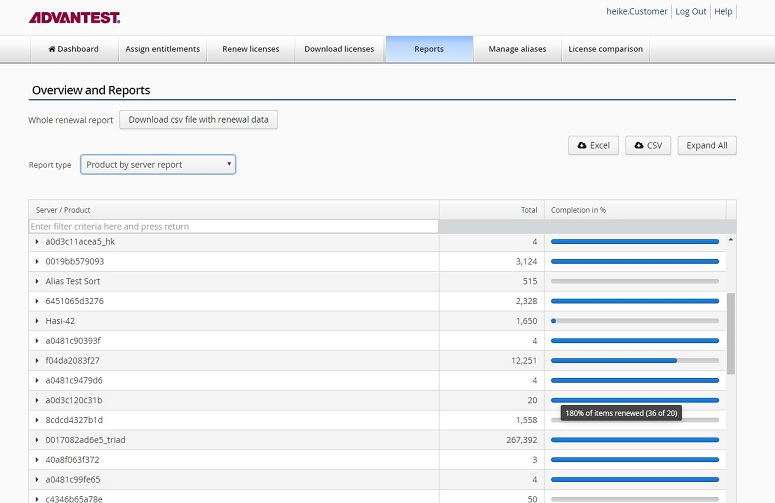
Results
The selected report shows you the renewal completion status for the entitlement IDs assigned to your user account.
What to do next
You can export the report results to a file in Microsoft Excel or CSV format.
Exporting a report
You can export the results of the preconfigured license reports. The reports show you the renewal completion results related to the entitlement IDs assigned to your user account.
About this task
You export the displayed report results to a file in Microsoft Excel or CSV format.
To export the displayed report, complete the following procedure.
Before you begin
Make sure that the report results that you want to export are displayed.
Procedure
- In the Reports tab of the Advantest Renewal Portal, make sure that the report results that you want to export are displayed.
- To select the format of the report file to be exported, click Excel or CSV.
- Download and save the report file to your computer.
Results
The selected report results are saved to a file in the selected format and downloaded to your computer or storage location.