
FlexNet Embedded license client setup
Subtopics
The FlexNet Embedded license client is required to run on the system controller (installed as default).
The FlexNet Embedded license client is installed as the default license client.
Information required to install, configure and administer FlexNet Embedded license clients is divided into the following areas:
- License client installation - Installation of the license client software to manage the licensing of a SmarTest software installation.
- Switching the client between FlexNet Embedded and FlexNet Publisher servers.
- License client administration - Advantest FlexNet Embedded (FNE) license client tools and their usage.
System controller prerequisites
- SmarTest 8.x
- The system controller fully-qualified hostname
Checking the connection to a customer-hosted FNE License Server
After installing the FNE license server, check that the FNE license server is contactable from the SmarTest workstation before you start the installation of the FNE client subsystem on the SmarTest workstation.
href="http://<fne-server-hostname>:7070/api/1.0/health <fne-server-hostname>
Complete the following procedure to check the connection to the FNE license server:
- Open a browser.
- Enter the URL appropriate for your FNE server arrangement:
-
href="http://<fne-server-hostname>:7070/api/1.0/health<fne-server-hostname>represents the hostname of the FNE license server to which you are testing the connection. -
href="http://<failover-fne-server-hostname>:7070/api/1.0/healthrepresents the hostname of the failover FNE license server to which you are testing the connection.
<failover-fne-server-hostname>
If the FNE license server is contactable (port 7070 is open), the following type of output is displayed:
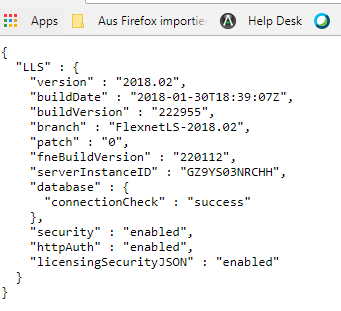
-
- If port 7070 is not open, you a page with a not available message is displayed. In this case, get in contact with your administrators (customer IT) and request that port 7070 is opened for the SmarTest client workstation.