
License server setup
- Single FNP License server installation, upgrades and updates
- Set up a three-license-server redundancy configuration
- Merging new licenses into an existing license file
- Find out HostID and HostName
- Check your floating license file installation
- License server basic operations
- License server prioritization
- Diagnose and solve license problems
- License management utilities
This section covers licensing requirements and considerations you will want to examine before installing your licenses.
Installation requirements
The computer you use as the license server:
- Must be accessible over your network from each of the V93000 system controllers on which you will install a floating license.
-
Must run Red Hat Enterprise Linux 5 (64 bit), Red Hat Enterprise Linux 7 or Solaris 10 on Sparc.
An important part of this process involves your identification of a computer that can function effectively as a license server. For an overview of considerations that may affect your choice of a license server that fits your specific test setup, refer to the Revenera documentation: https://docs.revenera.com/fnp/2021r2/pdf/fnp_LicAdmin.pdf.
Additional licensing considerations
Bear in mind the following points:
- If you are installing more than one license file, you need to repeat the procedure for each license file. The instructions on the following pages are written for a single license file.
- If you purchase and activate (redeem) several licenses at the same time, you will be sent one license file that contains all the licenses you have activated. You can activate any or all of these licenses at any time you choose.
- You can simplify management of multiple license files purchased separately by merging them into a single file (see Merging new licenses into an existing license file).
- It is critical that you retain your Entitlement Certificate. This certificate is only issued upon ordering, and contains information that may be required for future use. Be sure to keep your certificate in a safe location, since the certificate conveys specific legal rights and enables access to the license redemption system.
Note: In order to download the necessary license server software, you will need to be a registered user of the Semiconductor Test Equipment (STE) Tech Support web pages, which are found on the Advantest.com web site.
Single FNP License server installation, upgrades and updates
Installation procedure for a single FlexNet license server to provide activated licenses. Applicable to fresh installations, and applying upgrades to add major functionality and patch updates installing the latest packages on an existing server.
About this task
The license server install package can be downloaded from the Advantest Software Center server:
https://softwarecenter.advantest.com/download/othersw/builds/licensing/licensing:fnp
The following procedure is applicable to installation, upgrades and updates. For three-license-server redundancy configuration arrangements, also refer to Set up a three-license-server redundancy configuration.
Registering the server is only required for initial installation. This steps should be omitted for upgrades and updates. If you are upgrading an existing installation, a running license server is automatically stopped as part of the new software installation.
Before you begin
Make sure that the system hosting the FlexNet license server host system meets the hardware and operating system prerequisites. For details, see License server setup.
Procedure
- To get the list of all available Licensing products, from the left menu select:
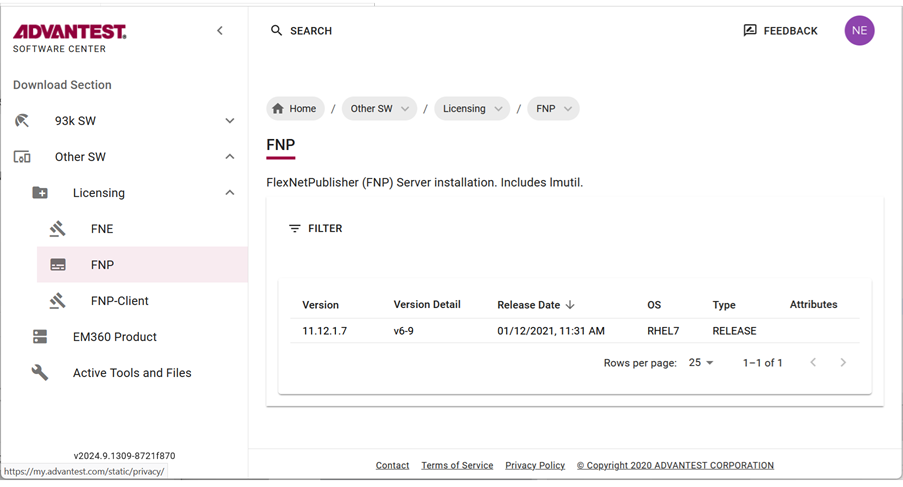
- Download the archive package by clicking the
 icon.
icon.
The selected license (tar.gz) package is downloaded to your browser's download folder.
Example FNP packages include:
fnp_11.12.1.7_v6-9_rhel7.tar.gz
Results
The FNP license server and associated tools such as lmutil are installed and running.
For more information about using the license server, see License server basic operations.
Set up a three-license-server redundancy configuration
In a redundancy configuration with three license servers, each of the three license servers runs on its own dedicated machine. Two servers are used to serve licenses and their license files must be kept synchronized. The third server is required to build the quorum, participating in monitoring the availability of at least one license server, but does not serve licenses. Licenses do not need to be installed on the third server.
Procedure
For example:
SERVER <license_server_host_ name> <hostid> <port>SERVER <license_server_host_ name> <hostid> <port>SERVER <license_server_host_ name> <hostid> <port>VENDOR socbu
Results
By these SERVER lines each license server system knows the other license server systems that have the same set of licenses. Each server system communicates with the other license server systems.
Note: The license files must be kept synchronized on the primary and secondary license servers. Both servers are equivalent. If the active one goes down, the other one becomes MASTER and serves the licenses available on its disk.
If a license server system detects that it cannot communicate with at least one the others, it refuses to serve licenses until it can. That is, a minimum of two license servers must be running. This ensures that only one of the three license servers serves licenses at any one time.
Merging new licenses into an existing license file
If you have previously installed a FLEXlm license you may find it desirable to merge your new license file with a license file that already exists. This can help reduce the complexity of managing multiple licenses.
Note: If you are installing a floating license for the first time, skip to the next section, Install a floating license file.
To merge your new license file with an existing license file, consult chapter 3 of the FLEXlm End Users Guide. You can find the guide at the Advantest Web Site:
If you choose to merge files, be sure to copy the newly merged license file to each computer where you want to execute the SmarTest feature.
If you choose not to merge the new license file with an existing license file, follow the instructions for first time installation of a floating license in Install a floating license file.
Find out HostID and HostName
This topic describes how to find out the HostID and the HostName of the license servers for license activation.
About this task
Note: This topic is applicable to SmarTest 7 and SmarTest 8.
To activate license you need the following information:
- Entitlement Certificate
- HostID of the license servers
- HostName of the license servers
Procedures
Find out HostID
FLEXlm binaries are installed
- Login to as user root:
su rootand enter the root user password. - Open a terminal window.
- Type:
/opt/flexlm/bin/lmutil lmhostid -n
FLEXlm binaries are not installed
The HostID is an 8 digit hexadecimal number (HP-UX or Solaris) or a 12-digit hexadecimal number (Linux). Select from one of the following commands, depending on your OS.
Sun Solaris
- Log in as root and open a terminal window.
- Type:
/usr/bin/hostid
Linux
- Login to as user root: su root and enter the root user password.
- Open a terminal window.
- Type:
- Linux RHEL 5
/sbin/ifconfig eth0 | grep HWaddr | sed 's/://g' | awk ' {print $NF} ' - Linux RHEL 7
/sbin/ifconfig eno1 | grep "ether" | sed 's/://g' | awk ' {print $2} '
- Linux RHEL 5
Find out HostName
Sun Solaris
- Log in as root and open a terminal window.
- Type:
/bin/hostname
Linux
- Login to as user root: su root and enter the root user password.
- Open a terminal window.
- Type:
/usr/bin/hostname
What to do next
Check your floating license file installation
To verify your license has been correctly installed, execute the license status command:
lmutil lmstat -a
This command returns information on the status of licenses currently loaded on a specified server.
The command is available as part of the lmutil license server utility. The lmutil license server utility is available from Advantest and should be installed on each server.
For greater detail about lmstat , see chapter 7 of the FLEXlm End User Guide.
You can find the FLEXlm End User Guide at the Advantest Web Site:
Advantest Home > (Support & Services) V93000 SOC > Software Downloads and Utilities for the V93000 SOC Series> FLEXIm License Server Software Downloads > FLEXlm End Users Guide.
License server basic operations
The license server is implemented as a system service. If licenses are available, the license server starts automatically on system start.
lmadmin user in RHEL 7
To enhance the robustness of the license server and prevent unintentional shutdowns, the RHEL 7 version provides some improvements:
The license server is controlled by an internal user: lmadmin. You cannot log in as lmadmin.
Using the systemctl functionality, root can start and stop the license server. No user, including the root user, can directly start or stop the license server.
systemctl
You can manually control the license server using the systemctl functionality. The related commands are also documented in the manpage: v93-license
Starting the license server
- RHEL 7:
To start the license server, log in as root user and use the following command:
systemctl start v93-licenseNote The
/opt/flexlm/bin/lmgrd [-c license_file_path][-l debug_log_path]command for starting the license server must not be used on RHEL 7. - RHEL 5:
To start your license server use the lmgrd command:
/etc/init.d/smartest_license start
Stopping the license server
- RHEL 7:
To stop the license server, log in as root user and use the following command:
systemctl stop v93-license - RHEL 5:
To stop your license server use the smartest_license script:
/etc/init.d/smartest_license stop
Reading a new license file
- RHEL 7:
To read a new license file, log in as root user and use the following command:
systemctl reload v93-license - RHEL 5:
To read a new license file, use the lmreread parameter of the lmutil command:
/opt/flexlm/bin/lmutil lmreread [-c /opt/flexlm/license]
Monitoring the status of the license server
- RHEL 7:
To monitor the status of the license server, log in as root user and use the following command:
systemctl status v93-license - RHEL 5:
To monitor the status of the license server use the lmstat parameter of the lmutil command:
/opt/flexlm/bin/lmutil lmstat -a
Licenses in use
To get further information about the currently used licenses, use the lmutil lmstatcommand:
/opt/flexlm/bin/lmutil lmstat -c @localhost
This command gives you the internal status information provided by the license server.
FLEXlm End User Guide at the Advantest Web Site: